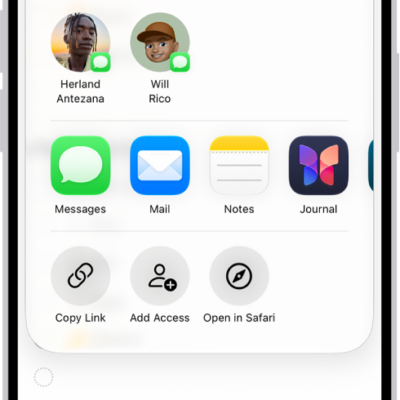
In the Reminders app, use iCloud to share to-do lists. You can collaborate and assign tasks to other people who also use iCloud.
People who accept the invitation can add and edit items, and you can assign a task to anyone on the list, including yourself. If you send the invitation in Messages, you’ll get activity updates in that conversation. You can turn notifications on or off for a shared list, too.
Note: With updated reminders, all Reminders features described in this guide are available, though some features aren’t available when using other accounts.
Collaborate on a list using iCloud
Lists can be shared with people who use iCloud so you can collaborate. Anyone who accepts the invitation can add and edit items and mark items as completed, and all the participants see everyone’s changes. To collaborate, everyone needs to be signed in to their Apple Account and have Reminders turned on in iCloud settings.
- Start the Reminders app on your iPad.
-
View the list you want to share. Then tap the Share button.
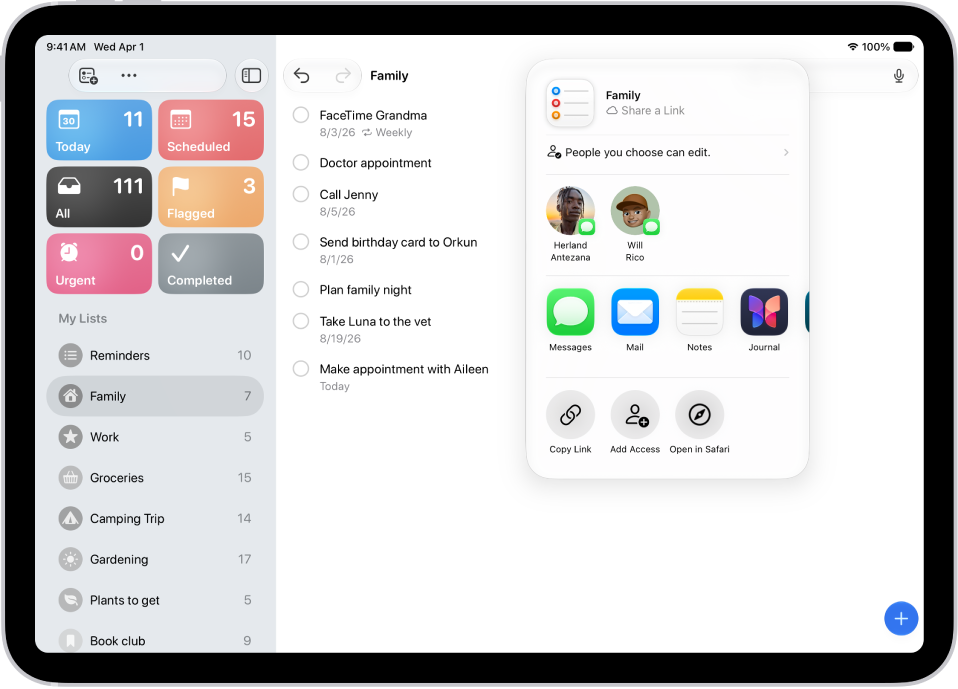
- By default, participants on the list can invite other people. To restrict sharing, tap People you invite can add others and then turn off Allow others to invite.
-
Choose how to send your invitation (for example, using Messages or Mail).
If you send the invitation in Messages, you get activity updates in the Messages conversation when someone makes changes in the shared list. Tap the updates to go to the shared list.
Assign reminders in a shared list
You can assign a task to any person on the list, including yourself.
- Start the Reminders app on your iPad.
- In the shared list, create or edit a reminder, then do either of the following:
- Type @ followed by the person’s name or choose a person from the menu above the keyboard.
- Tap the Person button, then choose a person.
Quick tip: You can quickly see all reminders assigned to you if you use the Assigned to Me Smart List.
Turn notifications on or off for a shared list
- Start the Reminders app on your iPad.
- In the shared list, tap the Collaborate button and tap Manage Shared List.
- Below Notify When, turn on or off any of the following:
- Adding Items: Receive an alert when someone adds an item to the list.
- Completing Items: Receive an alert when someone completes an item on the list.
See also