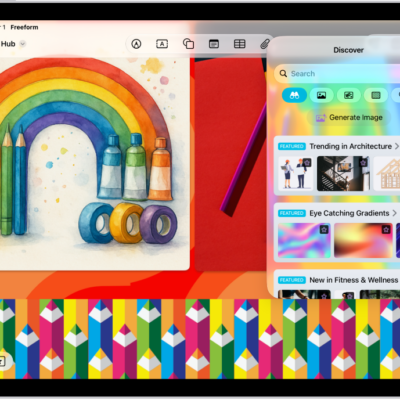
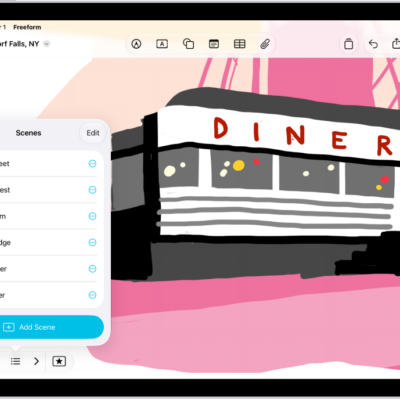
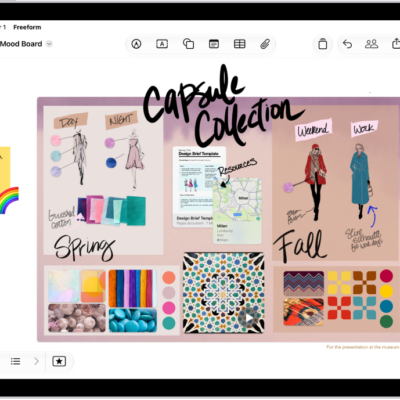
You can add text to a Freeform board using a sticky note or text box, or you can add text within a shape. With a keyboard connected, typing starts as soon as the item appears. You can also change the font, alignment, and more.
- Go to the Freeform app on your iPad.
- Open a board, or tap the New Board button to start a new one and then do one of the following:
- Add a text box: Tap the Add Text Box button.
- Add text inside a shape: Tap the Content Hub button. Then tap the Add Shape button.
- Add a sticky note: Tap the Add Sticky Note button.
- Double-tap the text box, shape, or sticky note. Enter text. (If you have a keyboard connected, you can start typing as soon as the item appears.)
- To change the font, alignment, and more, select the object and then tap the Modify Text button in the formatting tools.
See also
- Draw or handwrite on a Freeform board on iPad
- Position items on a Freeform board on iPad
- Apply consistent styles and formatting in Freeform on iPad
Tag: Freeform