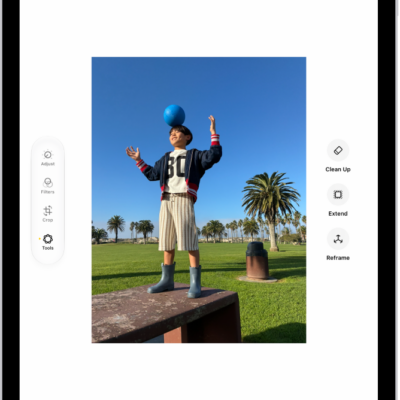
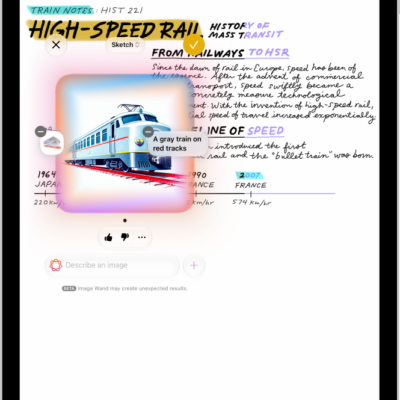
Apple Intelligence makes it easy to get more done in your daily routine. You can create custom extensions in Safari, and create new shortcuts, calendar events, and reminders with a description. You can also use Apple Intelligence to get summaries of your emails, conversations, audio recordings, phone calls, and more.
In Safari, it can automatically organize your tabs by topic and generate a summary of articles you read, and your notifications can be summarized and prioritized so you’ll see what’s most important.
Note: Apple Intelligence on iPadOS 27 or later is available on an Apple Intelligence-enabled iPad mini (A17 Pro) and iPad models with M1 or later. Apple Intelligence is not available in all languages or regions. Usage limits may apply.*
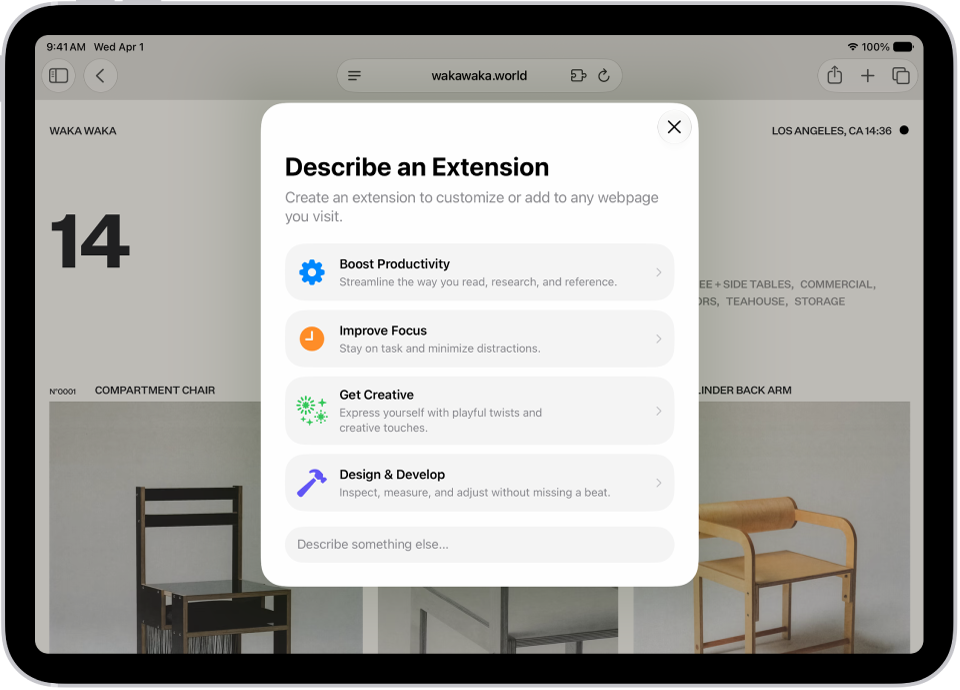
Customize how you browse in Safari
To automatically organize your tabs by topic, tap the Tabs button, tap the Organize button, then tap Organize Tabs.
Custom extensions you create can personalize website content or automate common actions. And Notify Me can alert you when a webpage has been updated, say with a price change or restock.
Use Apple Intelligence to organize tabs into topics
Get notified when a website changes
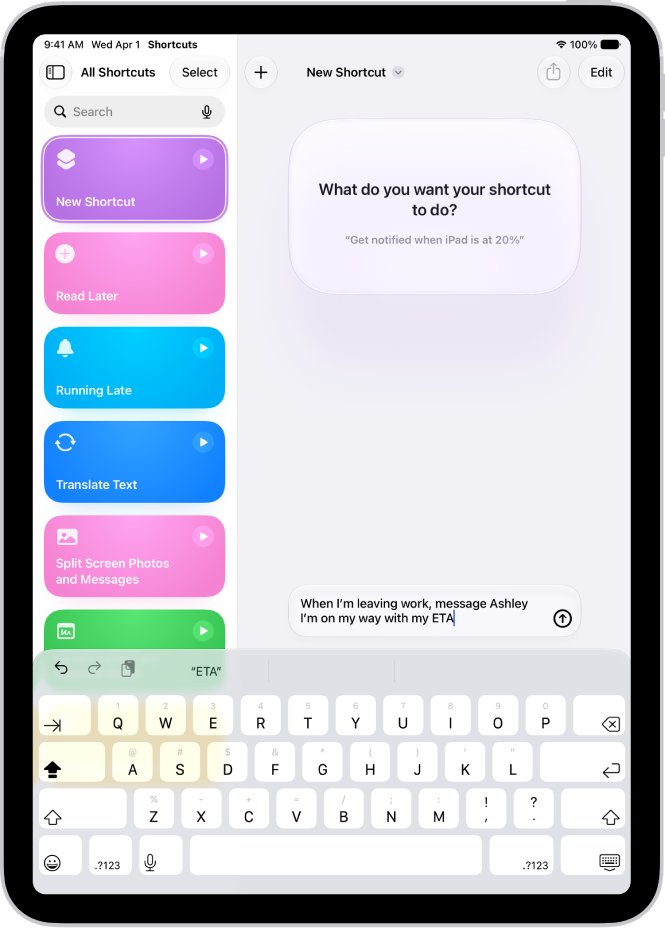
Use Apple Intelligence in Shortcuts
Open the Shortcuts app, tap the Add button, then describe what you want the shortcut to do. For example, you can try something like, “When I’m leaving work message Ashley I’m on my way with my ETA.”
You can also summarize text, create images, and tap directly into Apple Intelligence models.
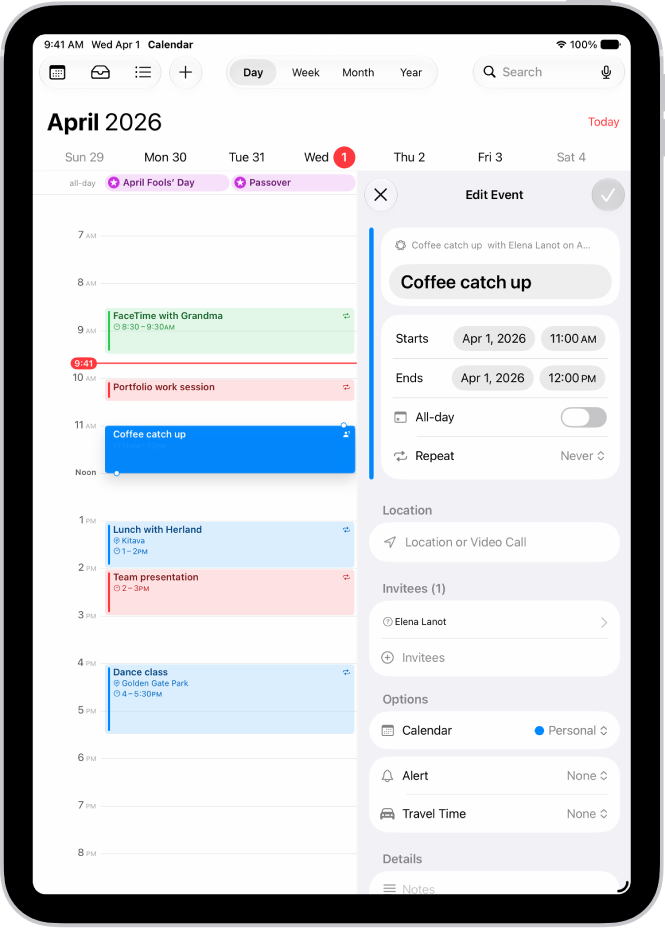
Describe a calendar event
Describe a calendar event to add or edit it. Change a lunch meeting to a coffee chat, for example, and Calendar updates the event details.
Create and edit events in Calendar
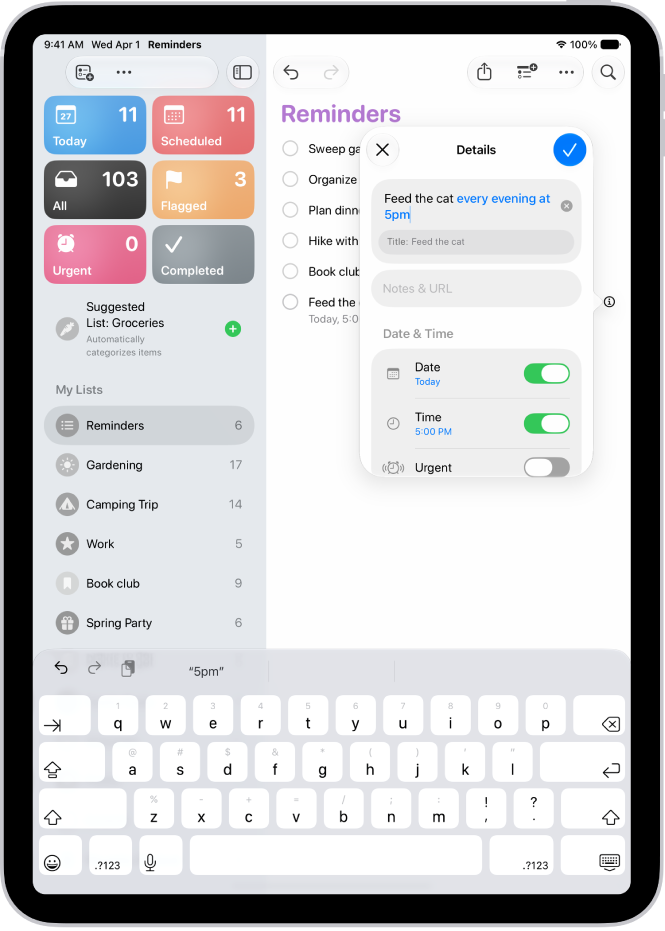
Describe a reminder
Reminders can be entered as a description too, such as “Feed the cat every evening at 5pm” or “Buy art supplies on Saturday.” The reminder details then show suggestions for entering the dates, times, frequency, and more.
Other ways to get things done with Apple Intelligence
Get summaries from your apps
-
Mail
Get summaries of your emails.
-
Messages
Get summaries of unread conversations.
-
Notes
Get summaries of audio you record in Notes—like a class lecture or an important meeting.
-
Phone
Generate a summary of a phone call you record, and view voicemail summaries.
-
Notifications
Get summaries of your notifications and prioritize what’s most important to you.
-
Safari
Use Apple Intelligence to generate a summary of articles in the Safari app.
Even more productivity features
-
Search for photos and videos
Search for specific images by describing what you want to find. You can also search video clips for key moments.
-
Prioritize your emails
Use Priority Messages to quickly view your most urgent emails, like a same-day dinner invitation or boarding pass.
-
Organize your reminders
Get suggested reminders, and automatically categorize related reminders into sections within a list.
*Apple Intelligence is available with Siri and device language set to Chinese (Simplified), Chinese (Traditional), Danish, Dutch, English, French, German, Italian, Japanese, Korean, Norwegian, Portuguese, Spanish, Swedish, Turkish, or Vietnamese. Some features may not be available in all regions or languages. Some devices may not be available in all regions. Siri AI is available in beta in iOS 27, iPadOS 27, macOS 27, watchOS 27, and visionOS 27 and requires an Apple Intelligence–enabled device set to a supported language. Available in English to start. Siri AI will not be initially available in the EU on iOS, iPadOS, and watchOS. Certain Apple Intelligence features that rely on server-side models are subject to daily usage limits, including but not limited to Siri AI, Intelligent Photo Editing Tools, Image Playground, and AFM 3 Cloud models in Shortcuts. Daily limits may vary by feature, request complexity, system demand, system policies, and other factors. Expanded access to such features will be available for a fee in the future. Use of these features is subject to the Apple Intelligence Terms and Conditions.