The Photos app recognizes groups of people and pets who often appear together in pictures and videos, and sorts them into group collections. For example, if you have many pictures of your family or a group of friends, Photos creates a collection for each of those groups.
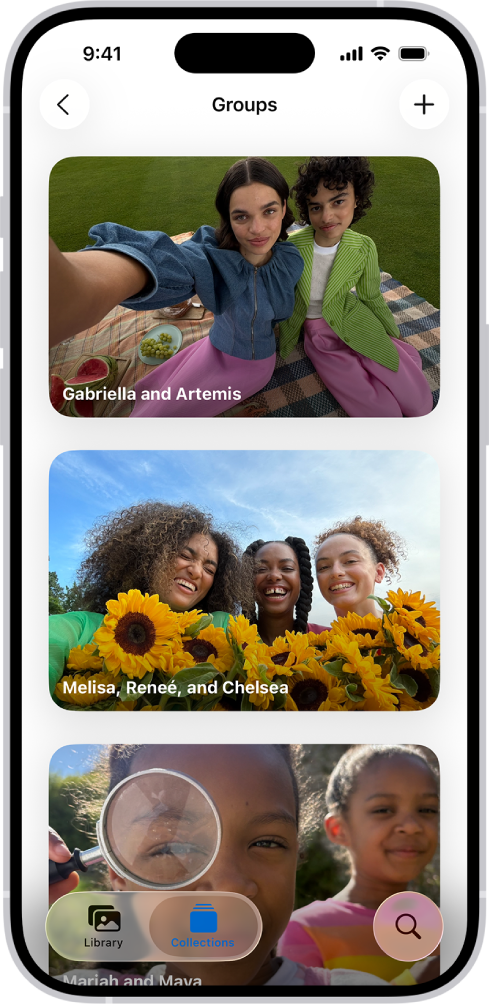
You’ll find them in People & Pets, below Groups. From there, you can view pictures of a group with additional people, or share the photos of the group.
Find group photos and videos
- Start the Photos app on your iPhone.
- Tap Collections, then tap People & Pets.
- Swipe the collections below Groups to browse, or tap Groups to view them all.
- Tap a group to view all the photos and videos in that collection.
Quick tip: Tap the Sort and Filter button and tap View Options, then tap Other People to see pictures of this group with additional people.
To share the photos of the group, tap the More button, then tap Share.
Create a group collection
A group collection you create can include any combination of people and pets from the People & Pets collection.
- Start the Photos app on your iPhone.
- Tap Collections, then tap People & Pets.
- To the right of Groups, tap the Add button. Then tap Create New Group.
- Select the people and pets you want in the group. Tap the Done button.
- Optionally, you can enter a new name for the group or add more people and pets to the group.
- Tap Create.
Edit or delete a group collection
- Start the Photos app on your iPhone.
- Tap Collections, then tap People & Pets.
- Below Groups, touch and hold the group you want to edit. Then do any of the following:
- Rename the group: Tap Edit Name and People, enter a new name, and then tap the Done button.
- Remove someone from the group: Tap Edit Name and People. Then tap the Remove button at the top-left corner of their picture.
- Add someone to the group: Tap Edit Name and People. Then tap Add People & Pets. Select who you want to add. Then tap the Done button.
- Edit the group photo: Tap Edit Name and People and then tap the photo icon in the bottom-right corner of the current group photo. Select a new photo and then tap the Done button.
- Delete the group: Tap Delete Group.
Change the order of group collections
- Start the Photos app on your iPhone.
- Tap Collections, tap People & Pets, and tap Groups.
- Touch and hold a group, then drag it to a new position.
Tag: Photos