You can share an audio recording with others (or send it to your Mac or another device) using AirDrop, Messages, Mail, and more.
You can share it as a rendered .m4a file with all audio effects and layers mixed in, or as an editable file that lets someone with a compatible device configure the effects and layers. You can share more than one recording at a time, too, from the list of recordings.
Share a recording
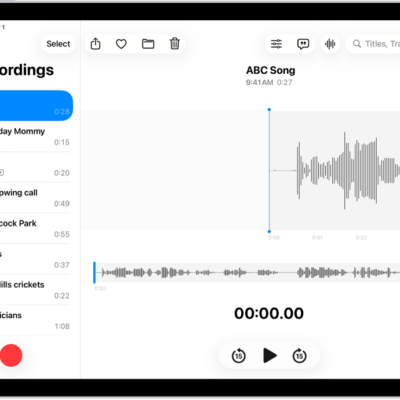
- Go to the Voice Memos app on your iPad.
- Tap the recording you want to share and tap the Share button.
- Tap Share. Tap Options and choose one of the following:
- Rendered: Create a single .m4a file with all audio effects and layers mixed in.
- Editable: Share a file that lets a recipient with a compatible device and software update configure effects and layers.
- Choose a sharing option, select or enter a recipient, and tap the Done button or the Send button.
Share more than one recording
- Open the Voice Memos app on your iPad.
- Tap Select above the list of recordings and then select the recordings you want to share.
- Tap the Share button, tap Options, and then choose a file option (Rendered or Editable.)
- Choose a sharing option, select or enter a recipient, and tap the Done button or the Send button.
See also
Tag: Voice Memos