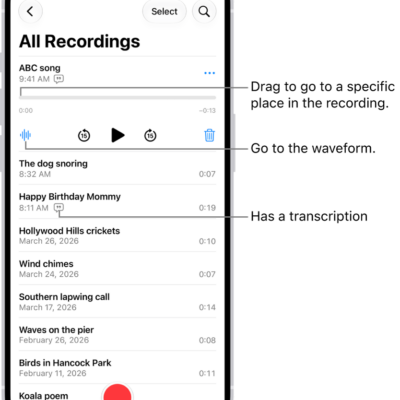
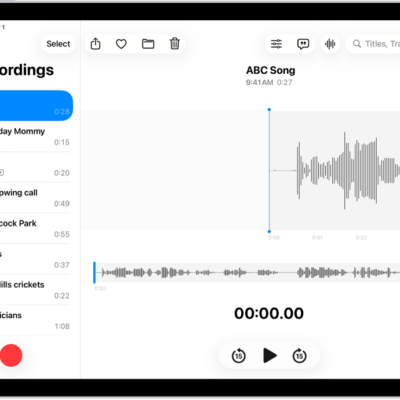
On iPhone 12 or later, speech in your audio recordings can be transcribed to text in Voice Memos. You can view the transcription while you’re recording or after.
Recordings made in iOS 17 or earlier are transcribed automatically when you open them, as long as they include speech. It’s built in, and you can also copy transcribed text after recording, and search for text in titles and transcriptions to find a recording.
Note: Audio transcription is available on iPhone 12 or later in English (all variants), Spanish, Portuguese, Italian, French, German, Japanese, Korean, Simplified Chinese, and Traditional Chinese. It’s not available in all countries or regions.
When you open an older recording from Voice Memos (iOS 17 or earlier), Voice Memos transcribes it automatically if it includes recorded speech.
View a transcription while recording
- Open the Voice Memos app (in the Utilities folder) on your iPhone.
- Tap the Record button to begin recording.
-
Swipe up from the top of the waveform. Tap the Transcription button to watch the transcription live.
The waveform disappears temporarily, and the transcription appears, with the current word highlighted. To return to the waveform view, tap the Transcription button.
- Tap the Pause button to pause recording; tap Resume to continue.
- To save the recording, tap the Done button.
View or copy transcribed text after recording
- Open the Voice Memos app (in the Utilities folder) on your iPhone.
- Tap the recording with the transcript you want to view.
- Tap the More button, then do one of the following:
- Copy part of the transcript: Choose View Transcript, select the text you want to copy, and then tap Copy.
- Copy the entire transcript: Choose Copy Transcript.
From there, you can paste the text into another document, like a Mail message or a text file.
With Apple Intelligence, you can use Writing Tools to summarize transcripts with a tap, proofread your work, and find just the right wording and tone.
Note: Apple Intelligence on iOS 27 or later is available on an Apple Intelligence-enabled iPhone 15 Pro, iPhone 15 Pro Max, or iPhone 16 model or later. Apple Intelligence is not available in all languages or regions. Usage limits may apply.*
Search for text in titles and transcriptions
- Open the Voice Memos app (in the Utilities folder) on your iPhone.
- Tap the Search button.
- In the search field, enter the text you want to find.
Only recordings with that text show up in the list, whether it’s in the title or the audio transcription.
When you select a term in the transcription, the playhead appears at that location in the audio waveform. To return to the waveform, tap the Transcription button.
*Apple Intelligence is available with Siri and device language set to Chinese (Simplified), Chinese (Traditional), Danish, Dutch, English, French, German, Italian, Japanese, Korean, Norwegian, Portuguese, Spanish, Swedish, Turkish, or Vietnamese. Some features may not be available in all regions or languages. Some devices may not be available in all regions. Siri AI is available in beta in iOS 27, iPadOS 27, macOS 27, watchOS 27, and visionOS 27 and requires an Apple Intelligence–enabled device set to a supported language. Available in English to start. Siri AI will not be initially available in the EU on iOS, iPadOS, and watchOS. Certain Apple Intelligence features that rely on server-side models are subject to daily usage limits, including but not limited to Siri AI, Intelligent Photo Editing Tools, Image Playground, and AFM 3 Cloud models in Shortcuts. Daily limits may vary by feature, request complexity, system demand, system policies, and other factors. Expanded access to such features will be available for a fee in the future. Use of these features is subject to the Apple Intelligence Terms and Conditions.