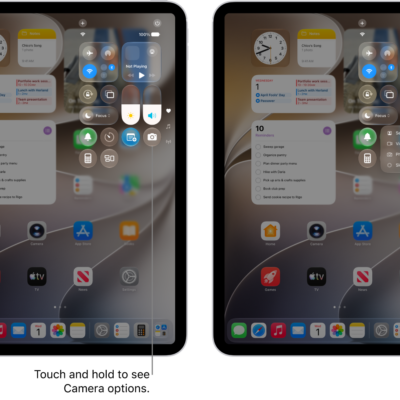
You can answer, silence, or decline an incoming call on iPad. If you decline a call, it goes to voicemail, and you can also respond to a call with a text.
You can still answer a silenced call, too, until it goes to voicemail. Before deciding whether to answer, you can even ask the caller for more information, and their reply will appear on your screen as text. In some countries or regions, though, declined calls are disconnected without being sent to voicemail.
Answer a call
When a call comes in, you can answer it in either of these ways:
- Tap the Answer Call button.
- If your iPad is locked, drag the slider.
Silence a call
Press the top button or either volume button when a call is coming in.
You can still answer a silenced call until it goes to voicemail.
Note: You can also have iPad automatically screen and silence calls from unknown numbers. See our article, Screen or silence unknown numbers.
Decline a call and send it directly to voicemail
To send an incoming call to voicemail, do one of the following:
- Press the top button twice quickly.
- Tap the Decline Call button.
- Swipe up on the call banner.
You can also swipe down on the call banner for more options. Do any of the following:
- Tap Remind Me, then choose when you want a reminder to return the call.
-
Tap Message, then choose a default reply or tap Custom.
To create your own default replies, go to Settings > Apps > Phone > Respond with Text, tap any field below Respond With, then type your own reply.
Note: In some countries or regions, declined calls are disconnected without being sent to voicemail.
Ask a caller for more information without answering a call
Before deciding whether to answer a call, you can type a message that asks the caller for more information.
Tap Type to Reply, then type the message you want your iPad to say to the caller. Their reply will appear on your screen as text.
See also