iPhone has an easy setup process to help you get going when you first turn on your device. Whether you’re just getting started or want to make sure you have the basics set up, you’re in the right place.
You can transfer your apps and info from your previous iPhone, set up cellular service and connect to Wi-Fi, and sign in to your Apple Account. Face ID or Touch ID, Find My iPhone, and iCloud are part of it, too.
Transfer your apps and info onto your new iPhone
During setup, the first time you turn on your iPhone, you can wirelessly move many of your apps, settings, and content from your previous iPhone straight to your new iPhone. Bring the two devices close together, then follow the onscreen instructions.
Set up cellular service and connect to Wi-Fi
Depending on your model, use an eSIM from your carrier or install a physical SIM card to connect to your cellular network. To check if your iPhone is connected to your cellular plan, go to the Settings app , then tap Cellular.
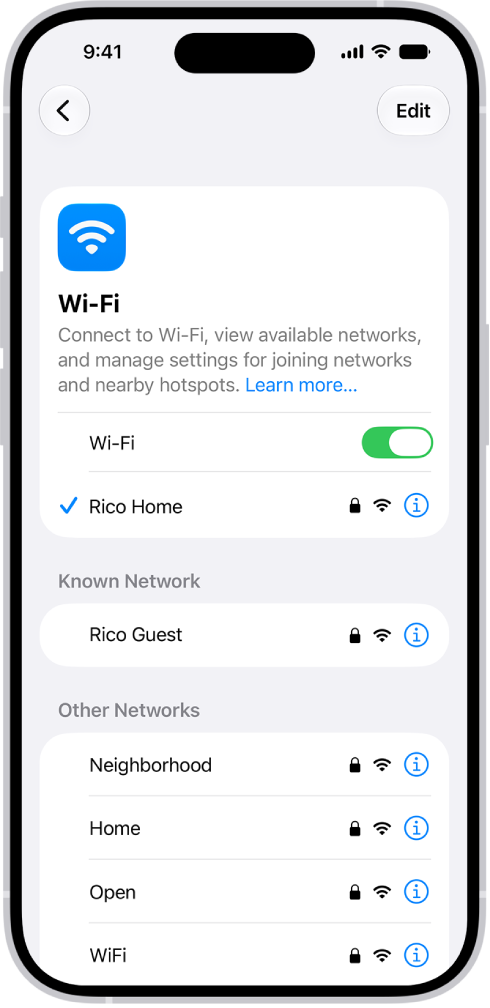
To connect your iPhone to your home Wi-Fi network, go to the Settings app , tap Wi-Fi, turn on Wi-Fi, then choose your network. iPhone automatically connects to your Wi-Fi network whenever you’re home.
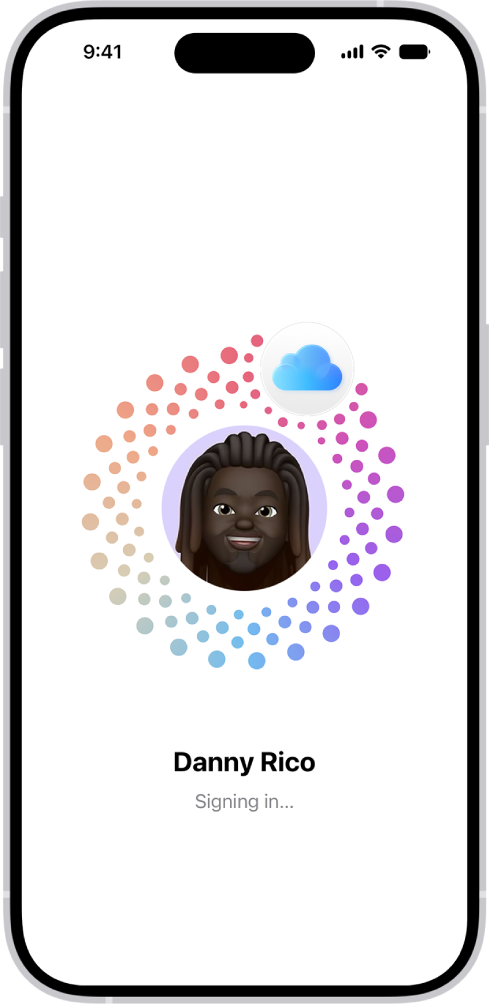
Sign in to your Apple Account
Your Apple Account is how you get into Apple services like iCloud, iMessage, FaceTime, Apple Music, Apple Books, the App Store, the iTunes Store, and more.
To sign in to your Apple Account, go to the Settings app , then tap Apple Account. If you have an iPad (with iPadOS 17 or later) or another iPhone (with iOS 17 or later) that’s signed in, you can simply bring your iPhone near your other device. Otherwise, you can manually sign in.
To verify that you’re signed in, go to the Settings app , then tap your name. Your Apple Account appears below your name.
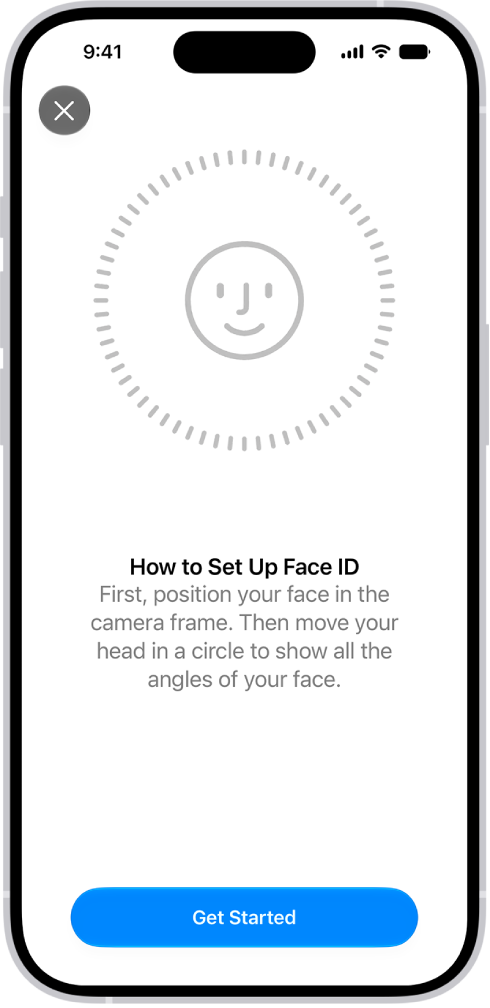
Set up Face ID or Touch ID
Face ID (face recognition) or Touch ID (your fingerprint) can securely unlock your iPhone, sign you in to many apps, and make purchases. Face ID and Touch ID data stays on your device for your security, and it isn’t saved anywhere else.
What you do here depends on your iPhone model:
- Set up Face ID: Go to the Settings app , tap Face ID & Passcode, tap Set up Face ID, then follow the onscreen instructions.
- Set up Touch ID: Go to the Settings app , tap Touch ID & Passcode, tap Add a Fingerprint, then follow the onscreen instructions.
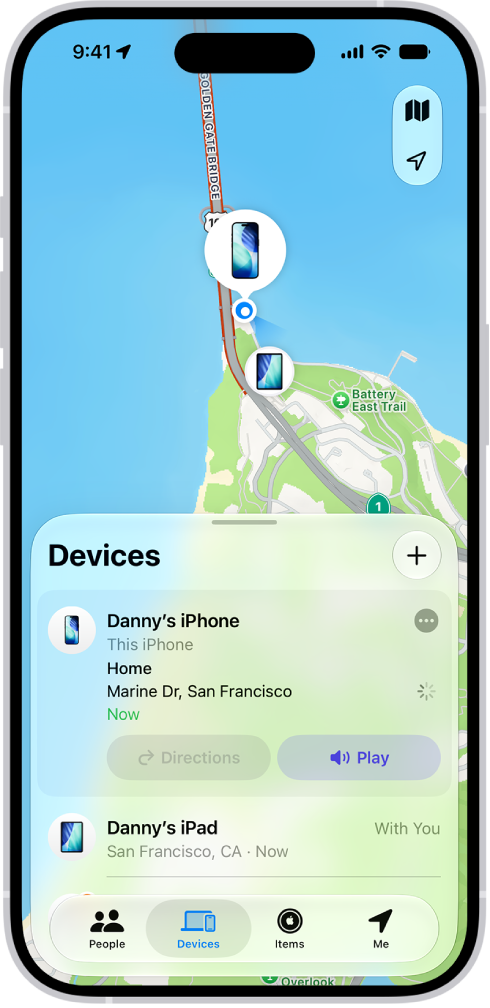
Turn on Find My iPhone
With Find My iPhone turned on, you can find your iPhone if it’s ever lost or stolen.
Go to the Settings app , tap your name, tap Find My, tap Find My iPhone, then turn on Find My iPhone.
You can see the location of your devices in the Find My app or the website Find Devices.
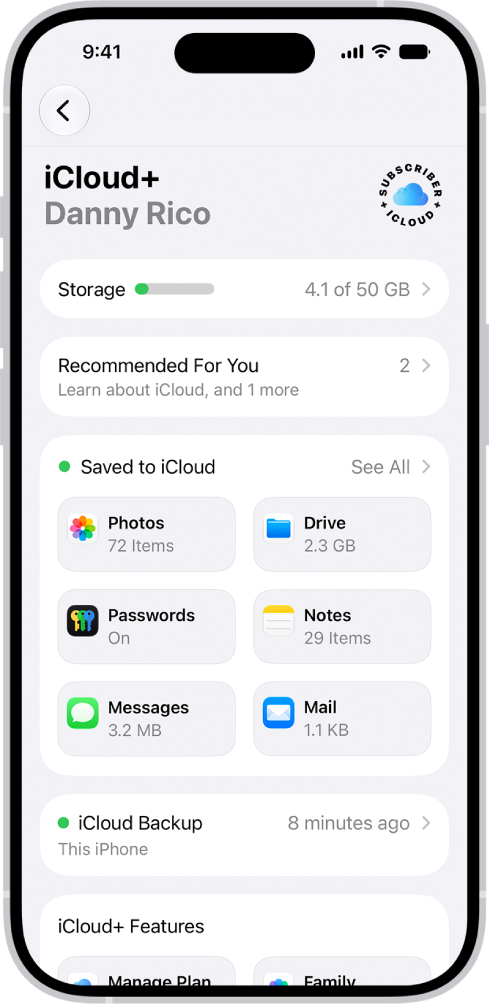
Store your data in iCloud
iCloud keeps your important info safe and in sync across your devices. So if your iPhone is lost, stolen, damaged, or replaced, your photos, videos, and more stay secure in iCloud.
To turn on or change the features you want to use with iCloud, go to the Settings app , tap your name, then tap iCloud.
These guides walk you through the next steps:
- Turn on and set up iPhone
- Set up cellular service on iPhone
- Connect iPhone to the internet
- Set up Face ID on iPhone
- Set up Touch ID on iPhone
- Locate a device in Find My on iPhone
- Use iCloud on iPhone
Apple notes that not all features are available for all iPhone models.