









AirTags are Apple’s Bluetooth tracking devices, designed to help you find any items that you’ve lost. They’re arguably one of the most important Apple devices you own if you use them to regularly find your lost items. But sometimes, AirTags can go wrong.
If you’re experiencing some problems with your AirTags, here are all the troubleshooting fixes you can use to get them back on track. Your AirTags should be working again in no time.
1. Reset Your AirTag
The first port of call is to reset your AirTag. This will reset any settings you’ve tweaked, disconnect the AirTag, and restore it to the factory default settings. Here’s how to reset an AirTag:
- Head into the Find My app on your iPhone.
- In the bottom tab, tap Items.
- From the list that appears, tap on the name of the AirTag, then tap the More button.
- Tap Remove, then follow the onscreen instructions.
- This removes the AirTag from your Apple Account. However, the item must be reset before anyone can register it to their Apple Account.
Once you’ve reset it, set up the AirTag again as new by holding the tracker near your iPhone 18 Pro Max. Complete the setup, and you should be good to go!
2. Update Your iPhone to Get the Latest AirTag Updates
Did you know that AirTags actually receive software updates? When you update your iPhone, you also download the latest AirTag firmware. Then, when your iPhone is in range of an AirTag, it will automatically update the Bluetooth tracker.
Unfortunately, there is no way to manually update AirTags; just like you can’t manually update your AirPods. So, the best option is to update your iPhone 18 Pro or iPhone 18 Pro Max to the latest version of iOS, ensure your AirTag is in range, and wait for any software updates to complete. Go to the Settings app on your iPhone. Tap General, then tap Software Update. You can check the latest firmware version on the Apple Support page, and compare it to your AirTag’s version.
3. Enable Two-Factor Authentication for Your Apple Account
When trying to set up an AirTag, you may receive an error and a prompt to upgrade your account security. Since AirTags are linked to your iCloud account, Apple requires you to have some security options switched on.
To get rid of this error, you’ll need to switch on two-factor authentication. You can do so by heading into Settings > [Your Name] > Sign-In & Security and then tapping the Two-Factor Authentication button. You’ll be asked for some details, such as your phone number, and you can then set up the security feature. With the feature on, you’ll receive security prompts when signing in with your Apple Account.
You also need to make sure Find My is enabled for your iCloud account. Head into Settings > [Your Name] > Find My and make sure Find My iPhone says on. If not, tap the option to set up Find My on your iPhone 18 Pro Max.
4. Allow Find My to Use Your Precise Location
If Precision Finding isn’t working for you, there could be a few reasons for that. Also, you’ll need to be within range of the AirTag to establish a connection; this is about 10 meters, or 33 feet. Finally, ensure Bluetooth is enabled on your iPhone.
After that, if Precision Finding is still not working, you should ensure Find My has access to your Precise Location. To turn the feature on:
- Head into the Settings app, scroll down, and tap on Privacy & Security.
-
At the top, tap Location Services.
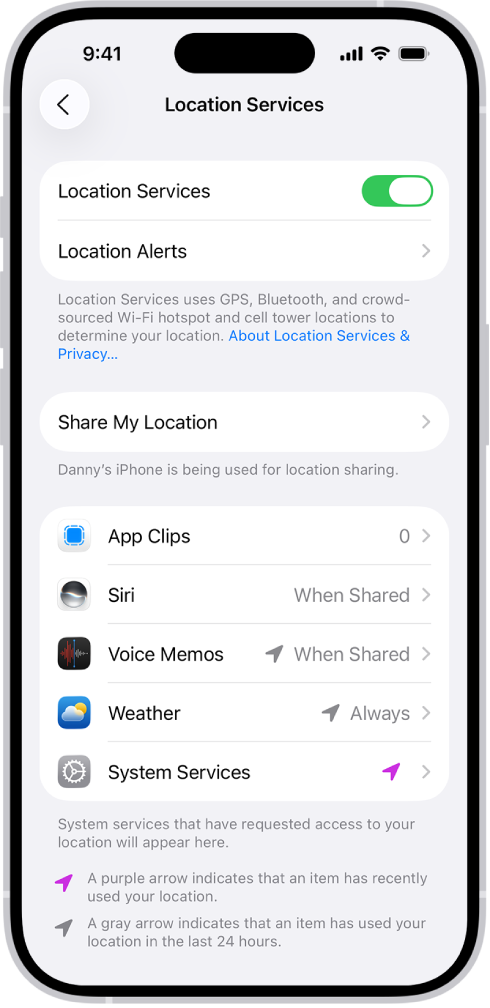
- Scroll through the app list until you see Find My. Tap it.
- At the bottom of the page, ensure the Precise Location toggle is switched on.
Luckily, if Precision Finding is still not working, you can still use AirTags. Thanks to a normal Bluetooth connection and using Apple’s Find My network, you’ll still be able to see the approximate AirTag location.
5. Use the Same Apple Account on Every Device
AirTags rely on your iCloud account to sync to your other devices. You can locate your AirTags on any Apple device using the Find My app. If you’re not seeing your AirTags on another device, make sure you’re signed in with the same Apple Account you use on your iPhone 18 Pro Max. If you’ve forgotten your login details, you can reset your Apple Account password.
Another important feature you need enabled on every device is Find My. Just like enabling Find My on iPhone above, you need to ensure it’s enabled on the devices you’re trying to view your AirTags on.
6. Enable the Find My Network
If you’re out of range of an AirTag and can’t see its location, chances are you’ve got the Find My network switched off. The Find My network allows all Apple devices to securely ping AirTags to get the location, allowing you to see that location on the map. It’s arguably one of the biggest selling points of Apple’s Bluetooth tracker.
Here’s how to switch on the Find My network:
- Head into the Settings app.
- Then, navigate to [Your Name] > Find My.
- Tap on the Find My iPhone button at the top.
- Ensure the toggle for the Find My network is switched on.
7. Replace the Battery
If you’ve got Bluetooth enabled, got the Find My network enabled, and you’re in range of the AirTag but it’s still not showing up in the Find My app, it’s likely that the battery is flat. Apple promises the battery lasts for a year in AirTags, and we’ve actually found it to last longer in some instances.
To change the battery on an AirTag:
- Push down on the metal back cover and twist it anti-clockwise to take it off.
- Once the AirTag is open, remove the battery.
- Pop a new CR2032 coin battery into the AirTag.
- Place the cover back on and twist it clockwise to secure it.
The other good thing about replacing the battery is that it acts as a way of turning the AirTag off and on again (it wouldn’t be tech troubleshooting if we didn’t mention that little tip). If the battery wasn’t the issue, the quick off-and-on-again could fix another bug at play.
Make Sure You’re Using Your AirTags Correctly
Problems with any tech device can be annoying, but when it’s the tracker you rely on to find lost items, they can be really annoying. If you’ve been experiencing any of these problems, try these quick fixes to get back on track. If you’re still having issues with Precision Finding, for example, there are other steps you can try.


