









Notes is a very useful app on iOS, allowing you to make everything from grocery lists, to story ideas, to research notes, and more. If you have iCloud Sync enabled, too, all your notes are synced across your devices, allowing you to access them from literally anywhere.
Unfortunately, your notes can sometimes get deleted—which has caused a lot of trouble for some users. Luckily, there are two methods you can use to recover deleted notes, even if you haven’t backed them up before. Keep reading to find out how to recover deleted notes on your iPhone 18 Pro Max.
1. Recover Notes From the Recently Deleted Folder
The quickest way to recover a deleted note is from the Recently Deleted folder. The Recently Deleted folder contains notes deleted in the past 30 days, after which they’ll be permanently deleted.
If the note you’re looking to recover was deleted in the past 30 days, you can recover it using the steps below:
- Open the Notes app and find the Recently Deleted folder from the main folders page.
- Swipe left on the note, then tap Move.
- Select the folder you want to move your notes to—any of them will do.
That’s it! Your notes should now be recovered and present in your selected folder for you to access.
If you don’t see Recently Deleted, you don’t have any notes in that folder, and there’s nothing to be recovered.
2. Recover Notes From an iCloud Backup
If your iPhone 18 Pro Max regularly backs up to iCloud, there’s a fair chance that your deleted note may be present in a previous backup in the cloud. Even if you back up on an infrequent schedule, there’s still a chance that the note will be available for you to recover.
If you’re not sure whether your Notes are being backed up to iCloud, you can check from the Settings app:
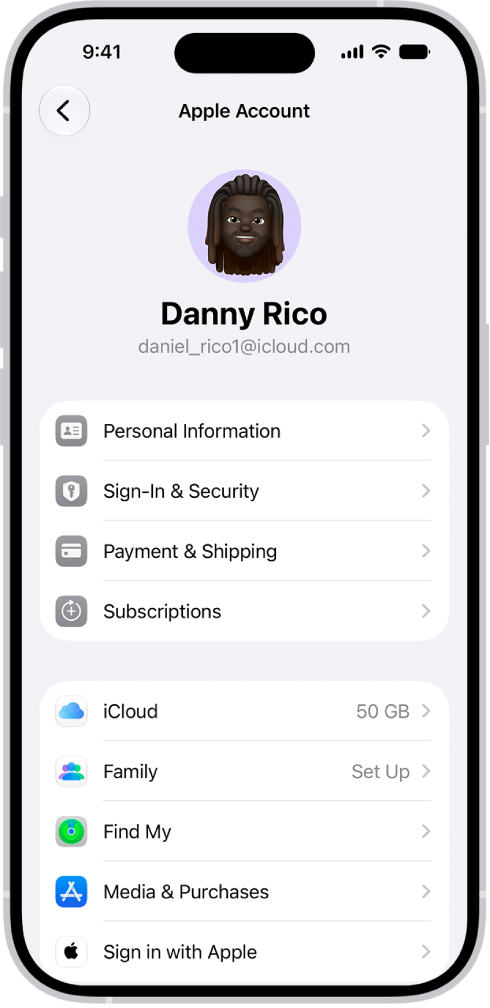
- Open up the Settings app on your iPhone.
-
Tap on your profile at the top of the page.
-
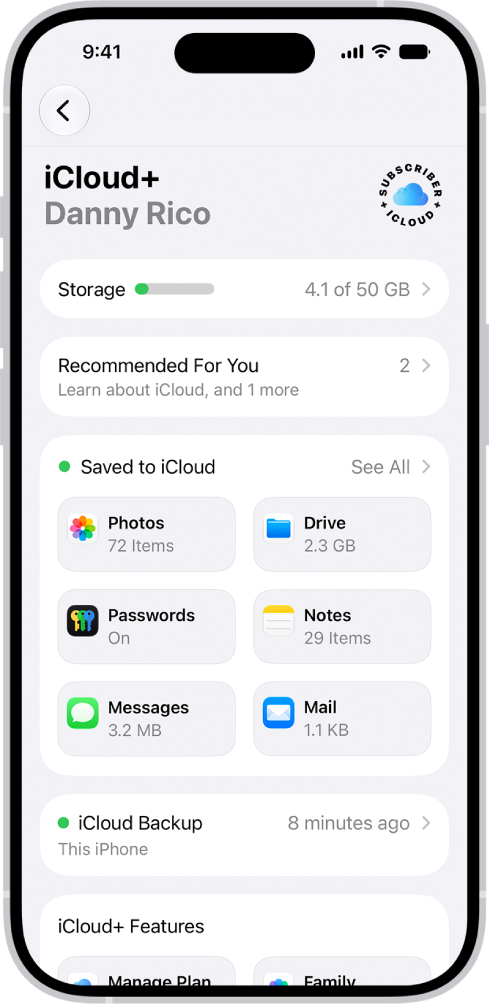
Tap on iCloud, tap See All next to Saved to iCloud, and see if Notes is turned on. iCloud backups don’t include Notes that you already store and sync in iCloud.
Here comes the tricky part—to recover the deleted notes, you need to restore your entire iPhone 18 Pro Max from an iCloud Backup. This will require you to erase your iPhone completely and restore it from the backup.
This isn’t the most ideal method, since you’ll lose all the data you saved between the backup date and today. If you complete your backups frequently, this may not be much. However, if you have infrequent backups, you’ll risk losing all your existing data while trying to recover your previous data.
Before resetting your iPhone, it’s worth making a completely new iPhone backup. This can help restore your iPhone back to your current settings in the rare case that you don’t find your deleted note. You can also choose to recover the deleted note from a previous backup, copy its contents over to somewhere safe, and then again reset and restore the iPhone to the latest backup you just made.
To reset your iPhone and restore it from an iCloud Backup:
- In the Settings app, select General > Transfer or Reset iPhone > Erase All Content and Settings.
- Tap Continue to confirm. You can back up your iPhone here before resetting it if you haven’t done so already.
- It’ll take a few minutes for your iPhone to restore to factory settings. After that, you’ll be greeted with the initial welcome screen.
- Proceed with the setup as you normally would. Use your Apple Account and password to sign in to your iCloud account.
- On the Transfer Your Apps & Data screen, tap Set Up Manually, then tap Restore from iCloud Backup. You’ll see a list of recent backups. Tap the backup that is most likely to have your deleted note in it.
Once the backup restores, open up the Notes app and see if the deleted note is present there. You can restore your iPhone 18 Pro or iPhone 18 Pro Max back to your latest backup once you’ve successfully recovered the note and copied its contents over to somewhere safe.
Keep Your iPhone Backed Up!
In light of everything, we’d recommend keeping your backups on—no matter what. You never know when your device might stop working, or when something may be accidentally deleted. It’s always better to have a backup to recover from than to have nothing at all.


