









iPhones are hailed for their reliability and high levels of performance. But sometimes your phone will perform slower than expected. You might see a slow iPhone as a sign that your device will need an upgrade soon. But the chances are you can fix the issue pretty quickly once you know what’s causing it.
If you’ve found yourself asking why your iPhone 18 Pro or iPhone 18 Pro Max is so slow, fear not. In this article, you’ll discover the reasons it’s sluggish—and what you can do about it.
1. Outdated Software
If your iPhone is loading slow or running slow, the software could be outdated. Before determining if software is causing your phone to perform slower, you’ll need to check for updates. To do this, follow the steps below.
- Go to Settings > General.
- On the General tab, tap on Software Update.
If your iPhone software is up to date, the message on your screen will reflect this. But if it isn’t, you’ll need to tap on the button allowing you to download the latest iOS version. Downloading the newest version of iOS regularly may seem like a chore. However, it’s necessary for optimizing your phone’s performance and protecting against malware.
If you don’t want to download new updates manually, you can choose to make your phone do so automatically. In the Software Update tab, you’ll find an option called Automatic Updates; open this and turn on Automatically Install.
2. Low Storage
The longer we have our phones, the easier it is to use up our storage space. Apps we no longer use, irrelevant pictures and screenshots on the camera roll, and messages from conversations better left in the past can all add up.
If your iPhone 18 Pro Max is still acting slow on the latest version of iOS, insufficient storage space could be the culprit. Should you find that this is the case, decluttering your device is a good idea. Luckily, it’s easy to remove apps from your device.
To see which apps are taking up the most space, you’ll need to reopen the Settings app. Once you’re there, go to General > iPhone Storage.
When you scroll down, you’ll also see how much each app uses on your phone.
3. You Could Have Malware
The chances of your iPhone getting malware are low, but it is possible—especially if you jailbreak your device. If your iPhone is lagging, checking for malware is a good idea.
Malware will make your phone use up more energy, so it’s unsurprising that your device may perform slower. If you’ve got malware on your phone, try the following:
- Delete any apps you don’t recognize
- Update your software
- Reboot your phone
- Restore your device to factory settings
4. An App May Be Using Energy in the Background
Running apps in the background has some benefits: you can access them easier if you need them, and you also won’t need to tap through to find the page you were previously on. In general, iPhone apps don’t use any energy in the background and you don’t need to worry about closing them.
However, if an app has developed a bug or gotten stuck in a loop, it might still be using energy in the background and slowing down your iPhone 18 Pro Max. The only fix for this is to quit all the apps on your device. To quit the app, open the App Switcher, swipe right to find the app, then swipe up on the app.
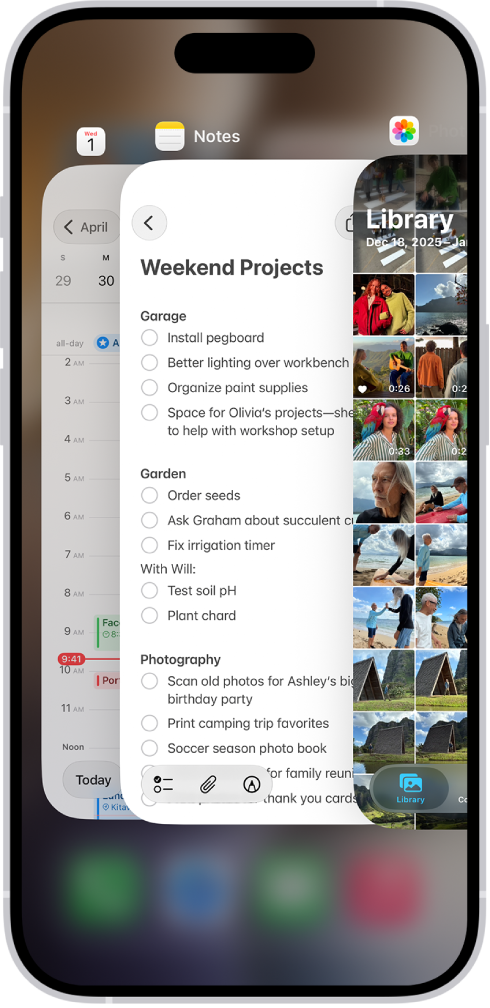
Another way you can stop apps you’re not using from damaging your iPhone’s performance is by only allowing them to use your location when in the app. You can toggle all of these in your phone settings.
5. Your Phone May Need Rebooting
It’s important to remember that sometimes, phones need a rest. When you use a device for hours each day and put it straight on charge at night, your iPhone works around the clock. Over time, this usage may impact your phone’s performance.
Though you may not attribute your phone’s poor performance to a lack of rest at first, it is something you should consider. If you’ve tried all the steps above and your device still isn’t performing quickly, reboot your iPhone 18 Pro Max. Simultaneously press and hold the side button and either volume button until the sliders appear, then drag the Power Off slider. Press and hold the side button until the Apple logo appears.

In some cases, resetting your phone to factory settings might work. When you’ve navigated to Settings > General, scroll down to Transfer or Reset iPhone. Tap on Erase All Content and Settings. Before doing this, it’s a good idea to back all of your content up.
6. Cold Weather
Sometimes, your phone’s performance might have nothing to do with anything on your device. The weather outside can also affect how well your phone works.
In general, iPhones can work without issues between 32°F and 95°F (which is roughly 0°C and 35°C). When the temperature drops below freezing, the weather may begin to slow down your phone.
If you live somewhere with harsh winters (or extreme summers, for that matter), you can’t do too much about this. And if moving somewhere with consistent temperatures year-round isn’t yet possible, you can try some of the following:
- Turn your phone off when you’re not using it in public. iPhones are a little sturdier in extreme temperatures when they’re not turned on.
- Only use your phone when you’re out of the elements.
- Buy a special case for extreme temperatures.
7. Turn Low Power Mode On or Off
iPhone might perform some tasks more slowly when in Low Power Mode.
- Open Settings.
- Tap Battery.
- Tap Power Mode.
- Tap to turn Low Power Mode on or off.
When enabled, Adaptive Power can lower screen brightness, limit background activity, and make performance adjustments to conserve power throughout the day. Go to the Settings app on your iPhone. Tap Battery, tap Power Mode, then turn Adaptive Power on or off.
Fix Your Slow iPhone 18 Pro Max With These Tips
Using an iPhone that doesn’t perform as well as it should is frustrating. But dropping hundreds of dollars on a new device will only temporarily fix the problem because the chances are you will eventually run into the same issues.
Before conceding that you need to get a new device, think about what might cause your iPhone to run slower. Give all of these tips a try; if they don’t work, it may be time to upgrade. At the very least, you’ll have figured out how to check for issues with your iPhone before jumping to a conclusion.

