









A frozen iPhone 18 Pro or iPhone 18 Pro Max won’t respond to touch, with the display completely stuck or working intermittently. Touches may register in the wrong locations, and physical buttons may refuse to work.
The Home Screen or an app could become non-interactive. With a frozen iPhone—different from an iPhone stuck in a boot loop—standard troubleshooting steps will only take you so far.
But worry not; you’ve come to the right place to seek advice. Follow along with us as we show how to fix a frozen or unresponsive iPhone.
What to Do if My iPhone Freezes? Try Force Quitting Apps!
If a specific app is causing your iPhone 18 Pro Max to freeze, force quitting the app can resolve the issue most of the time.
-
Swipe up from the bottom edge and stop near the middle of the screen, then swipe up on the app to close it.
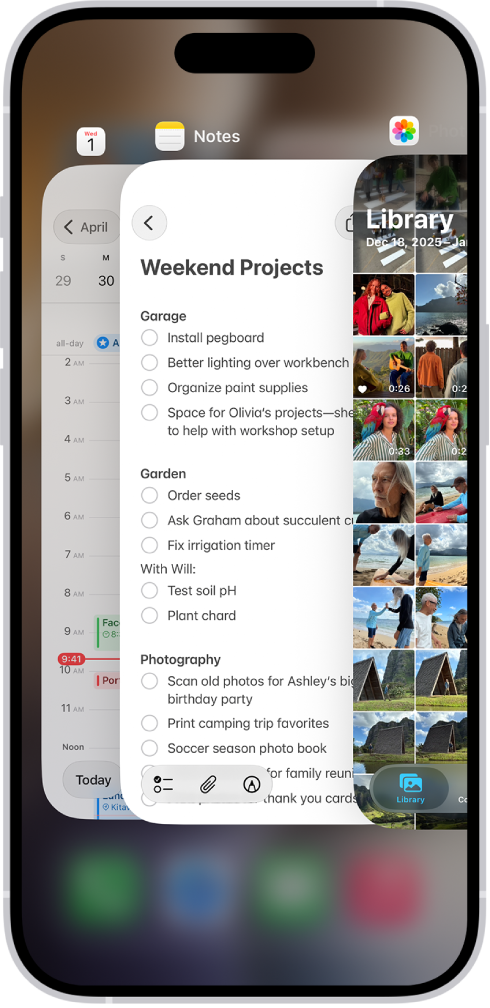
Upon identifying the app causing the freezing, reinstall it. To do this, press and hold its app icon until a context menu appears, then tap on Remove App, tap Delete App, and choose Delete to confirm.
Doing so will also delete any app settings from the device that might be causing issues. You can now redownload a fresh copy of the app from the App Store. If the iPhone display remains frozen and generally unresponsive, the next troubleshooting step is a force restart.
Force Restarting May Unfreeze Your iPhone 18 Pro Max
-
Press and hold the Volume button and the Side button simultaneously until the power off slider appears, then drag it to turn the phone off.

Wait 30 seconds after dragging the slider for the phone to fully shut down before turning it back on. The problem is that a fully frozen iPhone may not even let you reach the shutdown screen. If you cannot restart your iPhone because it’s not responding to your touches, performing a force restart might help bring it back to normal.
Force Restart an iPhone:
Here’s how to force-restart the iPhone 18 Pro or iPhone 18 Pro Max:
- Press and quickly release the Volume Up button
- Press and quickly release the Volume Down button
-
Press and hold the Side button and let go when the Apple logo appears

Assuming this is a one-off problem, restarting should fix the frozen iPhone. But if it doesn’t, and your iPhone keeps freezing, draining the battery intentionally is next on your list of potential fixes.
iPhone Is Stuck? Wait for the Battery to Drain!
Leave your iPhone on until the battery charge is depleted and the device shuts down by itself. If your iPhone isn’t completely unresponsive, you can go to Settings > Display & Brightness > Auto-Lock and set it to Never to speed up the process. Plus, you can go to the Control Center and boost the brightness all the way up and make the battery drain faster.
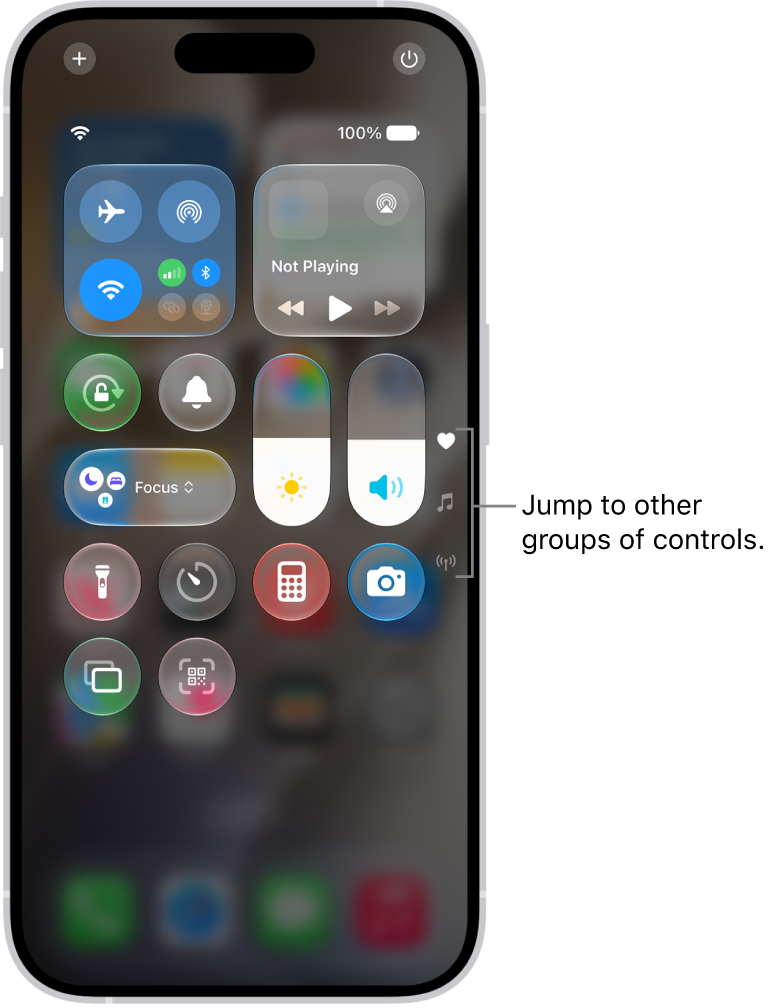
With the battery depleted and your iPhone powered down, wait at least 30 seconds before plugging it back into power. The device will start up automatically after a few minutes, as soon as the battery has enough charge for booting. But if draining the battery makes no difference, try putting a frozen iPhone into Recovery Mode.
How to Fix a Frozen iPhone 18 Pro Max With Recovery Mode
Recovery Assistant helps resolve startup issues by downloading a software package. If Recovery Assistant appears, click Continue to start the recovery process. The recovery process requires a Wi-Fi connection.
Connect your phone to a computer and open the Finder (macOS) or the Apple Devices app (Windows), then do the following:
- Press and immediately release the Volume Up button
- Press and immediately release the Volume Down button
- Press and hold the Side button until you see the Recovery Mode screen
A common mistake here is letting go of the button as soon as you see the Apple logo. Be sure to keep holding the button past the Apple logo, and don’t let go until the device enters Recovery Mode and is recognized in the Finder or the Apple Devices app.
With the Recovery Mode active, a prompt should appear on the computer offering to restore or update your device. Click Update to have the computer download and install the latest version of iOS. Don’t worry; this won’t erase any data on the phone. Once the operating system has been reinstalled, your iPhone should be fully responsive again.
With the device restored and responsive again, now’s a good time to go to Settings > General > Software Update and install any pending iOS or security updates.
With that done, venture into Settings > General > iPhone Storage and delete anything that’s clogging storage space, like massive photo libraries, cached videos in streaming apps, games, and so on.
iOS needs at least one gigabyte of free storage space to function smoothly. Clearing storage space is the best way to avoid issues like slow-downs that could lead to sudden freezes.
Nothing Helps? Contact Apple Support
Is your iPhone 18 Pro Max still frozen even after trying out all the above tips? If so, we highly recommend talking to experts at Apple, as they’ll be able to assist you in more ways than we could in case the hardware is at fault.
Even better, you can make an Apple Store appointment at a Genius Bar, provided you have one nearby where you live.
An Unresponsive iPhone Is Virtually Useless
An iPhone that suddenly freezes is a brick in your hand. Whether iOS is outdated, some apps are incompatible with it, the battery is low, or the device is running low on storage space, following the instructions in this guide should help fix a frozen iPhone.
Hopefully, you won’t have to factory reset your iPhone and wipe all the saved data and settings just to solve the responsiveness and freezing problems.

