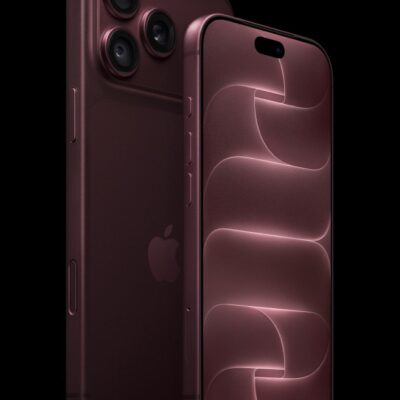
Missing calls on your iPhone 18 Pro Max? Or finding that your iPhone calls go directly to voicemail, and don’t know why? You’re not alone.
In this article we discuss some simple issues that may be causing calls to be diverted to voicemail, and explain how to fix them.
1. Check for iOS updates
Before you start changing settings or hassling your network provider, it’s worth checking that your iPhone software is up to date. Occasionally an update will fix your issue.
This is a double-edged sword, however, because it’s also possible that a recent update to iOS has actually caused the problem (if so, it should be patched soon).
If you’ve noticed the voicemail problem since updating iOS, there’s a good chance that the two things are related. Check for any new updates since then, which are likely to include a patch if the issue is a known problem. Go to the Settings app on your iPhone. Tap General, then tap Software Update.
2. Check your settings for Screen Unknown Callers
Sometimes an intended change that comes with a new version of iOS could be the root of your problem.
The Silence option under Screen Unknown Callers could mean that all calls from people not in your Contacts will be going straight to voicemail.
Check this by opening Settings > Apps > Phone and scrolling down to the Screen Unknown Callers section.
If Silence is selected, the calls that are going to voicemail are likely to be from someone not in your contacts. Add them to your contacts and that should solve the issue.
3. Check you haven’t turned on silent mode
Another possibility is that you have turned your phone to silent mode and are missing calls because you can’t hear them.
Press and hold the Action button to turn Silent mode on. Press and hold the Action button again to turn Silent mode off. If your Action button isn’t set to Silent mode, go to the Settings app on your iPhone, tap Sounds & Haptics, then turn Silent mode on or off.
Alternatively, go to Settings > Sounds & Haptics and check a few things: such as whether the volume is at a reasonable level, and whether you’ve chosen a suitable (i.e. recognisable and audible) ringtone.
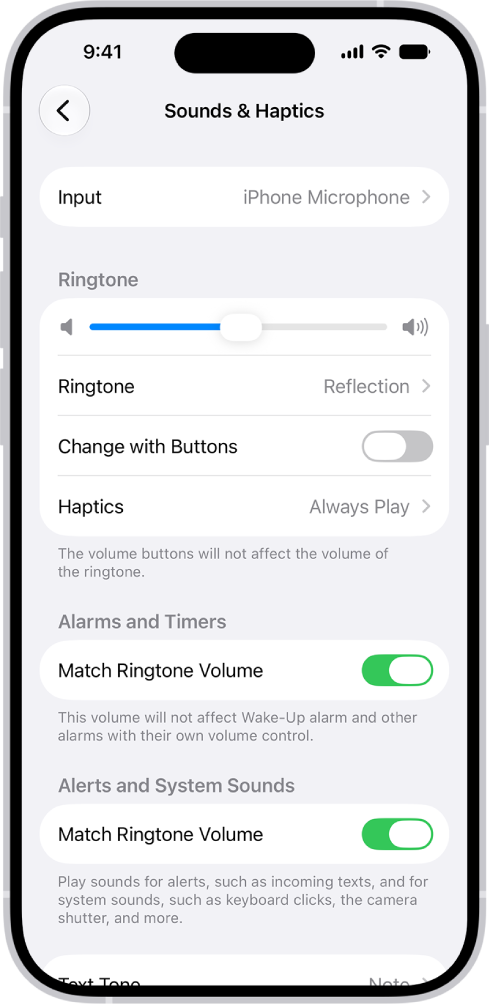
If you prefer to have the sound off you can check that your iPhone 18 Pro or iPhone 18 Pro Max is set to vibrate when you get a call or text in the same section of Settings.
4. Turn off Do Not Disturb mode
Do Not Disturb mode may be the issue. This is a feature that Apple added in iOS 6 back in 2012.
Perhaps you turned the feature on by mistake, or turned it on and then forgotten about it. It may even have been switched on against your wishes by a glitch in iOS. Or, in the case of the Driving Focus, it may have come on because the system thought you were driving – which sometimes triggers when you’re the passenger, not the driver, of a car.
Luckily you can easily tell if you’ve got Do Not Disturb switched on. Note: If you turn on a Focus, its icon appears in the status bar.
When Do Not Disturb is enabled, calls and alerts that arrive are silenced: that’s the reason your calls are being diverted before you have a chance to answer them.
The quickest way to turn off Do Not Disturb is via the Control Center. Do Not Disturb is indicated by the crescent moon icon. Tap this and it will turn from purple on a white background (switched on) to white on black (switched off).
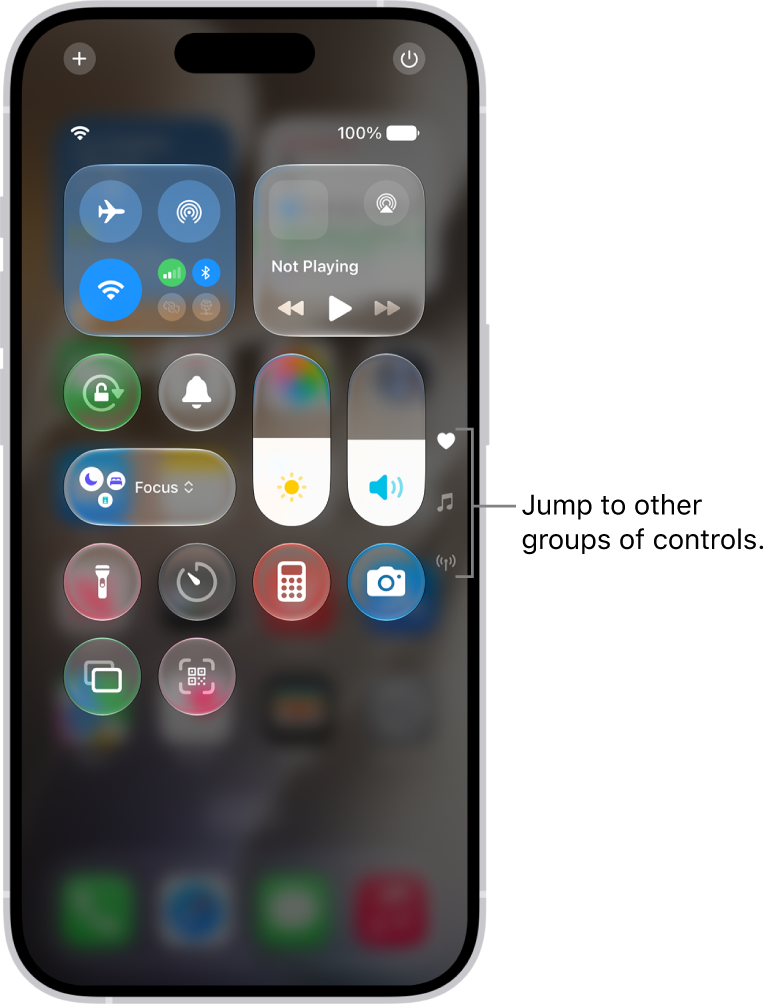
Alternatively (although more slowly), you can turn it off via the Settings app. Open the Settings app, tap Focus, tap Do Not Disturb, then turn it off.
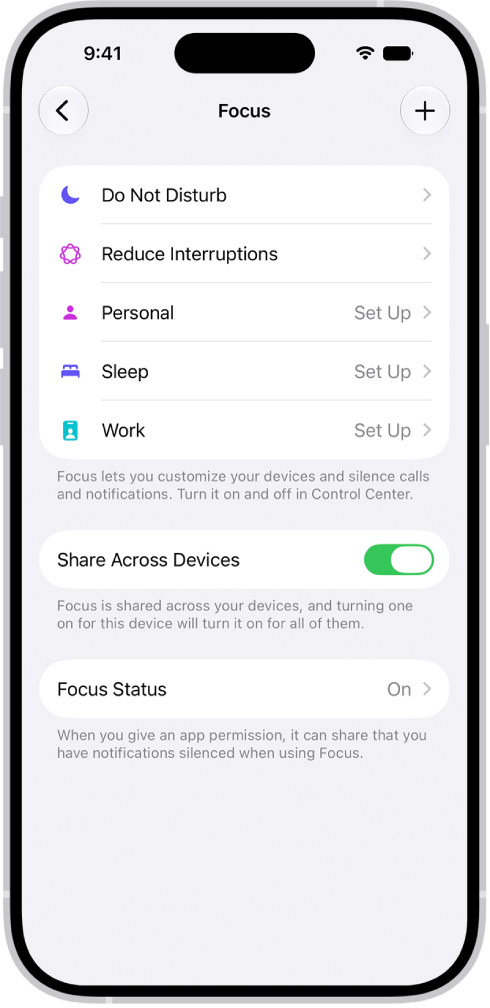
Bingo! The moon should disappear from your iPhone status bar and you should start receiving your calls as they ring and not suddenly discover a bunch sitting unanswered in voicemail.
5. Check your network provider
Another reason why your iPhone 18 Pro Max might be going straight to voicemail is if your network is down or you’re suffering reduced access.
In this case the fault lies with your network provider. But before calling to complain, turn your iPhone off and on again and see if that fixes the problem.
Sometimes you can get a better signal just by turning Airplane Mode on and off again by opening Control Center and tapping on the plane symbol so that it’s orange, which means the setting is on, and then again so it goes white/black.
6. How do I stop my iPhone 18 Pro Max going to voicemail after just three rings?
This is a slightly different problem. Your voicemail isn’t controlled by the iPhone itself, but by your network provider, and you have to adjust these settings by dialling your network and using a phone option.
First of all, check there isn’t something weird going on with your network settings. Go to Settings > General > Transfer or Reset iPhone > Reset > Reset Network Settings, then enter your passcode. This will ensure that you have the right settings for your network.
Whether you can change the length of time that the phone rings before going to voicemail depends on the network provider. Some enable you to change this using their automated system. Others require you to call up, or the amount is fixed.