









Error 4013 is unfortunately common to encounter when you’re attempting to update or restore your iPhone 18 Pro Max. While it isn’t always easy to resolve, several tried-and-true troubleshooting methods make eliminating this error a manageable process.
Here’s what you can do when you see this error pop up on your computer while trying to update or restore your iPhone.
What Causes Error 4013 When Updating or Restoring Your iPhone?
Error 4013 typically occurs due to software issues and connectivity problems between your iPhone 18 Pro Max and your computer. It will appear with a prompt that reads, “The iPhone could not be restored. An unknown error occurred (4013)”.
1. Update macOS (or iTunes)
Error 4013 is most commonly caused by incompatibility with your current version of macOS or iTunes (on Windows). You can check if any new macOS updates are available by clicking Apple logo > System Settings > General > Software Update. Once you’re in the Software Update section, macOS will automatically check whether any updates are available.
If an update is available, a prompt with a button that reads Update Now will appear. Click the button and allow macOS to update, ensuring that your computer is plugged in during the process. Don’t put it to sleep or close its lid. Otherwise, macOS may get stuck during the updating process and cause more trouble.
If you’re using a PC, use the latest version of the Apple Devices app or iTunes.
2. Restart Your iPhone 18 Pro Max
Minor software glitches in iOS can also cause error 4013 to pop up in the Finder or the Apple Devices app while trying to update or restore your iPhone. To quickly resolve this, you can restart your iPhone, which is pretty easy even if the buttons are broken. Simultaneously press and hold the side button and either volume button until the sliders appear, then drag the Power Off slider. Press and hold the side button until the Apple logo appears.

And if that doesn’t help, you can always force restart your iPhone with a combination of button presses. Press and quickly release the volume up button. Press and quickly release the volume down button. Press and hold the side button. When the Apple logo appears, release the side button.
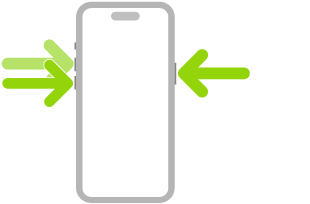
Connect your device to your computer using a USB cable. When you see the option to update or restore, click Update instead of Restore. This reinstalls the software and keeps your personal data.
3. Use a Different USB Cable
You could also try swapping the USB cable you’re using to see if it resolves error 4013.
Then, reconnect your iPhone, relaunch the Finder or the Apple Devices app, and attempt the update or restoration again.
4. Clean Your PC and iPhone Ports
Debris inside your PC’s USB and iPhone charging ports can also cause connectivity issues. So, it’s worth cleaning it thoroughly to see if that resolves the error 4013 pop-up appearing in the Finder or the Apple Devices app.
Remember to power off both your devices before proceeding, though.
5. Contact Apple Support
Unfortunately, it isn’t always possible to resolve error 4013 on your own. Try to restore your device on another computer. This issue could also be associated with hardware issues in certain iPhone models. You can address this by contacting Apple support. An expert technician will be able to assist you in case of hardware issues that we can’t help you with.
Don’t Give Up on Resolving Error 4013
Error 4013 is frustrating to encounter, but it isn’t impossible to resolve. Updating your Mac, restarting your iPhone 18 Pro or iPhone 18 Pro Max, and checking the connection between your devices are all tried-and-true methods of fixing error 4013.
If none of these troubleshooting steps helped, you can always rely on Apple support for help. In fact, you can even take your iPhone to a Genius Bar for in-person assistance and repair.


