Apple’s iPhones might be beautifully crafted pieces of tech that many people regard as the pinnacle of smartphone design, but even they can run into problems. See 11 iPhone 18 Pro Max Problems and How to Fix Them.
Here are our top troubleshooting tips for iPhone 18 Pro or iPhone 18 Pro Max.
1. Restart Your iPhone
The number one cure for any tech ailment—iOS or Android, Windows or Mac, TV or printer—is to turn the device off and back on. Indeed, there are very few situations where a simple reboot shouldn’t be your first port of call.
The trick works because it resets the software into a stable state after an unexpected sequence of events caused something to break.
Go to Settings > General > Shut Down, then drag the slider. Press and hold the side button until the Apple logo appears.
2. Update iOS
If a simple reboot didn’t fix your issue, you need to ensure your iPhone 18 Pro or iPhone 18 Pro Max is up to date. If you’re running an outdated version of iOS, certain apps and features might not be compatible (not to mention the security vulnerabilities this exposes you to).
To update iOS, navigate to Settings > General > Software Update. We’ve also got some solutions if you can’t update your iPhone.
3. Update Your Apps
If you’re having issues with a particular app, it’s worth ensuring you’re running its latest version. That’s because developers are constantly releasing bug fixes with each new update, so the issue you’re facing may have been fixed.
You can update apps manually via the App Store. In the App Store app, tap your profile photo at the top. Tap App Updates, then tap Update next to apps you want to update, or tap Update All.
4. Force-Close an iPhone App
Sometimes an app’s instance will become unresponsive, causing it to freeze.
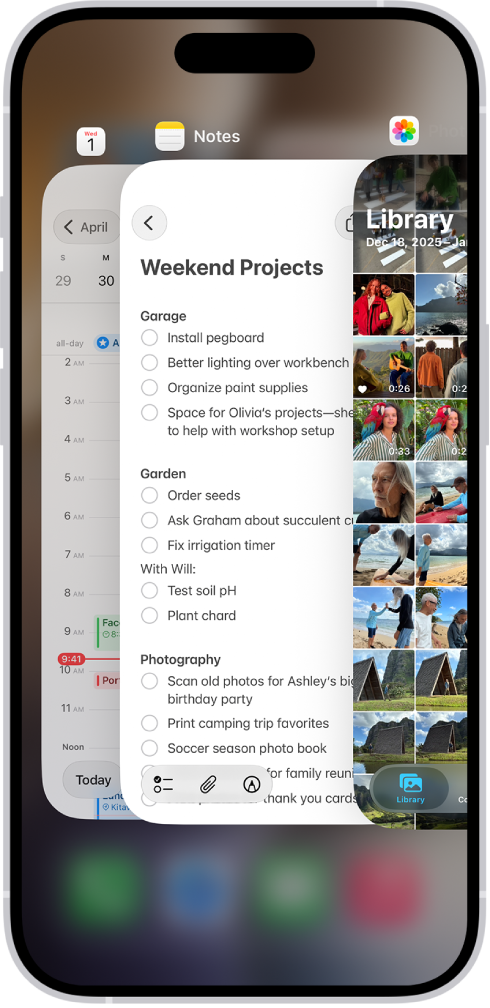
To force-close an app, swipe up from the bottom of the screen but leave your finger on the screen halfway up. The phone will launch the app switcher. Swipe up on an app card to close it.
5. Reset Your iPhone’s Network Settings
Most connectivity issues can be solved by resetting your network settings. It’s easy to do. Head to Settings > General > Transfer or Reset iPhone > Reset > Reset Network Settings.
Remember that although you won’t lose your valuable data, you will lose any saved Wi-Fi passwords by performing this reset.
6. Reset All Settings on Your iPhone
If you think an erroneous setting (rather than software or hardware) is the root of your problems, you can reset all phone settings without losing your data. Of course, you’ll need to put everything back the way it was afterward.
Head to Settings > General > Transfer or Reset iPhone > Reset > Reset All Settings to begin the process.
7. Factory Reset Your iPhone
If you need a nuclear option, you could factory reset your iPhone 18 Pro Max. It will return your device to its original state. Although this won’t cure hardware issues, it should solve most software and OS-related problems.
To reset your iPhone, open Settings > General > Transfer or Reset iPhone > Erase All Content and Settings.
Make sure you back up all your iPhone data before you perform a factory reset. You will irrecoverably lose any data you have not backed up.
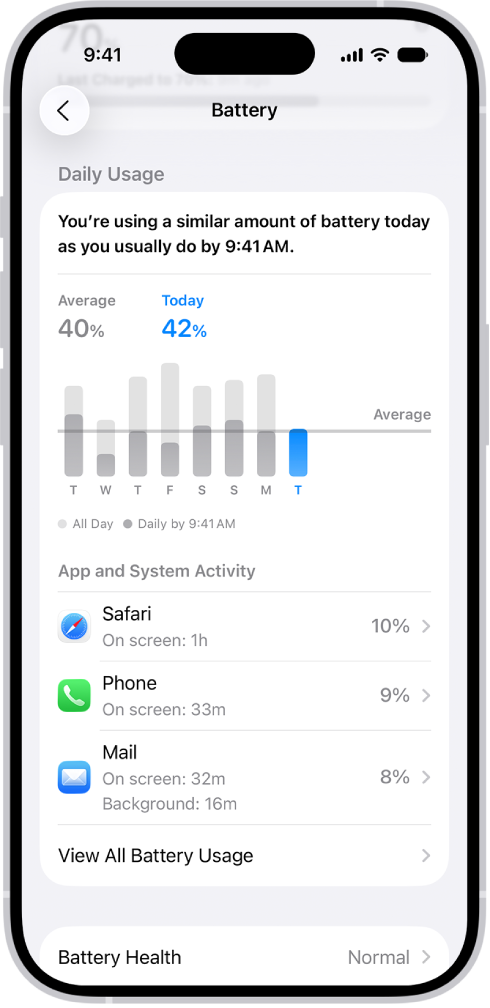
8. Check Your iPhone’s Battery Usage
iPhones generally have excellent battery life, even for power users. But if your device’s battery drains unusually quickly, you can try to identify the offending app.
To see which apps use the most juice, go to Settings > Battery. You can check the charts at the bottom to look at the battery usage of various apps over a certain time frame.
9. Review Your iPhone’s Battery Health
Batteries can only tolerate a certain number of charge cycles before severely deteriorating. Fortunately, Apple allows you to keep an eye on your iPhone’s battery health with ease.
Go to Settings > Battery > Battery Health to take a look. And if it’s lower than 80%, it’s time to get a battery replacement.
10. Fix Bluetooth Issues
Bluetooth can act surprisingly finicky for a technology that’s so widely used. If you’re having problems creating a Bluetooth connection between your iPhone and another device, there are a couple of fixes you can try.
Firstly, remove old devices that you no longer use. It can help avoid conflicts. To unpair a device, go to Settings > Bluetooth > Info > Forget This Device.
Secondly, turn Bluetooth off and on again (sound familiar?). To turn off Bluetooth, go to the Settings app, tap Bluetooth, then turn off Bluetooth.