Got a tip for us?

Chris Smith

Chris Smith is a senior editor at GeeksModo based in Canada. He likes to think of himself as a jack of all trades (and a master of at least a few), though he mainly focuses on iPhones and Macs. Often covering both at the same time. When not surrounded by various Apple devices while putting them through their paces, Chris can be found streaming the latest movies or series, gaming on his PS5, or getting fresh air on a hike in the beautiful wilderness of British Columbia.

Chris Smith's Articles

The Workout screen with the Outdoor Run workout highlighted.

How to go for a swim with Apple Watch

You can go for a swim with Apple Watch, track your sets and rest in a Pool Swim workout, and clear water with Water Lock.
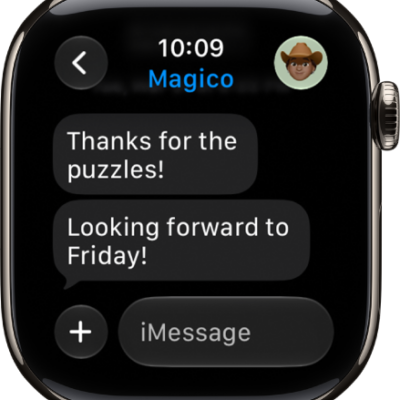
A message conversation. The Apps button and message field are at the bottom.

How to read and respond to messages on Apple Watch

You can read and respond to messages on Apple Watch with reactions, suggested replies, or a typed, dictated, or scribbled reply.
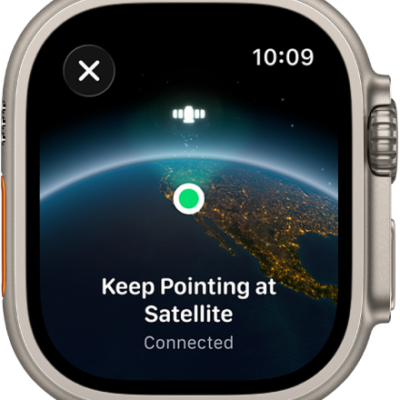
A screen showing a satellite icon over a curved view of Earth, a green connection indicator, and "Keep Pointing at Satellite" text.

How to use satellite features on Apple Watch Ultra

You can use satellite features on Apple Watch Ultra to text emergency services, message friends, and share your location off the grid.
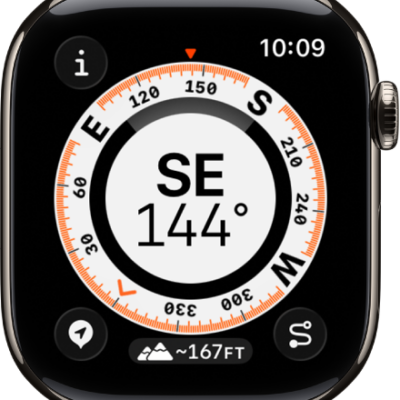
The Compass app showing a dial with the compass heading in the middle, a dot representing a waypoint in the inner ring, and compass points on the outer ring. The Info button is at the top left, the Waypoints button is at the lower left, the Elevation button is at the middle bottom, and the Backtrack button is at the lower right.

How to use the Compass app on Apple Watch

You can use the Compass app on Apple Watch to see your bearing, elevation, and coordinates, set a target elevation alert, and use true north.
The Compass app showing a dial with the compass heading in the middle, a dot representing a waypoint in the inner ring, and compass points on the outer ring. The Info button is at the top left, the Waypoints button is at the lower left, the Elevation button is at the middle bottom, and the Backtrack button is at the lower right.

How to use Backtrack to retrace your steps on Apple Watch

You can use Backtrack on Apple Watch to record your route in the Compass app and retrace your steps if you get lost.
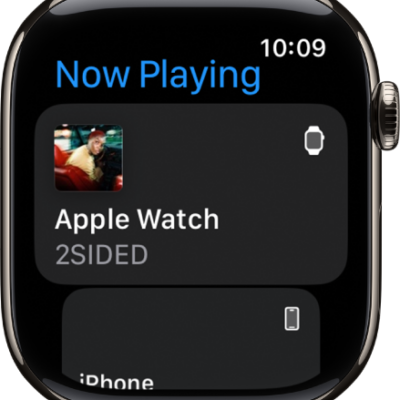
The Now Playing screen showing media on Apple Watch and on iPhone.

How to control nearby devices with your Apple Watch

You can control nearby devices like your iPhone or iPad with Apple Watch, using buttons for the Home button, App Switcher, and Control Center.
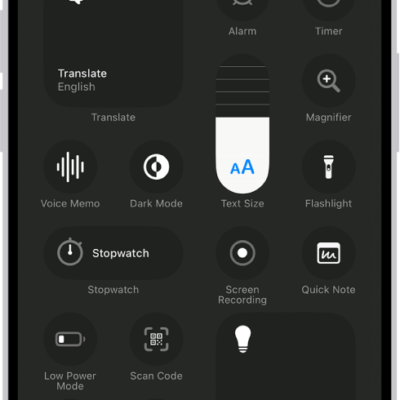
The controls gallery, showing the available Control Center controls.

How to ping your Apple Watch with iPhone

You can ping your Apple Watch with iPhone from Control Center to find it when it's nearby.
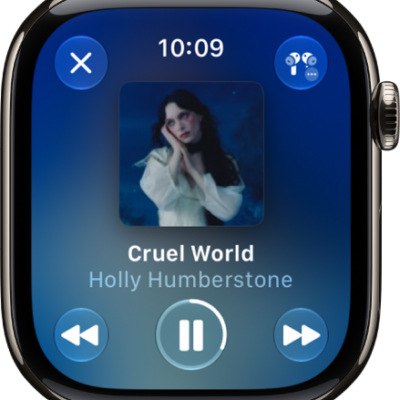
The Now Playing screen in the Music app. Album art is in the middle, the song title and artist are below. At the bottom of the screen are the Previous, Play/Pause, and Next buttons. The More Options button is at the top right. The Back button is at the top left.

How to play audio during a workout on Apple Watch

You can play audio during a workout on Apple Watch, with music picked by Apple Music or media you choose for each workout type.
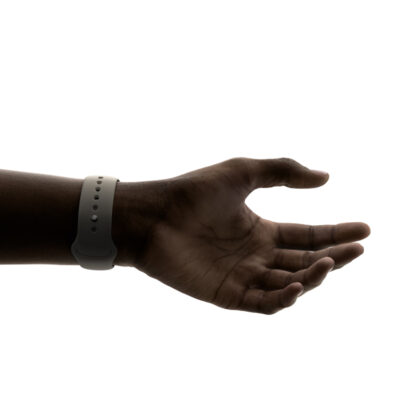
A hand wearing Apple Watch, with the thumb and index finger ready to make the double tap gesture.

How to use tap gestures on Apple Watch

You can use tap gestures on Apple Watch, double tapping to answer a call or reply to a message, and single tapping to select a widget.
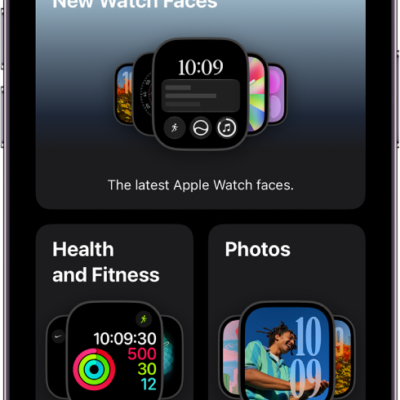
Apple Watch app open to the Face Gallery. The top row shows faces that are new, the next rows show watch faces grouped by type—Health and Fitness, and Photos. You can scroll to see more faces grouped by type.

How to change Apple Watch faces

You can change Apple Watch faces, add new ones from the Face Gallery, customize colors and features, and delete faces from your collection.