Got a tip for us?

Emily Long

Emily is a staff writer at GeeksModo, and is interested in all things Apple. This includes its best products such as the iPad, iPhone, Mac, AirPods, and Apple Watch. When she’s not tinkering with the latest Apple gear, you’ll find her watching movies, taking pictures on her Sony A7 and exploring the great outdoors.

Emily Long's Articles

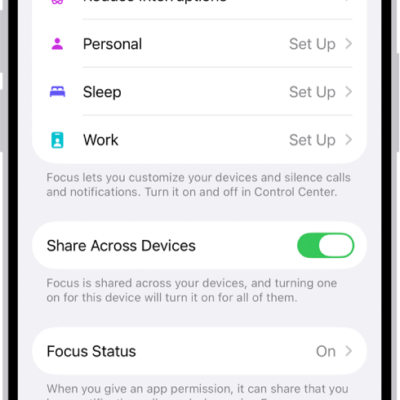
A screen showing five provided Focus options—Do Not Disturb, No messages during calls, Sleep, Personal, and Work. The Share Across Devices option is on, which allows the same Focus settings to be used across your Apple devices.

How to set up a Focus on iPhone

You can set up a Focus on iPhone, like Work or Sleep, to silence or allow notifications, add Focus filters, and sync it across devices.
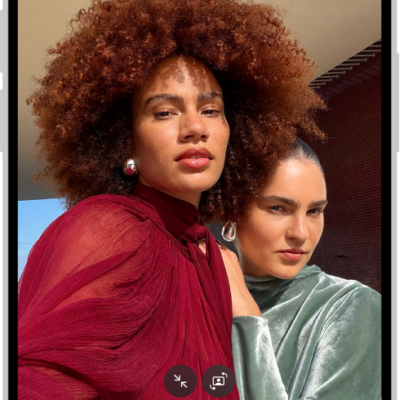
The Camera screen in Photo mode. Within the camera frame, the subjects are taking a selfie.

How to take a selfie with your iPhone camera

You can take a selfie with the iPhone front camera in Photo or Portrait mode, widen the view, use Center Stage, and mirror the image.
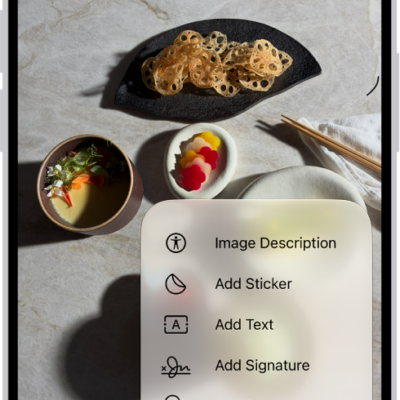
An image open in the Preview app. A menu shows options that can be added to it, such as stickers and text. The Markup, Info, and More buttons appear at the top of the screen, and annotation tools appear at the bottom of the screen.

How to edit an image in Preview on iPhone

You can crop, rotate, flip, resize, or remove the background of an image in the Preview app on iPhone.
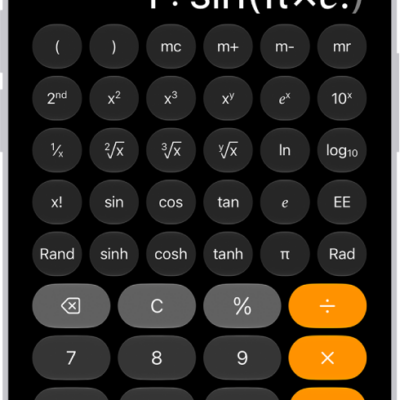
iPhone showing the scientific calculator with memory, exponential, logarithmic, and trigonometric functions.

How to use the scientific calculator on iPhone

You can use the scientific calculator on iPhone for exponential, logarithmic, and trigonometric functions and full expressions.
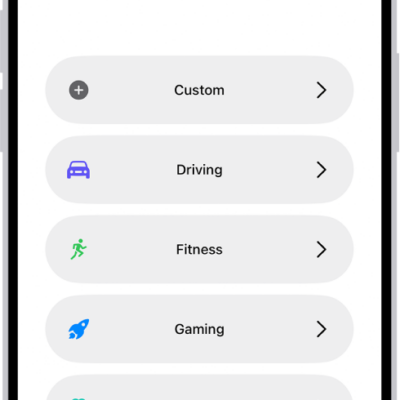
A Focus setup screen for the additional provided Focus options, including Custom, Driving, Fitness, Gaming, Mindfulness, and Reading.

How to stay focused while driving with iPhone

You can stay focused while driving with the Driving Focus on iPhone, which silences or limits notifications and allows calls only through CarPlay or a hands-free accessory.
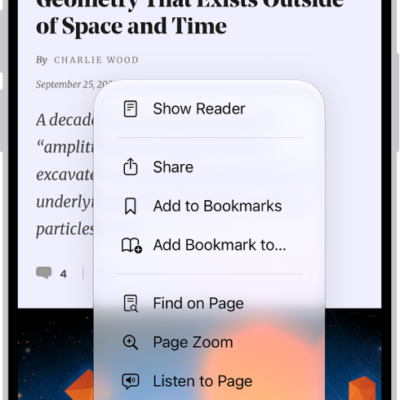
The Bookmarks screen, with options to see your bookmarks, the Reading List, and your browsing history.

How to bookmark a website in Safari on iPhone

You can save, organize, and sync Safari bookmarks on iPhone, and add a website icon to the Home Screen for quick access.
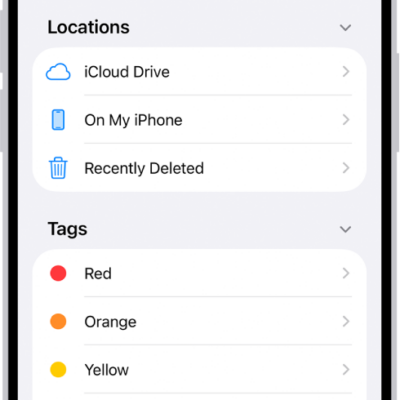
The Files app displaying multiple folders and locations named Downloads, Letters, Family, and so on. At the bottom of the screen are buttons for Recent files, Shared files, and the Browse tab.

How to transfer files from iPhone to a storage device, a server, or the cloud

You can transfer files from iPhone to an external storage device, a file server, or a cloud service like iCloud, Box, or Dropbox.
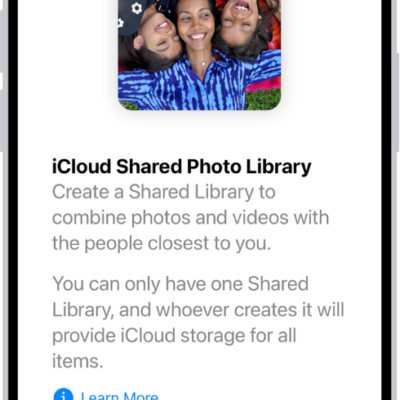
An iPhone showing the Get Started Screen for creating an iCloud Shared Photo Library.

How to add content to an iCloud Shared Photo Library on iPhone

You can add photos and videos to an iCloud Shared Photo Library on iPhone by moving them manually or saving them directly from Camera.
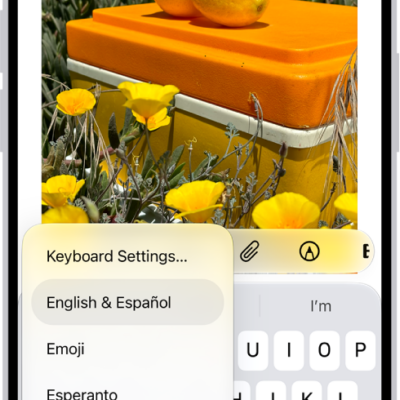
The Keyboard Settings menu is open, and shows three options: English (US), Emoji, and Keyboard Feedback. At the bottom of the menu, from left to right, are buttons for left-handed layout, default layout, and right-handed layout. The default layout button is selected.

How to use VoiceOver on iPhone with an Apple external keyboard

You can use keyboard shortcuts for VoiceOver commands, Quick Nav, and VoiceOver Help with Magic Keyboard and iPhone.
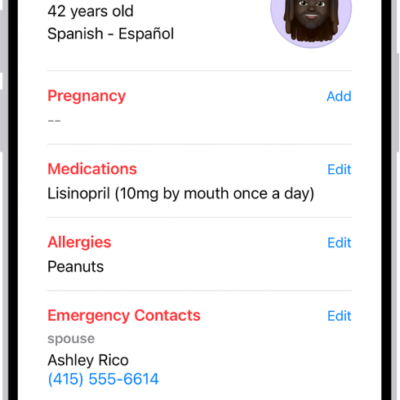
A Medical ID screen containing information including birth date, medications, allergies, emergency contacts, and medical conditions.

How to set up and view your Medical ID

You can set up a Medical ID in Health on iPhone with your allergies, conditions, and emergency contacts, and share it with first responders.