Got a tip for us?

Kevin Hollington

Kevin Hollington is a seasoned tech journalist based in Los Angeles with a penchant for all things Apple. He started writing about Apple products in 2007 and it’s been a love affair ever since. He has spent over a decade testing and writing about iPhones, iPads, Macs, and other Apple products. In his spare time, he likes nothing more than catching up with the latest news and sports podcasts on the beach.

Kevin Hollington's Articles

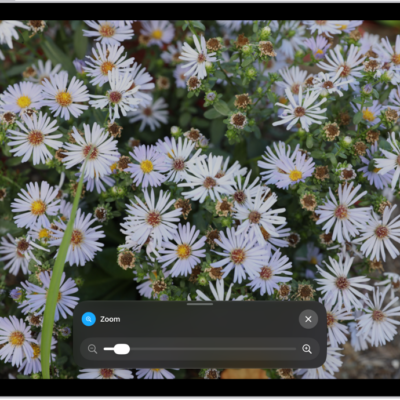
An iPad showing a zoomed in image of white flowers.

How to zoom in on the iPad screen

You can zoom in on the iPad screen with Full Screen Zoom, Window Zoom, or Pinned Zoom, and use Zoom with VoiceOver.
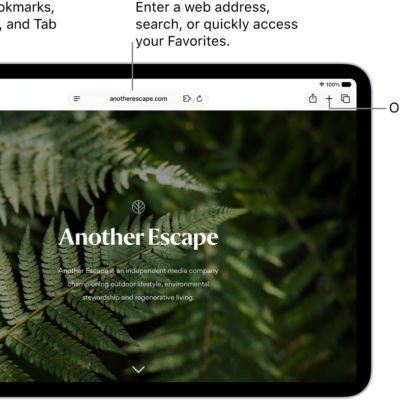
An open webpage. Along the top, from left to right, are the Sidebar button, the Previous button, the search field, the Share button, the New Tab button, and the Tab Overview button.

How to use Hide My Email in Safari on iPad

You can use Hide My Email in Safari on iPad with iCloud+ to generate unique, random email addresses for forms and newsletters.
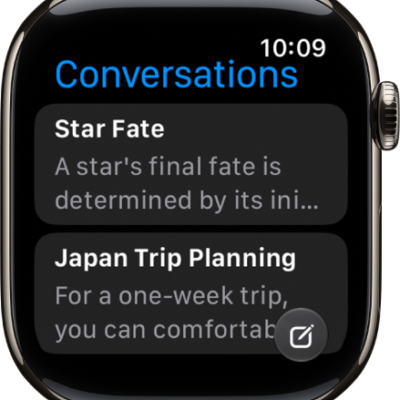
The Siri app showing two conversations. A button to start a new conversation appears at the bottom of the screen.

How to change how Siri responds on Apple Watch

You can change how Siri responds on Apple Watch, choose when it speaks, and display captions and transcriptions of your Siri requests.
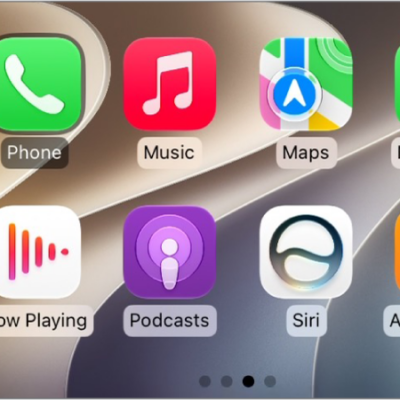
The CarPlay Home Screen showing Maps, Music, and Messages in the sidebar. To the right is a collection of other app icons.

How to connect iPhone to CarPlay

You can connect your iPhone to CarPlay with your car's USB port or wirelessly, depending on what your car supports.

The Accessibility screen in Settings showing the built-in features for Vision support.

How to control several devices with one switch on iPhone

You can use the same switch that controls your iPhone to navigate your iPad, Mac, or Apple TV 4K with Platform Switching.

The People & Pets collection in the Photos app. Groups appear at the top, and people and pets are listed below.

How to find and name people and pets in Photos on iPhone

You can find and name people, dogs, and cats in the People & Pets collection in Photos on iPhone, and Photos names them across your library.
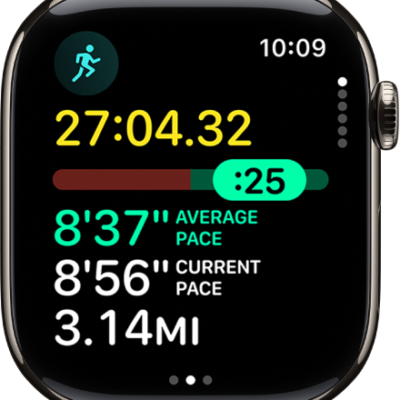
The Workout app on Apple Watch showing the Pacer view in an Outdoor Run workout. At the top is the duration of the run. Below is a slider indicating how far or behind you are in your pace. Average Pace, Current Pace, and distance are below.

How to start an outdoor run workout on Apple Watch

You can start an outdoor run workout on Apple Watch, create a Pacer workout, race your last or best time on a route, and run on a track.
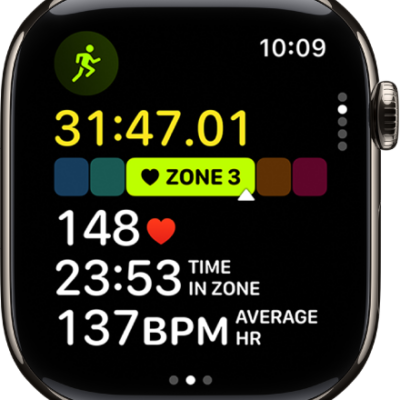
A running workout in progress shows the workout's elapsed time, the zone you're currently in, heart rate, time in zone, and average heart rate.

How to view Heart Rate Zones on Apple Watch

You can view Heart Rate Zones on Apple Watch during a cardio workout, review your zone data, and edit your Heart Rate Zones.
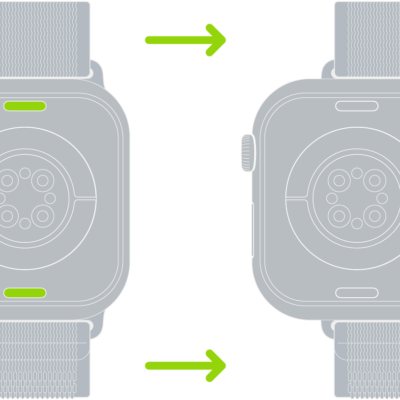
Two images of Apple Watch. The image on the left shows the band release button. The image on the right shows a watch band partially inserted into the band slot.

How to remove and change Apple Watch bands

You can remove and change Apple Watch bands with the band release button, using the same general steps for different bands.
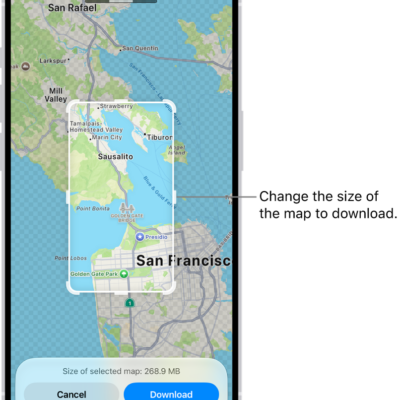
A map of a national park. The park is framed by a rectangle with handles, which can be moved to change the size of the map to download. The selected map's download size is indicated near the bottom of the map. The Cancel and Download buttons are at the bottom of the screen.

How to use offline maps on Apple Watch

You can use offline maps on Apple Watch to view saved map areas and hiking routes and get directions without Wi-Fi or cellular service.