









Kevin Hollington
Kevin Hollington's Articles
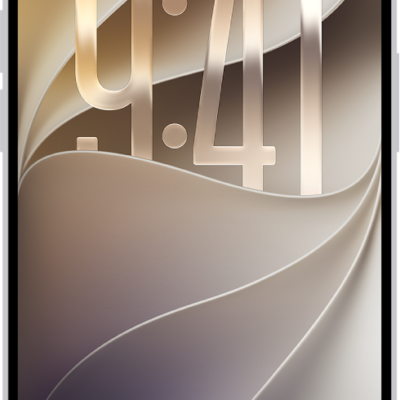
How to access features from the iPhone Lock Screen
You can use the iPhone Lock Screen to open Camera and Control Center, view notifications, control media, and follow Live Activities.
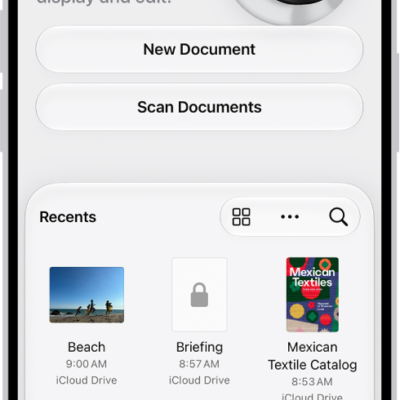
How to save, rename, or move PDFs and images in Preview on iPhone
You can save, rename, duplicate, copy, or move a PDF or image in the Preview app on iPhone.
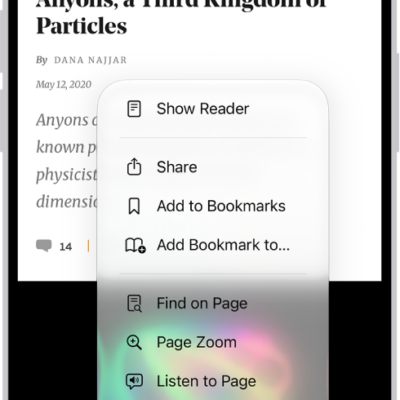
How to block pop-ups in Safari on iPhone
You can block pop-up windows in Safari on iPhone by turning on Block Pop-ups in the Safari section of the Settings app.
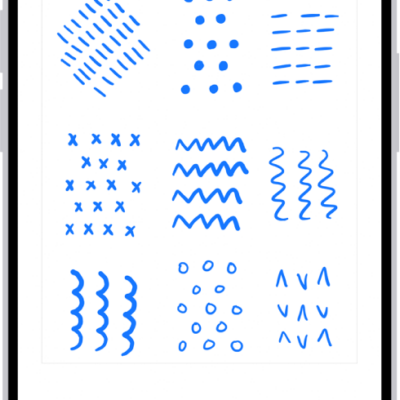
How to draw and handwrite with Markup on iPhone
You can draw, sketch, and handwrite with Markup in apps like Notes and Photos on iPhone, and annotate screenshots and PDFs.
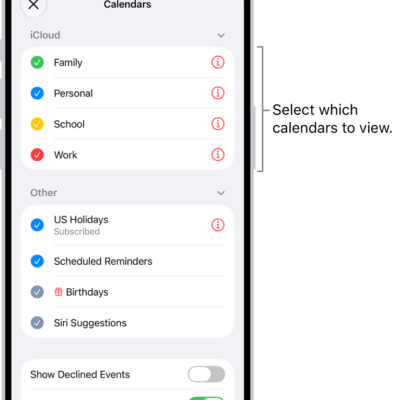
How to use the Holidays calendar on iPhone
You can use the Holidays calendar in Calendar on iPhone to see holidays for your region, show or hide them, or add another region's holidays.
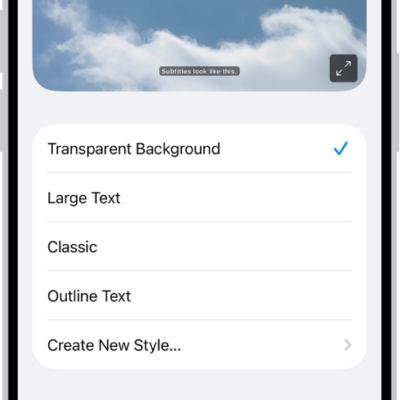
iPhone hearing accessibility features: Live Captions, Sound Recognition, and more
You can use hearing accessibility features on iPhone, including Live Captions, Sound Recognition, hearing devices, Live Listen, and audio adjustments.
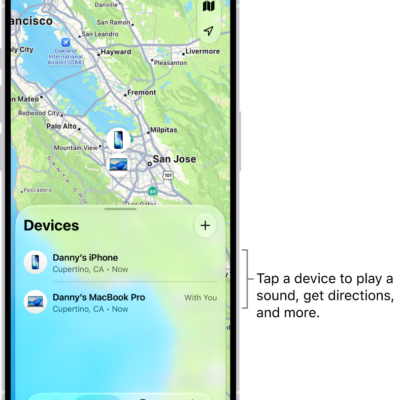
How to erase a device in Find My on iPhone
You can remotely erase a lost iPhone, iPad, Apple Watch, or Mac with Find My on iPhone, and Activation Lock still protects it.
How to send your location via satellite in Find My on iPhone
You can share your location via satellite in Find My when you're outside cellular and Wi-Fi coverage on supported iPhone models.
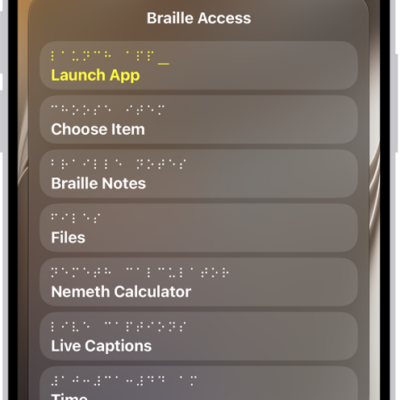
How to use Braille Access with a braille display on iPhone
You can turn iPhone into a braille notetaker with a braille display, open apps, and use BRF files and Live Captions with Braille Access.
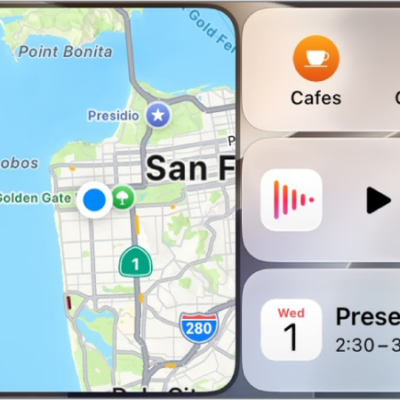
How to play audiobooks with CarPlay
You can play the audiobooks on your iPhone with CarPlay, and control playback with your car's controls or CarPlay Dashboard.