









Apple’s Family Sharing feature is a really neat way to save money with your friends and family. You can split costs by having just one person pay for services like Apple TV, Apple Arcade, Apple Music, etc., for five other people.
However, some people have tried to make this feature work and failed. So, if you’re sure you’ve paid for a subscription service and you notice that it’s not shared among family members, we have listed a few troubleshooting steps to resolve the problem on your iPhone 18 Pro Max.
1. Check Apple’s System Status Page
Before logging out of your Apple Account, removing and adding family members, and sifting through your payment details, you might save some time by checking if the service you seemingly can’t share is online in the first place.
Go to Apple’s System Status page and scan the list of Apple services to see if the one you’re trying to share has a green dot next to it.
This will hardly be the culprit, but it’s worth checking before going into the more detailed fixes.
2. Turn on Purchase Sharing and Share With Family
Purchase Sharing is a feature that allows family members to share apps, movies, TV shows, songs, and books they bought with each other. The family organizer will pay for it using a shared payment method, but all the family members will get to download it if they want.
Here’s how to turn it on using an iPhone:
- Open Settings on your iPhone 18 Pro Max.
- Tap Family, tap Purchase Sharing, then follow the onscreen instructions.
- Tap Subscriptions, then tap Manage Subscriptions.
- Turn on Share with Family.
This might fix your issue, but try the next step if it doesn’t.
3. Change Apple Account Region
This may not be immediately obvious, but regions matter a lot for apps and media purchases. If your family members are using different Apple Account regions, they won’t be able to access the same subscriptions.
The best way to change your region is to visit the Apple Account website and change it from there. However, there are some things you need to know before changing your App Store country.
Here’s a quick way to do it on your browser:
- Cancel all your subscriptions and make sure you have no money left in your Apple Account balance.
- Visit the Apple Account Personal Information page and click Country/Region.
- Follow the instructions and enter a valid payment method for your new country or region.
- Now, as long as you and your family members are in the same region, you will all enjoy access to shared subscriptions.
4. Sign Out and Sign In to Media & Purchases
First, you must ensure you’re using the same Apple Account for Family Sharing and Media & Purchases. You can find it in Settings > Family > Your Name > Purchases > Apple Account for Purchases. Confirm that your Apple Account for purchases is the same as your regular Apple Account.
Sign out and into Media & Purchases by doing the following on your iPhone 18 Pro or iPhone 18 Pro Max:
-
Open Settings and tap your Apple Account name.
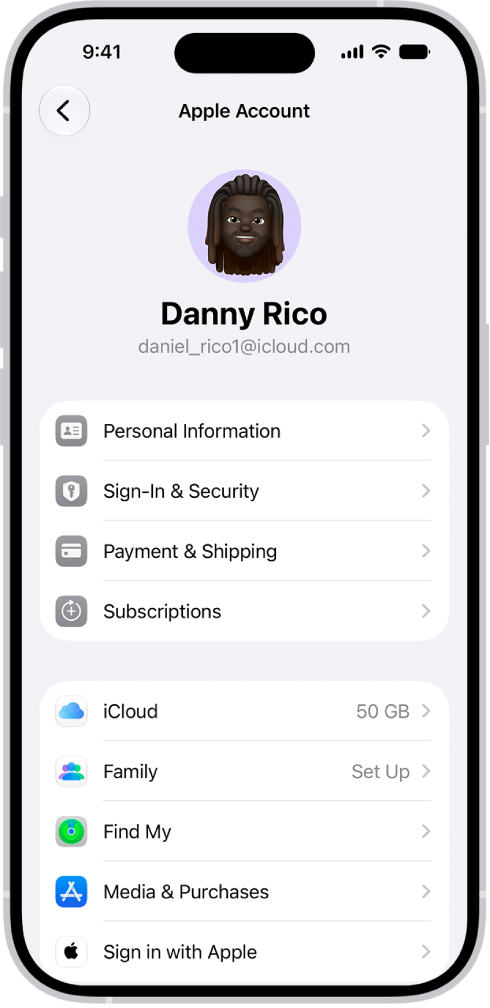
- Now, tap on Media & Purchases and choose Sign Out from the pop-up menu.
- Tap Media & Purchases again, and make sure you sign in with the same Apple Account you use for Family Sharing.
5. Sign Out, Restart, and Sign In
A little Apple Account reset on the device that isn’t receiving the shared subscription might do the trick.
So, follow these steps to sign in again with your Apple Account on an iPhone 18 Pro Max:
- Open Settings and tap on your Apple Account name.
- Scroll to the bottom and Sign Out (marked in red).
- Now, restart your iPhone, go back to Settings, and select Sign in to your iPhone.
This should refresh the App Store and other apps, and it should now recognize that the signed-in Apple Account has access to the shared subscriptions.
6. Add the Family Member Again
As an extension of refreshing it all, you can re-organize the Family Sharing group by disbanding it and adding everyone back again.
Here’s how to do it on iOS:
- Open Settings and tap Family.
-
Select individual family members and tap Remove [member’s name] from Sharing Group.
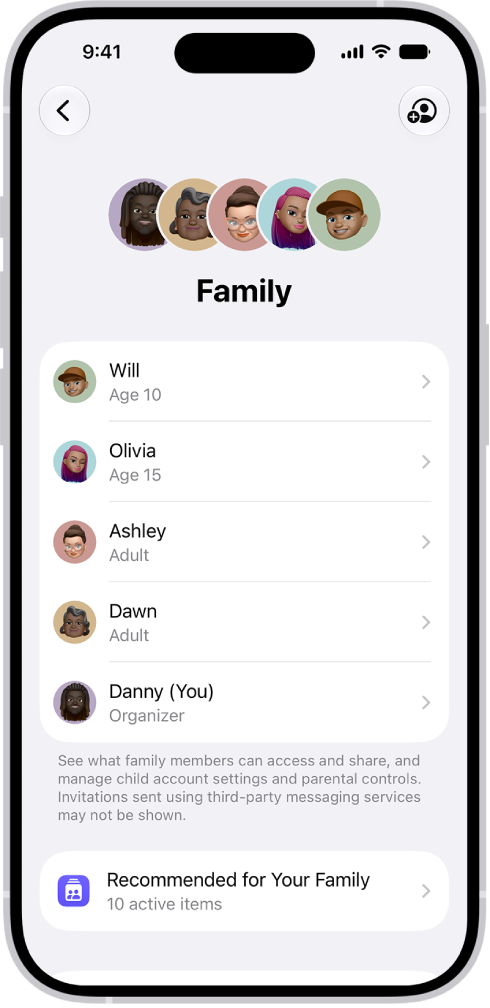
- Invite them back: tap the Add Member button, tap Invite Others, then follow the onscreen instructions.
Check Payments if All Else Fails
If you tried all these troubleshooting steps and still can’t share your subscription, you can try contacting Apple Support for guidance.
However, the only related issues short of the ones listed here that could stop you from sharing a subscription with family members are payment issues. So, you should probably check if your payment information is correct and if you actually have access to the subscriptions yourself.
Hopefully, one of these fixes works for you, and your family and friends can enjoy all the goodies that come with sharing digital content purchases and subscriptions.


