









Picture this: You’re going about your day when you receive an email from Apple saying it declined the payment option attached to your subscription service. You’re prompted to update your payment method to continue enjoying the service, but you weren’t aware your card needed updating.
Or perhaps you want to add a payment method to your Apple Account, but it gets declined. What do you do in either situation? Below, we’ll list a few steps you can take when Apple declines your payment method on your iPhone 18 Pro Max.
1. Check Your Payment Information
When Apple declines your payment method, the first thing to try is to check your payment information to ensure it’s accurate and up-to-date. If your billing details, such as your address or ZIP code, are incorrect, this can cause your payment method to be declined.
If your current payment method has expired, you must renew your credit card and update your payment information or add a new payment method.
To check your payment information on an iPhone 18 Pro or iPhone 18 Pro Max:
-
Go to Settings, then tap your Apple Account name at the top.
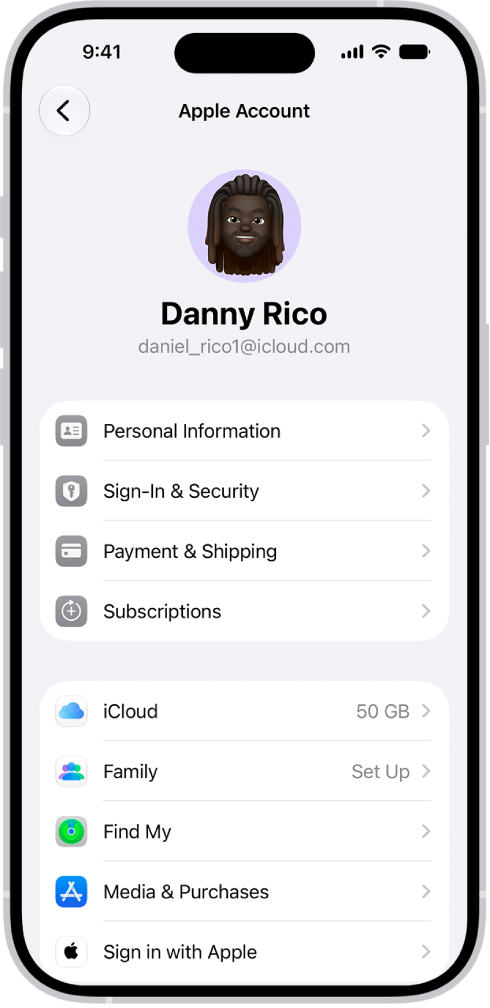
- Tap on Payment & Shipping, then under Payment Methods, select your credit card.
- Tap Edit, then check your card number, expiry date, CVV, and billing information. If you notice any discrepancies, update them.
- Tap Done in the top-right corner.
There you go. You’ve successfully checked and updated your payment information.
2. Try a Different Payment Method
If Apple still declines your payment method, try a different payment method. You can add a new card to your Apple Account and see if it works.
Besides cards, you can try alternative payment methods like your Apple Account balance, an Apple Gift Card, a debit card, PayPal, or Apple Pay, depending on whether or not they’re valid in your country or region.
Check Apple’s Support page to see what payment methods you can use with your Apple Account.
3. Sign Out and Sign Back In
Sometimes, a simple sign-out is all you need to fix payment issues on your iPhone 18 Pro or iPhone 18 Pro Max. If your payment method is declined in the App Store, you can sign out and sign back in to see if it fixes the issue.
To sign out of the App Store on an iPhone:
- Open Settings and tap your name.
- Tap Media & Purchases, then tap Sign Out.
To sign back in, tap the profile icon in the top-right of the App Store and enter your Apple Account username and password.
4. Take Care of Outstanding Payments
Your card may be declined in places like the App Store or iTunes Store if you have outstanding payments. To check for unpaid purchases, view your App Store purchase history.
Do the following to view your App Store purchases on an iPhone 18 Pro Max.
- Go to the App Store app on your iPhone.
- Tap your picture, tap Apps & Purchase History, then tap Purchase History. You may be required to sign in.
After resolving any outstanding payments, you should be able to make purchases using your payment method. However, ensure you have sufficient funds first.
5. Contact Your Bank or Credit Card Company
If you have sufficient funds in your bank account and your payment information is accurate, but you still can’t add or use your payment method, contact your bank or credit card company. They should be able to explain the issue and help you resolve it.
6. Contact Apple Support
If all else fails, contact Apple Support as soon as possible. You can visit Apple’s Get Support site to explain your problem. An expert technician should be able to assist you with your payment method problem.
Troubleshoot Your Apple Account Payment Issues
It can be frustrating when Apple declines your payment method, but the good news is that you can try a few things to get to the root of the problem and fix it. Start by checking your payment information, then proceed from there.
Sometimes, resolving your payment issue might take a while, so be patient and ensure you try every possible solution. Eventually, you should be able to resolve the problem.

