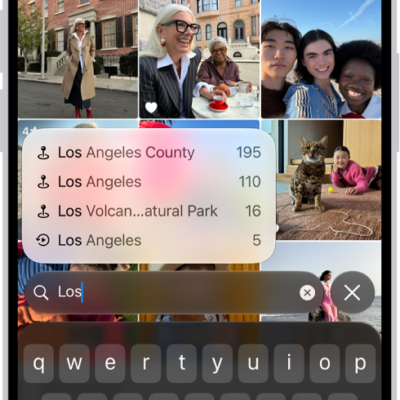
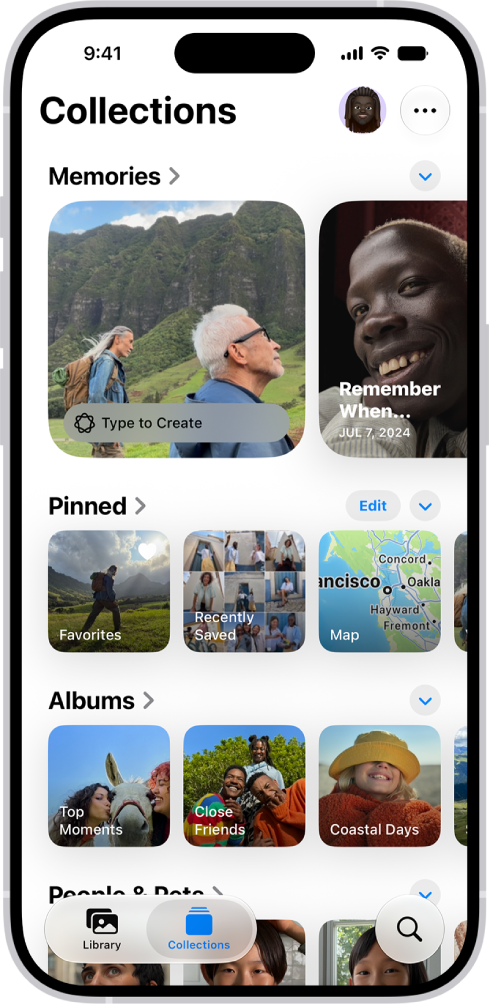
Your photos and videos are organized into curated collections such as Memories, Trips, People & Pets, and more. Some collections are also organized by category such as Live Photos, Selfies, Recently Saved, and Recently Viewed.
You can change how collections look, with larger or smaller image tiles or no images at all, and change the order they appear on the screen. The ones you view most often can be pinned at the top, so they’re easy to find. Here’s how to browse your photo collections on iPhone.
View your collections
- Open the Photos app on your iPhone.
- Tap Collections.
- Swipe up to view the collections. Under each collection heading, swipe left or right to see different collections. Or tap the heading to see all the collections in that category.
- Tap a collection to open it.
Change the collections display
Collections can show larger or smaller image tiles, or no images at all, and you can change the order they appear in on the screen.
- Open the Photos app on your iPhone.
- Tap Collections.
- Tap the Layout and Reorder button at the top of the screen and then do any of the following:
- Enlarge the size of the collection tiles: Tap the Large Grid button.
- Reduce the size of the collection tiles: Tap the Small Grid button.
- Show the default display: Tap the Mixed Grid button.
- Hide the collection tiles: Tap Collapse All.
- Reorder collections: Tap Reorder and touch and drag a collection into a new position. Tap the Done button.
- Choose which library to include in collections (if you’re part of an iCloud Shared Photo Library): Tap Both Libraries, Personal Library, or Shared Library.
Quick tip: Tap the Forward button to hide the image tiles for a single collection, and tap it again to stop hiding them.
By default, videos and Live Photos automatically play when you tap Collections. To turn autoplay off, tap your account in the top-right corner, then turn off Auto-Play Motion and Loop Videos.
Reorder collections
You can change the order of collections so the ones you go to most frequently appear first. For example, if you frequently view your Shared Albums, you can move them above other collections.
- Open the Photos app on your iPhone.
- Tap Collections.
- Scroll to the bottom of the screen and tap Reorder. Then drag a collection into a new position.
- Tap Done.
You can also tap the Layout and Reorder button, then tap Reorder.
Pin collections and albums
To keep the collections you view most often easy to find, choose what goes in the Pinned collection at the top of the screen.
- Open the Photos app on your iPhone.
- Tap Collections.
-
Tap Edit (to the right of the Pinned heading), then do any of the following:
- Remove a pinned collection: Tap the Remove button and tap Delete.
- Pin a collection: Tap the suggested collection you want to add, or scroll down and tap Any Collection or Album to see more options.
- Reorder pinned collections: Touch and hold a pinned collection. Then drag it to a new position.
Note: Collections with the Remove button next to them are currently in your pinned collections. Collections with the Add button next to them are not yet pinned.
- When you’re done, tap the Close button.
Quick tip: Pinning a collection is quick: touch and hold it, then tap Pin. To remove it from Pinned, touch and hold it again and tap Unpin.
Filter and sort items in a collection
You can filter items in a collection by category, like Captured by Me, Edited, or Rating, and sort them to display oldest first or newest first.
- Open the Photos app on your iPhone.
- Tap Collections, then tap a collection to open it.
- Tap the Sort and Filter button and then do either of the following:
- Filter items: Tap the filter you want to apply.
- Sort items: Tap Sort By. Tap Newest First or Oldest First.