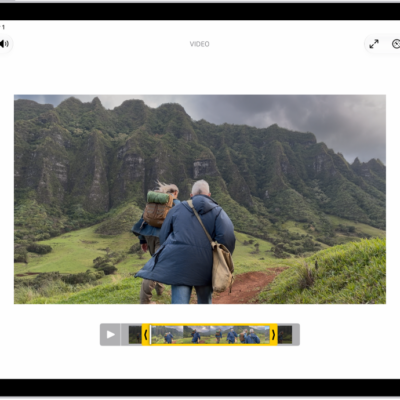
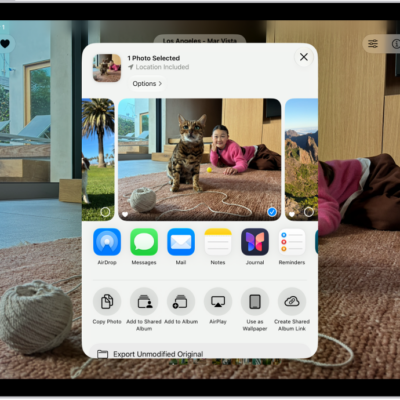
Browse the library in the Photos app to view your entire collection of photos and videos.
You can go to a specific time in your library by years or months, or go back to your most recent photos. You can also change the size and appearance of the thumbnails in your library grid and view each one in the dimension it was captured in. And you can manage the content displayed in your library, such as screenshots and photos shared with you in Messages.
Here’s how to browse your photo library on iPad.
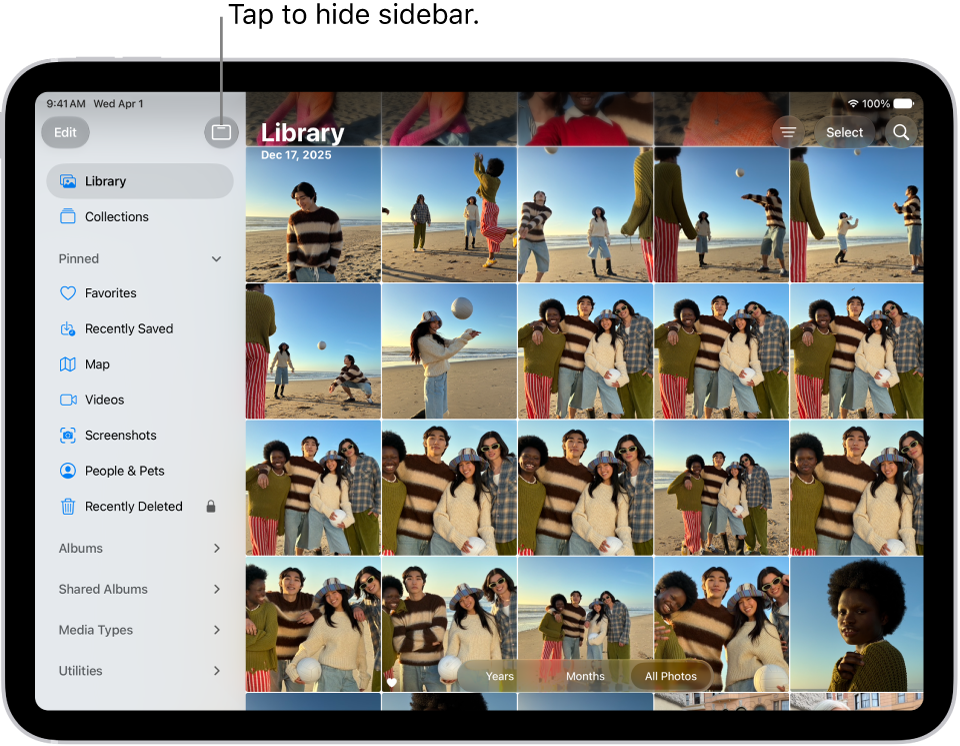
View your library
- Start the Photos app on your iPad.
- Tap Library.
- Swipe down to see more photos, or tap Years or Months to go to a specific time in your library.
- Tap Library or All to go back to your most recent photos.
To focus on the images in your library, tap the Hide Sidebar button to close the sidebar, then use the Years, Months, and All buttons to navigate. To show the sidebar again, tap the Toggle Sidebar button.
Change the library display
You can change the size and appearance of photo thumbnails in the library photo grid and manage what your library displays.
Quick tip: As you view the library, pinch the screen to zoom in or out.
- Start the Photos app on your iPad.
- Tap the More button, then tap View Options.
- Do any of the following:
- Enlarge the size of the photo and video thumbnails: Tap Zoom In.
- Reduce the size of the photo and video thumbnails, to see more at the same time: Tap Zoom Out.
- View each photo or video thumbnail in the dimension it was captured in: Tap Aspect Ratio Grid. To return to square thumbnails, tap Square Photo Grid.
- Hide screenshots: Tap Screenshots.
- Hide the shared library badge on thumbnails: Tap Shared Library Badge.
- Hide photos and videos shared with you in Messages: Tap Shared with You.
- Hide photos and videos you manually added from your Mac: Tap From My Mac.
For more ways to customize the content shown in your photo library, check out our guide, Filter and sort the photo library.
See also