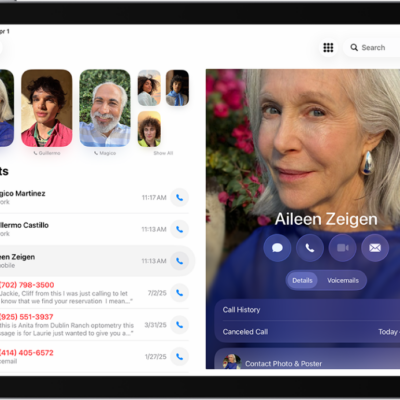
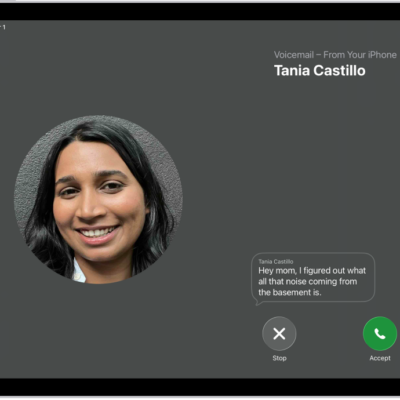
In your Phone settings on iPad, you can hide your Caller ID on outgoing calls, prioritize caller identification apps, turn on Dial Assist, and change the default calling app. Dial Assist then automatically determines the correct international or local prefix when you’re dialing.
Hide your Caller ID
You can prevent your Caller ID information from showing on outgoing calls on iPad.
- Open the Settings app on your iPad.
- Tap Apps, then tap Phone.
- Tap Show My Caller ID and turn it off.
Note: A missing Show My Caller ID option may mean your carrier doesn’t allow you to turn off your caller ID information.
Prioritize caller identification apps
Caller ID information on iPad comes from several main sources, listed here:
- Contacts app: The people in your contacts app.
- Name and Photo Sharing: Callers who have turned on Name and Photo Sharing in Settings > their name > Personal Information.
- Carrier Call Directory: Caller information identified by supported carriers.
- Business Call Identification: Caller information identified by Apple Business Connect or your cellular provider.
- Call Identification apps: Any caller information identified by supported caller ID apps.
If you’ve installed additional caller identification apps, you can rank them for identifying incoming calls and change their order at any point. Say you want one caller identification app to be the preferred one, with the rest used only when the primary app can’t identify the caller.
- Open the Settings app on your iPad.
- Tap Apps, then tap Phone.
- Tap Call Blocking & Identification. Tap Edit at the top of the screen.
- Drag the Sort button to reorder the priority of the apps.
Turn on Dial Assist
Dial assist automatically determines the correct international or local prefix when dialing.
- Open the Settings app on your iPad.
- Tap Apps, then tap Phone.
- Scroll down, then turn on Dial Assist.
Change the default calling app
Rather than the built-in Apple Phone app, you can choose an alternative, third-party app as your default for making and receiving phone calls. First, confirm the app you want to switch to supports these features, and contact the app developer if you aren’t sure.
- Open the Settings app on your iPad.
- Tap Apps, then tap Phone.
- Tap Default Calling App. Tap the app you want set as the default.
See also