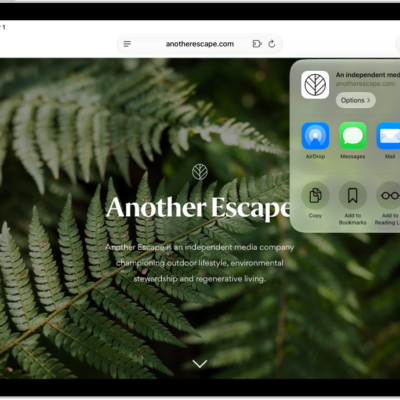
You can easily find and organize web links that friends share with you in Messages conversations. Links shared with you are added to the Shared with You section of the Sidebar in Safari, and you can keep them on your start page, remove them, or organize related links into Tab Groups.
You can display them on your Safari start page, so you see them every time you open a new page, and you can continue the conversation without leaving Safari.
See links from friends in Safari
To find links shared with you easily, show them on your Safari start page, where they’re listed every time you open a new page.
- Go to the Safari app on your iPad.
-
Tap the Show Sidebar button and then tap Shared with You.
If you don’t see Shared with You, tap the Back button at the top of the sidebar.
You can also have links shared with you appear on your start page, under Suggestions. See Customize your start page.
Quick tip: You don’t have to leave Safari to continue the conversation. Tap the button below the link preview, and the Messages conversation where the link was shared opens.
Remove a link from the Shared with You section
- Open the Safari app on your iPad.
- In Shared with You, touch and hold the preview image of a link.
- Tap Remove Link.
Organize shared links in a Tab Group
You can group related shared web links into Tab Groups to make them easier to find.
- Open the Safari app on your iPad.
- In Shared with You, touch and hold the preview image of the link you want to move. Then tap Open in Tab Group.
- Tap New Tab Group to create one, or add the link to a Tab Group you already have.
See also