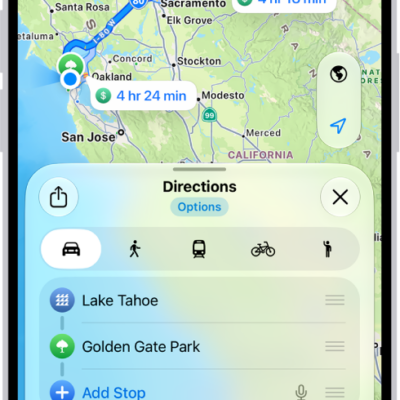
You can get detailed walking directions to your destination. You can preview the elevation for your walk and choose a route that best avoids hills, stairs, or busy roads.
Maps speaks walking-specific directions for turns and other maneuvers, like walking up stairs, and Siri can give you walking directions home, too. Immersive walking instructions aren’t available in all countries or regions, though.
Here’s how to get walking directions in Maps on iPhone.
Note: Turn-by-turn spoken directions and immersive walking instructions aren’t available in all countries or regions.
Get walking directions
- Start the Maps app on your iPhone.
- Touch and hold anywhere on the map or enter an address in the search field and then tap the directions button.
- Tap Go or Steps for the route you want to take.
If you tap Go, as you walk along your route, Maps speaks walking-specific directions for turns and maneuvers like walking up stairs.
Siri: You can also ask Siri something like, “Give me walking directions home.” For thousands of trails in parks across the U.S., you can find out their length, preview elevation information, see photos, and more.
Avoid hills, busy roads, or stairs
- Start the Maps app on your iPhone.
- Touch and hold anywhere on the map or enter an address in the search field and then tap the directions button.
- Tap Options (below Directions), make your choices (below Avoid) and then tap the Done button.
Automatically see directions in augmented reality
Immersive walking instructions show you where to turn using augmented reality and the iPhone camera.
- Start the Settings app on your iPhone.
- Tap Apps, then tap Maps.
Below Directions, tap Walking, then turn on Raise to View.
Get walking directions, as above.
Raise iPhone, tap the Pedestrian AR button, then follow the onscreen instructions.
- To return to the map, tap the Close button.
Improve how accurately iPhone determines your location while walking
To improve how accurately your iPhone determines your location, and which direction you’re facing as you walk, you can use the camera and motion sensors.
- Start the Settings app on your iPhone.
- Tap Apps, then tap Maps.
Below Directions, tap Walking, then turn on Enhanced.
To decrease battery usage, you can turn off this feature.