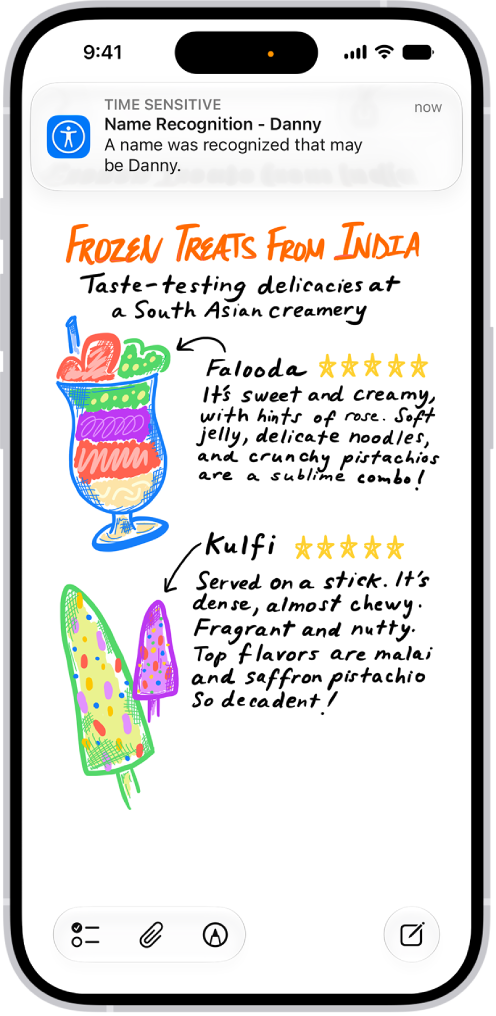
You can have iPhone continuously listen for your name and notify you when it’s detected. You can also record how you or someone else says your name to help iPhone recognize it.
If you go by more than one name, iPhone can recognize multiple names. And to quickly turn Name Recognition on or off, you can add it to Control Center.
Here’s how to have iPhone notify you when your name is called.
Note: Name Recognition is available on iOS 26 and later. Name Recognition is only available in select languages. Don’t rely on your iPhone to recognize your name in circumstances where you may be harmed or injured or in high-risk or emergency situations.
Set up Name Recognition
- Start the Settings app on your iPhone.
- Tap Accessibility, tap Sound & Name Recognition, tap Name Recognition, and then tap Set Up Name Recognition.
- Follow the onscreen instructions.
Add more than one name to Name Recognition
Have more than one name you go by? You can have iPhone recognize multiple names.
- Start the Settings app on your iPhone.
- Tap Accessibility, tap Sound & Name Recognition and tap Name Recognition. Then tap Add Name.
- Follow the onscreen instructions.
Quick tip: Add Name Recognition to Control Center, and you can turn it on or off quickly.