Got a tip for us?

Sound Recognition

Apple Watch can continuously listen for certain sounds—such as a doorbell, siren, or crying baby—and notify you when it recognizes these sounds.

It works on Apple Watch Series 12 and Apple Watch Ultra 4, and your iPhone may need to download the available sounds first.

Here’s how to recognize sounds using Apple Watch.

Note: Sound recognition is available on Apple Watch Series 12 and Apple Watch Ultra 4. Don’t rely on your Apple Watch to recognize sounds in circumstances where you may be harmed or injured, in high-risk or emergency situations, or for navigation. For more information, see Important safety information for Apple Watch.

Set up Sound Recognition

  1. Start the Settings app on your iPhone.
  2. Tap Accessibility, tap Sound & Name Recognition, tap Sound Recognition, and turn on Sound Recognition.

    Note: After you turn on Sound Recognition, you may need to wait for your iPhone to download the available sounds to your device.

  3. Tap Sounds and turn on the sounds you want your Apple Watch to recognize.

Turn off Sound Recognition on Apple Watch

  1. Start the Settings app on your iPhone.
  2. Tap Accessibility, scroll down to Hearing, and tap Sound & Name Recognition.
  3. Tap Sound Recognition. Then turn off Detect using Apple Watch.

See also

Your iPad can continuously listen for certain sounds—such as a doorbell, siren, or crying baby—and notify you when it recognizes these sounds. With Sound Recognition, iPad can also recognize a custom alarm, appliance, or doorbell you set up, if it isn’t recognized automatically.

Once it’s on, iPad may need a moment to download the available sounds on your device. You can turn Sound Recognition on or off quickly from Control Center, too, and even use iPad as a remote microphone with Live Listen.

Note: Don’t rely on your iPad to recognize sounds in circumstances where you may be harmed or injured, in high-risk or emergency situations, or for navigation.

Set up Sound Recognition

  1. Start the Settings app on your iPad.
  2. Tap Accessibility, tap Sound & Name Recognition, tap Sound Recognition, and turn on Sound Recognition.

    Note: After you turn on Sound Recognition, you may need to wait for iPad to download the available sounds on your device.

  3. Tap Sounds, then turn on the sounds you want iPad to recognize.

Quick tip: Add Sound Recognition to Control Center to quickly turn it on or off.

Add a custom alarm, appliance, or doorbell

When a custom alarm, appliance, or doorbell isn’t recognized automatically, you can set up iPad to recognize it.

  1. Start the Settings app on your iPad.
  2. Tap Accessibility, tap Sound & Name Recognition and tap Sound Recognition. Tap Sounds.
  3. Tap Custom Alarm or Custom Appliance or Doorbell and enter a name.
  4. When your alarm, appliance, or doorbell is ready, place iPad near the sound and minimize background noise.
  5. Tap Start Listening, then follow the onscreen instructions.

See also

You can have iPad continuously listen for your name and notify you when it’s detected. You can also record how you or someone else says your name to help iPad recognize it.

If you go by more than one name, iPad can recognize multiple names. And to quickly turn Name Recognition on or off, you can add it to Control Center.

Here’s how to have iPad notify you when your name is called.

Note: Name Recognition is available on iPadOS 26 and later. Name Recognition is only available in select languages. Don’t rely on your iPad to recognize your name in circumstances where you may be harmed or injured or in high-risk or emergency situations.

A notification is shown on iPad that Name Recognition recognized a sound that may be a name.

Set up Name Recognition

  1. Start the Settings app on your iPad.
  2. Tap Accessibility, tap Sound & Name Recognition, tap Name Recognition, and then tap Set Up Name Recognition.
  3. Follow the onscreen instructions.

Add more than one name to Name Recognition

If you identify yourself by more than one name, you can have iPad recognize multiple names.

  1. Start the Settings app on your iPad.
  2. Tap Accessibility, tap Sound & Name Recognition and tap Name Recognition. Then tap Add Name.
  3. Follow the onscreen instructions.

Quick tip: To turn Name Recognition on or off quickly, add it to Control Center.

You can have iPhone continuously listen for your name and notify you when it’s detected. You can also record how you or someone else says your name to help iPhone recognize it.

If you go by more than one name, iPhone can recognize multiple names. And to quickly turn Name Recognition on or off, you can add it to Control Center.

Here’s how to have iPhone notify you when your name is called.

Note: Name Recognition is available on iOS 26 and later. Name Recognition is only available in select languages. Don’t rely on your iPhone to recognize your name in circumstances where you may be harmed or injured or in high-risk or emergency situations.

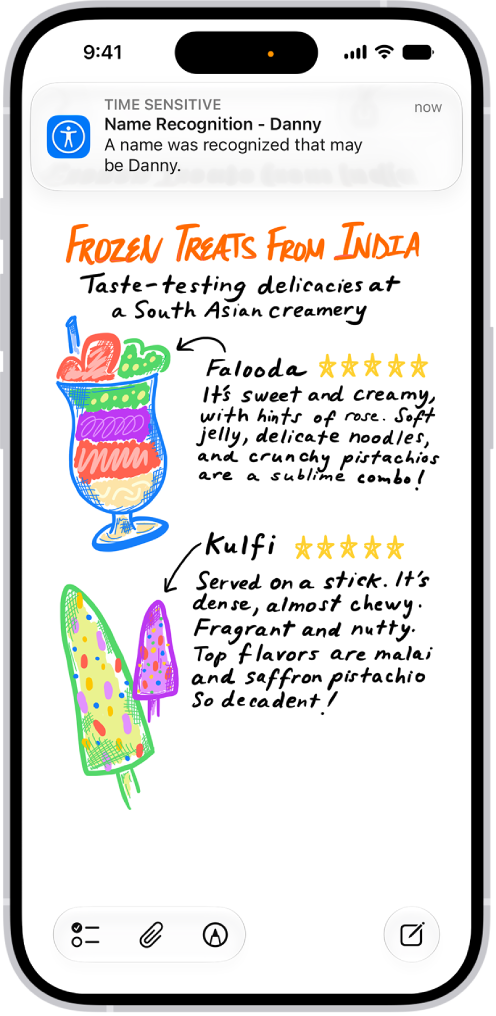
A notification is shown on iPhone that Name Recognition recognized a sound that may be a name.

Set up Name Recognition

  1. Start the Settings app on your iPhone.
  2. Tap Accessibility, tap Sound & Name Recognition, tap Name Recognition, and then tap Set Up Name Recognition.
  3. Follow the onscreen instructions.

Add more than one name to Name Recognition

Have more than one name you go by? You can have iPhone recognize multiple names.

  1. Start the Settings app on your iPhone.
  2. Tap Accessibility, tap Sound & Name Recognition and tap Name Recognition. Then tap Add Name.
  3. Follow the onscreen instructions.

Quick tip: Add Name Recognition to Control Center, and you can turn it on or off quickly.

With Sound Recognition, your iPhone can continuously listen for certain sounds, such as a doorbell, siren, or crying baby, and notify you when it recognizes these sounds.

You can choose the sounds you want iPhone to recognize, and add your own, like a custom alarm, appliance, or doorbell, with a name you enter. Don’t rely on Sound Recognition in high-risk or emergency situations, or for navigation, though.

Here’s how to recognize sounds using iPhone.

Note: Don’t rely on your iPhone to recognize sounds in circumstances where you may be harmed or injured, in high-risk or emergency situations, or for navigation.

Set up Sound Recognition

  1. Start the Settings app on your iPhone.
  2. Tap Accessibility, tap Sound & Name Recognition, tap Sound Recognition, and turn on Sound Recognition.

    Note: After you turn on Sound Recognition, you may need to wait for iPhone to download the available sounds to your device.

  3. Tap Sounds and turn on the sounds you want iPhone to recognize.

Quick tip: Add Sound Recognition to Control Center to turn it on or off quickly.

Add a custom alarm, appliance, or doorbell

If iPhone doesn’t recognize a custom alarm, appliance, or doorbell automatically, you can set it up to recognize them.

  1. Start the Settings app on your iPhone.
  2. Tap Accessibility, tap Sound & Name Recognition and tap Sound Recognition. Tap Sounds.
  3. Tap Custom Alarm or Custom Appliance or Doorbell and enter a name.
  4. When your alarm, appliance, or doorbell is ready, place iPhone near the sound and minimize background noise.
  5. Tap Start Listening, then follow the onscreen instructions.