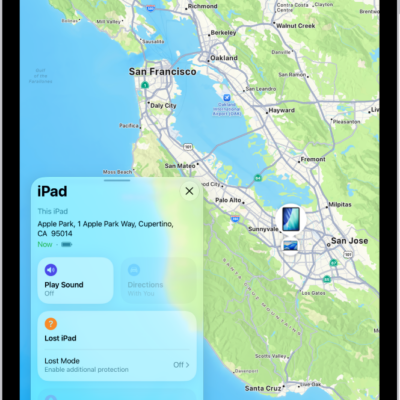
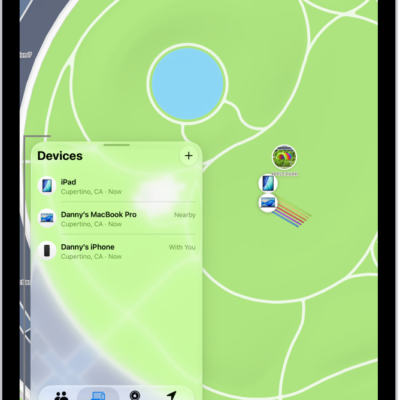
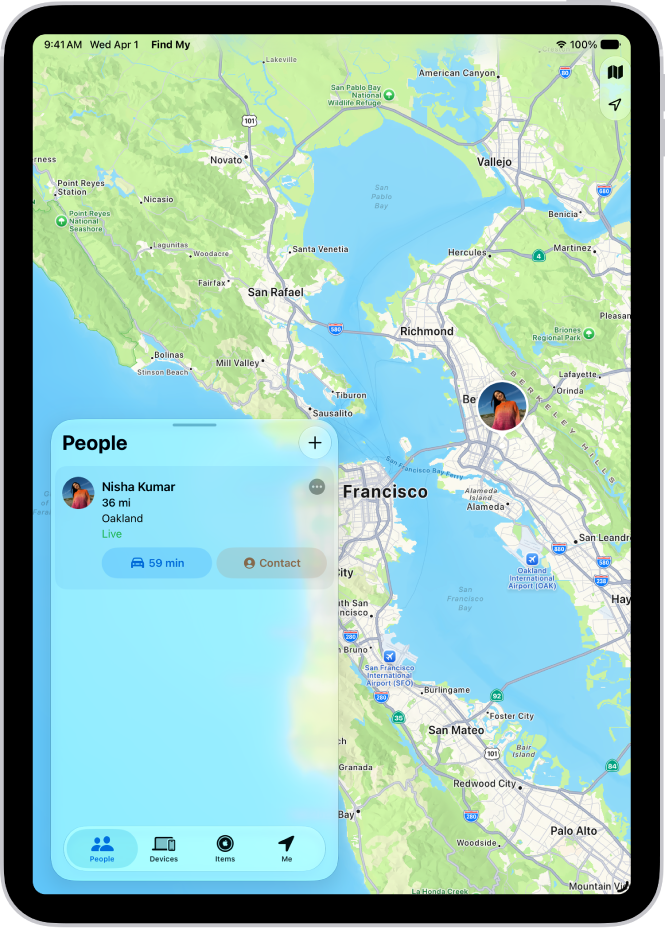
When a friend shares their location with you, you can use the Find My app to locate them on a map.
When your friend can’t be located, “No location found” appears below their name, and if you aren’t following them, you see “Can see your location” instead. You can also contact a friend, get directions to them, and set a label for a location.
Here’s how to locate a friend in Find My on iPad.
Note: Turn on Precise Location for the Find My app if you’d like to see how far away your friends are from you. See our article, Control the location information you share.
See the location of a friend
- Start the Find My app on your iPad.
- Tap People at the bottom-left side of the screen. Then tap the name of the person you want to locate.
- If your friend can be located: They appear on a map so you can see where they are.
- If your friend can’t be located: You see No location found below their name.
- If you aren’t following your friend: You see Can see your location below their name. You can ask to see a friend’s location.
Contact a friend
- Start the Find My app on your iPad.
- Tap People at the bottom-left side of the screen. Then tap the name of the person you want to contact.
- Tap Contact and choose how you want to contact your friend. See Add and use contact information.
Get directions to a friend
To get directions to a friend’s current location, use the Maps app.
- Start the Find My app on your iPad.
- Tap People at the bottom-left side of the screen. Tap the name of the person you want to get directions to.
- Tap Directions to open Maps.
For help getting there, check out our guide, Get directions in Maps.
Set a label for a friend’s location
Setting a label like Home or Work for a friend’s current location makes it more meaningful, and whenever they’re at that location, the label shows up below your friend’s name.
- Start the Find My app on your iPad.
- Tap People at the bottom-left side of the screen and tap the name of the person you want to set a location label for. Then tap the more button.
-
Tap Edit Location Name and select a label.
To add a new label, tap Add Custom Label, enter a name, then tap the Done button.
Mark a friend as a favorite
A star marks your favorite friends. They appear at the top of the People list.
- Start the Find My app on your iPad.
- Tap People at the bottom-left side of the screen. Find the person you want to mark as a favorite.
- Do one of the following:
- Tap the name of the person, tap the more button, then tap Add to Favorites.
- Swipe left across the person’s name, then tap the star.
To remove a friend from your Favorites, swipe left and tap the star, or tap the friend, tap the more button, then tap Remove from Favorites.
See also
- Add or remove a friend in Find My on iPad
- Adjust map settings in Find My on iPad
- Get notified when a friend’s location changes in Find My on iPad