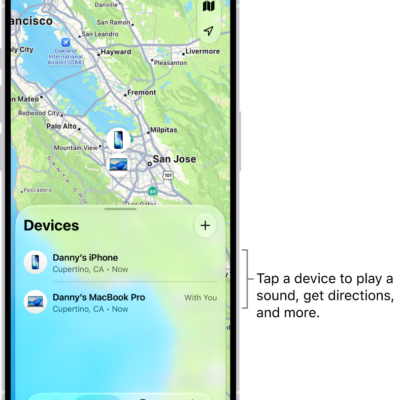
When a friend shares their location with you, you can use the Find My app to locate them on a map.
When your friend can’t be located, “No location found” appears below their name, and if you aren’t following them, you see “Can see your location” instead. You can also contact a friend, get directions to them, and set a label for a location.
Here’s how to locate a friend in Find My on iPhone.
Note: Want to know how far away your friends are? Turn on Precise Location for the Find My app.
See the location of a friend
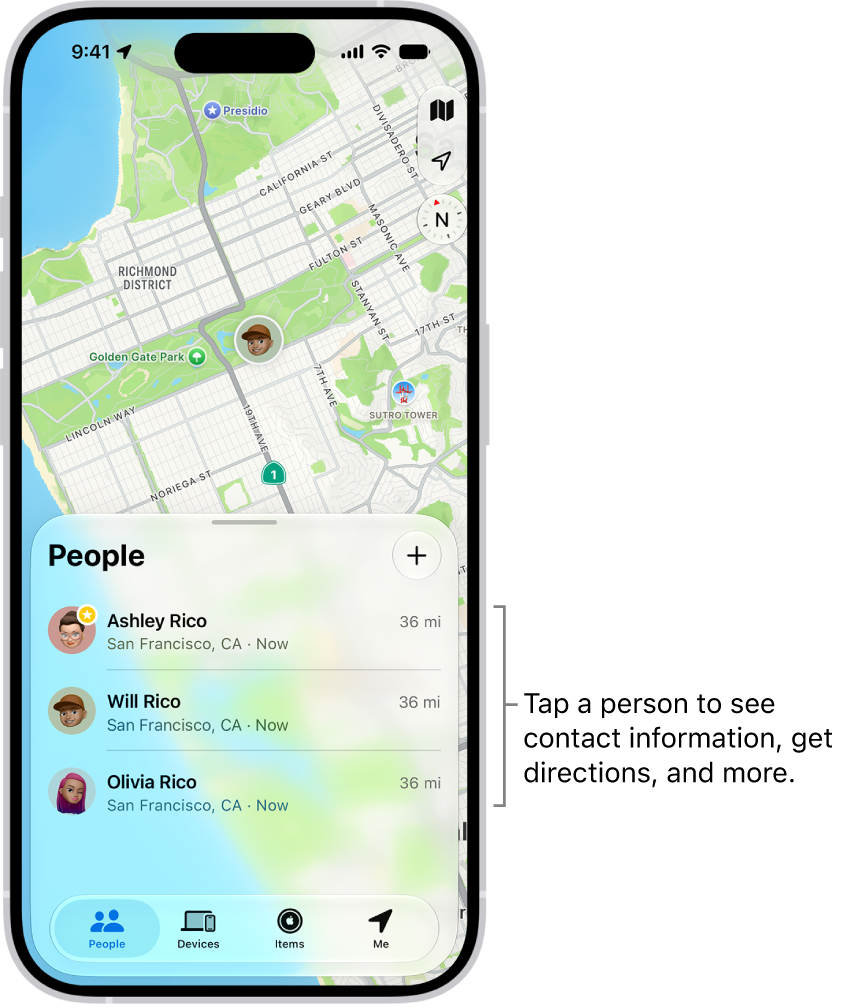
- Open the Find My app on your iPhone.
- Tap People. Then tap the name of the person you want to locate.
- If your friend can be located: They appear on a map so you can see where they are.
- If your friend can’t be located: You see No location found below their name.
- If you aren’t following your friend: You see Can see your location below their name. You can ask to see a friend’s location.
Contact a friend
- Open the Find My app on your iPhone.
- Tap People, then tap the name of the person you want to contact.
- Tap Contact and choose how you want to contact your friend.
Get directions to a friend
The Maps app can give you directions to a friend’s current location.
- Open the Find My app on your iPhone.
- Tap People, then tap the name of the person you want to get directions to.
- Tap Directions to open Maps.
Set a label for a friend’s location
To make a friend’s current location more meaningful, you can give it a label, like Home or Work. When they’re at that location, the label appears below their name.
- Open the Find My app on your iPhone.
- Tap People, tap the name of the person you want to set a location label for, and tap the More button.
- Tap Edit Location Name and select a label.
To add a new label, tap Add Custom Label, enter a name, then tap Done.
Mark a friend as a favorite
Favorite friends are marked with a star and appear at the top of the People list.
- Open the Find My app on your iPhone.
- Tap People. Find the person you want to mark as a favorite.
- Do one of the following:
- Tap the name of the person, tap the More button, then tap “Add to Favorites.”
- Swipe left across the person’s name, then tap the star.
To remove a friend from your Favorites, swipe left and tap the star, or tap the friend, tap the More button, then tap “Remove from Favorites.”