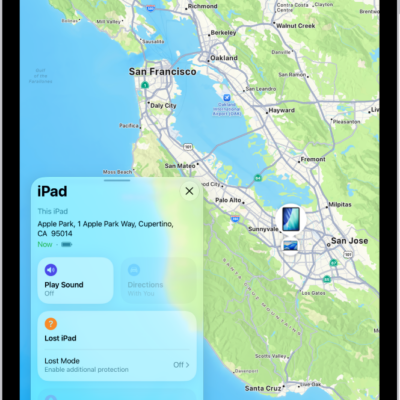
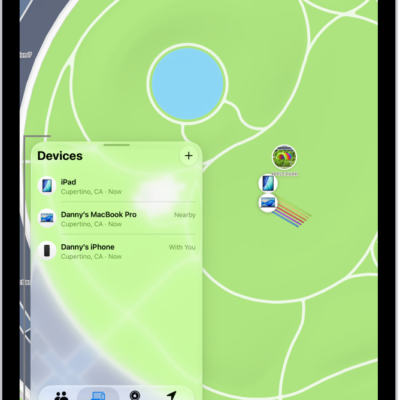
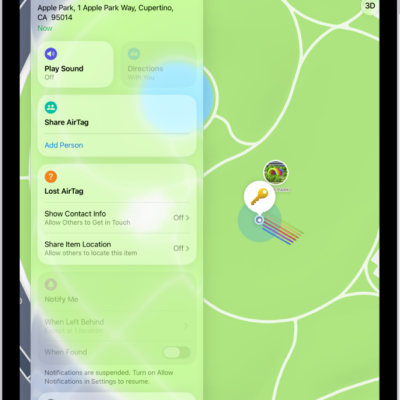
You can use the Find My app to locate a missing AirTag or third-party item that you’ve registered to your Apple Account. If the item can be located, it appears on the map, and if it can’t, you see where and when it was last located. Its location updates whenever it connects to the Find My network, and if it can’t be located, you can get notified once it’s found again. You can also play a sound and get directions to it.
Learn how to register an AirTag or third-party item.
See the location of an item
Tap Items at the bottom-left side of the screen, then tap the item you want to locate.
- If the item can be located: It appears on the map so you can see where it is. The location and timestamp appear below the item’s name. The item’s location is updated when it connects to the Find My network.
-
If the item can’t be located: You see where and when it was last located. Below Notifications, turn on Notify When Found. You receive a notification once it’s located again.
Important: Make sure you allow notifications for the Find My app. See Change notification settings on iPad.
Play a sound
If the item is nearby, you can have it play a sound to help you find it.
Note: When you can’t play a sound on an item, the Play Sound button doesn’t appear.
- Open the Find My app on your iPad.
- Tap Items at the bottom-left side of the screen and then tap the item you want to play a sound on.
-
Tap Play.
To stop playing the sound before it ends automatically, tap Stop Sound.
Get directions to an item
Directions to an item’s current or last known location are available in the Maps app.
- Open the Find My app on your iPad.
- Tap Items at the bottom-left side of the screen. Tap the item you want to get directions to.
- Tap Directions to open Maps.
For directions to the item in Maps, check out our guide, Get directions.
See also