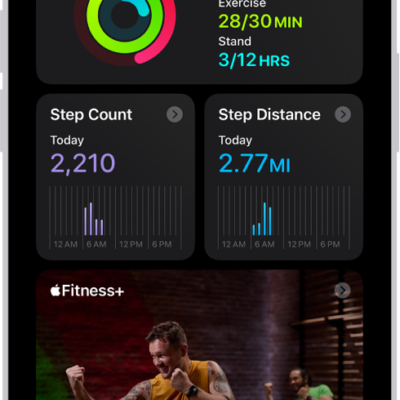
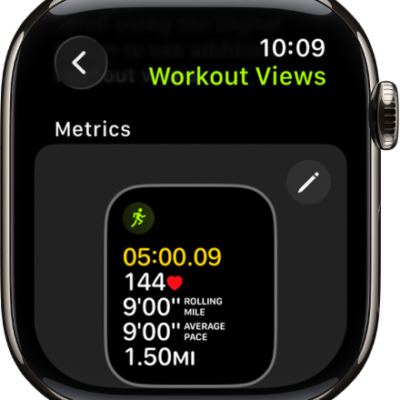
You can see a summary of your daily activity, trends, awards, and more, to keep track of your progress. You can also add, edit, move, and delete the metrics that appear in your summary.
Carry your iPhone, and its motion sensors track your steps, distance, and flights climbed. You can see your Activity rings, completed workouts and meditations, and awards, too.
Here’s how to see your activity summary in Fitness on iPhone.
Check your progress
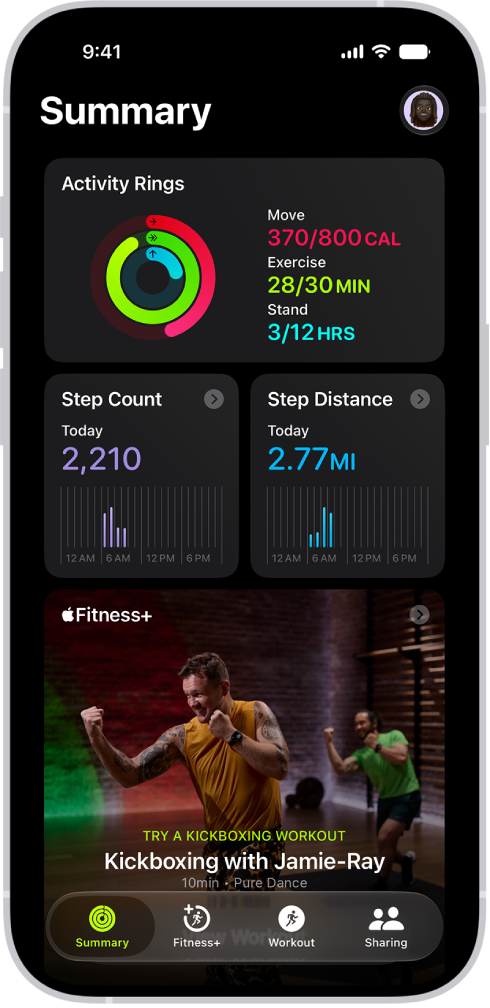
Go to the Fitness app at any time to see how you’re doing. You can see your Activity rings, trends, completed workouts and meditations, awards, and more.
Your iPhone’s motion sensors estimate active calories burned by tracking your steps, distance, and flights climbed while you carry it. Workouts you complete in compatible third-party apps also count toward the progress shown on your Activity rings.
Your red Move ring shows the active calories you’ve burned. With an Apple Watch, you’ll also see a green Exercise ring for the minutes of brisk activity you’ve done, and a blue Stand ring for how many times in the day you’ve stood and moved, at least 1 minute per hour.
An overlapping ring means you exceeded your goal. Tap the Activity rings to see details of your progress for that day.
Note: If you’d like to track your daily activity from your Home Screen or Lock Screen, add a Fitness widget.
See your summary
- Start the Fitness app on your iPhone.
-
Tap Summary and then do any of the following:
- See your activity summary for a specific day: Tap the Activity rings, tap the Calendar button, and then tap a date.
- See your steps metrics: Tap the Step Count or Step Distance area.
- Begin a recommended Apple Fitness+ workout or meditation: If you subscribe to Apple Fitness+, swipe left or right on the Fitness+ area to browse activities and then tap one.
-
See your trends: Tap the Trends area. To see the history of a specific trend, tap it.
Your last 90 days of activity are compared to the last 365. If the trend arrow for a particular metric points up, then you’re maintaining or improving your fitness levels. If an arrow points down, your 90-day average for that metric has started to decline. To help motivate you to turn the trend around, you receive coaching—for example, “Walk an extra quarter mile a day.”
Note: It takes 180 days of activity to start your trends.
- See your workout and meditation history: Tap the Sessions area and then tap an activity to learn more about its details.
- See your awards: Tap the Awards area and tap an award to learn more about its details.
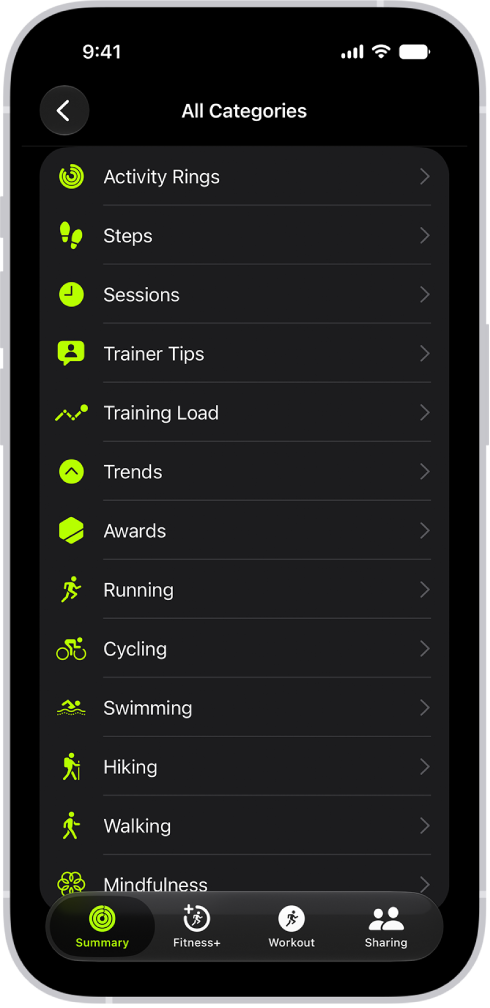
To view all categories of your summary, scroll down to the bottom of the screen, then tap See All Categories.
Customize your summary
To see what’s important to you, add, edit, move, and remove fitness metrics in the Summary tab.
- Start the Fitness app on your iPhone.
- Tap Summary, scroll down, and then tap Edit Summary.
- Do any of the following:
- Add a metric: Tap the Add button, scroll to find the metric you want, tap it, swipe through the different options, and then tap Add Card.
- Edit a metric: Tap a metric, swipe through the different options, and then tap Swap Current Card.
- Move a metric: Touch and hold a metric, then reposition it.
- Delete a metric: Tap the Delete button next to a metric.
- When you’re finished, tap the Delete button.