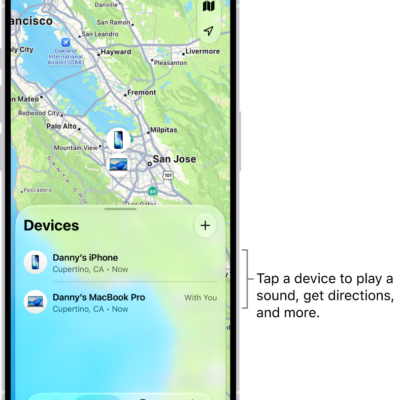
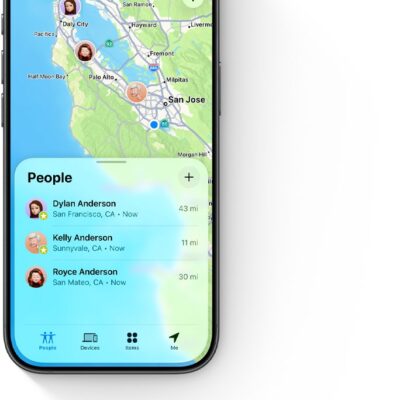
Separation alerts in the Find My app let you know when you’ve left a device behind. You can set them up for your iPhone, iPad, Mac, or AirPods, and add Trusted Locations, where you can leave a device without getting an alert.
If you have an iPhone Wallet with MagSafe and Find My support, you can get an alert when it detaches from your iPhone, too.
Here’s how to set separation alerts in case you leave a device behind in Find My on iPhone.
Important: In order to receive separation alerts, make sure you allow notifications for the Find My app.
Set up alerts for your iPhone, iPad, Mac, or AirPods
Separation alerts work for an iPad, iPhone, or iPod touch with iOS 15, iPadOS 15, or later, a Mac with Apple silicon and macOS 12 or later, and AirPods with the Find My network turned on. You can set up a separation alert only from the device sharing your location, and you’ll get an alert every time it separates from the device you set the alert for.
- Open the Find My app on your iPhone.
- Tap Devices, tap the name of the device you want to set up an alert for, and then tap the More button.
- Below Notify Me, tap Notify When Left Behind.
- Turn on Notify When Left Behind and then follow the onscreen instructions.
- If you want to add a Trusted Location, you can choose a suggested location, or tap New Location, select a location on the map, and then tap Done.
- Tap the Done button.
Get notified when your iPhone Wallet with MagSafe detaches from your iPhone
If your iPhone Wallet with MagSafe and Find My support gets separated from your iPhone, you can get an alert one minute later. The Find My app then shows its last known location on a map.
- Open the Find My app on your iPhone.
- Tap Devices, tap the name of your iPhone Wallet with MagSafe, and tap the More button.
- Tap Notify When Detached.
- Turn off or on Notify When Detached and tap the Done button.