Before you can use the Find My app to share your location with friends, you need to set up location sharing.
Once it’s set up, you can share your location with a friend, set a label for your location, and stop or pause sharing whenever you want. You can also respond to a location sharing request, or stop receiving new location sharing requests.
Here’s how to share your location in Find My on iPhone.
Note: When others still can’t see your location after you set up location sharing, check that Location Services is turned on in Settings > Privacy & Security > Location Services > Find My.
Set up location sharing
- Start the Find My app on your iPhone.
-
Tap Me, then turn on Share My Location.
The device sharing your location appears next to Sharing From.
-
If your iPhone isn’t currently sharing your location, you can tap Use This iPhone as My Location.
Note: To share your location from another device, open Find My on the device and change your location to that device. If you share your location from an iPhone that’s paired with Apple Watch (GPS + Cellular models), your location is shared from your Apple Watch when you’re out of range of your iPhone and Apple Watch is on your wrist.
You can also change your location sharing settings in Settings > [your name] > Find My.
Set a label for your location
You can set a label for your current location to make it more meaningful (like Home or Work). When you tap Me, you see the label in addition to your location.
- Start the Find My app on your iPhone.
- Tap Me and then tap Location Label.
- Select a label.
To add a new label, tap Add Custom Label, enter a name, then tap Done.
Share your location with a friend
- Start the Find My app on your iPhone.
-
Tap People, tap the Add button, and choose Share My Location.
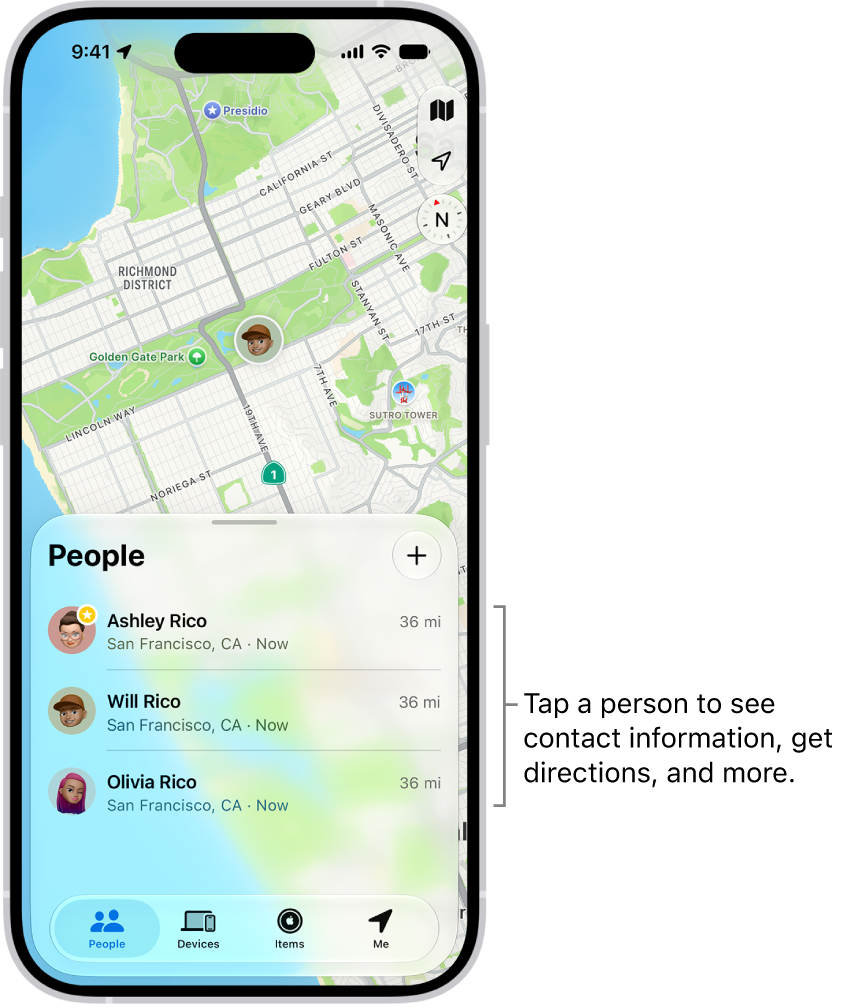
- In the With field, enter the name of a friend you want to share your location with (or tap the Add Contact button, then select a contact).
- Tap the Done button. Then choose how long you want to share your location.
Quick tip: Choose Custom and adjust the fields to set a duration or an end time for your location sharing.
You can also notify a friend or family member when your location changes.
Stop or pause sharing your location
Hide your location from everyone, or stop or pause sharing it with a specific friend.
- Stop sharing with a friend: Tap People , then tap the name of the person you don’t want to share your location with. Tap Stop Sharing My Location, then tap Stop Sharing Location.
- Pause sharing with a friend: Tap People , then tap the name of the person you want to pause sharing your location with. Tap the More button. then tap Hide Location.
- Hide your location from everyone: Tap Me , then turn off Share My Location.
Respond to a location sharing request
- Start the Find My app on your iPhone.
- Tap People.
- Tap Share below the name of the friend who sent the request and choose how long you want to share your location.
If you don’t want to share your location, tap Cancel.
Stop receiving new location sharing requests
- Start the Find My app on your iPhone.
- Tap Me, then turn off Allow Friend Requests.