When you subscribe to Apple Music, you can show song credits and view and share lyrics.
Song credits show the performing artists, composition and lyrics, production and engineering roles, and even the available audio quality. Time-synced lyrics appear for many songs, and you can jump to a certain verse or get help pronouncing or translating the lyrics. And if you’re offline, you can still view lyrics for songs downloaded to your device.
Here’s how to show song credits and lyrics on iPad.
Show song credits
Performing artists, production and engineering roles, composition and lyrics, and available audio quality all appear in song credits.
- Open the Music app on your iPad.
- Do one of the following:
- While a song is playing, tap the MiniPlayer to open the Now Playing screen, tap the More button, then tap View Credits.
- Tap the More button next to a song in a list, then tap View Credits.
Show and hide time-synced lyrics
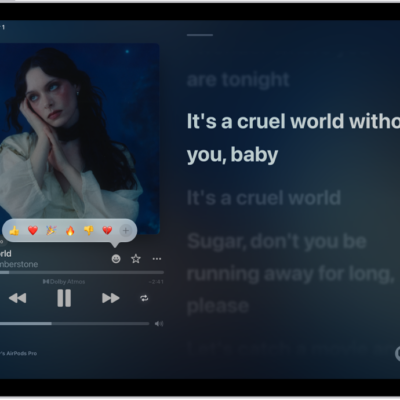
In Apple Music, many songs come with time-synced lyrics.
- Open the Music app on your iPad.
-
While a song is playing, tap the MiniPlayer to open the Now Playing screen. Tap the Lyrics button.
Note: If you’re offline, you can view lyrics as long as the songs are downloaded to your device.
-
Do any of the following:
- Jump to a certain verse: Tap a specific lyric—the first line of the chorus, for example—to go to that part of the song.
-
Get help pronouncing or translating the lyrics: Tap the Translation and Pronunciation button and choose Show Pronunciation or Show Translation.
The Translation and Pronunciation button only appears when a translation or pronunciation is available that matches your iPad device’s Preferred Languages list. (You can view this list and add languages directly to it in Settings > General > Language & Region.) Not available in all languages.
Tip: You can have either the lyrics or the pronunciation appear in larger text. Go to Settings > Apps > Music > Larger Text.
- See all of a song’s lyrics: Tap the More button, tap View Credits, and then tap View Lyrics.
- To hide the lyrics, tap the Lyrics button.
Share lyrics
You can share up to 150 characters of a song’s lyrics, as long as time-synced lyrics are available.
- Open the Music app on your iPad.
- While a song is playing, tap the MiniPlayer to open the Now Playing screen.
-
Tap the More button, then tap Share Lyrics.
You can also touch and hold a lyrics line to open the sharing screen.
- Tap the first and last lyrics you want to share. Then choose a sharing option.
Report a concern
To report a concern about time-synced lyrics, tap the More button, then tap Report a Concern.
See also