









There are different scenarios where you may find that your iPhone’s sound is not working. For example, maybe there’s no sound on your iPhone 18 Pro or iPhone 18 Pro Max when you receive a call. Or maybe your iPhone speaker doesn’t play any sound even after you adjust the volume.
Whatever’s going on, let’s look at how you can fix it when there’s no sound on your iPhone.
1. Test Your iPhone’s Speaker and Your Audio Devices
When your iPhone’s sound is not working, you should first try checking whether it’s a software or hardware problem. Here’s how:
- Go to the Settings app.
-
Select Sounds & Haptics.
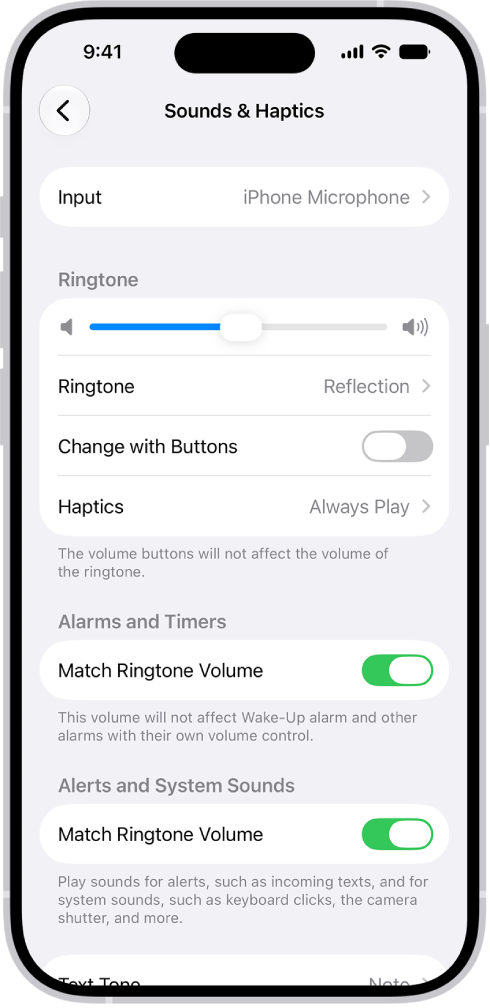
- Under the Ringtone section, tap and slide the volume slider to the right. This increases the speaker volume.
- If there is sound, your iPhone’s speaker is functional. If not, it’s likely a hardware issue that needs repairing.
Also, check that it’s not your audio devices, such as AirPods, causing the “no sound” problem. Test this by connecting them to other smartphones or computers. If they’re working like usual, it means that the issue is with your iPhone and you can now focus on solving it through this article.
2. Clean Your iPhone’s Speakers
Before moving on to troubleshooting software issues, there may simply be dust and dirt affecting speaker function, causing no sound to play on your iPhone. Use a soft, slightly damp, lint-free cloth—for example, a lens cloth. Avoid getting moisture in openings.
If it’s not dust and dirt, try to recall whether you accidentally dropped your iPhone in water recently. While iPhones are water-resistant, water may still get into your speakers. You can use the Sonic app to eject water from the speakers if this is the case.
3. Turn Off Silent Mode and Do Not Disturb
It’s convenient to use Silent Mode and Do Not Disturb to focus at work. Therefore, a simple reason why there’s no sound on your iPhone 18 Pro Max could be that these features are still turned on.
Here’s how to turn off Silent Mode:
Press and hold the Action button to turn Silent mode on. Press and hold the Action button again to turn Silent mode off. If your Action button isn’t set to Silent mode, go to the Settings app on your iPhone, tap Sounds & Haptics, then turn Silent mode on or off.
Here’s how to turn off Do Not Disturb or Focus:
-
Open Control Center, then tap Focus.
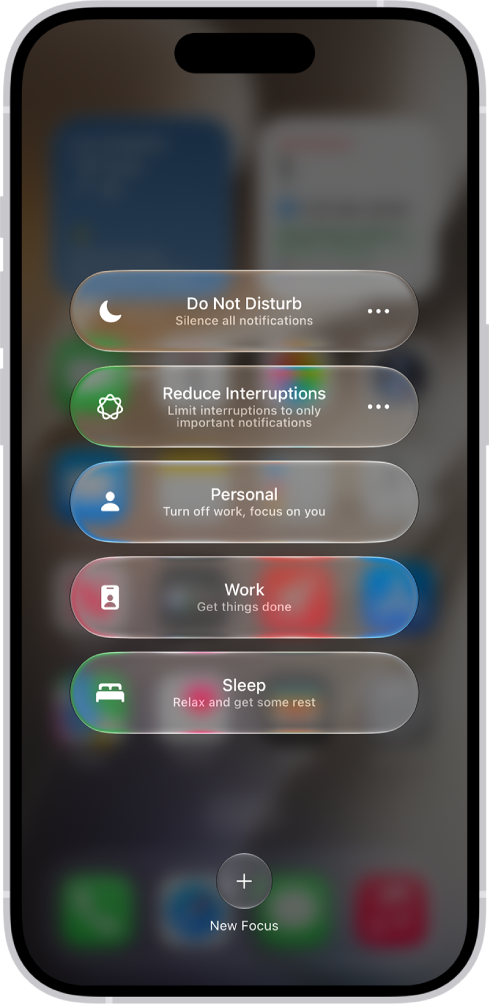
- Tap the Focus that’s on to turn it off.
4. Check Your iPhone’s Audio Output
There may be no sound on your iPhone because you have Bluetooth turned on and it has automatically connected to an active Bluetooth audio device, such as wireless earbuds. Therefore, your iPhone’s sound is actually playing from those instead of the speakers.
You can disconnect the devices easily by turning off your iPhone’s Bluetooth:
-
Open the Control Center.
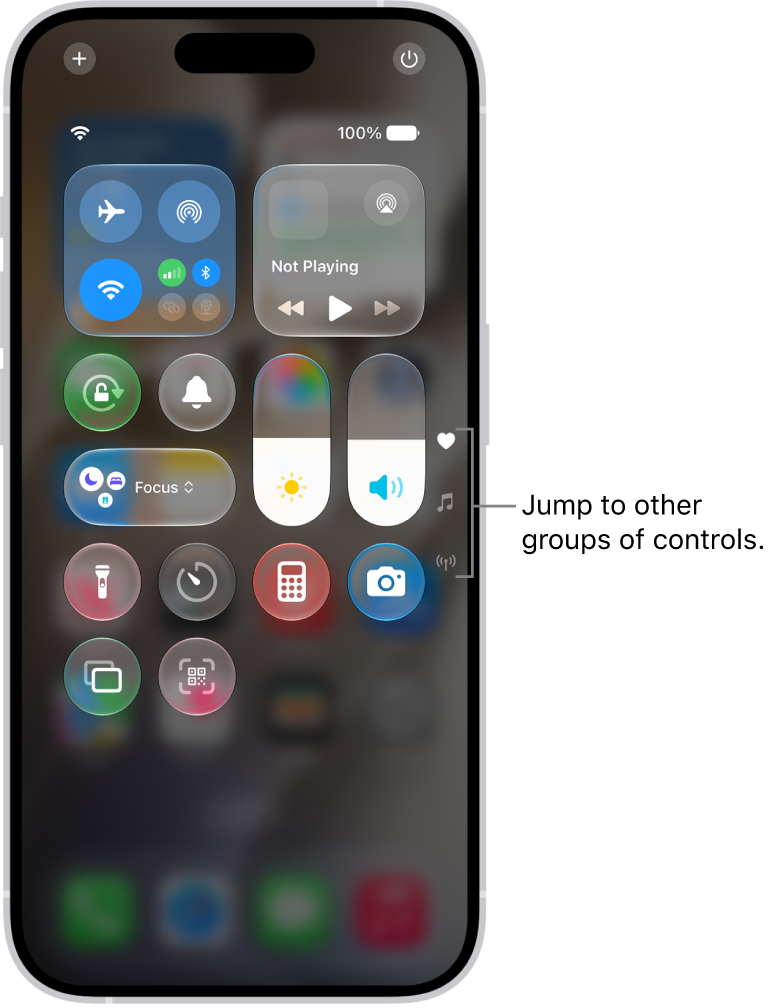
- The Bluetooth button is blue when switched on. Tap to turn it off.
Also, check that your AirPlay isn’t connected to an external speaker. See AirPlay Not Working on iPhone 18 Pro Max. In the Control Center:
- Tap the AirPlay button in the top-right corner.
- Check that iPhone is selected.
Another audio-output-related issue is headphone mode. If you see a persistent headphone icon on your iPhone’s status bar, we have a guide on how to fix an iPhone stuck in headphone mode.
5. Check Your iPhone’s Sound Settings
If your iPhone isn’t on Silent Mode or connected to any Bluetooth device, the problem of the sound not working may lie in your sound settings. First, adjust your volume buttons. You may think that there’s no sound on your iPhone because you accidentally turned the volume too low. To correct this, simply press the Volume Up button on the side of your iPhone 18 Pro Max.
If you already have your device’s volume turned up, but still find that your iPhone sound is not working—for example, incoming texts have no alert sounds—here’s how to check your other sound settings:
- In the Settings app, select Sounds & Haptics.
- Tap a sound category, such as Text Tone or Calendar Alerts, then tap a sound to select it.
- Make sure that None is not selected for anything.
6. Check Third-Party App Sound Settings
If there’s no sound on your iPhone when you’re using a specific app, you should check the sound settings within the app itself. For messaging apps like WhatsApp, check that you chose a notification sound and that None is not selected. For games, make sure that you didn’t mute the audio or turn off some of the music settings.
You’ll need to root around in the relevant in-app settings to find these options as they move around for every app.
7. Exit and Relaunch the Third-Party App
If you’ve already gone through all the sound settings and they’re all switched on correctly, your iPhone’s sound not working may just be an app glitch.
For instance, you may notice that an Instagram video has no sound, despite showing the audio icon. Even if you pressed your Volume Up button, the volume bar doesn’t appear either. On social media platforms like this, you can save the post, exit the app, open it again, and go to your Saved collection to enjoy the video.
You can also opt to view the video through another route. Instead of watching the video in your Instagram feed, tap into that Instagram profile and select the video from there instead.
8. Update iOS and Your iPhone Apps
Updates often come with fixes for bugs and glitches, so you can solve the issue of no sound on your iPhone by simply keeping your iOS and apps up-to-date. Go to the Settings app on your iPhone. Tap General, then tap Software Update.
9. Force Restart Your iPhone
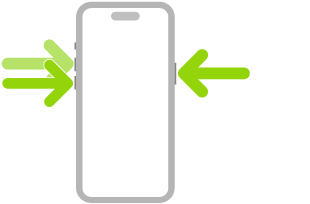
If there’s still no sound on your iPhone 18 Pro or iPhone 18 Pro Max, the next method you can try is to force restart your iPhone. Don’t worry, you won’t lose any data when you force restart your iPhone. Press and quickly release the volume up button. Press and quickly release the volume down button. Press and hold the side button. When the Apple logo appears, release the side button.
10. Restore Your iPhone to a Previous Backup
Another potential solution is to restore your iPhone to a previous backup made when the sound was still working. However, take note that you will lose any new data that was added to your device since you made that backup. Even so, that might be worth it if it means fixing the sound on your iPhone again. If you already set up your device, you need to erase all of its content before you can use these steps to restore from your backup. Tap Set Up Manually, tap Restore from iCloud Backup, then follow the onscreen instructions.
11. Reset All Settings on Your iPhone 18 Pro Max
If you tried all the suggestions above but they don’t work, the last solution is to reset your iPhone’s settings. Go to the Settings app on your iPhone. Tap General, tap Transfer or Reset iPhone, then tap Reset. Then tap Reset All Settings. All settings—including network settings, the keyboard dictionary, location settings, privacy settings, and Apple Pay cards—are removed or reset to their defaults. As long as you don’t select the Erase All Content and Settings option, rest assured that you will not lose any data. That said, you may need to erase all the content and set your iPhone up as new to fix the issue, so try that if the first option doesn’t work.
Fix No Sound on Your iPhone Easily
It’s common for technology to have a hiccup here and there. By following the list of solutions above, you should be able to quickly fix the problem of your iPhone’s sound not working. However, if the problem persists, it’s best to contact an Apple Authorized Service Provider for a technician to examine your device and possibly carry out a repair.

