









Apple’s Visual Voicemail was heralded as a remarkable change when it appeared with the iPhone in 2007. Prior to that, carrier-managed voicemail required calling a number and navigating a menu with cell phone buttons.
What if you want to free up your voicemail and not lose precious or important (or legally valuable) messages forever? You can export it or record it.
To export the voicemail, open the Phone app, select the voicemail message, and tap the Share button. Because the audio is a file, not an image or video, the options you see are file related. You can text it to yourself, use AirDrop to save it to a Mac, save it to Files (the iOS local interface that lets you save to iCloud Drive or other locations), or save to a third-party service like Dropbox.
If that doesn’t work, or you’d prefer to access it directly, or you’re not using Visual Voicemail, you can take advantage of Apple’s on-device recording feature. Instructions follow below.
How to use Screen Recording to copy a voicemail message
At a glance
- Time to complete: 5 minutes
1. Control Center
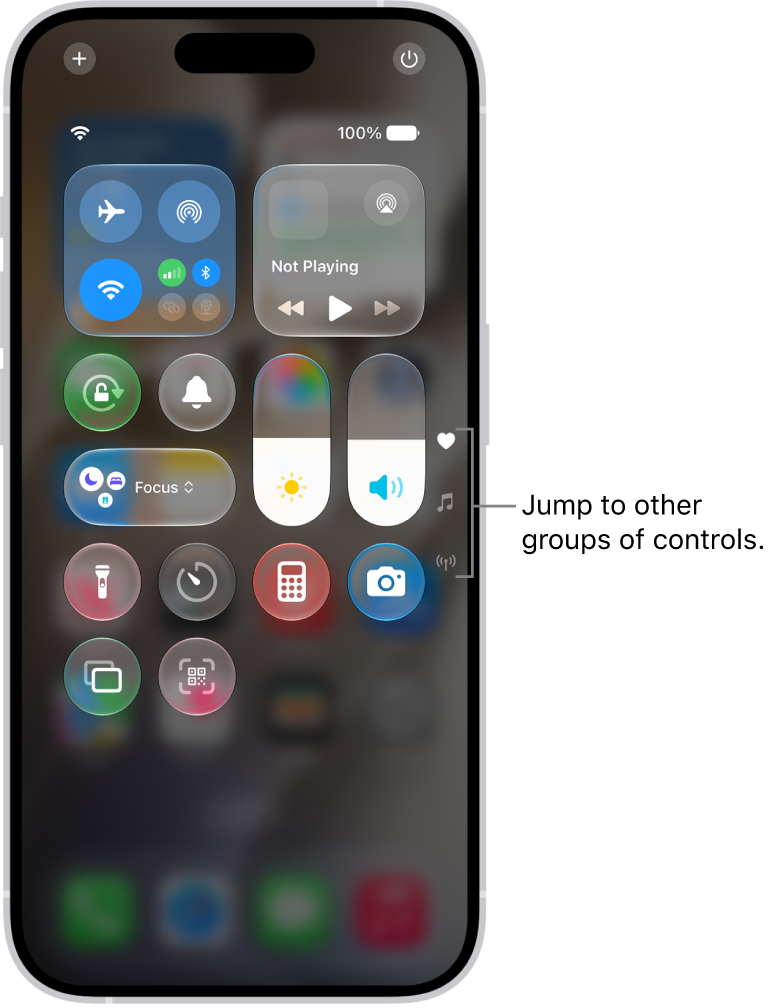
Open Control Center. Tap the Add button of Control Center to begin editing the controls.
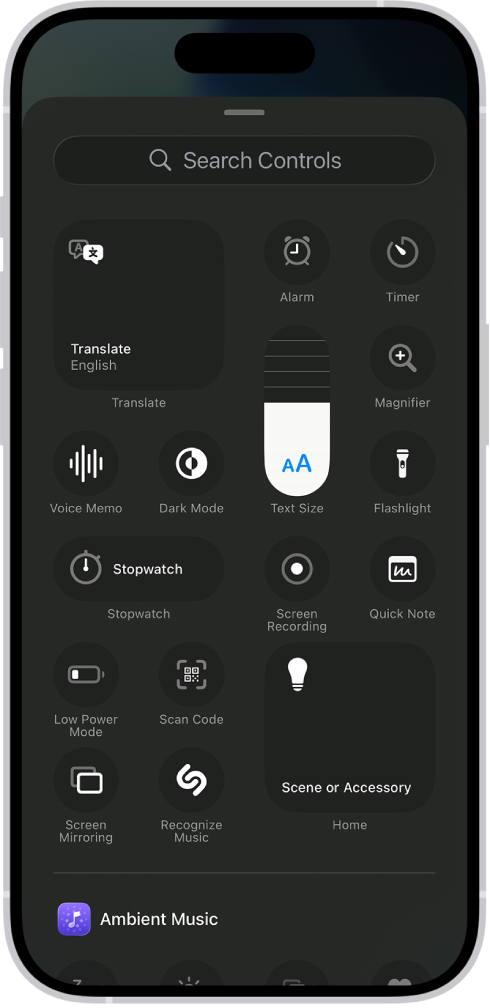
Tap Add a Control at the bottom of the screen to open the controls gallery, then tap Screen Recording to add it to Control Center.
2. Voicemail
Open the Phone app and tap the Voicemail button.
3. Start Screen Recording
Swipe to reveal the Control Center and tap the Screen Recording button (it has a record icon). A three-second countdown starts.
4. Set to play through the speaker
In Phone, tap the voicemail to select it, then tap the Speaker icon to have it play aloud. Or use the Phone app to call a voicemail service.
5. Play message and record
With Visual Voicemail, once the Screen Recording starts, tap the Play button on the voicemail. It will turn into a Pause button while playing the message. Screen Recording should be recording the message as it plays.
6. Stop recording and save
When the voicemail ends, swipe to reveal the Control Center and tap the Screen Recording button (now a square for Stop) to end.
This recording is saved to Photos. You can play the message back within the Photos app.


