Got a tip for us?

Find My

Apple expects an AirTag’s battery to work for more than a year. In my experience, it’s somewhere between 6 and 12 months.

Apple once published that 6 to 12 month range. Now, I can’t find it mentioned on their site at all.

To replace the battery, open the case, swap the cell, and close it again:

  1. Remove the back cover: Holding the glossy white front, push down to twist the metal back panel counter-clockwise. It only needs to move a small distance before the cover pops off.
  2. Remove the battery: Inside, you’ll see its small coin cell battery. Remove the battery, making note of the right side up: the + sign on the battery will always face you.
  3. Insert the new battery: Put the new cell in with the + sign up, facing you.
  4. Reattach back cover: Now you can look at the cover to see the extended tabs and align those with the hole in the top. Press in and then rotate the cover clockwise against its top until it’s firmly in place.

The small size of the AirTag, its cover, and the battery within are all choking hazards for small children or pets. If you have either or have visitors with them, keep track of loose AirTags or parts.

Many CR2032 lithium batteries are now sold with a “bitterant-coating”—a coating that makes it bitter to the taste—designed to deter a child who gets one in their mouth from swallowing it. They should spit it out instead. (The same danger is present for pets, though the coating may not fully deter animals from swallowing.)

Apple recommends using a battery with such a coating, and particularly notes that the “Duracell 2032 Lithium Coin Battery with Bitter Coating” works with an AirTag. Manufacturers all use different coating methods, so it’s possible you will buy a battery that will not correctly power an AirTag. I’d recommend buying one or a small package first before making a bulk buy.

The U.S. Consumer Product Safety Commission issued a “Notice of Violation” to Apple in January 2025, because their AirTag and packaging failed to include necessary child-protection warnings required by the March 19, 2024, Reese’s Law, named for a child who died after swallowing a coin-cell. Apple updated their packaging since. The company also provides safety information when the Find My app recognizes a battery reaching the end of its life.

If you are resetting an AirTag rather than changing its battery, the sequence is different. The folks at Elevation Lab have created many kinds of AirTag cases, but perhaps their two most striking are the extended battery models, which come in 5- and 10-year versions. The duration depends on two long-life lithium batteries: AAA for 5 years and AA for 10 years. The rugged case is secured with a screw with a difficult-to-find drive head. The company designed it to be installed in hard-to-reach places to provide maximum protection for an estimated 5 or 10 years.

You can track down your AirPods, AirPods Pro, AirPods Max, and Beats audio devices nearly as easily as other hardware. Here’s a rundown on what makes audio devices different than an iPhone, iPad, Mac, or Apple Watch.

Each earbud is tracked separately

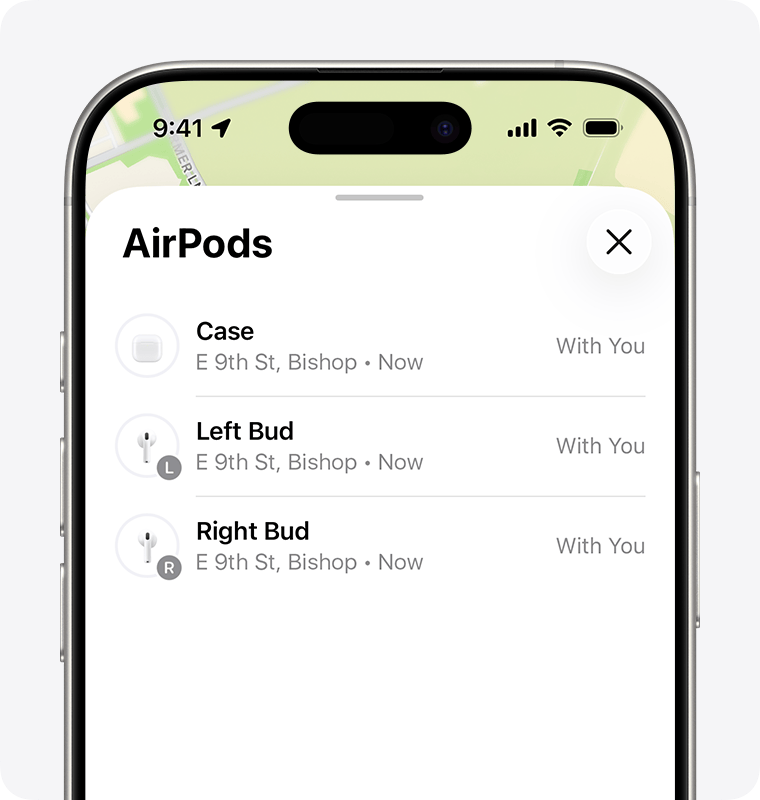
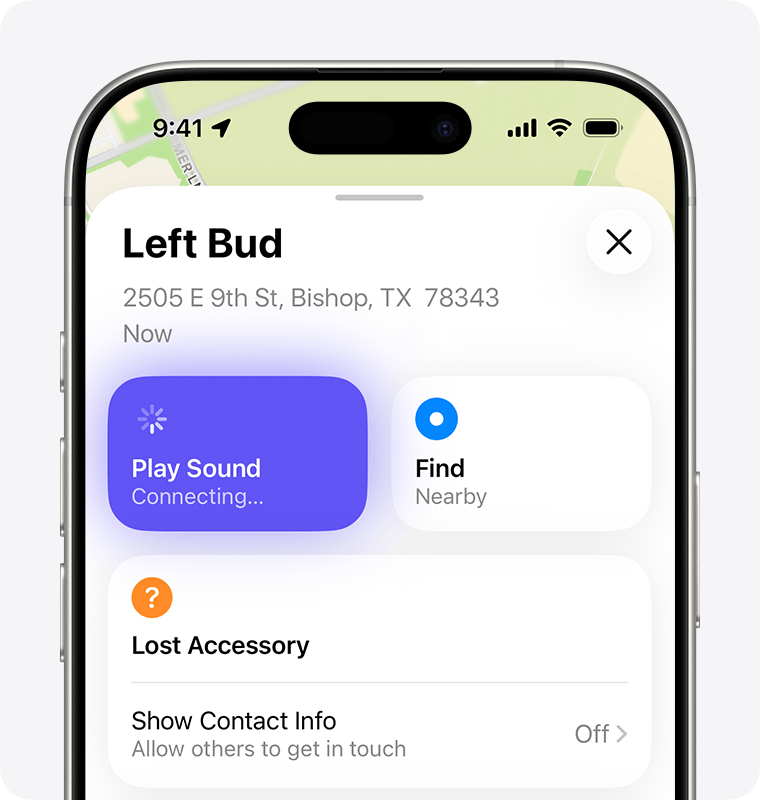
AirPods (3rd generation), AirPods 4 with Active Noise Cancellation, and AirPods Pro (any generation) can be tracked by their left and right earbud. If your earbuds are separated, after a short while, they appear as Left and Right entries in Find My. While you can use Find My on any device to search for them, I found the Mac’s display almost useless; use an iPhone if you can. After selecting the case or left or right earbud, tap Find.

Apple doesn’t provide Precision Finding, but uses relative signal strength to help you get close. You can play a sound on each individually, too, which lets you act like a bat and try to echolocate while using the proximity finder.

Which AirPods can be found how

Audio hardware is all located in the Devices tab or in a Find Devices app. Here’s what and when you’ll view and be able to select:

  • AirPods (1st and 2nd generation) offer only in-range Bluetooth tracking with a paired device.
  • AirPods (3rd generation), AirPods 4 with Active Noise Cancellation, AirPods Pro (all generations), and AirPods Max offer Bluetooth tracking.
  • Several Beats models track via Bluetooth and the Find My network.

Which Beats devices support Find My network? Beats Studio Buds, Beats Flex, Powerbeats, Powerbeats Pro, and Solo Pro.

You can carry out just two actions for all audio devices:

AirPods (3rd generation), AirPods 4 with Active Noise Cancellation, AirPods Pro, and AirPods Max also offer:

Audio devices that can’t be found except within Bluetooth range show just Play Sound and Directions.

Find your lost AirPods with Find My

  1. Open the Find My app on your iPhone.
  2. Tap Devices, then choose your AirPods. If your AirPods are out of the case, you might have to pick the left bud or right bud. With AirPods 4 (ANC) or AirPods Pro 2 and later, you can also separately mark each of your AirPods and the case as lost, in the event that you lose just one or your AirPods are separated from the case.

If your AirPods are separated, choose which bud that you want to find.
3. Find your AirPods on the map.

When your AirPods are nearby, tap Play Sound and listen for the series of beeps.

  • If they aren’t near you, tap Get Directions to open their location in Maps.
  • If you’re nearby, tap Play Sound and listen for the series of beeps.
  • Depending on your AirPods or iPhone model, you might also see an option to Find Nearby. Tap it, wait for your AirPods to connect to your iPhone, then follow the prompts to find your AirPods.

If you don’t have an iPhone or other Apple device to use Find My, you can also find your AirPods at iCloud.com/find — but the experience might be different and some functionality might not be available.

If your AirPods are “Offline” or show “No location found”

  • If your AirPods are out of range or need to charge, you might see their last known location. You might also see “Offline” or “No location found.”
  • You might be able to get directions to their last known location — but you won’t be able to play a sound or use Find Nearby.
  • If they come back online, you get a notification on your iPhone (or other Apple device that you use them with).

If you can’t find your AirPods

  1. Launch the Find My app, then choose your AirPods and swipe up.
  2. Under Lost [device], tap Lost Mode or Show Contact Info.
  3. Follow the onscreen steps to display your contact information. This allows someone to contact you if they find your AirPods.

Be ready next time with the Find My network and Notify When Left Behind

Want to help make sure that you find your AirPods next time?

  • The Find My network is an encrypted, anonymous network of hundreds of millions of Apple devices that can help you find your AirPods, even if they’re offline. Nearby devices securely send the location of your missing AirPods to iCloud, so that you can find where they are. It’s all anonymous and encrypted to protect everyone’s privacy. To make sure it’s turned on: On iPhone, open the Settings app, then tap Bluetooth. Tap the More Info buttonNo alt supplied for Imagenext to your AirPods, then scroll down to Find My network and make sure that it’s turned on.
  • With Notify When Left Behind, your iPhone or Apple Watch can alert you when you leave your supported AirPods at an unknown location.

Turn on Notify When Left Behind to get notifications if you leave your AirPods behind

If you still can’t find your AirPods, you can buy a replacement.

The Find My network might be unavailable in some countries and regions due to local laws.

It’s easy to see how Find My could be abused by someone trying to track a person surreptitiously. Someone with access or given too much trust can track a person or, via Family Sharing, track their devices. With Find My items, it can be even more insidious, although Apple built anti-tracking features into that network that they continue to evolve, including in cooperation with other tech companies.

There are three scenarios: tracking a person, tracking their devices, and tracking through a Find My item.

Someone following your location

Apple tries to balance safeguards against unwanted tracking with the utility that ostensibly most people use a feature for. When tracking people with Find My, Apple requires a transparent, consent-driven process when a person shares their location on an ongoing basis with someone else. (See how to get Find My alerts when someone arrives or leaves.) But even after someone has granted permission to be digitally followed, Apple requires more consent if their Find My follower wants to receive location-based notifications about when they arrive at, leave, or aren’t at a location.

Find My uses the People view to list all the people you follow or who are following you. While that seems like great disclosure and an easy way to control location tracking, it doesn’t address a few situations:

  • A non-savvy iPhone or other Apple device user could have people added to Find My without realizing it. This might be a stalker who somehow gains brief access to equipment or an untrustworthy partner. They might create a pseudonymous account that takes the name of someone you trust. Once set up, Find My doesn’t provide additional, ongoing information about person-based tracking. This contrasts with on-device location tracking on an iPhone or iPad, where you’re regularly asked whether you want to continue sharing your location with an app.
  • A domestic abuser, problematic ex-partner, or abusive parent who demands access to personal devices could add themselves to Find My tracking and require—under threat of violence—that you keep it in place. The new Hide Location option in Find My in the version 27 operating system releases offers what might be a safer alternative: you can pause tracking and resume it at will or early the next day. The other person sees only “No location found,” while you’ve paused sending your location. They’re not informed when you pause or resume. Of course, a truly dominating person may be constantly checking, and be provoked if your location disappears, too. (See how to stop or pause sharing your location.)

There is, of course, a completely valid case for parents wanting to track their children at any age while they are minors and living under their strictures, however lax or tight—but that’s a separate matter from a parent or guardian who uses that information not for safety or conforming to promises or rules, but instead as an excuse for abuse and control of the child.

If you’re in the first group or know someone who is, ensure you or they have strong device protection and potentially check Find My from time to time to make sure only names appear they know about.

See how to stop or pause sharing your location for how to stop sharing with people you don’t want to.

When a person who follows you sets up a notification to alert them about your movements, they first have to pass through a dialog that explains you will be informed of this attempt. This is partly a deterrent. Someone who sees it and does not want you to know should think twice.

If you’re the subject of such a notification, like someone setting up an alert when you leave your place of work, you see an alert on your iPhone. A similar notification appears if you have the Find My app open.

Pay attention to these notifications, as they’re the primary way you’re informed.

Someone following your devices

It’s harder to track people via Find My Device than either through their presence in People or an item as noted next. That’s because devices only appear in Find My in stricter circumstances and have more constraints:

  • Only an iPhone, iPad, iPod touch, Mac, or Apple Watch can be tracked as a device: While I’ve read about people setting up an iPhone and attaching it to a car, keeping it charged over time would be a poser, though I guess they could plug it into a charging port or tap into a port within the car body. There are much less expensive GPS trackers that last far longer, and Find My network items like AirTags that have extremely long tracking lives.

Someone could track Apple and Beats audio hardware that shows their location via a paired device or the Find My network, but this category of hardware has short battery life and short range compared to GPS-based trackers with Apple devices for relaying at short ranges.

  • You must be signed in on a device or iCloud.com with an Apple Account: With the additional validation step of two-factor authentication enabled on nearly all Apple Accounts, it’s far more difficult to manage to sign in to someone else’s account.
  • Only your own and Family Sharing devices appear: You can’t add arbitrary devices, as they have to be registered to your Apple Account or, with a Family Sharing group, someone else in that group. While Find My trackers are similarly locked, they have the advantage of battery life and size.

The only warning here? Check to make sure that no odd devices appear in your list of devices, and heed any warnings about devices being added to your account.

Unwanted tracking by a hidden AirTag

Find My items use little power, don’t require a clear path to a satellite navigation network or cellular network, and are tiny. They can easily be hidden, and could track someone across a long period. (Apple applies the same rules to third-party devices as their own.)

The same things that make it possible for someone to be alerted when they accidentally have something with an AirTag or other item in or attached to it—or they stole it!—also may help prevent people from being tracked by stalkers, domestic partners, private detectives, and celebrity hunters, among other categories.

Here’s how to extract information about unknown trackers:

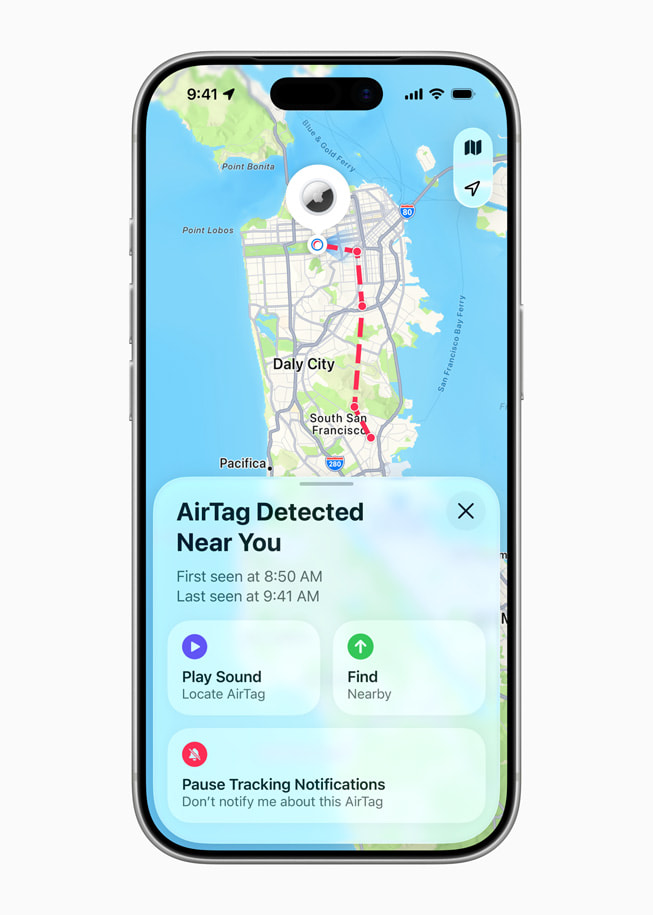
  • Traveling with you: An item traveling with you results in an alert described in what an “AirTag Found Moving With You” alert means. You can then pause that device’s capability to track you or find the item and disable it. (See how to reset an AirTag.)
  • Identify Found Item feature: With an iPhone or iPad, you can use the Find My app’s Identify Found Item link in the Items view. See how to identify an AirTag you have found.
  • Interoperability: With an Android 6 or later device with an update from mid-2024 installed, the device’s owner will receive “moving with you” alerts from any Apple Find My network items; see how to identify an AirTag you have found. Likewise, an iPhone or iPad user with iOS 17.5/iPadOS 17.5 or later installed receives alerts about Google Find Hub network trackers moving with them. See how Apple and Google detect an unwanted AirTag.
  • No Apple hardware: If you don’t have an iPhone, iPad, or Mac with you (or there’s no active network), other devices you may be carrying won’t relay the item and enable tracking. Likewise, even though you can detect unwanted Google trackers, they aren’t relayed through your Apple devices. That sounds like a solution, but if you live in or travel through anywhere other people’s Apple hardware is close enough, those devices will upload tracking updates. That includes driving on a highway or riding public transportation.
  • Separated device alert: If the Find My item’s location is being relayed by other devices around you, however, it will make a sound in the right circumstances if it’s moved between 8 and 24 hours since it last checked in with its paired device to alert you to its presence. See what an “AirTag Found Moving With You” alert means.

Apple once promised an update that would alert you when a separated device is nearby on an iPhone or iPad, with an option to play the sound again or use Precision Finding. That apparently never rolled out.

Apple adding location sharing to Find My items might make it easier for someone to track you without alerts. Someone could place a Find My item in your stuff or a vehicle, then share the item with you and accept the invitation on any of your devices to which they had access when unlocked or if they knew how to unlock it; or they could share one of your items with themselves without you knowing.

However, this is a two-way street: all shared devices appear in your Items tab. If you suspect a shared item, check the Items tab for ones you’ve shared or shared with you that you don’t recognize.

Where to get help

There are many organizations beyond law enforcement eager to help people trapped in situations of domestic abuse or child subject to violence and an unsafe environment. For adults in the United States, that includes the National Domestic Violence Hotline; for children or those concerned about their welfare in the United States and Canada, the Childhelp National Child Abuse Hotline.

For those being stalked, one starting point is Safehope. It’s more likely you will need the help of police or federal authorities. Local police departments have their own paths to navigate, but for online or cyber stalking, it may be better to start with the FBI.

If the person you are worried about may be watching your device, use one they cannot see. Removing a tracker or turning off sharing can be noticed, and advocates warn that it can make a situation worse rather than better, so it is worth talking to someone before you act.


Find My items lack an interface: they’re a one-way conduit of information. The owner of an item can see it displayed on a map, with details updated whenever qualifying Apple devices are nearby and relay the Bluetooth beacons.

A user's iPhone 17 Pro shows an alert that reads,

While a 2nd-generation AirTag has minimum requirements for pairing and tracking via the Find My apps, the new model still reveals information to people using devices that aren’t paired with it. This is part of both helping people find lost objects and Apple’s strategy to deter and detect unwanted tracking.

However, when someone finds one, whether marked lost or not — see what someone sees when they find your lost device — their interaction is limited.

If a device paired with a Find My item is near it, like an iPhone, an AirTag, or other item, it won’t appear to other devices when using a Find My app. This makes sense: if the owner and the paired device are in proximity, it’s not considered lost or tracking you separately. Any AirTag you have shared access to also won’t show up.

Here’s how you can obtain information about an AirTag you’ve found and have in hand, or if you’re trying to find if there’s an AirTag nearby.

Tap an AirTag against a phone

Hold the white side of the device close to an NFC-capable iPhone, iPad, Android, or other device that knows how to read NFC information. That should result in a message appearing that has a link embedded.

Following the link takes the finder to a webpage associated with the AirTag’s serial number. If the item was marked as lost, then the owner’s phone number or email address appears there.

If an item was not marked as lost, the information page shows a “masked” phone number, the last four digits of the phone number connected with the paired Apple Account for the item. This appears to be related to reducing potential abuse; see how Apple and Google detect an unwanted AirTag.

Identify a third-party tracker

With all other Find My items:

  1. Launch Find My, tap the Items button, swipe down, and tap Identify Found Item.
  2. Your iPhone or iPad will list any Find My item nearby that’s out of Bluetooth range of its paired device. Tap the item and tap Continue.
  3. Apple provides information and instructions on how to proceed. For instance, with a Chipolo ONE Spot, you will be told you have to press the button in the item’s middle to retrieve information.
  4. Click Continue on Website to see the tracker’s associated details.

If the tracker is not an Apple Find My item but one that works on Google’s Find My Device network, there’s no way to trigger information about it appearing on your iPhone or iPad. However, because your iPhone or iPad will notice a device that’s not yours that’s following you, you will eventually receive an alert and can tap that to obtain more information as above. See what an “AirTag Found Moving With You” alert means.

If you have an Android phone

With Android 6 or later and an update released in 2024 by Google, you’ll be alerted to any devices moving with you without your knowledge. See how Apple and Google detect an unwanted AirTag.

If you have an Android 9 or later device, find an AirTag, and lack NFC or find any Find My item, you can install Apple’s Tracker Detect, an Android app that performs an active scan for Find My items in the vicinity similar to Identify Found Item in the native Find My apps.

Apple didn’t update the app between February 2022 and December 2025. Reviews are extremely poor, although some people think the app offers Find My features rather than generically revealing nearby Find My items. The adoption of built-in alerts for Android releases dating back several previous releases replaces its purpose.

Find the serial number

If you want to find and potentially make a record of the serial number of a Find My item, select it in the Find My app. On a Mac, also click the Info button next to its name. Now tap or click the label for the last-seen time (like Now or a date and time), and Find My toggles to show its serial number and firmware revision. For third-party Find My items, swipe down to see the serial numbers, as well as the maker, model, and firmware release.

Most advice covers how you manage your own equipment. It’s incredibly useful to know how other people interact with your stuff when it’s lost or stolen and they find it. This lets you understand how someone might reply to you—by calling, emailing, or posting a note in a neighborhood forum—and what they would see that led them to it.

What a finder sees on an iPhone or Mac

Once the action is sent to an iPhone, iPad, iPod touch, or Apple Watch:

  • If the device is connected to the internet and asleep, the next time it’s woken, a passcode must be entered to gain access.
  • If the device is online and in use, the operating system drops the user into the Lock screen where the passcode-entry dialog or keypad is shown along with any message or phone number that was entered when setting up Lost Mode.
  • If the device is offline, the next time it accesses any network with an internet connection, the passcode lock is put into place.

After a restart, or when the device is powered up after being shut down, your phone number or email address appears on the screen if you provided it, along with the preset message Apple showed during the lock process.

What a finder sees with an AirTag

Because Find My items lack screens, someone finding one that is not marked as lost can bring up certain information from it as described in how to identify an AirTag you have found. However, if you have marked your item lost, by enabling Share Contact Information, a person finding it can see the phone number or email address you entered when activating that mode.

If you find an item for which the owner hasn’t shared their contact information, or you can’t pull up a webpage associated with the device, you could post a description to find that person. Try any number of places: social networks, college forums, NextDoor, Bluesky, Craigslist, or a piece of paper posted around the neighborhood. Describe loosely where it was found and what it looks like.

Someone could confirm ownership of the found item by providing details only the owner might know, like what it was attached to, part of (like a bike), or found along with (like a handbag).

An owner can also provide good evidence of their identity by:

  • Serial number: An AirTag and some third-party devices have serial numbers inscribed in the battery compartment. An owner can pull up a serial number via a Find My app. (See how to identify an AirTag you have found.)
  • Phone number: If you can call someone, great, but if they respond via another method (perhaps their phone was stolen!), they can confirm either the last four digits of their number if the item isn’t marked as lost or their entire phone number if it is.
  • Play sound: If you’re comfortable meeting up with a potential owner who hasn’t fully convinced you, if you’re within Bluetooth range they can trigger the item to play a sound from any Find My app they possess.

Apple has extra cues for someone near any Find My item (or Google Find Hub tracker) separated from its owner to aid that person in realizing there’s a tracker near them, see what an “AirTag Found Moving With You” alert means.

What a finder sees with AirPods

While marking audio hardware as lost follows the same steps as marking an item lost—providing contact information—someone finding your AirPods (3rd generation), AirPods 4 with Active Noise Cancellation, AirPods Pro (all generations), and AirPods Max can obtain information a little more easily.

With any AirPods earbuds, someone can open the case near an unlocked iPhone or iPad. This displays the message that the earbuds are lost, including contact information. With AirPods Max, someone would have to try to pair the headphones with an iPhone or iPad.

Turn on contact info for an item

Under Lost AirTag for Apple AirTags or Lost Item for third-party Find My network accessories, you see Show Contact Info and Share Item Information starting in iOS 18.2/iPadOS 18.2 and 15.2 Sequoia. This also appears for some Apple audio hardware: AirPods (3rd generation), AirPods 4 with Active Noise Cancellation, AirPods Pro (all generations), and AirPods Max.

Show Contact Info is the item equivalent of marking a device as lost. For more on Share Item Information, see how to track lost luggage with an AirTag.

Using Show Contact Info effectively marks the item as lost, but because it lacks features available for hardware with a screen, I can see why Apple chose to relabel it.

Here’s how to mark an item or audio hardware as lost on an iPhone, iPad, or Mac:

  1. Beneath Lost AirTag, Lost Item, or Lost Accessory, tap or click Show Contact Info. (In macOS 26 and earlier with audio hardware, you can also Control-click/right-click and choose Mark as Lost.)
  2. After reading the details about what will happen when you turn on contact info, tap Continue.
  3. Audio hardware shows a more lengthy set of info. Tap or click the Close button to back out.

If the item is in Bluetooth range of any of your devices, you receive an error: “Item Is With You” that reads “This feature is only available for items that are lost and not located in close proximity to you.” You cannot proceed and can only tap or click OK.

On an Apple Watch, select your item or supported audio device, tap Lost Mode, and then tap the switch to enable it. You’re then prompted to enter a phone number or email address. (With watchOS 26 or earlier, use the Find Items app for items, and the Find Devices app for audio hardware.)

When an item’s or accessory’s status is updated, you should receive a notification.

When the device comes into proximity with you again—within Bluetooth range of one of your devices—sharing contact information is disabled. If you shared a temporary link, that link becomes inactive at the same time.

The Find My app’s Devices view and the Find Devices web app initially show a zoomed-out map plotting all your devices that are close to you and within reasonable proximity, as with people. If you’re in a Family Sharing group, you can see all devices of members in your group sharing their location with you. That can be quite a few devices. On an Apple Watch, you can only view a list and tap to see a map.

Any iPhone, iPad, Mac, or Apple Watch you own will appear as a device, along with all Apple and Beats audio devices. Because audio-device tracking has become more useful and differentiated over time, AirPods are covered separately.

The list is organized by person for Family Sharing with you at the top. As with People, each device shows the name assigned to it, a rough location, the last update, and its approximate distance from your location.

Your location is also plotted on the map as a blue dot if you’re near or between any of your devices, as is likely.

Find My doesn’t differentiate devices based on whether they’re located via an internet connection, proximity to your equipment, or the Find My network.

Select a device in the list or on the map, and Find My zooms in to center it in the map, typically showing it within a rectangle shaped by a radius of about 1/4 to 1/2 mile (400 m to 800 m). In the version 27 releases, select the device again to have the map zoom out.

You can take action on the device like this:

  • On an iPhone or iPad or macOS 27: Select a device and view the actions available in its sheet. Tap or click the close button in the upper-right corner to return to the full list.
  • On macOS 26 or earlier: After selecting a device, click the Info button to the right of the device name in macOS. Click anywhere but in the actions sheet in macOS to dismiss it.
  • On an Apple Watch: Tap the device and scroll down for actions. Tap the back arrow button to return to the main view.
  • On iCloud.com: A sheet appears in the upper-left corner of the webpage when you select a device.

Only the Directions options and the Notifications label (with different options) also appear in the People View.

Here’s what you can view or select from in Devices:

The top of the Find My sheet of actions shows a graphical depiction of the battery level for an iPhone, iPad, Apple Watch, or Mac laptop. Audio devices’ battery levels are not displayed.

Find My shows the device’s location on the map as a dot with its model icon above it. The dot is the center of a blue-shaded area if a device can be pinpointed; otherwise, the shaded area is larger and green. The shading radius indicates the level of confidence in the location.

Devices are listed even if they haven’t connected for months—or years! If it’s been longer than 24 hours, they appear as “No location found.” (For the full status rundown, see how to read the Find My app’s status labels.)

To remove old devices, see how Activation Lock protects a lost or stolen device.

Find a device you cannot reach

Here’s how to help someone else find their lost device—or find your own when you don’t have one of your devices at hand:

  • Family Sharing: Use the Find My app on a device or the Find Devices web app at iCloud.com from a group account with which the missing device’s owner has enabled sharing.
  • iCloud.com: For all other uses, turn to the Find Devices web app at https://www.icloud.com/find.

Some actions are limited: on the sheet for a device, you can play a sound, mark as lost, or enable notifications when found for your or anyone’s device using the Find My app on any device in the Family Sharing group. To erase a device, Find My prompts for the Apple Account password of the associated account.

If you cannot pass two-factor authentication

Apple requires two-factor authentication (2FA) for nearly all Apple Accounts—it’s useful in resisting account hijacking. However, it complicates using Find My if you (or someone you’re helping) don’t have access to any trusted, or Apple Account-linked, devices or phone numbers. Here are three approaches to set up in advance:

  • Add a trusted phone number for people you trust: You can add a phone number for a partner, family member, close friend, or even an attorney or other professional you could contact in an emergency. Then, as long as you remember your Apple Account password, you can select that other person’s phone number in the 2FA validation process and they can provide you the code.
  • Create a passkey for your Apple Account: Apple lets you bypass two-factor authentication if you enable a passkey. While a passkey is typically stored on your iCloud-synced devices, you can use some password managers to store one instead.
  • Use a hardware encryption key: Apple lets you rely on hardware encryption keys for Apple Account access. As long as you still have one of the keys you set, you’re not locked out of iCloud.

Several companies have released Find My items under Apple’s licensing program. Find My technology is embedded into some backpacks, bike components, iPad cases, and bike-mounted alarms, while companies also make AirTag-like trackers and wallet-card-sized trackers.

Third-party Find My items only include Bluetooth. I don’t believe Apple blocks third parties from including NFC or UWB; Apple doesn’t say. It’s more likely too expensive for other firms to build a device that includes two or three forms of wireless.

As a result, third-party items lack Precision Finding via iPhone 11 and later models, and have no tap-for-information option for someone finding an item. Apple also requires a slightly more cumbersome pairing process.

Fortunately, this makes them only a tiny bit less useful and a little bit more cumbersome to use than AirTags.

Pair a third-party item

You can pair third-party items only via a native Find My app on an iPhone or iPad, as with AirTags. The instructions are nearly identical to adding an AirTag. Here’s an abbreviated process to add a third-party item:

  1. In the Find My app, swipe up on the People, Devices, or Items tabs, tap the plus button, and tap Other Item.
  2. Third-party devices mostly have a button you press, so press it. For example, the Chipolo ONE Spot can be squeezed to trigger pairing.
  3. When the item type appears, tap Connect.
  4. Name it and tap Continue.
  5. Choose an emoji and tap Continue.
  6. Tap Agree to link the device to your Apple Account. The information is identical to that shown for an AirTag.
  7. Find My displays a summary screen explaining how to use the item in the future. Tap Finish.

Remove and reset one

As with an AirTag, you must first remove a third-party item from Find My to make it possible to pair with another device. Go to the Find My app on an iPhone or iPad, tap the Items button, select the item, tap Remove Item, and tap Remove to confirm.

Failure to unpair makes the Find My item unusable by anyone else. See how to reset an AirTag.

Also, as with an AirTag, if the item is in range of the device removing it, the device sends a reset signal over Bluetooth to the third-party item. If it’s not, however, you have to perform a factory reset.

With a Chipolo ONE Spot, for example, after you hold the item in its center for 30 seconds, it starts to beep at 1-second intervals; release it after the fifth beep. The ONE Spot makes a confirmation sound, after which point it can be freshly paired.

Disable one

Each Find My item from manufacturers besides Apple will have its own procedure for disabling transmission without removing the item from an Apple Account. Many third-party items have an integral battery that can’t be removed. As a result, you usually have to press and hold a button or squeeze a spot on a wallet card for some period of time to disable.

If an unknown tracker is found with you, the process for getting more information links to details from the manufacturer, including how to disable it.

Find My lets you take a variety of remote actions on devices and short-range actions on items. Options vary in utility based on whether your device has fallen behind a couch cushion, or has been misplaced or stolen, and whether the device or item is directly reachable via a local network, the internet, or the Find My network. With devices, Apple follows up many actions with an email message sent to your Apple Account’s associated address.

You can set up notifications within Find My to provide a variety of information depending on the category:

  • People: You can opt to receive alerts when they arrive and leave locations you define, or send them alerts based on your location.
  • Devices and Items: You can be notified when a device is found if it’s marked as lost. You can also receive a prompt when you leave something behind.

People-based notifications let you track when someone (including you) arrives at or leaves a location. The alert can be set once or on a recurring basis. Here’s what to do:

  1. In a native Find My app on an iPhone, iPad, or Mac, bring up the sheet of actions for a person via the Person view.
  2. In the version 27 releases, beneath either Notify Me or Notify Person, tap or click Add Location Alert. In earlier releases, beneath Notifications, first tap or click Add, then select Notify Me or Notify Person.
  3. For Notify Me, you can select I Arrive or I Leave; for Notify Person, you can select Person Arrives, Person Leaves, or Person Is Not At.
  4. Pick a location. Some locations will be prefilled, such as you or another person’s current location.
    • You can also tap or click New Location, then drag on the map or enter a location.
    • Clicking or tapping in the search field brings up potential matches from the person’s contact card before you start typing.
  5. Optionally set a radius. Tap Small, Medium, or Large at the bottom of the map to switch among radii of 300, 800, and 1,250 feet (90 m, 240 m, and 380 m).
    • Or drag the blue dot at the right out to a preferred distance; a label indicates the radius as you drag.
    • The minimum is a 300-foot (90 m) radius. The maximum is 792,000 feet — 150 miles or 241 km.
    • A wider area prevents excessive notifications for departures, or gives earlier warning of an arrival.
  6. Your final option varies based on the Arrives/Leaves/Is Not At selection:
    • For yourself or someone else, Arrives/Leaves lets you pick Only Once or Every Time for notification frequency.
    • For another person with Person Is Not At chosen, you can set a range of time and days of the week.
  7. Click or tap Add to complete. If you set this up to track someone else, they now receive a notification that you’ve done so.

If you’ve asked your child to remain within a certain distance of home, or want to know when they’re returning so you can hide the liquor—er, clean up around you—then changing the radius is useful. However, an older child might employ a Cat in the Hat strategy towards a parent.

This map selection tool is also used with Notify When Left Behind, a way Apple helps you avoid accidentally losing stuff.

Is Not At could be useful with an employee or child to know when they’re not in a place you expect at certain times.

The other person is always told

When you let other people know what you’re up to with notifications, they receive an alert that tells them what they can expect to receive. This appears across your devices and is an anti-stalking measure; see how to check whether someone is tracking you.

Your Apple Watch lets you notify or be notified about people’s locations, but it’s limited to Notify Me/Notify Person with two options. You can notify someone when you leave your location or arrive at theirs, or when they leave their location or arrive at yours. You can’t select locations or set up other nuances below.

If you want to see notifications about someone else’s comings and goings, you’re told what they will be informed of and given a chance to cancel, and they receive a notification about what you’ll be updated about.

For recurring alerts set to Every Time, you’re told that someone has to approve the action. The notification is slightly different for Person Is Not At recurring alerts, specifying that the other person will be notified at the moment the schedule first goes into effect. So if you set the schedule to Wednesday at 9 a.m. and it’s Sunday night, the alert will say a request will be sent for approval at 9 a.m. Wednesday. (The time zone will be whatever time zone the location you set is in, not your or the other person’s current time zone.)

For notifications that require permission, you see a Pending Request label on that person’s sheet of actions.

It can be useful to pause notifications for a lot of reasons; tap or click Pause to pick a time to resume: either “Until the end of Today” or from a calendar.

You can freak someone out by creating a notification without alerting them first. When you use Find My to track someone’s arrival or departure, that person receives a notification that you’ve done so. This can happen in the most benign circumstances.

After my wife texted that she was coming home with oodles of groceries a couple of years ago, I created a notification to alert me when she got home so I’d break off what I was doing and go down a couple of flights of stairs to the street level to help her. She was surprised by the alert she had received. At that time, Apple had just changed their system to provide this disclosure to others.

That disclosure is quite useful, because tracking can be used in non-benign situations, too: see how to check whether someone is tracking you.