








Got a tip for us?

Find My

Disclosing your location is a two-edged sword—or maybe a multi-bladed throwing star. It can be incredibly handy to let other people know where you are for travel, safety, timing, and even accountability. However, letting others know where you are means they know where you are, which even for close friends, family, and partners can feel like too much knowledge and the expectation of you sharing your position can feel invasive. (You also may feel it’s excessive that, when you launch Find My, you can see the precise location of everyone who has shared with you, even though they did so willingly!)

Apple tries to strike a balance with location sharing just as it does with nearly all other aspects of digital privacy that they mediate and let you choose your comfort level with.

Find My is the interface through which the location you share from an iPhone, iPad, Mac, or Apple Watch gets viewed, but it’s only partly the way in which you choose what is shared! That split is left over from when Apple introduced the previous standalone app, Find My Friends, and relied on preferences buried in Settings to manage all the details.

When you share your location, the other person cannot see your devices, but only your presence: the device marked as showing where you are. Only people in a Family Sharing group can see each other’s devices, and only if the person is sharing their location with them. Items don’t pick up Family Sharing settings. You can share them with up to five people.

Location has two interrelated components: how you share your location and how you choose to accept seeing other people’s locations. Let’s start with you.

You can use the native Find My app to view and change personal settings, even if you’re part of a Family Sharing group:

  • On an iPhone/iPad, watchOS 27, and macOS 27: Go to the Find My app > Me button.
  • In macOS 26 and earlier: In the Find My app’s People view, click Me and click the Info button.
  • In watchOS 26 and earlier: In the Find People app, tap the Me entry.

Here is what appears in the My Location section on all these devices:

  • Share My Location: A single tap, and you let yourself be seen by those you’ve shared with; another tap, and you run silent—your location isn’t sent again until it’s re-enabled.
  • Sharing From: Often called presence, this defines which devices are shared in Find My as being your location as a human if you own multiple devices. My Location reads This Device if you’re on the one defining your location; otherwise, it shows the name of that device. (See how Find My works.)
  • Location Label: At the top of the Me view, you see the current inferred address. However, Find My tries to offer something more descriptive. If you’ve defined your home or work location in Contacts or Phone, it should show Home or Work as the label. You can also create your own names for other addresses; see how to see someone’s location in Find My.

Share with someone

You can share your location in more than one way, and the interface is essentially the same with slight differences.

Here’s how to share in various ways across your Apple devices, from most universal to most specific; how to set the duration option is discussed after these instructions:

  • On an iPhone or iPad, or in macOS 26 or later:

— Find My app: Click or tap the add button at the upper-right corner of the list in whatever view you’re in. Enter names or select people. Click the checkmark button. Now choose a duration.

— Messages: In any conversation in Messages, tap or click the avatar or avatars. On an iPhone or iPad, tap the Plus button, choose Location, tap Share, choose the duration (see below), and tap the Send button. On a Mac, click Share My Location, choose a duration, and press Return to send.

Tip: If your recipient or group isn’t all Apple users, you can still send an image that embeds a link to a map; instead of Send or Share, the button reads Send Pin.

  • In macOS Sequoia or earlier:

— Find My app: In the Find My app, click the People button, then click Share My Location. Enter names or select people. Click Send, and choose a duration.

— Messages: In any conversation in Messages, click the Info button in the upper-right corner. Click Share My Location and choose a duration. Press Return to send the location message.

  • On an Apple Watch:

— Find My app (watchOS 27) or Find People app (watchOS 26 or earlier): In watchOS 27 only, first tap People. Scroll to find Share My Location. Tap it to either dictate a name, choose a contact, or enter a contact’s phone number.

— Messages app: In the Messages app in watchOS 26 or later, choose a conversation, tap the add button, choose Location, tap Share, and choose a duration.

Note: When someone requests your location, as explained ahead in If You’re Asked to Reciprocate, you can’t use a single tap from an Apple Watch. You have to use one of the above methods.

Note: You can’t share your location with others or see their location in the Find Devices app on iCloud.com.

Choose how long it lasts

No matter which path, platform, or version you’re using from the above list, you’re asked to pick or set a duration: Always (formerly Indefinitely), End of Day, One Hour, or Custom. (These options are worded slightly differently across apps.) The Custom choice is new in the version 27 releases. Selecting that option lets you set a duration from 15 minutes to 30 days.

If you shared via Messages, you see a note in the conversation that says “You started sharing location with person name.” The recipient sees “Person name started sharing location with you.”

I’m guessing Apple switched in the version 27 releases to the simpler word “always” after years of using “indefinitely” because more people can easily parse “always.” Indefinitely has the ring of “inflammable” about it: does it mean forever or for a period of time? (Inflammable items are just as easy to set on fire as flammable ones.)

If you choose anything but Always/Indefinitely, a countdown clock appears when you view the details for that person’s entry in Find My: it reads “Sharing for X time units” in the version 27 releases and “X time units remaining in previous operating systems. Messages displays a map tile with an inset yellow countdown clock for the remaining time. In Apple Watch’s Find People app, the contact’s avatar is overlaid with a timer; tap the entry to see the remaining time as text.

Family Sharing is a separate switch

For greater flexibility, Apple also lets you use Family Sharing settings to enable to disable location sharing among group members. Go to Settings/System Settings > Family > Location Sharing to see family settings.

In Location Sharing, you see all the other members of your family sharing group and your current sharing status with them and theirs with you—sort of!

If you used this interface to share your location, or used the Automatically Share Location option (enabled by default) for new members, you see sharing enabled next to the group member. However, if you used the Find My app to start sharing your location, it may appear that you are not sharing with them! You’re just not “family” sharing with them! Yes, it’s as straightforward as a bent nail.

Under the Share Your Location With section, you can also see which of the group members are sharing with you. Again, this is dependent on how you shared. In the figure, you see “person name is sharing your location with you,” even though four members of my family group are sharing their locations with me. Oy!

See who can currently find you

Once you start sharing your location with other people, you might lose track of precisely who that is. Fortunately, you can see a list in a few different places:

  • Native Find My app: Use the Find My app’s People view or the Find People app on an Apple Watch (watchOS 26 or earlier). Everyone in the list who reciprocally follows you appears with location information; everyone else you share with has the label “Can see your location” beneath their name.
  • Find My settings: On an iPhone or iPad, go to Settings > Your Name > iCloud > Find My, and you can see Family (if you’re in a Family Sharing group) and Friends. This doesn’t show reciprocal sharing status, however.
  • Family settings: If you’re part of a Family Sharing group, Settings/System Settings > Family > Location Sharing reveals any group member with whom you’ve shared using Family Sharing settings. See that befuddling situation above in Share Location with Family.

We’re all quite rightly concerned about our private data stored on our most personal devices—the ones we carry with us all the time. Apple has done a stellar job in locking down access to an iPhone, iPad, Mac, or Apple Watch. But there’s still a fear: what if someone guesses our passcode or passphrase, or uses some new cracking technology to break in?

Apple offers an excellent option that can assuage some fears. You can remote erase your device by sending it an irreversible command that takes place immediately if it’s connected to the internet, or as soon as it’s next connected—if it ever connects again.

What happens when you erase a device in Find My?

  • A confirmation email is sent to your Apple Account email address.
  • When you erase a device remotely using Find My, Activation Lock remains on to protect it. Your Apple Account password is required to reactivate it.
  • If you erase a device that had iOS 15, iPadOS 15, or later installed, you can use Find My to locate or play a sound on the device. Otherwise, you won’t be able to locate or play a sound on it. You may still be able to locate your Mac or Apple Watch if it’s near a previously used Wi-Fi network.

Erase an iPhone or iPad

The last resort in some cases (or first in others) is a remote wipe, in which all the user data on an iPhone or iPad is erased.

An erased device that has Find My enabled before erasure and remains associated with an Apple Account cannot be unlocked without the account password due to Activation Lock.

The erase option lets you provide a phone number and message so that a person who found (or stole) your device can get in touch. The device is essentially useless to them without the password.

Once you erase a device (or if someone else has), Find My can find its location only if it’s an iPhone or iPad running iOS 15/iPadOS 15 or later. Before that release, erasing a device disables its ability to send Find My tracking data when connected to the internet.

You can remove a device from your Find My list; see how Activation Lock protects a lost or stolen device.

It’s a multi-step process to prevent accidental erasure; you can cancel at any stage until the last step:

The device will be erased immediately at the last step. If you’re using two-factor authentication, it is also removed from your trusted devices at once.

  1. Go to the Find My app 3ef46077881e8558ba33ff4dc013dbbe.
  2. Tap or click Devices at the bottom of the screen, then tap or click the name of the iPhone you want to erase.
  3. Tap or click Erase or Erase This Device.
  4. You’re warned that everything is about to be erased. Tap or click Continue.
  5. Optionally enter a phone number at which you can be reached after it’s erased, and tap or click Erase.
  6. Enter your Apple Account password and tap or click Erase. If this is another member’s device, accessible via Family Sharing, enter their Apple Account password.

If the device is online, the Erase action immediately wipes all your data. It’s fast because it throws away encryption keys that are used to secure your iPhone or iPad data—it doesn’t have to write zeros over all the data. If the device is offline, the erase begins as soon as it next comes online through any networking method.

What you actually lose

Wiping your device isn’t as bad for your stored data as it sounds. All iPhones and iPads are set by default to back up the unique data that’s stored on them, like settings, passwords, and documents created by or associated with apps. These backups can be either local to a Mac on a particular computer or remote to iCloud.

Apps are stored centrally, not in a backup, and restored from Apple’s servers; the same is true with synced books and purchased music, movies and TV programs. If you use iCloud Photos and Sync Library (for Music), that media is stored in the cloud and synced. (If you’re not using either, you probably sync music with a Mac or Windows system. This is a good time to check that you’re up to date with syncing.)

If you erase your device, and then either recover it or obtain a new device, you can restore from your most recent backup. If you were syncing any items to your device through Photos, Music, or other apps or tools on a Mac, you can then sync them back to the device. For items stored in iCloud, the restore process downloads them again.

You can accelerate restoring an iPhone or iPad with Apple’s Quick Start. Place one of your iPhones or iPads near another and follow the steps provided. This streamlines setup. In a final step, you can choose to restore from an iCloud or other backup.

If any unique data was syncing from your iPad or iPhone to iCloud, Dropbox, Exchange, or another service, you should retain changes up to the moment the device disconnected from a cellular or Wi-Fi network. You will lose only changes made on the device between the last sync (push, fetch, or manual) for each account and the remote wipe.

Erase a Mac

The process of starting is nearly the same as with a mobile device:

Macs can’t be tracked after erasure. The device will be erased immediately at the last step. Two-factor authentication will also drop it from your trusted devices.

  1. Select the device in any Find My app and reveal its sheet.
  2. Tap or click Erase This Device.
  3. Review Apple’s warning. Click Continue.
  4. Enter a message that will be displayed to someone who has or finds the machine and click Erase.
  5. Enter your Apple Account password and tap Erase. If this is another member’s device, accessible via Family Sharing, enter their Apple Account password.

The selected Mac will now be erased. How long that will take depends on hardware features. Erasure is nearly instantaneous.

Be sure you always have a current backup that you can restore from in case your Mac dies, there’s a natural or house disaster (fire, flood, collapse), you lose it, or someone breaks it or steals it.

Find My lets you mark items as lost to help recover items you can’t find or that might be stolen. Marking something as lost puts the hardware into a special Lost Mode and lets you provide details to someone who finds it—or even to a thief you want to encourage to return it.

Apple labels the feature as Lost Device Type on the Find My sheet and Mark As Lost in macOS 26 and earlier when you Control-click/right-click a device in Find My for Mac’s device list. However, the option to turn the feature on is labeled Lost Mode.

This information is available differently (or not at all) based on the kind of thing that’s marked as lost:

  • Devices: For devices, you can enter text (such as offering a reward) and provide your phone number. Both appear on the device.
  • AirTags and other items: With a Find My item—like AirTags or a Pebblebee Card—you can provide your phone number or email address; Apple prefills the message “This item has been lost. Please call me.” This information appears on a webpage associated with the device, which a finder can retrieve as described in how to identify an AirTag you have found.
  • Audio hardware without a screen: AirPods (3rd generation), AirPods 4 with Active Noise Cancellation, AirPods Pro, and AirPods Max can provide contact info just as with a Find My item. (The 1st- and 2nd-generation AirPods, AirPods 4 without ANC, and Beats models that support the Find My network can’t be marked as lost.)

Because devices have screens, marking a device as lost puts the finder on notice that you know approximately where it is—they can see that from the lock screen. If your hardware is stolen, this is a way to tell a thief that you have their location and advise them to give it up.

With supported Apple audio hardware or a Find My item, it’s trickier, as a finder has to take additional steps to determine its status rather than looking at a screen or receiving an alert—although they will hear an item make a sound or sounds in certain circumstances: see what an “AirTag Found Moving With You” alert means for those cases.

Mark a device as lost

When a device is marked as lost, it is locked and can be unlocked only with a device passcode (iPhone, iPad, or Apple Watch) or an Apple Account password or a macOS account password (Mac). Apple Pay is disabled, and all associated cards are temporarily suspended.

Even though Apple audio hardware that can be marked as lost appears in the Devices list, the options for a lost set of earbuds or headphones are the same as a lost item, described later in this chapter.

In case you’re thinking of testing this on your Mac, be aware that your computer restarts instantly after you confirm Lost Mode. You might lose unsaved work in progress.

  1. Tap or click Lost Mode beneath Lost Device Type.
  2. Apple explains what will happen to the device in a screen labeled Lost Mode (iPhone, iPad, or Apple Watch), or “Lock this Mac?” Tap or click Continue to proceed or Cancel to back out.
  3. Enter a passcode if prompted and verify it. (This is unlikely, but it may happen. Make a note of the passcode so you aren’t locked out.)
  4. On devices other than Macs or supported audio devices, optionally set a phone number for a call back. On an iPhone, a finder can call only that number. On other devices, the call-back number is displayed. Tap or click Next.
  5. Optionally, for devices that offer it, enter a message that will appear on the device. In this step, the dialog shows that a passcode has already been set and will be used to lock the device. Tap or click Next.
  6. On the final screen for anything but a Mac, you see a summary of actions and information:
    • Notify When Found: Enable if you want device-based notifications on all your linked hardware.
    • Text you entered: The text of the phone number and messages you entered, if any, appears, but you can’t modify it.
    • Receive Email Updates: This adds email to notifications as part of how you’re alerted.

Despite Apple’s explicit promise when locking a Mac that “This message will be shown on your Mac when someone turns it on,” I can confirm in Tahoe and Golden Gate, it is not. I don’t understand why Apple doesn’t show the message, and why they document it incorrectly.

Tap or click Enable or Activate for anything but a Mac, where you tap or click Continue or Lock.

After you activate Lost Mode, the action is passed to the device if it’s online, and an email message (if enabled) is sent to the address for the Apple Account for the device, confirming what you’ve done. Devices with batteries will be placed in low-power mode. On an iPhone, emergency service calls remain available. Credit and debit cards associated with Apple Pay are disabled on the device.

When a device is locked, it appears in the Devices view with its icon overlaid with a white question mark in an orange circle. A Mac additionally shows a gray screen.

If Location Services has been turned off by you or someone with access to your devices, Lost Mode overrides that and re-enables it so you can track your device.

Turn Lost Mode off again

  1. Select the device in the Find My app.
  2. Tap or click Turn Off Lost Mode, except on an Apple Watch, where you tap the Lost Mode button and disable Lost Mode.
  3. Find My prompts you with a warning that explains the device will remain locked, but the information you entered (phone number and message) and its location history will be deleted. Tap or click Turn Off to confirm.
  4. When you recover the device, enter its passcode or password.
  5. Then, you can disable Lost Mode: Enter your passcode.

Whether you use Find My or start directly from your iPhone, iPad, or Apple Watch, your device will prompt you to re-enter your Apple Account password once or twice. If you have separate iCloud and media Apple Accounts linked, read the dialog carefully so you enter the correct password for each.

To unlock a Mac, despite Apple promising you can do so via Find My or via iCloud.com/find, the truth in testing in Tahoe and Golden Gate is that you can only unlock your Mac while in front of it, going through a separate procedure.

What happens to Apple Pay

In some cases, you may be prompted for two-factor authentication to finish regaining access; in many recent tests, I was not, but I don’t know why. For accounts using code-based verification, you will have to use a trusted device other than the one you have in hand or a trusted phone number to validate your sign-in. With a hardware security key, it’s already independent and can simply be used if you’re prompted; you may be asked to use code-based verification, however. If you’re prompted a second time for your Apple Account password, no second factor appears to be required.

Mark as Lost immediately disables Apple’s side of Apple Pay for a lost device, which prevents even someone with your passcode from using Apple Pay. (When they use the passcode, this disables Lost Mode, but you would be notified.) You may see a flurry of “card deactivated” emails and texts from your credit card companies and banks as well as an email alert from Apple.

To re-enable your cards for Apple Pay, you will be in one of two states:

  • Wallet sync active: With Wallet enabled for syncing—Settings/System Settings > Account Name > iCloud > See All—when you re-enter your Apple Account password after unlocking the device, your cards are re-synced and activated. This may result in a similar flurry of “card reactivated” messages.
  • Wallet sync inactive: Without Wallet sync, your device deletes all locally stored card information when Lost Mode is activated. You have to manually re-enter cards that you want to use for Apple Pay on that device.

Do the same from iCloud.com

The iCloud web app for Find My iPhone diverges slightly from the Find My app, and mobile devices have a different process than Macs.

Lost Mode activates immediately when you click Activate at the last step — there are no extra options or final review stage.

Here’s how to proceed for an iPhone, iPad, iPod touch, Apple Watch, AirPods Pro, or AirPods Max:

  1. Select the device.
  2. On the sheet that appears, click Lost Device Type.
  3. Read the disclosure of what will happen when it’s locked and click Next to proceed.
  4. In the unlikely event the device doesn’t have a passcode set, you have to invent one and set it at this point.
  5. Enter a phone number that will be displayed (optional). Click Next.
  6. Enter a message that will be displayed (optional). Click Activate.

You can unlock these devices using the same methods as when they are locked in a native Find My app.

Lost Mode restarts a Mac immediately when you click Lock at the last step.

Macs are handled slightly differently; here are the alternative steps:

  1. Select the Mac.
  2. Click Lost Mac.
  3. Click Next after reading the disclosure.
  4. You have an option to enter a message before you click Lock.

The Mac is now locked and powers down. See how to unlock a Mac you locked with Find My for how this appears and your next steps.

Your device that marks your presence—the hardware that your location is indicated as to others—updates that location automatically with Apple’s services on a fairly constant basis. If you’re out of range of cellular or Wi-Fi, there’s another option to push a location update—a satellite! Very futuristic.

Apple’s satellite-data option built into the iPhone 14 and later and the Apple Watch Ultra 3 lets you send the tiny bits of information necessary via Find My when you’re otherwise offline.

The next time you’re out of range of service, you can give Send Location via Satellite a whirl.

In the Me view in the iPhone or Apple Watch Find My app (or watchOS 26 Find People app) is My Location via Satellite: tap Send My Location. Your iPhone or Ultra 3 guides you through holding it in the right position to make a satellite connection. Apple lets you send your location as frequently as every 15 minutes. Find My isn’t updated with the location of other people who have shared their location with you, however.

Send your location via satellite

You can use the Find My app to share your location via satellite if you’re not connected to a cellular or Wi-Fi network. To share your location with a friend via satellite, you must already be sharing your location with that friend in Find My. See Share your location in Find My.

  1. Go to the Find My app 656662b1-6b5c-469e-9d04-915022f44dae on your iPhone.
  2. Make sure that you’re outside with a clear view of the sky and the horizon. If you’re under heavy foliage or surrounded by other obstructions, you might not be able to connect to a satellite.
  3. Tap Me f62028cb-855a-4e5f-bf7c-ea130d8b31e6.
  4. Tap Send My Location (below My Location via Satellite), then follow the onscreen instructions.

If you need to turn left or right to connect to a satellite, your iPhone provides guidance–just follow the onscreen instructions.

Note: It may take a few minutes to send your location via satellite; continue to follow the onscreen instructions until the message is sent.

You can send your location once every 15 minutes. When you send your location via satellite, you don’t see your friend’s location in the Find My app.

See a friend’s location sent via satellite

In order to see a friend’s location sent via satellite, you need to have iOS 16.1 or later installed on your iPhone (you don’t need iPhone 14 or later).

When a contact sends you their location via satellite, a satellite icon f6287a76-cbc1-4090-b12d-0753a0187054 appears next to their picture and Satellite Location appears in the text in the Find My app. Their most recent location is viewable for up to 7 days.
What it needs to work

There are some requirements:

  • Both you and the other party must have an iPhone 14 or later and iOS 16 or later installed, or an Apple Watch Ultra 3 (requires watchOS 26 or later paired with iOS 26 or later). The location isn’t shared to devices that don’t meet these criteria.
  • An iPhone you use has to be set as your “presence” device before you’re offline.
  • An Apple Watch Ultra 3 must have an active Wi-Fi or cellular network plan, and its paired iPhone doesn’t need to be nearby, but it must be powered on and connected to either a Wi-Fi or cellular network for the satellite process to work.
  • The person you send your location to must be someone you already share your location with via Find My. That has to be set up before your iPhone is unable to connect via cellular or Wi-Fi.

For more on presence and setting your phone as your primary location device, see how Find My works.

Why Apple built this at all

Apple first introduced satellite access as a safety feature, highlighting all the ways that you could use their Emergency SOS via Satellite feature. Later, Apple spent some of their dragon hoard of cash to expand their satellite network access, as they rolled out Find My, emergency roadside assistance, and iMessage over satellite. Emergency SOS via Satellite works in 18 countries as of September 2026; iMessage over satellite works in Canada, Mexico, Japan, and the United States; and emergency roadside assistance works in Australia, the United States, and the United Kingdom.

Apple originally said they would cover the cost of satellite usage for the first two years after activation, but has continued to extend the free period and hasn’t disclosed future pricing. Their current statement on all satellite-related pages reads, “It’s free for two years after the activation of an iPhone 14 or later (all models).” However, we are well past two years for many models. (My guess is it will ultimately be $10 a month and rolled into Apple One subscriptions.)

Tags: Find My, iOS

Pause sharing without telling anyone

In the version 27 releases, Apple added a way to pause sharing your location with someone without removing them from your sharing-with list—and without them knowing. Here’s how to pause sharing:

  1. Select a person with whom you’re sharing your location.
  2. Tap or click the More button, and choose Hide Location.
  3. Find My explains that you stop sending your location for the remainder of the day.
  4. The other party is not notified when you pause, stop or resume sharing. They see only that no location was found.
  5. Tap or click Hide to continue, or Not Now to keep sharing.

The Location field shows “Unhide Location” until the shown time. When I chose to Hide Location at 2:30 p.m., it displayed “tomorrow at 4:00 a.m.” as the end point. If you tap or click Unhide Location, there’s no confirmation step: your location is immediately shared again.

This addition is clearly another tool in the kit for deterring unwanted tracking in abusive situations, where someone’s partner or family member demands they leave tracking on. This allows someone being tracked to go off the radar without it being obvious. For more, see how to check whether someone is tracking you.

Stop sharing altogether

You can completely stop sharing with someone, which removes you from their People list in Find My. They can’t prevent or reverse these. Stop sharing in either of these ways:

  • In the info pane in a Messages conversation, tap or click Stop Sharing My Location or Stop Sharing.
  • In a native Find My app (or Find People in watchOS 26), tap or click Stop Sharing My Location, Stop Sharing Location, or Stop Sharing.

If you stop sharing, the person remains in your list. You can remove their entry, as below.

You can remove someone from your People list and stop sharing with them or seeing their location. This requires a native Find My app. Here’s how to remove someone:

  • In the version 27 releases, select the People view, select a person, then tap or click the More button. Tap or click Remove and confirm.
  • In earlier releases, select the People view and select the person. On an iPhone or iPad, tap Remove and confirm. On a Mac, click the Info button, then click Remove and confirm.
  • On an iPhone or iPad, you can instead swipe left on a name in the People list and tap the Remove button (iOS 27/iPadOS 27) or Trash button (earlier releases).
  • On a Mac, click the People button and Control-click/right-click the person’s entry. In macOS 27, choose Remove Friend; in earlier versions, choose Remove Name. The person is removed immediately without additional prompting.

Ask someone else to share

You can use the Messages app to request that someone share their location with you. This is handy for a less sophisticated user who doesn’t know how to initiate sharing, or in situations where you want to message someone and ask them to share at the same time: they can read your message and then tap to share without going through additional hoops.

You can prevent receiving these requests by disabling Allow Friend Requests in a native Find My app on the Me tab or pane.

On an iPhone, iPad, or Mac running Tahoe or later, in any conversation in Messages, tap or click the avatar at the top of the view; on a Mac running Sequoia or earlier, click the Info button at the upper-right corner. Tap or click Request Location. This creates a request within Messages. Tap the Send button or press Return to transfer the request, and the other person can opt to Share and choose a duration.

There’s an alternative method on an iPhone or iPad in a conversation in Messages: Tap the Plus button, choose Location, tap Request, and tap the Send button.

If you’re already sharing your location with someone who isn’t with you, you can also use a native Find My app, view the person’s details, and tap or click Send Request.

If you’re on the accepting side of that equation, Messages now mediates your response. When you select a duration, this generates another message; you can click or tap the Send icon or press Return to transmit.

When you are asked to reciprocate

The Find My app shows an entry for each person actively sharing their location with you in the People view. For time-limited sharing, their pictures are overlaid with a little clock.

When you share your location with someone else or vice versa, Find My posts an alert, but the party being shared with doesn’t have to accept it; the sharing party is just added to their Find My list.

However, if that person (you or someone else) isn’t someone the recipient already shares their location with, Find My prompts for reciprocation. (That is, if you share to someone and they don’t, they will be prompted to share with you; if they share to you and you don’t, you’ll be prompted to share with them.)

You can choose to mirror a shared location via a notification. Tap or click the notification, then choose the duration. If you ignore or dismiss the notification, you can also use the Find My app, where the notification appears in the People list with the same message. Similarly, tap or click Don’t Share or tap or click Share to choose a duration from the pop-up menu.

You can’t reciprocate on an Apple Watch.

If the person doesn’t follow you, you can use the same methods in Request Sharing from Someone to ask again.

Where to get help

There are many organizations beyond law enforcement eager to help people trapped in situations of domestic abuse or child subject to violence and an unsafe environment. For adults in the United States, that includes the National Domestic Violence Hotline; for children or those concerned about their welfare in the United States and Canada, the Childhelp National Child Abuse Hotline.

For those being stalked, one starting point is Safehope. It’s more likely you will need the help of police or federal authorities. Local police departments have their own paths to navigate, but for online or cyber stalking, it may be better to start with the FBI.

If the person you are worried about may be watching your device, use one they cannot see. Removing a tracker or turning off sharing can be noticed, and advocates warn that it can make a situation worse rather than better, so it is worth talking to someone before you act.

If you lose your macbook you may want to locked it in find my to make sure no one would take it. When you find it, you may want to unlocked it. You can put in your passcode as normal and unlocked it. This may only allow you to use it as normal for a few minutes then it would suddenly go black and showed a lock. Whenen this happened, you won’t see any writing on the screen and entering your password won’t do anything. If you locked your macbook through find my and can’t unlock it now, here’s what you can do.

To unlock any Apple silicon Mac or an Intel Mac with a T2 Security Chip (models released starting in 2018), follow these steps:

You could be stuck if you’re using a Mac with multiple accounts that another account holder has Find My control over and that person locks it. You need them to perform the unlock in person or read you their passwords. This could be awkward.

  1. After marking the Mac as lost, it appears with a question mark overlaid in the Devices view.
  2. When the Mac restarts, it shows the macOS Recovery screen with Recovery Assistant appearing as the active app in the upper-left corner.
    • Apple claims the message you entered will appear at startup. It does not, in my testing.
  3. The account used to lock the Mac is the only one that appears. Click its icon and click Next. Only one account appears because only one account per Mac can be used for Find My.
  4. Enter the account’s password and click Continue. If you don’t remember your password or it doesn’t work, you can click the “Forgot all passwords?” link, which takes you to the FileVault Recovery process. Using that method, you can enter your Recovery Key, reset the password, then restart step 2.
  5. If you entered it correctly, “Authenticated succeeded” appears. Click Restart.
  6. The Mac restarts again into Recovery Assistant. This time the screen reads Activate Mac.
    • You reconnect with your Apple Account by entering its password.
    • You can select any macOS account that can log in to the Mac, provided you know the Apple Account shown next and its password.
    • Select the account, enter its macOS password, and click Next.
  7. You may be prompted to enter your full Apple Account email address; a Mac shows you a portion of it. Enter it and click Next.
    • Your Mac prompts you to enter the password associated with the partially displayed Apple Account address, or the one you just entered in full.
    • If you don’t have that password, click the link below the field, Use Device Password, and enter the last password used to unlock the Mac in a regular session before it was locked. In beta testing, I found I didn’t get a field to enter that password in, but this may have been fixed by the production release.
  8. On a successful entry, the Mac restarts yet again after a one-minute countdown. Enter your password when prompted to start up into a regular session. Apple Pay will have been disabled, and your iCloud sync is probably paused as well. When prompted, enter your Apple Account password (or passwords if you have multiple accounts linked to your macOS account).

The first time I tried this with macOS 27, I had to choose Apple menu > Restart after it wouldn’t proceed. Then I followed steps 5 and 6 above again, and it worked.

If your Apple Account gets locked

If you try this too often, as I did while testing, or for other security reasons only Apple knows, your Apple Account may be locked. At step 6, I was told I had to reset my Apple Account password from one of my other devices; all four of which are linked to the account were shown. I made that change. In one of the public beta versions, clicking Unlock Account did nothing before or after changing. I was able to click Cancel, complete step 6 again with the new Apple Account password, and proceed to step 7 and restart.

The alert’s title reads Update Phone Number, even though there is no opportunity to do so. This may be fixed by Apple later, though I doubt it.

Apple’s email is out of date

The process above was documented using macOS 27, and Apple has made slight tweaks and major improvements over the last few years. However, the company appears unable to shake off the vestiges of the past. Years ago, when you locked your Mac, you had to set a passcode to unlock it. While that isn’t supported with Apple silicon Macs or Intel Macs with the T2 Security Chip, the email Apple sends out still shows a thumbnail screen where you would enter that code and tells you that you can only unlock your Mac with that non-existent passcode.

Tags: Find My, macOS

Apple introduced the 1st-generation AirTag in April 2021 and replaced it with the 2nd-generation AirTag in January 2026. (As usual, there’s no numbering system.) The compact device remains priced the same as when introduced: $29 each, or a batch of four for $99. (By not raising the price since then, Apple has effectively dropped the price by 20% due to inflation.)

While Apple stopped selling the 1st-generation AirTag, you can buy them while supplies last from online retailers, which seem to identify them as 1st generation.

Apple has almost entirely abandoned model numbers for their hardware, with the exception of Apple Watch and AirPods—though even with AirPods, they use a generation number within a particular series number! The same is true with AirTags: the original AirTag is the 1st-generation AirTag (2021), and the new one is the 2nd-generation AirTag (2026). In product and sales information, the new model is simply referred to as AirTag.

If you’d like to tell the difference between the two while looking at them, you can examine the reverse. While there’s no version number, Apple printed distinct information on the plastic silver battery cover. Note that the 2nd-generation AirTag uses nearly all uppercase or capital letters, includes the IP67 designation, and omits the “Designed by/Assembled in” details.

There are four technical differences between the two generations:

  • Louder speaker: Apple says that the new model is 50% louder. The frequency of its chime, the sound you can trigger to locate it (see how to play a sound), is also higher-pitched (moving from an F on the chromatic scale to a G). These two changes allow it to be heard from farther away, from the inside of, or underneath things, like inside a piece of luggage or under a pile of clothing.
  • Greater Precision Finding distance: A 2nd-generation ultrawideband (UWB) chip that appears in the iPhone 17 series, the iPhone Air, the Apple Watch Series 11, and the Apple Watch Ultra 3 allows Precision Finding at “from up to 50 percent farther away than the previous generation,” says Apple (see how to use Precision Finding). In practice, this might mean several dozen feet (or 20 to 30 meters) compared to 30 to 50 feet (10 to 15 meters).
  • More powerful Bluetooth: Some features of an AirTag work only within Bluetooth range, such as playing a sound or live finding before Precision Finding kicks in, if available. The 2nd-generation AirTag has a newer Bluetooth chip that expands its range as well as allowing greater penetration through objects. Apple gives no guidance on distance, but if you could previously reach an AirTag over 150 feet (46 m), conceivably that could now be as much as 300 feet (91 m).

Bluetooth is also used to broadcast an encrypted transmission as part of the Find My network, and could improve tracking as the signal could reach more devices.

  • A lack of backwards compatibility: The new AirTag requires iOS 26.2.1/iPadOS 26.2.1 or later to pair with an iPhone or iPad. Once activated, iOS 26, iPadOS 26, macOS 26, or watchOS 26 or later is required to track the items—maybe even the 26.2.1 release of each of those operating systems, but Apple has conflicting information. This means people using older versions of these operating systems will be unable to track an AirTag. If you have mixed generations of gear or have opted not to install some of the version 26 or 27 releases, you might see 1st-generation AirTags on some devices and 2nd-generation AirTags on others.

For most of the purposes of the rest of this book, you can consider a 1st- and 2nd-generation AirTag as interchangeable. I call out differences only where they exist.

What is inside an AirTag

An AirTag uses three different pieces of wireless technology, somewhat shocking for such a small piece of equipment:

  • Near-field communications (NFC): NFC allows a device to read information from an item held very near or literally tapped against the device. NFC is used to identify an AirTag: the NFC tag can be read by any smartphone with NFC technology, and triggers the display of a webpage link connected to that AirTag.

Every Apple Find My item has a unique serial number. The webpage retrieved via an NFC tap is associated with that serial number. You also can open that webpage from a link transmitted via Bluetooth after being warned that an Apple or Google item is moving with you.

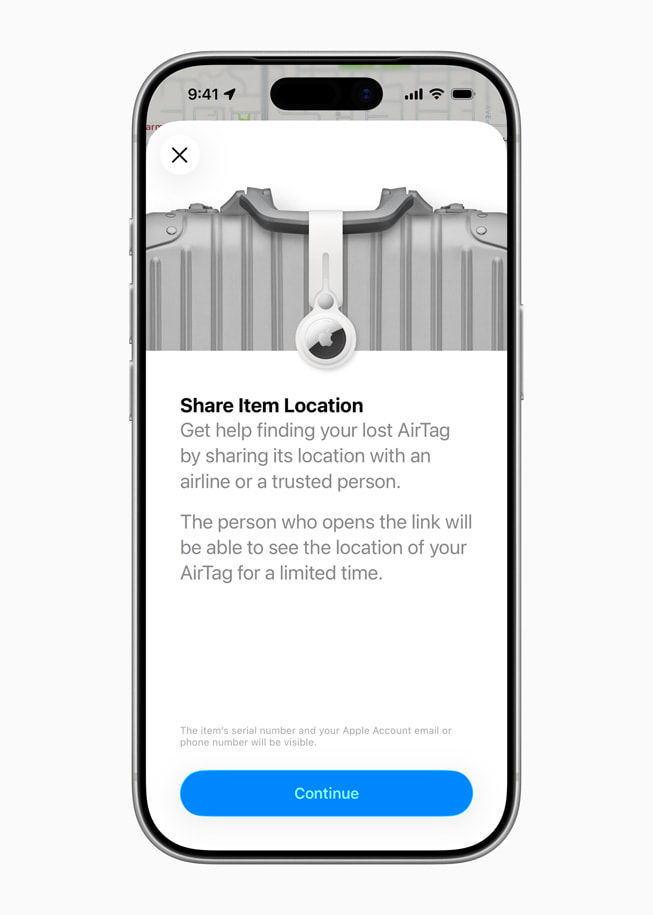
The page shows the serial number and a portion of the person’s phone number registered to their Apple Account or Google Account. For more, see how Apple and Google detect an unwanted AirTag. Starting in iOS 18.2/iPadOS 18.2 and macOS 15.2 Sequoia, you can also opt to create a secure tracking link you can share with anyone that also includes email address or phone number in full. See what someone sees when they find your lost device.

  • Ultra-wideband (UWB): UWB is a low-power, broad-spectrum wireless technology introduced by Apple in the iPhone 11 series and Apple Watch Series 6 and later, and, for audio, starting with the charging case of the AirPods Pro (2nd generation). With the right model of iPhone or Apple Watch, you can pinpoint an AirTag or an enabled charging case with Precision Finding, which provides ranging distance and direction. Which models depend on your generation of AirTag; see how to use Precision Finding.
  • Bluetooth LE: A low-power version of the short-range Bluetooth standard lets AirTags announce themselves to a nearby paired iPhone or iPad and to devices that are part of the Find My network. The 2nd-generation AirTag has a more powerful Bluetooth radio.

Apple does occasionally update the AirTag firmware. However, there’s nothing you can do to force that. With whatever logic the company uses, it sends the firmware update out over Bluetooth when it detects AirTags paired with your devices that are out of date.

Size, battery and price

Apple powers the AirTag with a replaceable battery that should last a year. Both generations of AirTag are identical in dimensions and weight: 1.26 inches (32 mm) in diameter, 0.31 inches (8 mm) thick at their widest point, and 0.39 ounces (11 g).

You can personalize your order when ordering directly from Apple by adding an emoji or a few numbers or letters. You might think the emoji or text is a gimmick. But if you buy several AirTags, it can help you distinguish among them. Bonus: When you pair an AirTag, Apple shows you the emoji or text that’s printed on the item in the pairing screen! Nifty.

Tags: Find My, iOS

To view your device’s location, those of people in a Family Sharing group, or your items, use the Find My app on an iPhone, iPad, Mac, or Apple Watch, or the Find Devices app in watchOS 26 or earlier or on iCloud.com. By activating Find My, you’re signed in to the app on all those operating systems and on iCloud.com. Each view in the iPhone, iPad, and Mac Find My app provides access to a different category of location-finding.

The map in each view includes typical actions, such as zooming in and out, switching to satellite view, and switching to 2D view. The icons, such as the Choose Map and 3D view buttons, appear the same as in Apple Maps.

Those Find My views are separate apps on an Apple Watch running watchOS 26 or earlier: Find People, Find Devices, and Find Items. If I mention a view, find the app in watchOS 26 or use Find My in watchOS 27.

You can add a Find My widget to the Home screen or Notifications Center to see people and devices without opening the app.

The three status labels

For each category—People, Devices, and Items—Find My shows the last time a location was updated in the list: to the right of the item on an iPhone/iPad and under the item on a Mac, Apple Watch, and (for devices) on iCloud.com. It also displays this information in the detail view for the selected item.

Here’s what the status messages mean:

  • Live: Devices can provide a continuous stream of location information in the right circumstances. You can watch someone walk down a street or see their train move across the landscape. (Frankly, a little creepy, even though it’s done with permission?)
  • Now: If live updates aren’t possible due to battery, location, connectivity, or operating system version, Now is the second-best. It indicates an update within the last minute.
  • Time duration: Find My shows X minutes ago or a specific date and time for the last location update.

Selecting an entry

Starting with the version 27 releases, you select an entry by tapping or clicking it. This reveals slightly more information, such as a Directions button or a Play button to play a sound. Tap or click the More button to reveal the sheet of actions for that category.

Before the version 27 releases, Apple had two distinct methods for selecting an item from the people, devices, or items list: one for the Find My apps on iPhone, iPad, and Apple Watch; another for the Mac Find My app.

In iOS 26, iPadOS 26, and watchOS 26 and earlier, tapping an entry selects it and causes its sheet to appear. In macOS 26 and earlier, click the item, then click the Info button to reveal the sheet. macOS 26 and earlier also let you Control-click/right-click an entry to reveal several menu items; macOS 27 limits these to just Remove and, for People, Add to Favorites or Remove from Favorites.

What iCloud.com cannot do

You can’t track people or items on iCloud.com, only devices (via the Find My link, which takes you to the Find Devices app). However, iCloud.com’s Find Devices web app is useful for one purpose: when a device is missing or stolen, and the person whose device it is lacks access to Find My on any of their devices. See how to find a lost iPhone or Mac.

What if you’ve lost your Apple hardware and it’s in a place where it can’t reach a Wi-Fi network and either has no active cellular data plan or can’t reach a cellular base station? What if it’s stolen, and the thief has disabled network access through Control Center? What if you stuck an AirTag or other Find My item on your backpack and left it where you can’t remember—or it was taken from you at an unknown time?

Apple’s solution is anonymity-preserving crowdsourcing that relies on the billion active devices their customers use worldwide, running recent-enough versions of iOS, iPadOS, and macOS to participate. The system relies on devices that can’t connect with the internet or a paired device to begin transmitting an anonymized, encrypted Bluetooth network signal that other Apple hardware can pick up.

A user's iPhone 17 Pro shows a screen that reads

Find My crowdsourcing causes every supporting device or item to emit a Bluetooth beacon that incorporates an encrypted hardware identifier.

This ID changes at regular intervals to prevent the privacy or safety nightmare of a third party tracking you, your devices, or your items through a persistent ID. Even Apple doesn’t really know where your devices and items are when using crowdsourcing!

When a device or item sends this beacon varies between Apple devices and Find My items:

  • iPhone, iPad, Mac, or Apple Watch: Find My must be enabled on the device (including the Find My network option), and it must be unable to make a connection to the internet.
  • AirTags and other Find My items as well as Apple and Beats audio hardware: If the audio hardware is within Bluetooth range of its paired device, it acts like a device, relaying its location through it. When beyond that range, it broadcasts a Bluetooth beacon as if it were a Find My item.

While 2nd-generation AirTags have minimum operating system requirements to appear in Find My apps, there is no such issue for the Bluetooth signals they broadcast. Any device that can relay a 1st-generation AirTag’s location can relay that of a 2nd-generation AirTag. (See AirTag 2 vs AirTag.)

The original AirPods rely solely on Bluetooth-based location tracking. When within Bluetooth range, they appear in the Find My app under Devices. However, they don’t work with the crowdsourced network. You can’t mark those audio devices as lost, and you can find those devices only within range of their paired iPhone or iPad.

What Apple can and cannot see

This broadcast is recognized by anyone’s iPhone, iPad, or Mac running at least iOS 13/iPadOS 13 or macOS 10.15. If a device owned by another person has an internet connection, it encrypts a package containing the beacon’s name and location information obtained or inferred, and uploads it to Apple.

That information is stored in a very particular way:

  • Apple doesn’t track what IP address or device uploaded it.
  • Apple doesn’t know to which device or Find My item any Bluetooth ID is associated—only your hardware retains that.
  • Apple doesn’t have encryption keys to extract location information.

It’s a beautiful system, in that no one—not Apple, the other equipment’s owner, or anyone sniffing in the area near your device—can determine who the hardware belongs to.

In the right circumstances using an iPhone, iPad, or Mac native version of the Find My app (see Precision Finding), you trigger retrieval of this location and timestamped location:

  • The Find My app uploads a cryptographic secret that Apple can match against the encrypted bundles they have of Bluetooth ID and location.
  • Apple’s servers transmit matching entries to the requesting device.
  • Using a locally stored encryption key that only your devices possess, the bundles are unlocked to determine the last location found.

What you get back

Find My provides this information in two different ways depending on the hardware you’re using:

  • iPhone, iPad, Mac, or Apple Watch plus audio hardware: The current location appears as expected in the Devices view of a native Find My app. If the device has an internet connection (direct or via a paired device for audio hardware), its location is a directly provided one; if it’s not connected to the internet, the Find My location appears when you use a Find My app.
  • AirTags and other items: The current or last-tracked location of a Find My network item, whether from a paired device or anyone else’s Apple device, is always shown in the Items view of the Find My or Find Items app. If you mark these devices as lost, you have more options: see what someone sees when they find your lost device.

In contrast to the Find My Device service, the Find My network is almost entirely one-way: you can determine where something is, but an owner can’t send a signal to the device unless it’s within Bluetooth range of an owner’s device. It also can’t be locked or erased as with internet-based Find My actions; See how to play a sound on a lost device or AirTag.

There are two actions you can perform as the owner of a Find My item:

  • When marking an item as lost, you can provide a phone number that Apple also stores securely. Someone finding the item can retrieve that data from Apple.
  • When you are near enough to connect to an item from one of your devices via Bluetooth, you can play a sound on it. This is particularly useful for finding a lost item in a classroom, home, or car, or for being notified of one nearby.

If someone’s iPhone or iPad detects that a Find My item or a Google Find Hub item is moving along with them—determined by Bluetooth proximity and across time—they are offered the opportunity to play a sound. That signal is sent via Bluetooth. (The same is true for an Android device detecting an Apple Find My item.) See what an “AirTag Found Moving With You” alert means.

Apple Designed the Find My Network To Deter Stalking

You might conclude that the design of the AirTag and other Find My items is both great for finding your own lost or stolen stuff—and a way someone might deploy tracking against you.

Fortunately, Apple included design elements in their Find My network for AirTags and third-party gear to try to protect the privacy of those who might be under observation without their knowledge, or who wind up accidentally transporting them. I dig into this in depth in Understand Stalking via Tracking.

Industry-Wide Anti-Stalking Standard Launched

Apple developed their system independently, though it offers a license and access to third parties. Facing criticism from a range of politicians and groups about stalking by tracker, Apple and Google—joined by several smaller firms—released a plan for interoperable industry support for identifying trackers across networks that went into effect in operating system and item updates in 2024. For more, see Active Stalking and an Industry Alliance.

You can also enable separation alerts. This feature notices when any Find My device or item is no longer in proximity to your iPhone or iPad. This might happen if you leave an iPhone in a coffee shop or it slips out of your pocket in a movie theater or you forget you put your iPad in an airplane seat’s unhygienic publication pocket. I explain separation alert management in Notifications for Devices and Items.

Google’s Find Hub offers a competing, non-interoperating ecosystem. Apple and Google don’t share location data with each other’s networks. But Android phones, iPhones, and iPads detect unwanted trackers across both ecosystems. See how to check whether someone is tracking you.

Activation Lock is an Apple feature designed to deter theft by preventing erasing and re-using an iPhone, iPad, Mac, or Apple Watch that has Find My enabled. While someone can still erase a device with Find My turned on, they are unable to activate and use the iPhone or iPad without having the Apple Account password for the account with which the device was used. Thieves have some hardware tricks to bypass this, unfortunately, but they don’t always work.

A device with Activation Lock active can still be tracked via Find My even after it’s been erased! And Apple will display a screen to any potential buyer or other user that the device is locked, deterring thefts and duped buyers.

Activation Lock was first released in 2015, and works with the iPhone 5s and later and iPad Air and later. An Apple Watch needs to run watchOS 2 or later. Macs models that support Activation Lock must either have a T2 Security Chip (Intel) or use an Apple silicon processor; in either case, macOS 10.15 Catalina or later must also be installed.

Even AirTags have a sort of Activation Lock—the Find My Lock—which is covered in how to reset an AirTag.

To avoid this when selling an iPhone (or associated Apple Watch), iPad, or Mac, disable Find My before erasing, which requires entering the associated iCloud account’s password. (Apple prompts you to disable Find My before letting you erase your device.) You can also disable it via iCloud.com after a device is out of your hands. Once you disable Find My, tracking is off.

If you haven’t disabled Find My on a device and you lose access to your Apple Account, the device remains permanently locked as well.

When purchasing any used Apple hardware, ensure that Activation Lock was disabled before you pay!

Remove a device from your account

You might see devices in this list that you or your family member no longer possess or that no longer work. You can remove these items from your Apple Account in any of several places. This removal also disables Find My on the device if it’s connected to the internet or the next time it connects.

Starting with the version 27 releases, use your iPhone, iPad, or Mac if you want to remove a device. (Previously, Find My was the better place to start.) Go to System Setting/Settings > Account Name, then scroll to the bottom. You then tap or click Remove from Account. You’re prompted with an improved warning in the version 27 releases:

  • In any version 27 operating system, Apple asks “Still Have This Device?” and defaults to a big blue OK button. To further discourage you, the dialog explains you should go to the device and sign out directly. Otherwise, tap or click Start Removal.
  • In the version 26 releases and earlier, you’re given a briefing on what happens if you remove the device. Tap or click Remove to proceed.

Apple once warned you that “This Mac will reappear if it connects to the Internet and Find My is turned on.” That warning was clearly inadequate about the consequences!

Some devices may offer a removal button in the Find My app on an iPhone, iPad, or Mac. The Find My app appears to be the only way to remove your AirPods from an Apple Account. However, in both the version 26 and 27 releases, I found it inconsistent and confusing why I was sometimes given a Remove from Account or Remove button, and at other times it was dimmed or resulted in an error message.

For instance, I can’t remove my iPhone, even though I’m offered a button to do so. (This may be connected with Stolen Device Protection, but it’s not described that way.) The Find Devices web app on iCloud.com only shows Erase, not Remove, for all devices except my iPhone, and it produced the same error.

Nonetheless, if you’re in a Family Sharing group, you can remove people’s devices from their accounts via an iPhone, iPad, or Mac Find My app or Find Devices at iCloud.com. (Or remove your device from your account.) The Apple Account password for the device is required, and a second factor may also be requested.

The Apple Account website used to let you remove devices, but now it shows the same error in every case.

AppleCare+ needs Find My switched on first

Apple offers an extended warranty against loss and theft for iPhone, iPad, and Apple Watch owners in several countries: “AppleCare+ with Theft and Loss”; in some countries, it’s the only option for these devices. An iPhone plan is $9.99 per month. In the United States, you can also enroll multiple devices with AppleCare One, and any iPhone, iPad, or Apple Watch on that plan receives theft and loss coverage. These plans start at $19.99 per month for up to three devices with no yearly discount.

This theft and loss warranty covers hardware faults at no cost and breakage for a modest fee. In the United States, it’s $29 to fix an iPhone’s screen or back glass, and $99 for other damage.

For loss or theft of these covered models, you pay a bit more, like $149 for an iPhone or $129 for an iPad. They will even ship you a replacement phone if you’re outside your own country and in a covered country! (You can get replacements only twice in any 12-month period.)

However, there are two key requirements. First, Find My Device must be enabled before a loss or theft occurs. Second, your device must remain associated with your Apple Account until a customer service representative tells you to remove it.

When you call AppleCare customer service to report the loss or theft, a representative guides you through erasing your device via Find My (see how to erase a lost iPhone or Mac remotely), disabling it remotely (Apple doesn’t explain what this means), and then “transferring ownership” to ensure no one can reclaim a “lost” phone later. Read the fine print if you sign up for this warranty option.