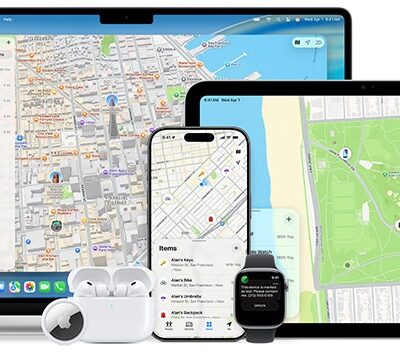
Find My comes in three flavors:
- Device-based, two-way short-range and internet: This version is the original and better understood, and can be enabled on devices: an iPhone, iPad, or Mac, and, by extension, an Apple Watch paired with an iPhone. The device actively sends its location over the internet whenever the internet is available. Find My Device allows the owner of a device to send remote events, like playing a sound or triggering erasure, to a device. Apple and Beats audio devices near their paired device act like this as well.
- Find My notification network: The Find My network is a one-way notification system that relays location via other people’s internet-connected devices. It can be enabled on an iPhone, iPad, or Mac, and is an inherent attribute of “items”: AirTags and third-party Find My products. Audio devices like AirPods Pro, AirPods Max, and several models of Beats earbuds and headphones act like Find My items when away from their paired device. An owner can’t send commands via the Find My network.
The AirTag, some audio devices, and other items can receive a command to play a sound via Bluetooth from a nearby device. This allows either an owner or someone whose device has been relaying Find My network location data to play a sound on an AirTag.
- Device-based, Bluetooth range: For Apple AirPods, you can track location only when they’re near their paired iPhone or iPad. They use Bluetooth and don’t participate in the broader Find My network, but their current or last-known location appears in the Devices view in Find My (and the Apple Watch Find Devices app in watchOS 26 or earlier). An owner can trigger a sound when they are near these audio devices.
Because devices can connect to either the two-way or notification network, the other way to look at it is this way:
- Devices can use both networks: An owner of a device can perform a remote action whenever it’s connected to the internet (or its paired device is and is nearby, with audio hardware), but can see its location when it’s picked up via either form of Find My.
- Items can use only the Find My network: Items can only ever report their location.
Turn on Find My for a device
Local- and internet-based Find My on an iPhone, iPad, or Mac requires an active Apple Account associated with iCloud. You likely already set up Find My when upgrading or setting up your device.
To enable Find My on an iPhone, iPad, or Mac, if you haven’t signed in with an Apple Account yet, go to System Settings/Settings > Account Name > iCloud and enter your credentials.
On an iPhone or iPad, tap Settings > Account Name > Find My to view and make changes in settings; these settings also affect any paired Apple Watch. On a Mac, go to System Settings > iCloud > Show All. If Find My isn’t enabled, turn it on. Once Find My is active, you can tap or click the Find My item to access additional settings, like the Find My network or, on an iPhone/iPad, Send Last Location.
Enabled devices are automatically added to your iCloud account’s list of devices. For supported devices, Apple enables Activation Lock.
Turn on the Find My network
Find My network tracking has distinctly different options depending on whether you’re enabling it on devices or using it with items. Here’s the breakdown for those categories.
Apple enables the Find My network on iPhone, iPad, and Mac by default. Any Apple Watch, AirPods (3rd generation), AirPods 4 with Active Noise Cancellation, AirPods Pro or Max, or supported Beats audio device paired with an iPhone is similarly tracked. You can toggle this setting as follows:
- iPhone (plus Apple Watch)/iPad: Change the Find My network option in Settings > Account Name > Find My > Find My iPhone/iPad.
- Mac: Go to System Settings > Account Name > iCloud, click Show More Apps, and click Find My Mac.
Disabling the Find My network also removes your device’s participation in finding other people’s lost items.
There’s one hidden requirement that Apple doesn’t document, because it’s implicit; the company has spoken about it publicly. Because finding devices over the Find My network requires the use of encryption secrets stored only on devices, you have to have two devices enabled on the network in order for one to find the other. That way, they exchange the necessary secrets using Apple’s privacy-preserving framework without Apple possessing any of your encryption keys. (This is quite similar to how iCloud Keychain works.)
In other words, if you have a single device that’s lost and it can connect to the internet, you’re using the two-way Find My system. A single lost device that can’t connect to the internet also cannot use the Find My network to find it, because there’s no other trusted device that can query Apple for the secret Find My network details. You can’t use iCloud.com for crowdsourced device location, as iCloud.com doesn’t store the Find My network secrets, much as it doesn’t store iCloud Keychain password entries and other secrets.
This requirement isn’t in place with items, because you can already discover the location of items that aren’t nearby only by using the Find My network from a device.
Powering off no longer hides a phone
When an iPhone series 11 or later model is in the extremely low-power “power reserve mode” or “powered off,” as long as your device has any battery power available (or is plugged in), it will continue to send Bluetooth beacons for location discovery if the Find My network setting is turned on as described above; you can also disable the network temporarily, as described next.
In this power reserve mode, you should be able to use Express Mode for transit system payment even if your iPhone (or Apple Watch) can’t do anything else.
Powering down a device offers up a warning in small type that highlights this change. Tap the warning to get the full details. You can tap Temporarily Turn Off Finding, enter your device passcode, and then power down; on the next power up, Find My is reactivated.
Items are always on
AirTags are designed to work both via short-range networking directly with a paired iPhone or iPad and through the crowdsourced system. When you set up an AirTag, it’s enabled for use on the Find My network, as described in how to set up an AirTag.
Third-party Find My network items have a slightly different pairing process, but remain active at all times, too; see how third-party Find My trackers differ.
Apple and Beats audio devices appear under the Devices view in the Find My or Find Devices app because they report their location via a paired device when in range (which is almost certainly often). When not in range, they rely on the Find My network. AirPods can only be tracked via the paired device, while all the other Apple and Beats hardware can use the Find My network. (I guess Apple didn’t want to confuse audio device owners by classifying these higher-end devices with single-function trackers.)
You can reset a Find My item, remove its battery, or use a special disable sequence to stop it sending out a stream of location data. See how to reset or disable an AirTag.