Got a tip for us?

iPhone

On iPhone, you can make your screen dimmer or brighter (dimming the screen extends battery life). You can also adjust the screen color and brightness manually or automatically with Dark Mode, True Tone, and Night Shift.

You can change it in Control Center or in Settings. iPhone can also adjust brightness for current light conditions using its ambient light sensor.

Here’s how to adjust the screen brightness and color on iPhone.
The iPhone Home Screen with Dark Mode on.

Adjust the screen brightness manually

To dim or brighten your iPhone screen, do one of the following:

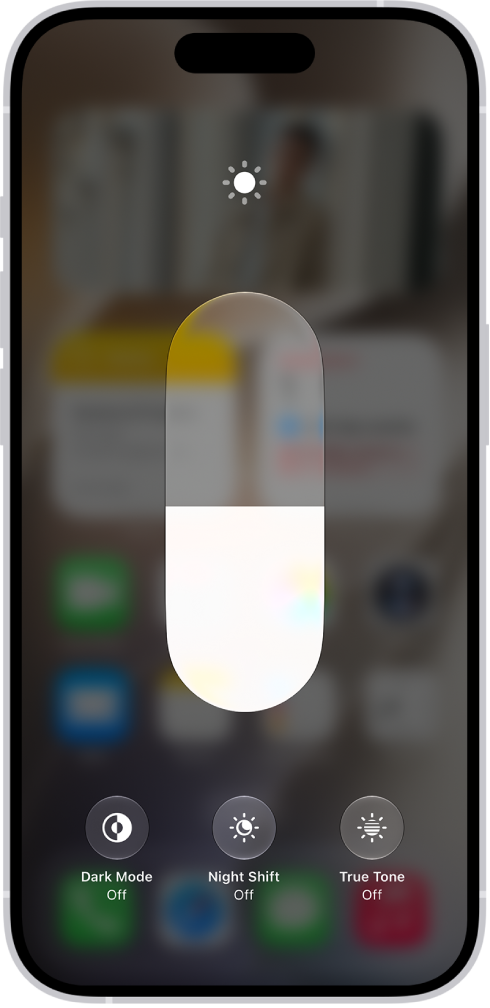
  • Open Control Center, then drag the Brightness button up or down.
  • Go to the Settings app, tap Display & Brightness, then drag the slider.

Adjust the screen brightness automatically

Using the built-in ambient light sensor, iPhone adjusts the screen brightness to match current light conditions.

  1. Start the Settings app on your iPhone.
  2. Tap Accessibility and tap Display & Text Size. Turn on Auto-Brightness.

Note: Turning off Auto-Brightness may increase power consumption.

Turn Dark Mode on or off

For low-light environments, Dark Mode is perfect: it gives the entire iPhone experience a dark color scheme. You could be reading in bed, for example, and use your iPhone without disturbing the person next to you.

You can turn Dark Mode on or off from either of these places:

  • Open Control Center, touch and hold the Brightness button, then tap the Appearance button to turn Dark Mode on or off.
  • Go to the Settings app, tap Display & Brightness, then select Dark to turn on Dark Mode, or select Light to turn it off.

Schedule Dark Mode to turn on and off automatically

If you like, Dark Mode can turn on automatically at night, or on a custom schedule you set.

  1. Start the Settings app on your iPhone.
  2. Tap Display & Brightness, turn on Automatic, and tap Options.
  3. Select either Sunset to Sunrise or Custom Schedule.

If you choose Custom Schedule, tap the options to schedule the times you want Dark Mode to turn on and off.

Choosing Sunset to Sunrise lets iPhone use the data from your clock and geolocation to work out when it’s nighttime for you.

Turn Night Shift on or off

Turning on Night Shift manually helps when you’re in a darkened room during the day.

Open Control Center, touch and hold the Brightness button, then tap the Night Shift button.

Schedule Night Shift to turn on and off automatically

At night, a Night Shift schedule shifts your display’s colors to the warmer end of the spectrum, making the screen easier on your eyes.

  1. Start the Settings app on your iPhone.
  2. Tap Display & Brightness, tap Night Shift, and then turn on Scheduled.
  3. To adjust the color balance for Night Shift, drag the slider below Color Temperature toward the warmer or cooler end of the spectrum.
  4. Tap From and select either Sunset to Sunrise or Custom Schedule.

If you choose Custom Schedule, tap the options to schedule the times you want Night Shift to turn on and off.

With Sunset to Sunrise selected, iPhone determines when it’s nighttime for you using data from your clock and geolocation.

Note: The Sunset to Sunrise option won’t appear if Location Services or Setting Time Zone is turned off. To turn on Location Services again, go to the Settings app, tap Privacy & Security, and then tap Location Services. You’ll find Setting Time Zone on the same screen, under System Services.

Turn True Tone on or off

With True Tone, the color and intensity of the display automatically adapt to match the light in your environment.

Here’s how to turn True Tone on or off:

  • Open Control Center, touch and hold the Brightness button, then tap the True Tone button to turn True Tone on or off.
  • Go to the Settings app, tap Display & Brightness, then turn True Tone on or off.
Tag: iPhone

Many apps give you a different view when you rotate iPhone. The screen turns with your iPhone as long as the rotation lock is off. And if you’d rather it stay put, you can lock the screen orientation, so it doesn’t change when you rotate iPhone.

Rotate the screen

  1. To make sure the rotation lock is off, open Control Center and tap the Lock Rotation button if it’s red.

    Note: If you don’t see the Lock Rotation button, add it to Control Center.

  2. Turn your iPhone sideways.

Lock or unlock the screen orientation

Lock the screen orientation, and it doesn’t change when you rotate iPhone.

Open Control Center, then tap the Lock Rotation Switch button. The button is red when the orientation is locked, and gray when it isn’t.

Note: If you don’t see the Lock Rotation button, add it to Control Center.

On supported models, the Lock Rotation Switch button appears in the status bar while the screen orientation is locked.

Tag: iPhone

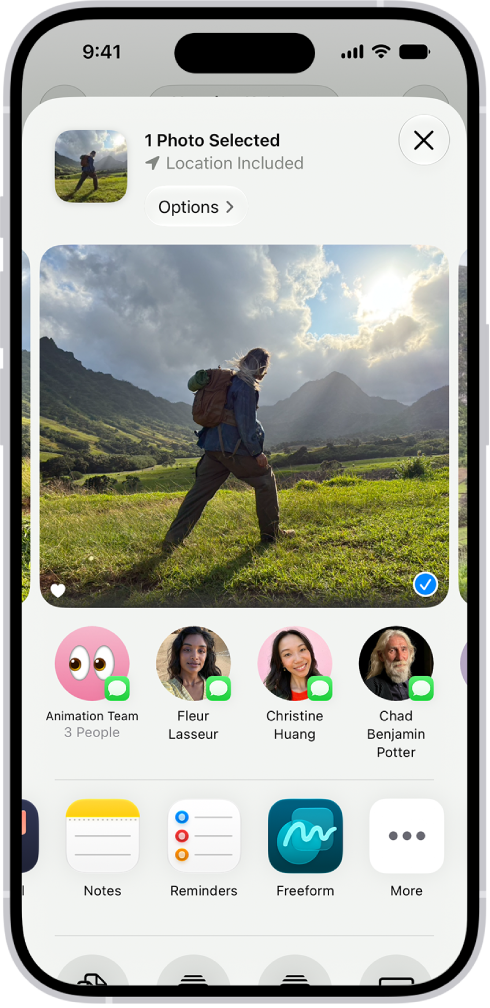
You can choose which options appear in an app’s Share menu, and change the order in which they appear. You can show or hide an option, add an option to Favorites or remove it, and reorder your Favorites. These changes apply only to the app you’re customizing, though.

Note: These changes only apply to the app you’re customizing, so repeat the steps in each app whose Share menu you want to set up.

  1. Open a document in the app and tap the Share button.
  2. Swipe left over the row of buttons and then tap More.

    The screen for sharing a photo, with the sharing options immediately below the open photo, including the More button for editing the sharing options.

  3. Tap Edit and then do any of the following:

    • Show or hide an option: Tap the control next to the option to turn it on or off.
    • Add an option to Favorites: Tap the Add button.
    • Remove an option from Favorites: Tap the Remove button.
    • Reorder Favorites: Drag the Reorder button next to any option.
  4. Tap the Done button.
Tag: iPhone

On iPhone, you can search for apps and contacts, content in apps like Mail and Messages, and even text in your photos using Live Text. You can check stock and currency information, and find and open webpages, apps, and images in your photo library, across your system, and on the web.

Search for an app, and shortcuts for your most likely next action appear within the Top Hit. Search for Photos, for example, and a shortcut to the Favorites album appears.

And with Siri AI (Beta)* on supported iPhone models, Spotlight becomes where you start a conversation with Siri, whether you want personal context, broad world knowledge, or actions across your apps.

Note: Siri AI is available in beta on iOS 27 or later on an Apple Intelligence-enabled iPhone 15 Pro, iPhone 15 Pro Max, or iPhone 16 model or later with Siri and device language set to a supported language. Available in English to start. Siri AI will not initially be available in the EU on iOS. Usage limits may apply.

Search with iPhone

  1. Tap the Search button on the Home Screen (on models with Face ID) or swipe down on the Home Screen or the Lock Screen.
  2. Enter what you’re looking for in the search field. Then do any of the following:
    • Initiate your search: Tap the Search button.
    • Open a suggested app or website: Tap the app or website.
    • Take quick action: Start a timer, turn on a Focus, find the name of a song with Shazam, run any shortcut, and more. Search for an app’s name to see shortcuts available for the app, or create your own using the Shortcuts app.
    • Check a suggested website: Tap it.
    • Get more information about a search suggestion: Tap it. Tap one of the results to open it.
    • Start a new search: Tap the Clear Text button in the search field.

Note: Content from third-party apps only appears in search results if the app supports Spotlight indexing, so if something you’re looking for is missing, the app may not support Spotlight search.

Choose which apps to include in Search

  1. Start the Settings app on your iPhone.
  2. Tap Search and scroll down. Tap an app.
  3. Turn Show App in Search on or off.

Turn off Location-Based Suggestions

With Location Services on, Spotlight may use your location to refine suggestions. Turning off Location-Based Suggestions stops that.

  1. Start the Settings app on your iPhone.
  2. Tap Privacy & Security and then tap Location Services.
  3. Tap System Services, then turn off Suggestions & Search.

Search in apps

Many apps include a search field or search button for finding something within the app. In the Maps app, for example, you can search for a specific location.

  1. In an app, tap the search field or the Search button.

    If you don’t see a search field or button, swipe down from the top.

  2. Type your search and then tap Search.

Add a dictionary

You can add dictionaries on iPhone to use in searches.

  1. Start the Settings app on your iPhone.
  2. Tap General, then tap Dictionary.
  3. Select a dictionary.

*Apple Intelligence is available with Siri and device language set to Chinese (Simplified), Chinese (Traditional), Danish, Dutch, English, French, German, Italian, Japanese, Korean, Norwegian, Portuguese, Spanish, Swedish, Turkish, or Vietnamese. Some features may not be available in all regions or languages. Some devices may not be available in all regions. Siri AI is available in beta in iOS 27, iPadOS 27, macOS 27, watchOS 27, and visionOS 27 and requires an Apple Intelligence–enabled device set to a supported language. Available in English to start. Siri AI will not be initially available in the EU on iOS, iPadOS, and watchOS. Certain Apple Intelligence features that rely on server-side models are subject to daily usage limits, including but not limited to Siri AI, Intelligent Photo Editing Tools, Image Playground, and AFM 3 Cloud models in Shortcuts. Daily limits may vary by feature, request complexity, system demand, system policies, and other factors. Expanded access to such features will be available for a fee in the future. Use of these features is subject to the Apple Intelligence Terms and Conditions.

Tag: iPhone

Control iPhone and its apps using a few simple gestures: tap, touch and hold, swipe, scroll, and zoom. For example, with these gestures you can open an app from its icon on the Home Screen, see more apps, see more of a list in Photos, and zoom in on a photo or webpage.

Symbol Gesture
An icon symbolizing the tap gesture. Tap. Briefly touch an item on the screen with one finger. For example, to open an app, tap its icon on the Home Screen.
An icon symbolizing the touch and hold gesture. Touch and hold. Press an item on the screen until something happens. For example, if you touch and hold the wallpaper of the Home Screen, the app icons begin to jiggle.
An icon symbolizing the swipe gesture. Swipe. Move one finger across the screen quickly. For example, swipe left on the Home Screen to see more apps.
An icon symbolizing the scroll gesture. Scroll. Move one finger across the screen without lifting. For example, in Photos, you can drag a list up or down to see more. Swipe to scroll quickly; touch the screen to stop scrolling.
An icon symbolizing the zoom gesture. Zoom. Place two fingers on the screen near each other. Spread them apart to zoom in, or move them toward each other to zoom out. You can also double-tap a photo or webpage to zoom in, and double-tap again to zoom out. In Maps, double-tap and hold, then drag up to zoom in or drag down to zoom out.
Tag: iPhone

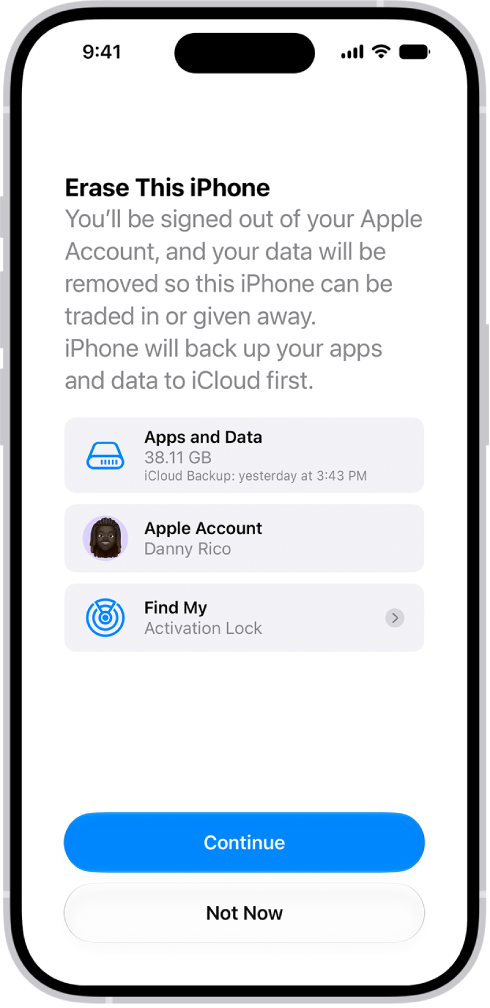
You can securely erase your personal information, content, and settings (such as privacy and network settings) from your iPhone. When you erase your iPhone, it’s restored to factory settings.

Back up your iPhone first, so you can restore your data later on a different device. And if you have an eSIM, you get to choose whether to erase it or keep it, since erasing it means contacting your carrier to reactivate your cellular plan.

Here’s how to erase iPhone.

The Erase This iPhone screen.

Before you begin

To be able to restore your data later on a different device, back up your iPhone.

Erase iPhone using Settings

  1. Start the Settings app on your iPhone.
  2. Tap General, then tap Transfer or Reset iPhone.
  3. Tap Erase All Content and Settings.
  4. If asked, enter your iPhone passcode or Apple Account password.
  5. Tap Continue to confirm.

With an eSIM, you can choose to erase it or keep it, but if you erase it, you’ll need to contact your carrier to reactivate your cellular plan.

Erase iPhone using your Mac or Windows device

  1. Connect your iPhone to your computer with a USB or USB-C cable.
  2. On your Mac, click the Finder icon to open a Finder window, or open the Apple Devices app on your Windows device.

    If your Mac is using macOS 10.14 or earlier, or your Windows device doesn’t have the Apple Devices app, open iTunes instead.

  3. Click the iPhone icon in the Finder sidebar (below Locations) and then click General at the top of the window.
  4. Click Restore iPhone and click Restore to confirm.

    Note: If you’re signed in to Find My, you need to sign out before you can click Restore.

Tag: iPhone

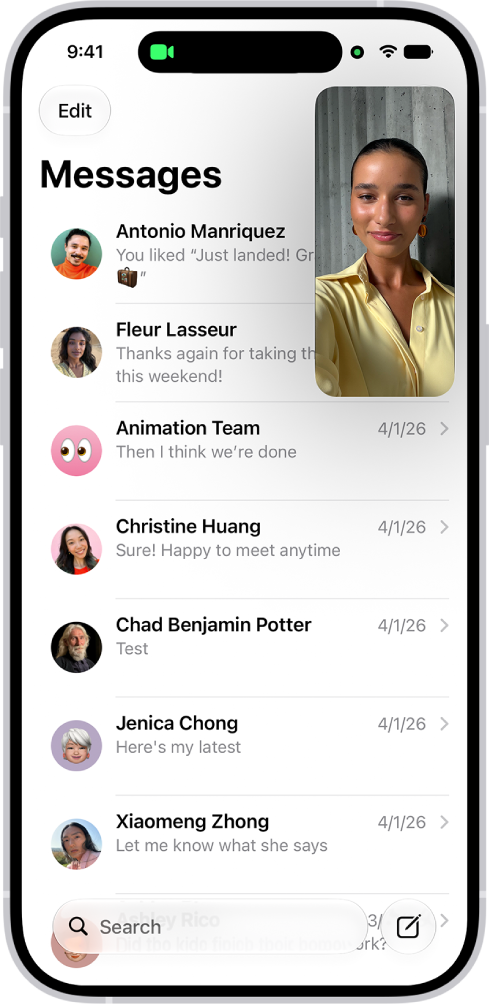
With Picture in Picture, you can watch a video or use FaceTime while you use other apps. The video window scales down to a corner of your screen, and you can resize it, move it to a different corner, hide it off the edge of the screen, or return to a full video screen.

Note: Picture in Picture only works with supported apps and videos, so if you don’t see the option, the app or video may not support it.

A FaceTime conversation taking place, while a note about kitchen decorating fills the rest of the screen.

Start Picture in Picture

While watching a video, tap the Minimize Video button in the video window.

With the video window scaled down to a corner of your screen, you can see the Home Screen and open other apps.

Manage the Picture in Picture window

When you see the video window, you can do any of the following:

  • Resize the video window: To make the small video window larger, pinch open. To shrink it again, pinch closed.
  • Show and hide controls: Tap the video window.
  • Move the video window: Drag it to a different corner of the screen.
  • Hide the video window: Drag it off the left or right edge of the screen.
  • Close the video window: Tap the Close button.
  • Return to a full video screen: Tap the Restore Full Screen button in the small video window.
Tag: iPhone

You can change the name of your iPhone, which is used by iCloud, AirDrop, Bluetooth®, your Personal Hotspot, and your computer, so it’s the name you’ll see in all those places. You can enter a new name whenever you like.

  1. Open the Settings app on your iPhone.
  2. Tap General, tap About, and then tap Name.
  3. Tap the Clear Text button and enter a new name.
Tags: iCloud, iPhone

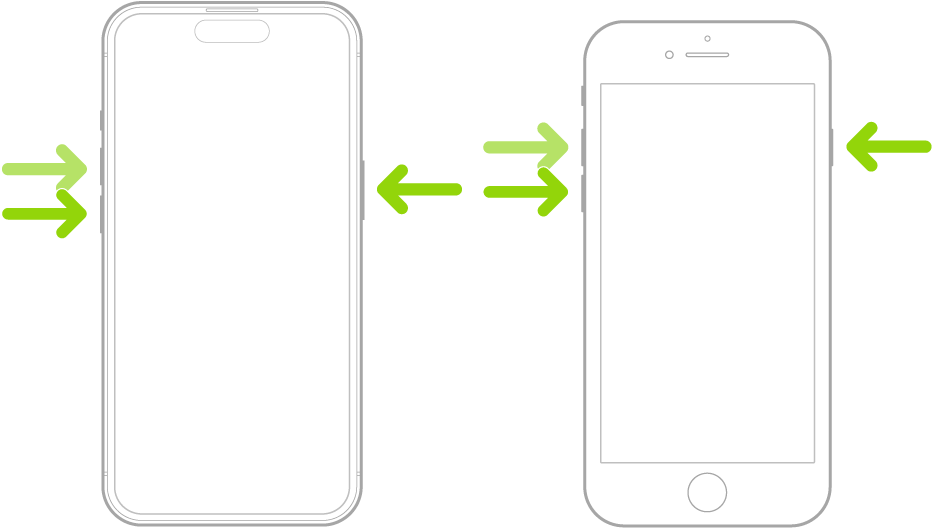
If iPhone isn’t responding, and you can’t turn it off then back on, try forcing it to restart. A force restart uses the volume up button, the volume down button, and the side button on your iPhone. When the Apple logo appears, you’ll know it’s restarting.

  1. Press and quickly release the volume up button.
  2. Press and quickly release the volume down button.
  3. Press and hold the side button.
  4. When the Apple logo appears, release the side button.

Two iPhone models, one with a Home button and one without, screens facing up. The volume buttons of each are on the left, and the side button is on the right.

Tag: iPhone