Got a tip for us?

iPhone

The icons in the status bar provide information about iPhone. On an iPhone with Face ID, there are additional status icons at the top of Control Center.

You’ll find icons for Privacy Indicators, Battery, Connectivity, Active Sessions, Media, and Accessibility, and the Camera In Use icon, for example, means an app is using your iPhone camera. When you have a Focus on, its icon appears in the status bar, too.

Note: Turn on a Focus, and its icon shows up in the status bar.

Privacy Indicators

Status icon What it means
The Camera In Use icon. Camera in use. An app is using your camera. If you’re not actively using a camera, check which app is running.
The Microphone In Use icon. Microphone in use. An app is using your microphone. If you’re not expecting an app to use your microphone, check which app is running.
The Location Services status icon. Location services. An app is using Location Services.
The Lock status icon. Lock. iPhone is locked.

Battery

Status Icon What it means
The Battery status icon. Battery. Shows the iPhone battery level. When the icon is yellow, Low Power Mode is on.
The Battery Charging icon. Battery charging. The iPhone battery is charging. When the icon is gray, charging is paused.
The Bluetooth battery status icon. Bluetooth battery. Shows the battery level of a paired Bluetooth device.

Connectivity

Status icon What it means
The Wi-Fi status icon. Wi-Fi. iPhone is connected to the internet over a Wi-Fi network.
The cellular signal strength status icon (four bars). Cell signal. The number of bars indicates the signal strength of your cellular service. If there’s no signal, “No Service” appears.
The signal strength status icon (four bars) for two cellular networks. Dual cell signals. On models with Dual SIM, the upper row of bars indicates the signal strength of the line you use for cellular data. The lower row of bars indicates the signal strength of your other line. If there’s no signal, “No Service” appears. To see the status icons with their corresponding cellular plan labels and carrier names, open Control Center.
The Airplane Mode status icon. Airplane Mode. Airplane Mode is on—you can’t make phone calls, and other wireless functions may be disabled.
The 5G status icon. 5G. Your carrier’s 5G network is available, and supported models can connect to the internet over that network (not available in all countries or regions).
The 5G status icon. 5G UC. Your carrier’s 5G UC network is available, which can include your carrier’s higher frequency version of 5G. Supported models can connect to the internet over that network (not available in all countries or regions).
The 5G+ status icon. 5G+. Your carrier’s 5G+ network is available, which can include your carrier’s higher frequency version of 5G. Supported models can connect to the internet over that network (not available in all countries or regions).
The 5G UW status icon. 5G UW. Your carrier’s 5G UW network is available, which can include your carrier’s higher frequency version of 5G. Supported models can connect to the internet over that network (not available in all countries or regions).
The 5G E status icon. 5G E. Your carrier’s 5G E network is available, and iPhone can connect to the internet over that network (not available in all countries or regions).
The LTE status icon. LTE. Your carrier’s LTE network is available, and iPhone can connect to the internet over that network (not available in all countries or regions).
The 4G status icon. UMTS. Your carrier’s 4G UMTS (GSM) or LTE network (depending on the carrier) is available, and iPhone can connect to the internet over that network (not available in all countries or regions).
The 3G status icon. UMTS/EV-DO. Your carrier’s 3G UMTS (GSM) or EV-DO (CDMA) network is available, and iPhone can connect to the internet over that network.
The EDGE status icon (an “E”). EDGE. Your carrier’s EDGE (GSM) network is available, and iPhone can connect to the internet over that network.
The GPRS status icon (a “G”). GPRS/1xRTT. Your carrier’s GPRS (GSM) or 1xRTT (CDMA) network is available, and iPhone can connect to the internet over that network.
The SOS status icon. SOS only. Full service from your cellular provider isn’t available, but emergency calls may be possible through other carrier networks (not available in all countries or regions).
The Satellite status icon. Satellite features. Emergency SOS, Find My, Roadside Assistance, and Messages via satellite are available in your location (supported on iPhone 14 and later).
The SAT status icon. Carrier satellite features. Your device is using a carrier-provided satellite feature.
The Wi-Fi call status icon. Wi-Fi calling. iPhone is set up for Wi-Fi calling (not available with all carriers or in all countries or regions). iPhone also displays a carrier name next to the icon.
The Personal Hotspot status icon. Personal Hotspot connection. iPhone is connected to the internet through the Personal Hotspot of another device.
The VPN status icon. VPN. iPhone is connected to a network using VPN.
The Network Activity status icon. Network activity. Shows that there’s network activity. Some third-party apps may also use it to show an active process.
The Syncing status icon. Call forwarding. Call forwarding is set up.

Active Sessions

Status icon What it means
The Call Indicator icon. Phone call. iPhone is on a phone call.
The FaceTime Indicator icon. FaceTime. iPhone is on a FaceTime call.
The Recording Indicator icon. Screen recording. iPhone is recording your screen.
The Personal Hotspot Indicator icon. Personal Hotspot. iPhone is providing a Personal Hotspot.
The Navigation Indicator icon. Navigation. iPhone is providing turn-by-turn directions.
The CarPlay icon. CarPlay. iPhone is connected to CarPlay.
The Siri Eyes Free icon. Siri Eyes Free. You can ask a question or make a request to Siri in your car.
Syncing. iPhone is syncing with your computer.
Do Not Disturb. Do Not Disturb is turned on.
Portrait orientation lock. The iPhone screen is locked in portrait orientation. To unlock your screen orientation, open Control Center and tap the Portrait Orientation Lock status icon.
Alarm. An alarm is set.

Media

Status icon What it means
Headphones connected. iPhone is paired with Bluetooth® headphones that are turned on and within Bluetooth range.
AirPlay. AirPlay is on.

Accessibility

Accessibility icons

Status icon What it means
Voice Control. Voice Control is turned on, and you can use your voice to interact with iPhone.
TTY. Software RTT/TTY or Hardware TTY is turned on.
Tag: iPhone

You can use the flashlight on iPhone to light your way in the dark or get a more detailed look at something.

You can turn it on or off in Control Center, with Siri, from the Lock Screen, or with the Action button.

Here’s how to turn the iPhone flashlight on or off.

Use Control Center to turn the flashlight on or off

  1. Open Control Center.
  2. Tap the Flashlight button to turn the flashlight on; tap it again to turn it off.

Use Siri to turn the flashlight on or off

You can use Siri to turn the flashlight on or off.

Siri: Ask Siri something like, “Siri, turn on the flashlight.”

Turn on the flashlight from the Lock Screen

If your iPhone has the Flashlight button on the Lock Screen, you can press it to turn the flashlight on or off.

Turn the flashlight on or off with the Action button

You can customize the Action button, if your iPhone has one, to turn the flashlight on or off.

Change the brightness of the flashlight

Once the flashlight is on, an image of the flashlight appears on the screen. Dragging the Brightness button up or down on the flashlight image changes the brightness.

Tag: iPhone

With the appropriate cable or adapter, you can connect your iPhone to a secondary display, like a computer monitor, TV, or projector. The adapter you need depends on your iPhone model. The adapter works with an HDMI or VGA cable to reach the monitor, TV, or projector.

  1. Depending on your iPhone model, plug a Lightning Digital AV Adapter, Lightning to VGA Adapter, USB-C Display AV Adapter, or USB-C VGA Multi-port Adapter into the charging port on the bottom of iPhone.
  2. Connect an HDMI or VGA cable to the adapter.
  3. Connect the other end of the HDMI or VGA cable to the monitor, TV, or projector.
  4. If necessary, switch to the correct video source on the monitor, TV, or projector. If you need help, use the display’s manual.

Because the adapters have an extra port, you can also connect the charging cable to charge your iPhone while it’s connected to a monitor, TV, or projector.

Tag: iPhone

Apple Support advisors help iPhone customers with all sorts of questions, from forgotten passwords to lost photos. Below are a few pieces of advice that Apple Support advisors wish all iPhone owners knew.

Follow these simple steps now to keep your iPhone, and the important information you keep on it, safe. They cover what to do if your iPhone is lost or stolen, how to recover deleted photos, and how to maximize the life of your battery. The first, though, is simply not forgetting your passcode.
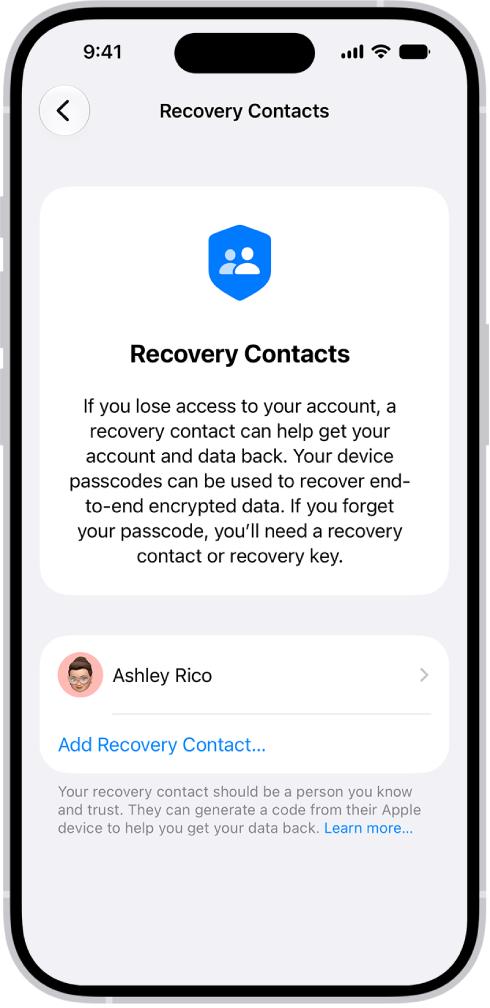
The Add Recovery Contact screen.

Just in case you forget

Once your iPhone is set up, your iPhone passcode and your Apple Account information are two things you really don’t want to forget. To unlock your iPhone, you use your iPhone passcode, which is a four- or six-digit numerical code. Your Apple Account is what you use to make purchases in the App Store, sign in to Apple services, and more, and it’s typically your primary email address or phone number plus the unique password you create to use with it.

If you think you might forget these things, you can designate a trusted person as your account recovery contact. Your recovery contact doesn’t have access to your iPhone or Apple Account, but they can give you a code to reset your passcode or access your account if you get locked out. Go to the Settings app , tap your name, then tap Sign-In & Security. Tap Recovery Contacts, then tap a suggested contact or tap Choose Someone Else.
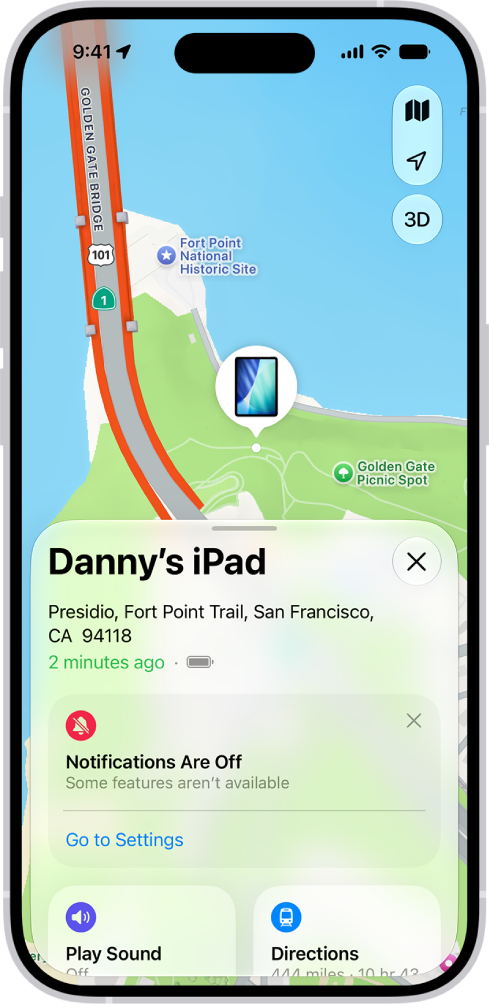
The Find My app showing the location of an iPad on a map.

How to find your iPhone if it’s lost or stolen

It’s easy to find your iPhone if it ever gets lost or stolen—as long as you turn on Find My iPhone before that happens. First, make sure you’re signed in to your Apple Account, go to the Settings app , tap your name, tap Find My, then turn on Find My iPhone.

After you turn on Find My iPhone, you can use the Find My app on another Apple device to see the location of your iPhone; you can even play a sound on your lost iPhone to help you find it. (Make sure you’re signed in to the same Apple Account on the other Apple device.) If you don’t have another Apple device, go to the Find Devices website on any web browser and sign in to the same Apple Account.
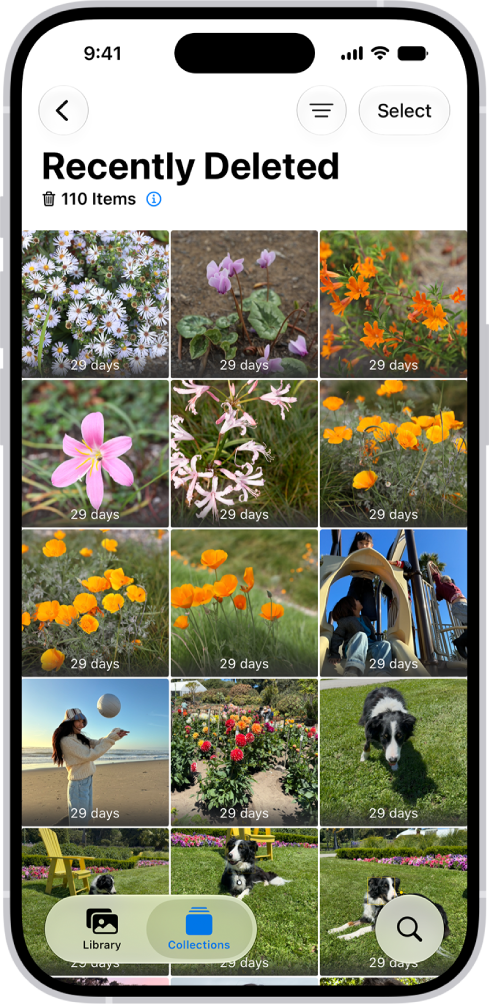
The Recently Deleted folder in the Photos app. Recently deleted photos appear in a grid on the screen.

Recover deleted photos or videos

Photos or videos you delete from the Photos app are automatically saved in the Recently Deleted album for 30 days. So if you accidentally delete one, you can recover it and restore it to your Photos library.

To recover deleted items, open the Photos app , then tap Collections. Tap the Recently Deleted collection (below Utilities), then tap View Album. Unlock the album using your iPhone passcode, Face ID, or Touch ID. Tap a photo or video, tap Recover, then tap Recover Photo or Recover Video.
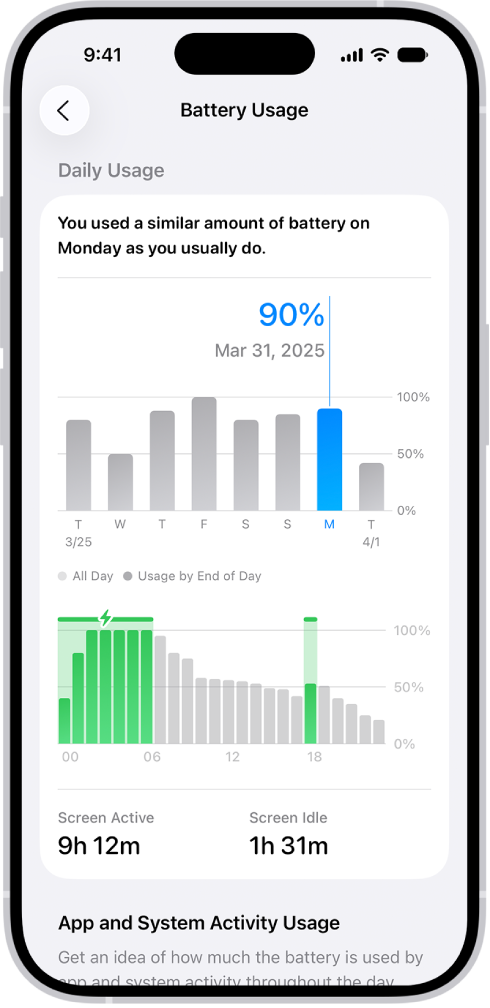
An iPhone screen showing battery usage, and the battery charged 90%.

Maximize the life of your iPhone battery

There are a few easy steps you can take to preserve the life of your iPhone battery. First, make sure your iPhone is updated to the latest version of iOS. To check if a software update is available, go to the Settings app , tap General, then tap Software Update.

Next, connect to Wi-Fi whenever it’s available, since a cellular connection uses more battery power than Wi-Fi.

Finally, turn down your screen brightness: Open Control Center, then slide Brightness down. To automatically dim your screen based on the surrounding light, go to the Settings app , tap Accessibility, tap Display & Text Size, then turn on Auto-Brightness.

To learn more about your iPhone battery health, go to the Settings app , then tap Battery.
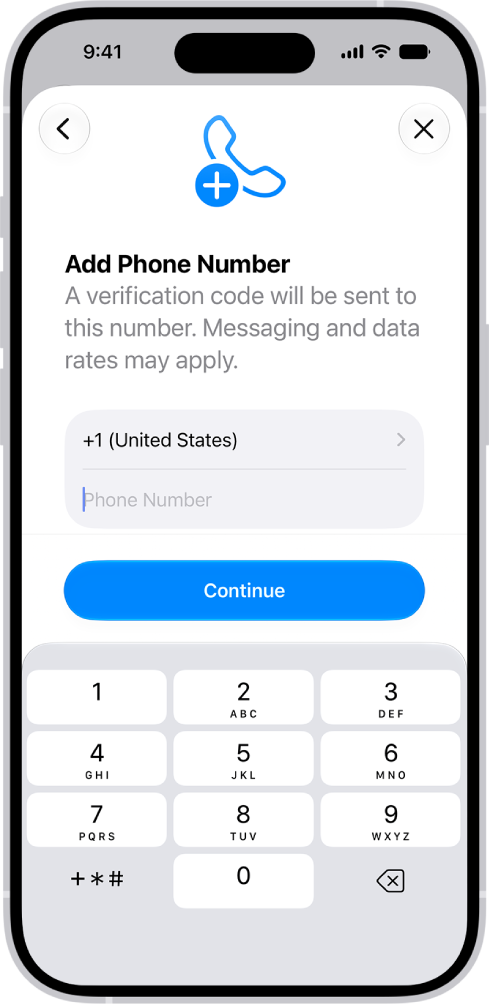
The Add Phone Number screen in Settings.

If you get a new phone number

Your Apple Account has a phone number associated with it, known as your trusted phone number, which often helps verify your identity and authenticate that your iPhone is really yours. If you get a new phone number, update your trusted phone number to match. Otherwise, you could lose access to your account if you move to a new iPhone or forget your Apple Account password.

To update your trusted phone number, go to the Settings app , tap your name, tap Sign-In & Security, then tap Add Email or Phone Number. Tap Phone Number, then enter your new phone number and follow the onscreen instructions to verify your new number.
An iPhone screen showing an illustration of the globe. At the top of the globe is a radio signal and an airplane flies around the globe.

All about eSIM

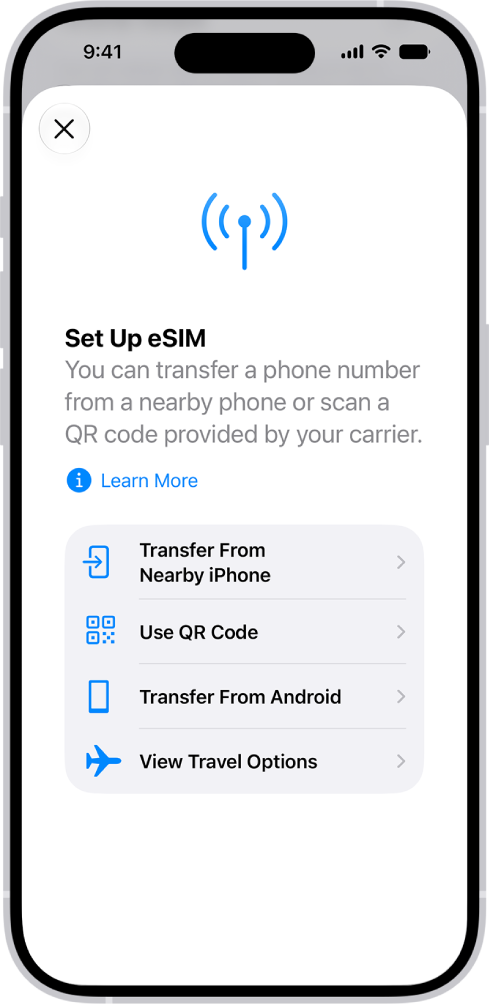
A digital version of the physical SIM card inside your iPhone, an eSIM connects you to your cellular carrier. With eSIM, there’s no SIM card to swap out when you get a new iPhone, and connecting to new cellular carriers at home or while traveling is easy.

Your iPhone may lose its cellular connection if you erase it. The same can happen if you restore your iPhone from a backup and accidentally delete your eSIM. You’d then need to contact your cellular provider to restore the connection.

Step-by-Step Help: Get guided and personalized support troubleshooting issues on your iPhone. Open Step-by-Step Help.

If you’d like to dig deeper, start with these related guides:

  • Keep your Apple Account secure on iPhone
  • Locate a device in Find My on iPhone
  • Delete or hide photos and videos on iPhone
  • Understand your iPhone battery usage and health
  • Set up an eSIM

Per Apple, not all features are available for all iPhone models.

Tag: iPhone

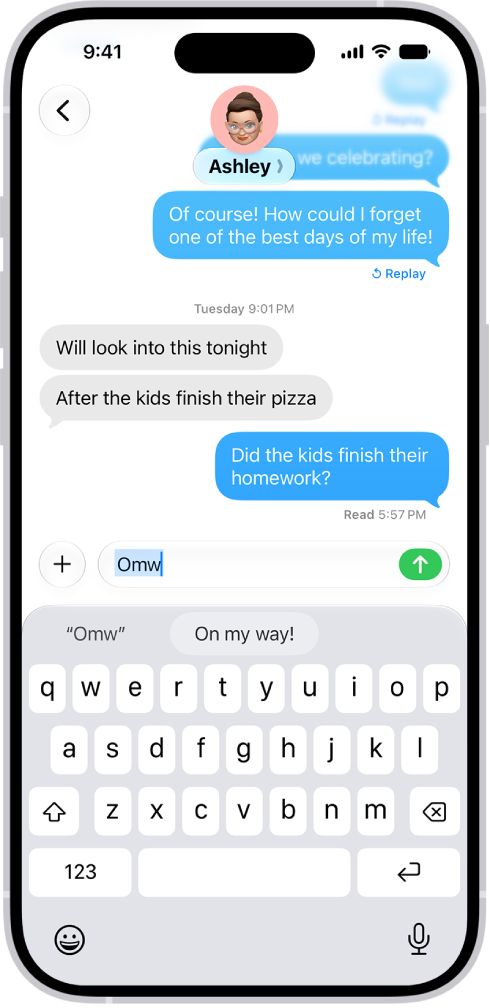
When you set up a text replacement on iPhone, you can enter long or complicated text by typing just a few characters, like shorthand for your most frequently used words and phrases.

One shorthand for “On my way” is already set up for you, but you can add your own. You can also stop a word or phrase from being replaced, and create replacements for word and input pairs on certain Chinese or Japanese keyboards.

A message with the text shortcut “Omw” typed and the phrase “On my way!” suggested below as replacement text.

Create a text replacement

  1. While in a text field, touch and hold the Emoji button or the Switch Keyboard key.
  2. Tap Keyboard Settings and tap Text Replacement.
  3. Tap the Add button.
  4. Type a phrase in the Phrase field and the text shortcut you want to use for it in the Shortcut field.

Don’t want to replace a word or phrase you use?

  1. Open the Settings app on your iPhone.
  2. Tap General, tap Keyboard, and tap Text Replacement.
  3. Tap the Add button and enter your word or phrase in the Phrase field, but leave the Shortcut field blank.

Create a text replacement for word and input pairs

Using certain Chinese or Japanese keyboards, you can set up text replacements for word and input pairs, and each one goes into your personal dictionary. Then, when you type the text shortcut for a word or input on a supported keyboard, the paired word or input replaces the shortcut you typed.

You can use shortcuts with these languages:

  • Simplified Chinese: Pinyin
  • Traditional Chinese: Pinyin and Zhuyin
  • Japanese: Romaji and Kana

Sync your personal dictionary across devices

Your personal dictionary can stay current on your other devices with iCloud.

  1. Open the Settings app on your iPhone.
  2. Tap your name, then tap iCloud.
  3. Tap See All, tap iCloud Drive, and then turn on Sync this iPhone.

Reset your personal dictionary

  1. Open the Settings app on your iPhone.
  2. Tap General, then tap Transfer or Reset iPhone.
  3. Tap Reset and tap Reset Keyboard Dictionary.
  4. Enter your passcode, then tap Reset Dictionary.

This deletes all custom words and shortcuts and returns the keyboard dictionary to its default state.

Tags: iCloud, iPhone

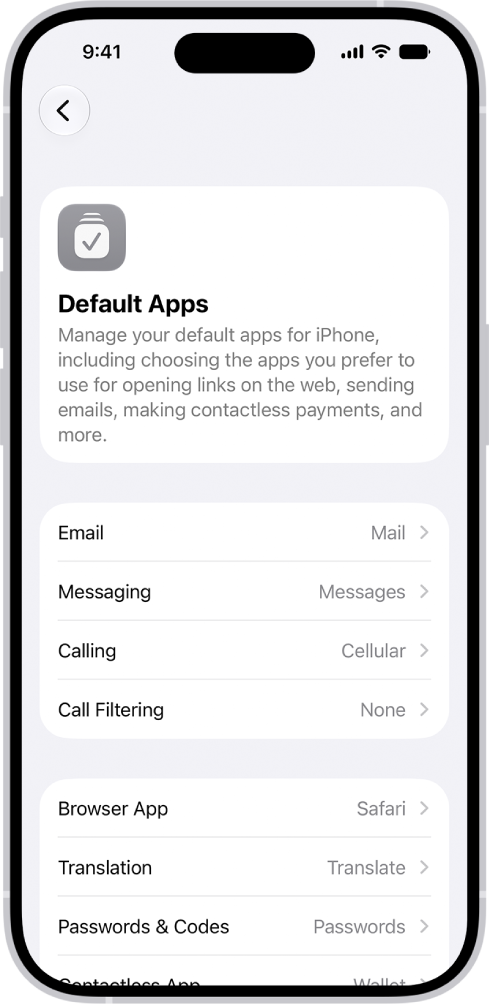
You can select alternative, third-party apps for email, messaging, calling, call filtering, web browsing, passwords, or keyboards as defaults to launch instead of the built-in Apple apps. Make sure the app you want to switch to supports this feature.

You can also choose a default app for translating text, for contactless payments, and for sending audio and video to compatible devices. All of these choices are in Default Apps, in the Apps section of Settings.

Note: You can’t set a different default for some app categories, like Maps, Camera, and Music, because they aren’t available in Default Apps.

Change your default apps

  1. Open the Settings app on your iPhone.
  2. Tap Apps, tap Default Apps, and tap any of the following:

    • Email: To change the default app for sending and receiving email.
    • Messaging: To change the default app for sending and receiving messages.
    • Calling: To change the default app for making and receiving calls.

    • Call Filtering: To turn on or off call blocking and identification options.

    • Browser App: To change the default app to open links on the web.

    • Translation: To change the default app used to translate text.
    • Passwords & Codes: This section allows you to turn on or off AutoFill Passwords and Passkeys for apps and websites, and password, passkey, and code-generation and verification apps.
    • Contactless App: To change the default app for using NFC for contactless payments.
    • Keyboards: To add or delete keyboards and third-party keyboard apps.
    • Media Sharing Extensions: To change the default app for sending audio and video to compatible devices.
  3. Select the app you want to use as the default.

    The screen for changing your default apps for sending email, browsing the web, and more.

Tag: iPhone

If an app isn’t responding, you can quit it and then reopen it to try and resolve the issue. It’s quick. You quit it from the App Switcher, then reopen it from the Home Screen or App Library. If the app is still unresponsive after that, restarting your iPhone may help.

Note: Quitting apps you’re not using won’t prolong battery life, since iPhone automatically manages how apps run in the background.

  1. To quit the app, open the App Switcher and swipe right to find the app. Swipe up on the app.
  2. To reopen the app, go to the Home Screen (or App Library). Tap the app.

Note: If quitting and reopening the app doesn’t help, try restarting your iPhone.

Tag: iPhone

You can select an alternative search engine as the default to search for content on the web. It’s a single setting: you pick the search engine you want to set as the default, and that’s the one your searches use.

  1. Open the Settings app on your iPhone.
  2. Tap Search, then tap Search Engine.
  3. Tap the search engine you want to set as the default and then tap the Back button.
Tag: iPhone

You can restore content, settings, and apps from a backup to a new or newly erased iPhone. You can restore from an iCloud backup or a computer backup, and if you’ve already set up your iPhone, you need to erase all of its content first. If your backup is encrypted, you’ll need its password, too.

Important: To restore your iPhone, you must have a backup to restore from.

Restore iPhone from an iCloud backup

  1. Turn on your iPhone.

    The Hello screen should appear. If you already set up your device, you need to erase all of its content before you can use these steps to restore from your backup.

  2. Do one of the following:

    • Tap Set Up Manually, tap Restore from iCloud Backup, then follow the onscreen instructions.
    • If you have another iPhone, iPad, or iPod touch with iOS 11, iPadOS 13, or later, you can use Quick Start to automatically set up your new device. Bring the two devices close together, then follow the onscreen instructions to securely copy many of your settings, preferences, and iCloud Keychain. You can then restore the rest of your data and content to your new device from your iCloud backup.

    Or, if both devices have iOS 12.4, iPadOS 13, or later, you can transfer all your data wirelessly from your previous device to your new one. Keep your devices near each other and plugged into power until the migration process is complete.

You’re asked for your Apple Account.

Restore iPhone from a computer backup

  1. Using USB, connect a new or newly erased iPhone to the computer containing your backup.
  2. Do one of the following:
    • On a Mac (macOS 10.15 or later): In the Finder sidebar, select your iPhone, click Trust, and click Restore from this backup.
    • On a Mac (macOS 10.14 or earlier) or a Windows device: Open the iTunes app, click the button resembling an iPhone near the top left of the iTunes window, click Summary, and click Restore Backup.
  3. Choose your backup from the list and click Continue.

You must enter the password before restoring your files and settings from an encrypted backup.

Tags: iCloud, iPhone

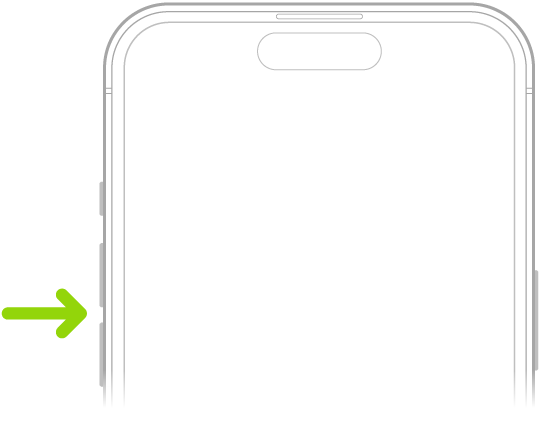
You can use the volume buttons on the side of iPhone to adjust media volume while audio is playing, and ringer and alert volume at other times. You can also adjust the volume in Control Center or Settings.

In Settings, you can set separate volumes for alarms and timers, and for alerts and system sounds. With Change with Buttons off, the volume buttons control only media playback, and you can limit the maximum volume of sound through headphones or the built-in speaker. Siri can turn the volume up or down for you, too.

Use the volume buttons or Siri to adjust volume

Press the volume up or volume down button on the side of iPhone. The button you press controls the volume for what’s currently playing—media, ringtones, or alerts.

Note: While audio is playing, the volume buttons control media volume. When no audio is playing, they control ringer and alert volume instead.

Siri can also turn the volume up or down.

Siri: Ask Siri something like, “Turn down the volume.”

The upper portion of the front of iPhone with the volume up and volume down buttons on the upper left.

Adjust the volume in Control Center

In Control Center, you can adjust the volume while iPhone is locked or when you’re using an app.

Open Control Center, then drag the volume slider.

Lock the alert volume

You can stop the volume buttons from changing the volume of alerts and notifications.

  1. Open the Settings app on your iPhone.
  2. Tap Sounds & Haptics. Turn off Change with Buttons.

Media playback is the only thing the volume buttons control when the Change with Buttons setting is off.

Limit the speaker and headphone volume

For sound that plays through the built-in speaker on your iPhone or through headphones, you can set a limit on the maximum volume.

  1. Open the Settings app on your iPhone.
  2. Tap Sounds & Haptics and then do any of the following:
    • Limit speaker volume: Under Built-In Speaker, tap Volume Limit, turn on Limit Maximum Volume and then drag the slider.
    • Soften loud sounds from the speaker: Under Built-In Speaker, turn on Reduce Loud Sounds.
    • Limit headphone volume: Under Headphones, tap Headphone Safety, turn on Reduce Loud Audio. Drag the slider.

Note: With Screen Time set up for a family member, you can stop them from changing the Speaker Volume Limit level. To do it, go to the Settings app and tap Screen Time. Next, tap Content & Privacy Restrictions, turn on Content & Privacy Restrictions, then tap Speaker Volume Limit and select Don’t Allow.

Tag: iPhone