Got a tip for us?

iPhone

With the push of a button or flip of a switch, you can quickly silence alerts like phone calls, notifications, and system sounds.

Not everything goes quiet, though. Clock alarms, audio apps such as Music, and many games still play sounds through the built-in speaker.

Important: Clock alarms, audio apps such as Music, and many games play sounds through the built-in speaker, even when Silent mode is on. In some countries or regions, the sound effects for Camera, Voice Memos, and Emergency Alerts are played, even when the Ring/Silent switch is set to silent.

Turn Silent mode on or off

With Silent mode on, iPhone doesn’t ring or play alerts or other sound effects, though iPhone may still vibrate. Turn Silent mode off, and iPhone plays all sounds.

Depending on your model, do one of the following:

  • On models with an Action button: Press and hold the Action button to turn Silent mode on. Press and hold the Action button again to turn Silent mode off.

    If your Action button isn’t set to Silent mode, go to the Settings app on your iPhone, tap Sounds & Haptics, then turn Silent mode on or off.

  • On other models: Flip the Ring/Silent switch toward the back of your iPhone to turn Silent mode on. Flip it toward the front to turn Silent mode off.
Tag: iPhone

You can allow Apple Intelligence to work with ChatGPT from OpenAI, to help you get things done.

With the ChatGPT extension on, you can choose whether to sign in with a ChatGPT account, send requests to ChatGPT without confirming, and turn ChatGPT off whenever you want. To use it, you need to be at least 13, or the minimum age in your country.

Here’s how to turn on ChatGPT on iPhone.

Note: Apple Intelligence on iOS 27 or later is available on an Apple Intelligence-enabled iPhone 15 Pro, iPhone 15 Pro Max, or iPhone 16 model or later. Apple Intelligence is not available in all languages or regions. Usage limits may apply.* The ChatGPT extension is available only in regions where the ChatGPT app and service are available. **

Turn on ChatGPT

If the ChatGPT extension is off, you can turn it on in Settings.

Note: You must be at least 13 years old or the minimum age required in your country to consent to use ChatGPT.

  1. Start the Settings app on your iPhone.
  2. Tap Siri.
  3. Tap ChatGPT, tap Set Up, and then follow the onscreen instructions. If you’re using Siri AI (Beta), tap Set Up Extensions, tap ChatGPT, and then turn on Use Extension. Note: Siri AI is available in beta on iOS 27 or later on an Apple Intelligence-enabled iPhone 15 Pro, iPhone 15 Pro Max, or iPhone 16 model or later with Siri and device language set to a supported language. Available in English to start. Siri AI will not initially be available in the EU on iOS. Usage limits may apply.
  4. Choose whether to sign in with a ChatGPT account. If you want your requests saved to your ChatGPT chat history, you must be signed in to a ChatGPT account.

Send requests to ChatGPT without confirming

You control when ChatGPT gets used, and you’ll see a request for permission before any of your information is shared. You can also let Siri send requests to ChatGPT automatically, without asking.

  1. Start the Settings app on your iPhone.
  2. Tap Siri.
  3. Below Extensions, tap ChatGPT.
  4. Turn off Confirm Requests.

Note: This option isn’t available if you’re using Siri AI. You must first ask ChatGPT before a prompt, photos, or files are sent to ChatGPT.

Turn off ChatGPT

  1. Start the Settings app on your iPhone.
  2. Tap Siri.
  3. Tap ChatGPT and turn off Use ChatGPT.

If you’re using Siri AI, tap Extensions, tap ChatGPT, then turn off Use Extension. If you want to prevent Siri from suggesting ChatGPT when you make a request, turn off ChatGPT, then turn off Setup Prompts. (This option isn’t available if you’re using Siri AI.) You can also block access to the ChatGPT extension in Screen Time settings.

ChatGPT and privacy

With the ChatGPT extension, it’s your choice what content to send to ChatGPT. To answer your request and provide you accurate and relevant results, ChatGPT receives your request and attachments. It also gets limited data associated with the request, such as your language, country, current time zone, device type, and the feature being used when you make the request.

Your IP address stays obscured from ChatGPT, but ChatGPT does get your general location for purposes such as preventing fraud and complying with applicable law.

If you access the ChatGPT extension without an account, only the information described above will be sent to ChatGPT. OpenAI does not receive any information tied to your Apple Account. Apple says OpenAI must process your data solely for the purpose of fulfilling your request, and not store your request or any responses it provides unless required under applicable laws. OpenAI also must not use your request to improve or train its models.

Once you’re signed in to a ChatGPT account, OpenAI’s data privacy policies apply, along with your ChatGPT account settings.

For more information, go to the Settings app on your iPhone, then tap Siri. Tap ChatGPT, then tap About ChatGPT Extension & Privacy.

*Apple Intelligence is available with Siri and device language set to Chinese (Simplified), Chinese (Traditional), Danish, Dutch, English, French, German, Italian, Japanese, Korean, Norwegian, Portuguese, Spanish, Swedish, Turkish, or Vietnamese. Some features may not be available in all regions or languages. Some devices may not be available in all regions. Siri AI is available in beta in iOS 27, iPadOS 27, macOS 27, watchOS 27, and visionOS 27 and requires an Apple Intelligence–enabled device set to a supported language. Available in English to start. Siri AI will not be initially available in the EU on iOS, iPadOS, and watchOS. Certain Apple Intelligence features that rely on server-side models are subject to daily usage limits, including but not limited to Siri AI, Intelligent Photo Editing Tools, Image Playground, and AFM 3 Cloud models in Shortcuts. Daily limits may vary by feature, request complexity, system demand, system policies, and other factors. Expanded access to such features will be available for a fee in the future. Use of these features is subject to the Apple Intelligence Terms and Conditions.

**ChatGPT uses generative models and outputs may vary. Check important information for accuracy. When using the ChatGPT extension, you choose what content to send to ChatGPT. Your request and attachments, as well as limited data associated with the request, such as current time zone, country, device type, language, and feature being used when making the request, are sent to ChatGPT to answer your request and enable ChatGPT to provide you accurate and relevant results.


The iPhone display stays on while you’re looking at it, but it dims and eventually locks, for your security, when you look away for a while. If you need the display to stay on longer, for example when you’re navigating with Maps, you can change how long it takes iPhone to automatically dim and lock.

On supported models, there’s another option. With the Always-On display setting, a dimmed version of your Lock Screen stays visible, even when your iPhone is locked.

Change when iPhone automatically locks

You can decide how long it takes for iPhone to lock automatically.

  1. Open the Settings app on your iPhone.
  2. Tap Display & Brightness and then tap Auto-Lock.
  3. Choose a length of time.

Note: Delaying or preventing Auto-Lock may increase power consumption.

Keep your Lock Screen visible with Always-On display

On a supported model, the Always-On display setting keeps a dimmed version of your Lock Screen visible, even while your iPhone is locked. A quick glance at the dimmed screen shows essential information, like notifications, the date and time, and what’s in your widgets.

The display turns off automatically when iPhone is face down, obstructed from view, or not near a paired Apple Watch. It also turns off at your usual bedtime, while Low Power Mode or Sleep Focus is on, while Continuity Camera is in use, and when a CarPlay session begins.

Always-On display is on by default, but you can turn it off.

  1. Open the Settings app on your iPhone.
  2. Tap Display & Brightness, then turn off Always On Display.

Quick tip: With Always-On display turned on, you can choose whether your Lock Screen shows your wallpaper or notifications. Go to the Settings app and tap Display & Brightness, then tap Always On Display and turn Show Wallpaper or Show Notifications on or off.

Tag: iPhone

Use AirPrint to print wirelessly to an AirPrint-enabled printer from apps such as Mail, Photos, and Safari. Many apps available on the App Store also support AirPrint. First, though, confirm that your printer supports AirPrint.

Depending on the app, you’ll find Print with the Share, More, Reply, or Actions Menu buttons. After you print, you can see the status of a print job, too.

Here’s how to print from iPhone.

Note: Make sure your iPhone and the printer are on the same Wi-Fi network.

Choose an AirPrint-enabled printer

After confirming that your printer supports AirPrint and that your iPhone and printer are on the same Wi-Fi network, do the following:

  1. Open the app you want to print from.
  2. Tap the Share button, the More button, the Reply button, or the Actions Menu button (depending on the app).
  3. Tap Print, tap No Printer Selected, and choose an AirPrint-enabled printer.

Print a document

  1. Open the app you want to print from.
  2. Tap the Share button, the More button, the Reply button, or the Actions Menu button (depending on the app).
  3. Tap Print. (If you don’t see Print, swipe up.)

See the status of a print job

Open the App Switcher, then tap Print Center.

The icon’s badge shows how many documents are in the queue.

To cancel a print job, select it in Print Center, then tap Cancel Printing.

Tag: iPhone

Refer to the following resources to get more iPhone-related software and service information. They cover the latest information about iPhone, getting personalized support, managing your Apple Account, using iCloud, finding your iPhone serial number or IMEI, obtaining warranty service, and viewing iPhone regulatory information.

To learn about Do this
iPhone service and support, tips, forums, and Apple software downloads See the iPhone Support website.
Service and support from your carrier Contact your carrier or go to your carrier’s website.
The latest information about iPhone See the iPhone website.
Getting personalized support (not available in all countries or regions) See the Apple Support website.
Managing your Apple Account Sign in to your Apple Account.
Using iCloud iCloud User Guide.
Using iTunes for Windows iTunes User Guide for Windows.
Manage app billing and subscriptions See the Billing and Subscriptions website.
Finding your iPhone serial number, IMEI, ICCID, or MEID You can find your iPhone serial number, International Mobile Equipment Identity (IMEI), Integrated Circuit Card Identifier (ICCID), or Mobile Equipment Identifier (MEID) on the iPhone packaging. Or, on iPhone, go to Settings > General > About. Find the serial number or IMEI on your iPhone, iPad, or iPod touch.
Obtaining warranty service First follow the advice in this guide, then see the iPhone Support website.
Viewing iPhone regulatory information On iPhone, go to Settings > General > Legal & Regulatory.
Battery service See the Battery Service and Recycling website.
Battery performance and health iPhone Battery and Performance.
Learn about iPhone compliance with power management requirements See the Environmental regulatory information website.
Using iPhone in an enterprise environment See the Apple at Work website.
Tag: iPhone

You choose the language and region of your iPhone during setup. If you travel or move, you can change the language or region.

You can add or remove a language, and change regional settings like the calendar format, the temperature unit (Celsius or Fahrenheit), and the measurement system (metric, US, or UK). You can also set the first day of the week, the date format, and the number format, along with Live Text, the text you can select in images to copy or to take action on.

Add or remove a language

  1. Start the Settings app on your iPhone.
  2. Tap General and tap Language & Region. Do any of the following:
    • Add a language: Tap Add Language, then select a language.
    • Remove a language: Swipe left on a language, then tap Delete.

Change the regional settings

  1. Start the Settings app on your iPhone.
  2. Tap General and tap Language & Region. Set the following:
    • The region
    • The calendar format
    • The temperature unit (Celsius or Fahrenheit)
    • The measurement system (metric, US, or UK)
    • The first day of the week
    • The date format
    • The number format
    • Live Text (text you can select in images to copy or take action on)
Tag: iPhone

You can find your serial number, IMEI, and model information, including the name, iOS software version, model name, model number, and number of songs, videos, photos, and apps. You can also view cellular data usage, and see Legal & Regulatory information, like legal notices and license, warranty, and RF exposure information.

Find your serial number, IMEI, and model information

  1. Open the Settings app on your iPhone.
  2. Tap General and tap About. The items you can view include:
    • Name
    • iOS software version
    • Model Name
    • Model Number. To the right of Model Number, the part number appears. To see the model number, tap the part number. On supported models, you can also find the model number in the SIM tray opening.
    • Serial number
    • Number of songs, videos, photos, and apps
    • Capacity and available storage space
    • Wi-Fi and Bluetooth® addresses
    • Modem Firmware
    • Carrier Lock status
    • Network and carrier information. Tap Carrier to see IMS status (your carrier connection status). Contact your carrier for more details.
    • IMEI (International Mobile Equipment Identity), EID, and other cellular identifiers. On supported models, the IMEI is also printed on the SIM card tray.
    • Available SIM or SIMs

Quick tip: You can copy the serial number and other identifiers. Just touch and hold the identifier until Copy appears.

To see Legal & Regulatory information (including legal notices and license, warranty, and RF exposure information) and regulatory marks, go to the Settings app, tap General, then tap Legal & Regulatory.

View call time and cellular usage

  1. Open the Settings app on your iPhone.
  2. Tap Cellular.

View or turn off diagnostic information

To help Apple improve products and services, iPhone sends diagnostic and usage data based on the settings you turn on. Apple says this data is anonymous, but may include location information.

  1. Open the Settings app on your iPhone.
  2. Tap Privacy & Security and tap Analytics & Improvements.
Tag: iPhone

iPhone turns off the display to save power, locks for security, and goes to sleep when you’re not using it. You can quickly wake and unlock iPhone when you want to use it again.

You can wake iPhone with the side button or just by raising it, then unlock it with Face ID, Touch ID, or your passcode. And you can lock iPhone, too.

Here’s how to wake, unlock, and lock iPhone.

Wake iPhone

To wake iPhone, you can do one of the following:

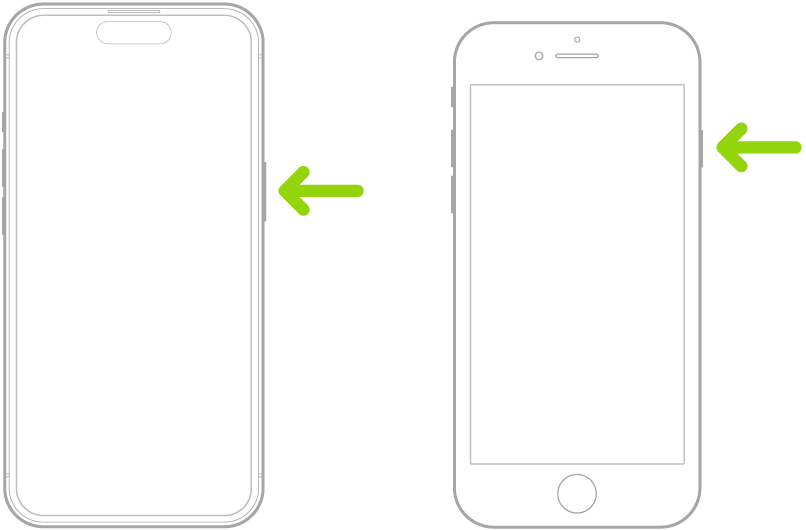
  • Press the side button.

    A green arrow pointing to the button on the right side of iPhone.

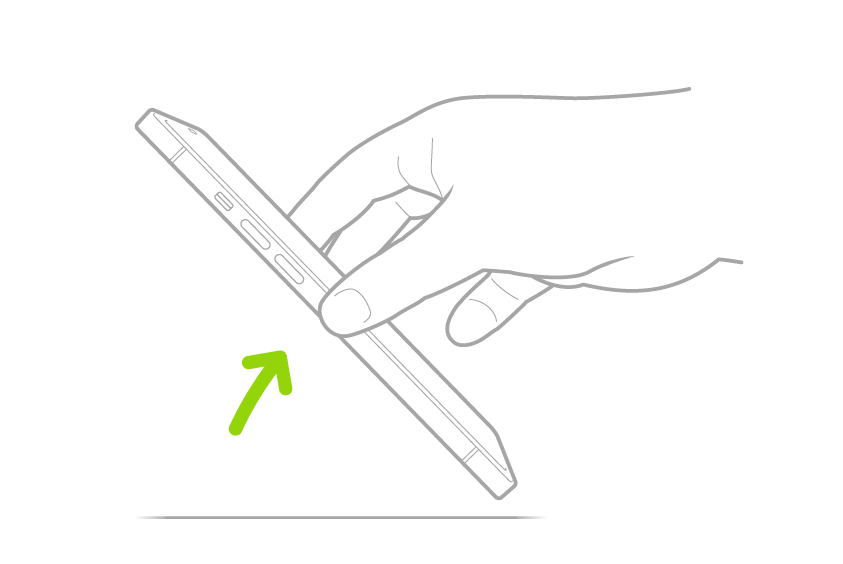
  • Raise iPhone.

    A hand lifting iPhone from a flat surface.

    Note: To turn off Raise to Wake, go to the Settings app , then tap Display & Brightness.

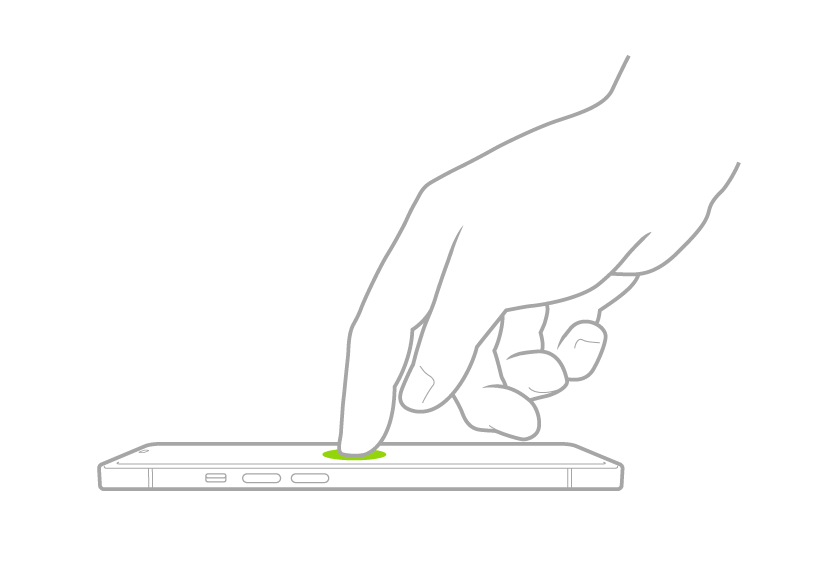
  • Tap the screen (not available on iPhone SE).

    A finger tapping the screen to wake iPhone.

Unlock iPhone with Face ID

Follow these steps:

  1. Tap the screen or raise iPhone to wake it. Then glance at your iPhone.

    The lock icon animates from closed to open to indicate that iPhone is unlocked.

  2. Swipe up from the bottom of the screen.

Note: Press the side button to lock iPhone again. iPhone also locks on its own if you don’t touch the screen for a minute or so. With Attention Aware Features turned on, though, iPhone won’t dim or lock while it detects attention. To turn Attention Aware Features on or off, go to the Settings app and tap Face ID & Passcode.

Unlock iPhone with Touch ID

Follow these steps:

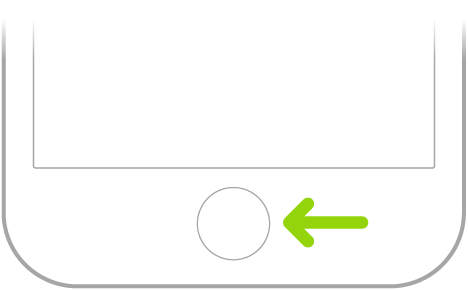
  1. To unlock iPhone, press the Home button using the finger you registered with Touch ID.
  2. To lock iPhone again, press the side button.

Note: Leave the screen untouched for a minute or so, and iPhone locks automatically.

The Home button (Touch ID) at the bottom of iPhone.

Unlock iPhone with a passcode

Follow these steps:

  1. Swipe up from the bottom of the Lock Screen (on an iPhone with Face ID) or press the Home button (on other iPhone models).
  2. Enter your passcode.

Lock iPhone

You can lock iPhone in two ways, manually or automatically:

  • Manually: Press the side button.
  • Automatically: iPhone locks on its own if you don’t interact with it for a certain amount of time.

When iPhone locks, the display turns off unless you’ve turned on the Always On Display.

Tag: iPhone

You can control the settings for capturing audio and video in apps and websites—for example, during a videoconference—to maximize the quality of your recording.

An input source for recording audio can be set for a specific app or website, or for your device. Voice Isolation reduces background noise so your voice comes through clearly, while Wide Spectrum keeps all the surrounding sounds.

Here’s how to improve audio and record video calls on iPhone.

Select an audio input source

For your device, or for a specific app or website, you can choose an input source for recording audio.

  1. Open the app or go to the website you want to record from.
  2. Open Control Center.
  3. Tap the button for your app or browser at the top of Control Center.
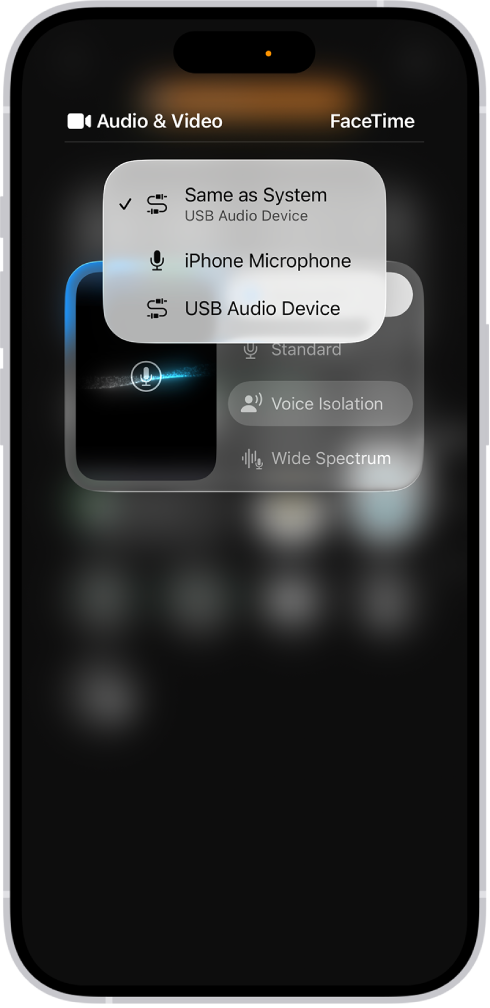
  4. Tap Input and then select an input device.

    A menu in Control Center shows input source options for recording your side of a videoconference.

Filter out background sounds with Voice Isolation

Voice Isolation cuts down on background noise so your voice comes through clearly. Wide Spectrum instead keeps all surrounding sounds, which makes it useful for music or group settings.

  1. Open the app or go to the website you want to record from.
  2. Open Control Center.
  3. Tap the button for your app or browser at the top of Control Center.
  4. Tap Voice Isolation.

To include the background sounds in your recording, tap Wide Spectrum, if it’s available. (Wide Spectrum isn’t available for all apps.)

Your recording is saved after the call in the Downloads folder in the Files app by default, unless you’ve chosen another location.

Record audio and video with Local Capture

Local Capture records high-quality audio and video straight to your iPhone. Voice Isolation and Wide Spectrum don’t apply to these recordings, but you can edit a recording afterward to adjust the sound.

Local Capture records both audio and video by default. Is another app using your camera? Then only audio is recorded.

  1. Open the videoconferencing app you want to record from.
  2. Open Control Center.
  3. Touch and hold the Local Capture button.

Note: If you don’t see the Local Capture button, add it to Control Center first.

  1. Tap Start Recording.

Note: With some audio input sources, a slider appears onscreen, and dragging it adjusts the input gain. When you use an external USB microphone, this input gain slider can attenuate the incoming volume.

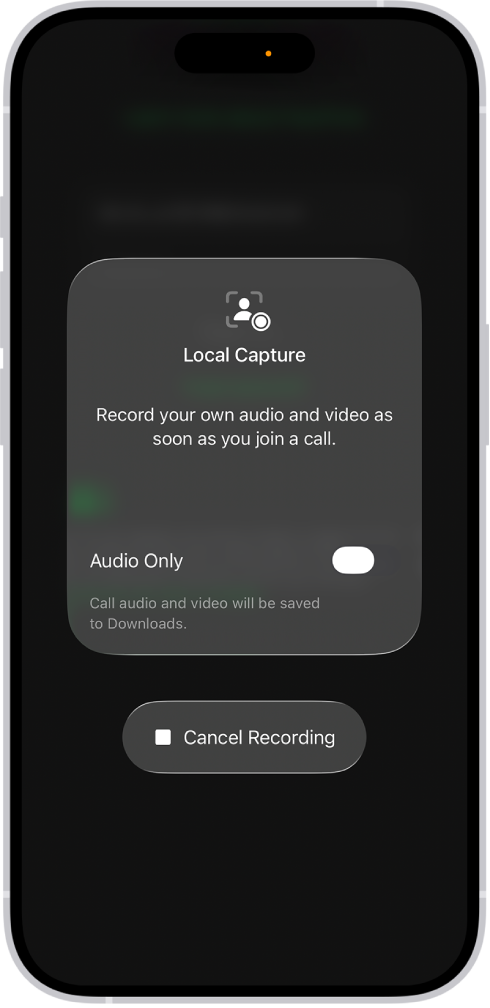
Select Audio Only in Control Center to exclude video from your recording.

The screen for initiating Local Audio and Visual capture of your side of a videoconference.

During local capture, the recording icon appears in the Dynamic Island if your iPhone model has one.

After the call, your recording is automatically saved in the Downloads folder in the Files app, unless you specify a different location for saving Local Capture recordings. Tap the Share button to share it with other call participants. It can be combined with other participants’ recordings in a post-production app such as Logic Pro or Final Cut Pro.

Choose where Local Capture recordings are saved

Instead of the default Downloads folder in the Files app, you can specify another location for saving Local Capture recordings.

  1. Start the Settings app on your iPhone.
  2. Tap General and then tap Local Capture.
  3. Tap Save Location and then go to the folder where you want to save your Local Capture recordings.
  4. Tap the folder where you want the recordings saved and then tap Open.

Use AirPods to record audio and capture video from a distance

With supported models of AirPods and AirPods Pro, you can use your AirPods to remotely record audio and video during a videoconference. To start and stop recording, press the AirPods stem.

Tag: iPhone

On supported models, you can check alerts and Live Activities, such as a Voice Memo recording in progress, an AirDrop connection, and directions from Maps, in the Dynamic Island. It works on the Home Screen or in an active app whenever your iPhone is unlocked.

You can expand an activity to see more detail, collapse it to make the Dynamic Island smaller, or switch between activities. iPhone 18 Pro models can show up to three Live Activities there at once.

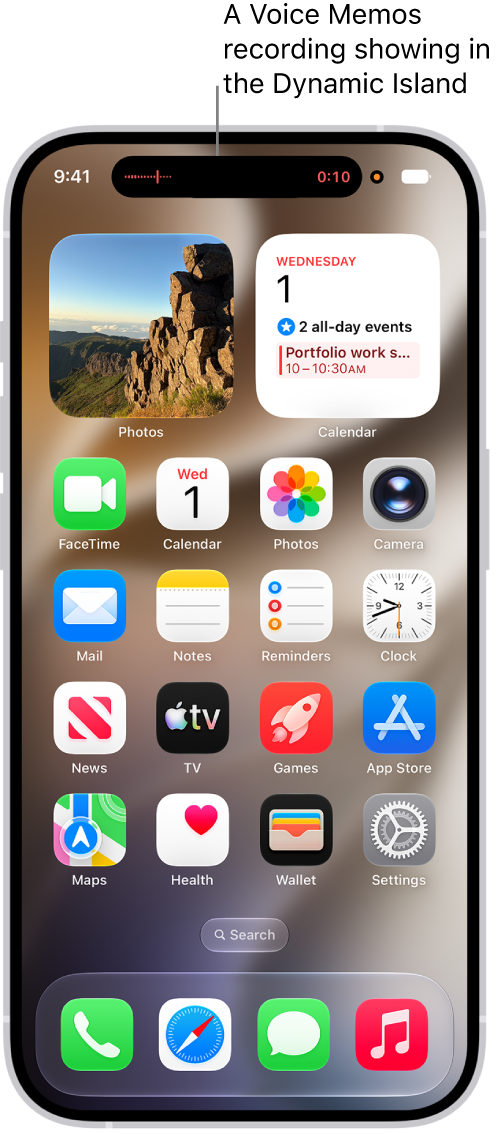
An iPhone Home Screen, showing a live Voice Memo recording in the Dynamic Island at the top of the screen.

In the Dynamic Island, you can do any of the following:

  • Expand the activity to see more detail: Touch and hold the activity.
  • Collapse the activity to make the Dynamic Island smaller: Swipe the expanded activity up.
  • Switch between two activities: Tap the activity you want to view.
  • Move between activities: On iPhone 18 Pro models, the Dynamic Island can show up to three Live Activities at the same time. Swipe across it to move between them.
Tag: iPhone