Got a tip for us?

iPhone

On iPhone, you can check how much storage space is available and increase the available space by removing items you no longer need. Photos and videos, messages, downloaded videos, and apps are common sources of storage use, and iPhone can automatically remove unused apps while keeping your data.

Check storage

  1. Open the Settings app on your iPhone.
  2. Tap General and tap iPhone Storage.

At the top of the screen, you’ll see the available storage.

Remove items to increase storage

These items are common sources of storage use, and you can do any of the following to increase available storage:

Offload unused apps automatically

When storage is low, iPhone can automatically remove unused apps while keeping your data. The app icon stays on your Home Screen with a cloud symbol—tap it to reinstall the app.

  1. Open the Settings app on your iPhone.
  2. Tap Apps, tap App Store, and then turn on Offload Unused Apps.
Tag: iPhone

In iOS 27, Siri AI (Beta) is a conversational assistant with broad world knowledge and personal context, and your conversations are saved in a dedicated app. Extra-large widgets show more information from your favorite apps on the Home Screen, and a new slider lets you customize how Liquid Glass looks.

Here’s what’s new in iOS 27.

Siri AI (Beta)*. Siri AI is a conversational assistant with broad world knowledge and personal context understanding. Your conversations are saved in a dedicated app, so you can revisit or continue them. Siri can draw on your personal context to find what you need—like a specific photo, an email buried in your inbox, or a saved note—and take action across your apps, such as drafting an email or editing and sharing a set of photos. Siri writing tools help you generate first drafts, get feedback, and adjust the style and tone of your writing for the audience. Visual Intelligence comes to the Camera, so you can search, ask questions, and take action based on what’s in the frame. See Get started with Siri AI on iPhone and Siri AI (Beta): Use Siri mode in Camera.

Note: Siri AI is available in beta on iOS 27 or later on an Apple Intelligence-enabled iPhone 15 Pro, iPhone 15 Pro Max, or iPhone 16 model or later with Siri and device language set to a supported language. Available in English to start. Siri AI will not initially be available in the EU on iOS. Usage limits may apply.
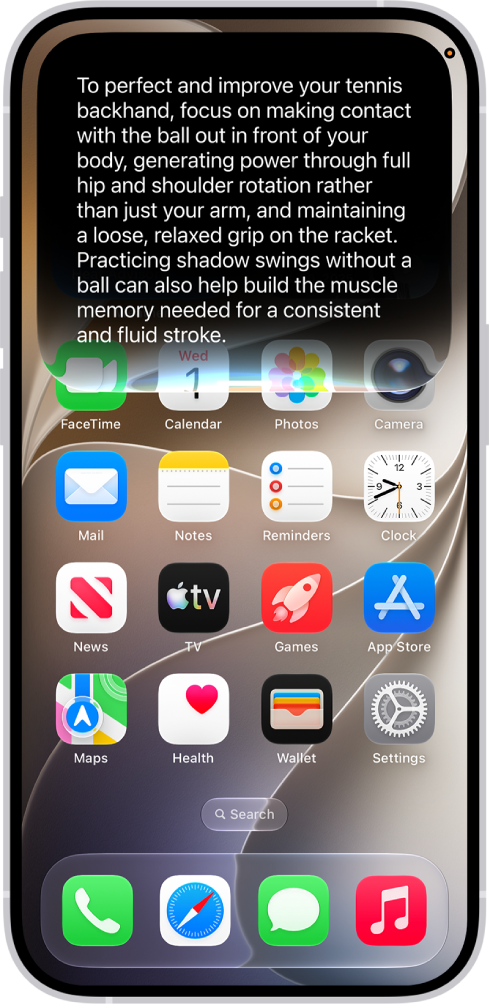
An iPhone showing Siri answering a request about how to improve a tennis backhand.

Family. New and expanded child safety features make it easier for parents and guardians to keep kids safe on iPhone. Setup Assistant lets you choose which apps kids can use. Ask to Browse lets you approve new websites on Safari that your child requests. Communication Safety helps protect children from viewing or sharing images and videos containing detected nudity or gore. See Set up Family Sharing and Apple Devices for Kids and Families.

Photos. Apple Intelligence* editing tools let you reframe a photo after it’s been taken, extend the borders of a photo, and remove distracting objects with more precision. iCloud Shared Albums support full-resolution sharing and new ways to filter and react to photos in a shared album. You can save any frame from a video as a photo. See Clean up, extend, and reframe photos, Create shared albums, and Save a video frame as a photo.
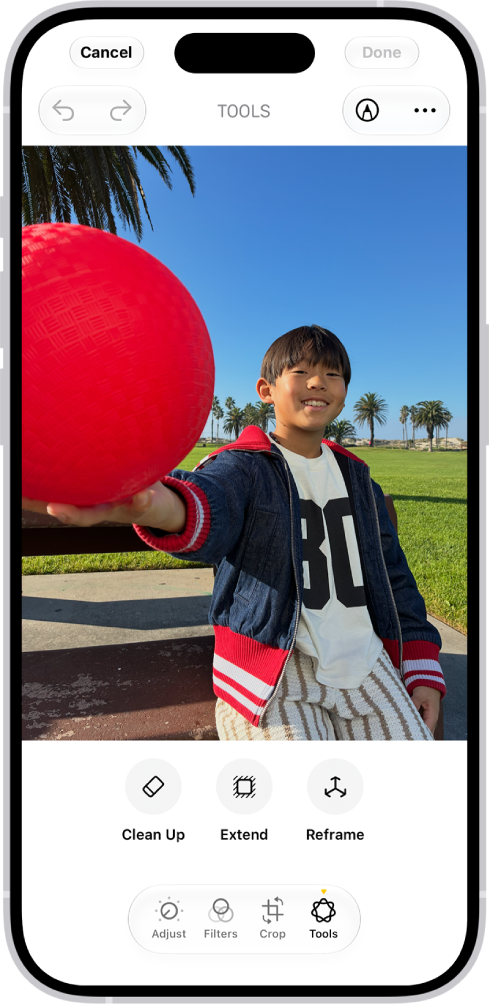
The Clean Up, Extend, and Reframe buttons below a photo being edited in the Photos app.

Camera. Pin the camera tools you use most often right above the camera frame for easy access when capturing photos and videos. See Use iPhone camera tools to set up your shot.
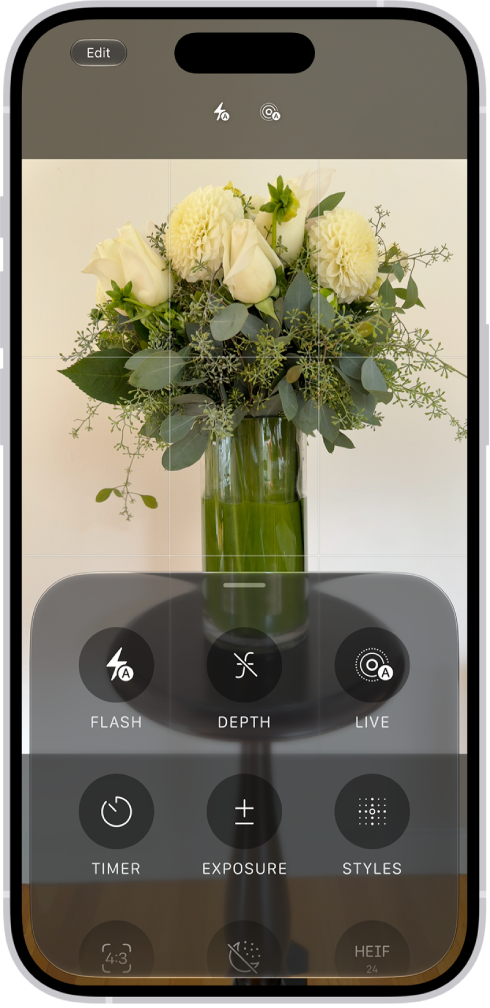
The Camera in Photo mode. At the bottom of the screen are buttons for the following camera controls: Flash, Live, Timer, Exposure, Styles, and Aspect.

Safari. With Apple Intelligence, your tabs can be automatically grouped into topics, so related pages are easier to find. Create your own extension with just a description to personalize your experience on any website you visit. Notify Me monitors pages for changes—for example, a price change or restock—and alerts you when it’s time to act. See Organize your tabs with Tab Groups, Create your own extension, and Get notified when a website changes.
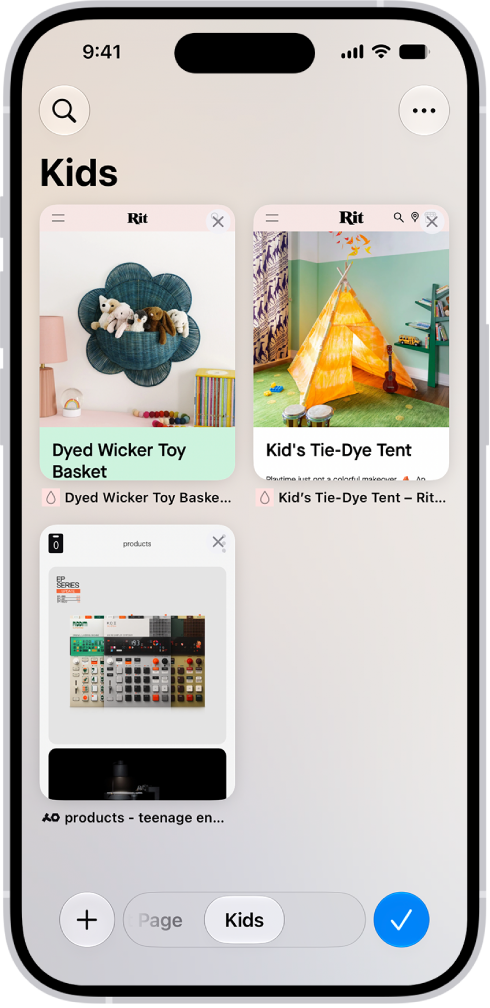
Previews of three open tabs in a Tab Group called Kids are visible on the screen.

Image Playground. Create unique images in a range of new styles with Image Playground, then update them with a description or using touch. See Create original images with Image Playground.
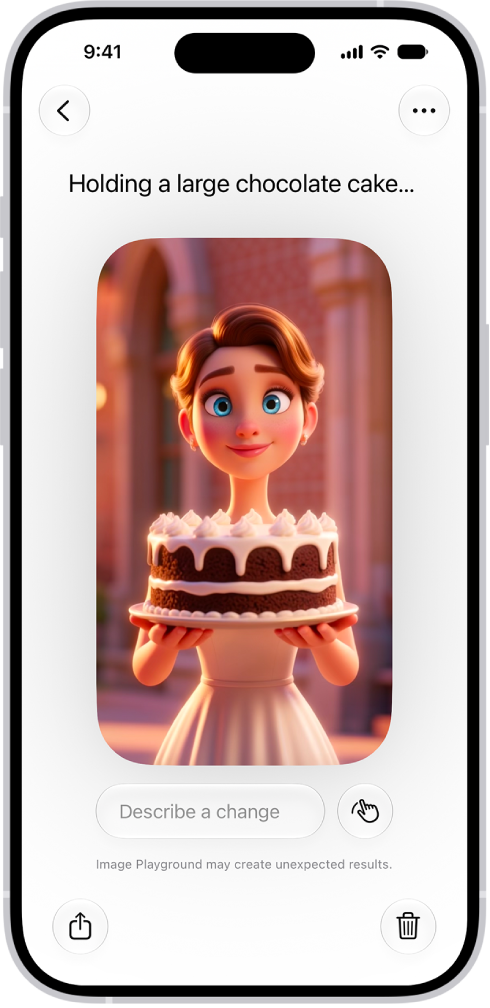
The Image Playground app window showing a created image of a woman holding a cake.

Genmoji. Get suggested images based on photos in your library and phrases you commonly type. See Create your own emoji with Genmoji.

Phone. With Apple Intelligence, Call Context can proactively surface relevant information when you place a call to a business or while you’re on a call—like a confirmation code you get in Mail when you call an airline. See View information when you make a call and View relevant information during a call.
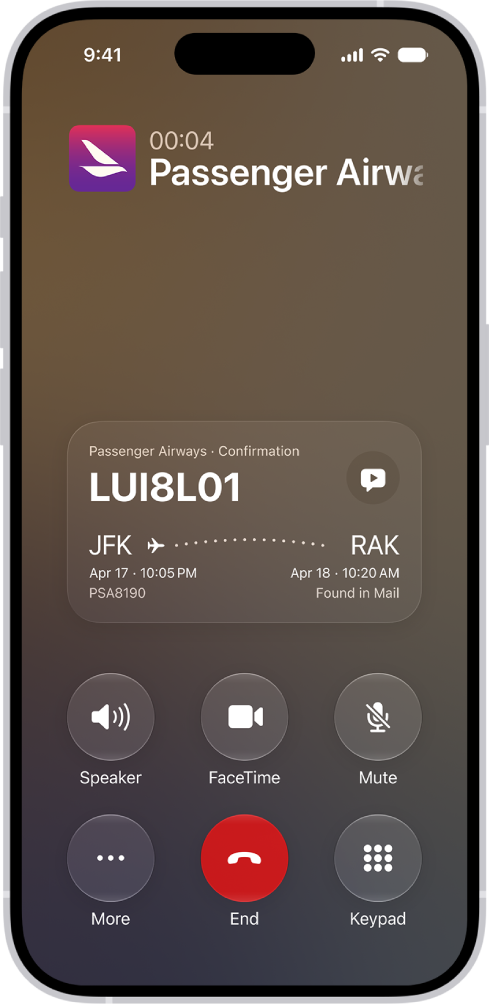
The call screen, showing a Call Context card with a flight confirmation.

Accessibility. With Apple Intelligence, use the captioning feature to automatically generate synced subtitles and translate existing captions into other languages. VoiceOver includes richer image descriptions and can be accessed using the Action button on supported models. See Display subtitles and captions and Get information about content on your iPhone and in your surroundings with VoiceOver.

Home. Apple Intelligence in the Home app combines and streamlines related activity notifications, describes what happened in video footage before you watch, and can search for a video clip based on what happened. See Use Apple Intelligence with Home cameras and notifications.

Liquid Glass. A new slider lets you easily customize how Liquid Glass looks, from ultraclear to fully tinted. See Choose your preferred look for Liquid Glass.
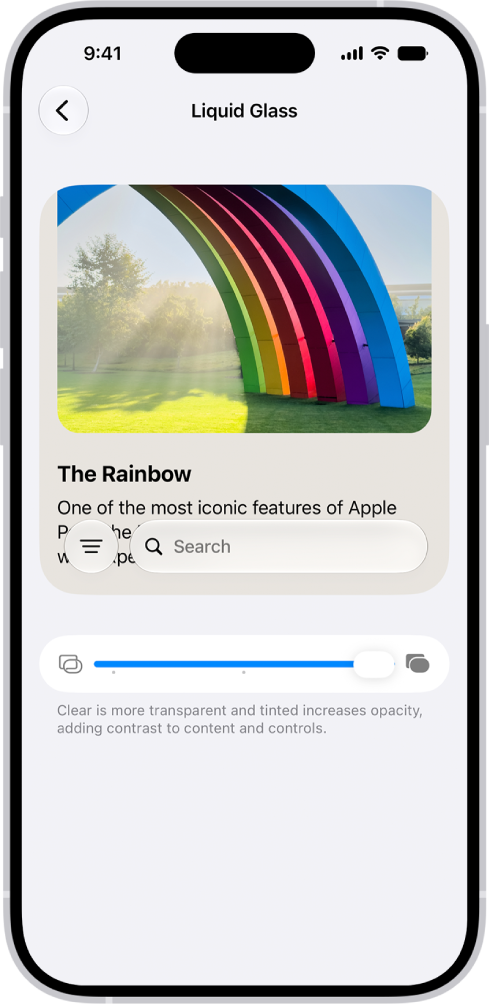
The Liquid Glass screen in Settings. In the middle of the screen is a slider to increase or decrease the level of Liquid Glass transparency.

Home Screen. Extra-large widgets let you see more information from your favorite apps right on the Home Screen. See Customize apps and widgets on the iPhone Home Screen.
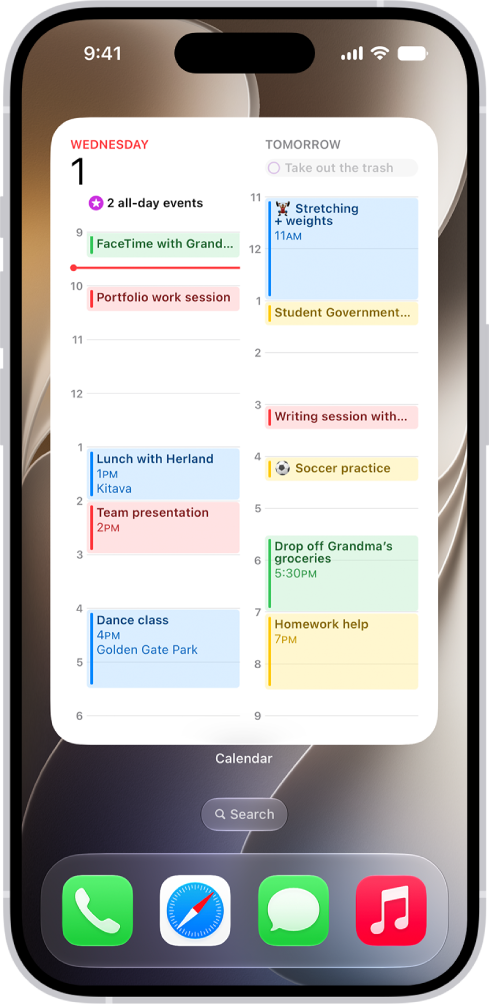
The iPhone Home Screen with an extra-large Calendar widget.

FaceTime. Dual Capture lets you share both your front and back camera views during a FaceTime call. With Apple Intelligence, while you’re on a FaceTime call with someone who speaks a different language, you can see translated captions in your preferred language. See Use camera controls during a FaceTime call and Use Live Captions and Live Translation in FaceTime.

Health. Log menopause and perimenopause symptoms in Cycle Tracking. The Health app can notify you when your logged cycle patterns are suggestive of perimenopause and provide educational resources. See Track menopause stages in Health.

Maps. Flyover view uses aerial imagery and Visual Intelligence models to render maps in stunning detail. Local Lists provide relevant collections of locations trending in your area (available in the U.S. only). See Explore maps with immersive views.

Learn tricks for iOS 27. The Tips app adds new suggestions regularly, so you can get the most from your iPhone. See Get tips.

Note: New features and apps may vary depending on your iPhone model, region, language, and carrier.

*Apple Intelligence is available with Siri and device language set to Chinese (Simplified), Chinese (Traditional), Danish, Dutch, English, French, German, Italian, Japanese, Korean, Norwegian, Portuguese, Spanish, Swedish, Turkish, or Vietnamese. Some features may not be available in all regions or languages. Some devices may not be available in all regions. Siri AI is available in beta in iOS 27, iPadOS 27, macOS 27, watchOS 27, and visionOS 27 and requires an Apple Intelligence–enabled device set to a supported language.

Available in English to start. Siri AI will not be initially available in the EU on iOS, iPadOS, and watchOS, according to Apple. Certain Apple Intelligence features that rely on server-side models are subject to daily usage limits, including but not limited to Siri AI, Intelligent Photo Editing Tools, Image Playground, and AFM 3 Cloud models in Shortcuts. Daily limits may vary by feature, request complexity, system demand, system policies, and other factors.

Expanded access to such features will be available for a fee in the future. Use of these features is subject to the Apple Intelligence Terms and Conditions.


Tag: iPhone

When you update to the latest version of iOS, your data and settings remain unchanged. You can also automatically install system file updates to improve the features of your iPhone without updating iOS.

Before you update, set up iPhone to back up automatically, or back up your device manually. Then you can update iPhone automatically, manually, or using your computer. If you didn’t turn on automatic updates during setup, you can do it in Settings.

Update iPhone automatically

If you didn’t turn on automatic updates when you first set up your iPhone, do the following:

  1. Open the Settings app on your iPhone.
  2. Tap General and tap Software Update. Tap Automatic Updates.
  3. Turn on one of the following:
    • Automatically Install: When an update is available, iPhone downloads and installs it overnight while charging and connected to Wi-Fi. You’re notified before an update is installed.
    • Automatically Download: Downloads an update automatically when your iPhone is connected to Wi‑Fi, charging, and locked so you can install the update later. To see this option, first turn off Automatically Install.

Update iPhone manually

At any time, you can check for and install software updates.

  1. Open the Settings app on your iPhone.
  2. Tap General, then tap Software Update.

    The currently installed version of iOS is shown, and whether an update is available.

  3. If an update is available, tap Download and Install, then follow the onscreen instructions.

Update using your computer

  1. Connect iPhone and your computer with a cable.
  2. Do one of the following:
    • On a Mac (macOS 10.15 or later): In the Finder sidebar, select your iPhone. Click General at the top of the window.
    • On a Mac (macOS 10.14 or earlier) or a Windows device: Open the iTunes app, click the button resembling an iPhone near the top left of the iTunes window, and then click Summary.
  3. Click Check for Update.
  4. To install an available update, click Update.

Automatically update system files only

Without updating iOS, iPhone can automatically download and install system file updates that improve iPhone features.

  1. Open the Settings app on your iPhone.
  2. Tap General and tap Software Update. Tap Automatic Updates.
  3. Under iOS Updates, turn off Automatically Install.
  4. Under System Files, turn on Automatically Install.
Tag: iPhone

You can use a cable to directly connect your iPhone to a Mac with OS X 10.9 or later, or to a Windows device with Windows 7 or later. Once it’s connected, you can set up iPhone for the first time or share your iPhone internet connection. If the cable isn’t compatible with your computer’s port, you’ll need an adapter (sold separately). And the iPhone battery charges while it’s connected, as long as your computer is connected to power.

Using the charging cable for your iPhone, connect iPhone to the USB port on your computer. If the cable isn’t compatible with the port on your computer, you’ll need to use an adapter (sold separately).

Note: Your iPhone may ask whether to trust this computer. If that alert appears, select Trust.

Connect your iPhone to a computer with a cable, and you can do any of the following:

If your computer is connected to power, the iPhone battery charges while your iPhone is connected to it.

Tag: iPhone

You can turn on and set up your new iPhone with an internet connection. You can also set up iPhone by connecting it to your computer. If you have another iPhone, an iPad, or an Android device, you can transfer your data to your new iPhone.

Have a few items ready before you start, and setup goes as smoothly as possible.

Here’s how to turn on and set up iPhone.

Note: For an iPhone deployed or managed by a company or other organization, an administrator can give you setup instructions.

Prepare for setup

Have the following items available to make setup as smooth as possible:

  • An internet connection through a Wi-Fi network (you may need the name and password of the network) or cellular data service through a carrier (not required for iPhone 14 and later models)
  • Your Apple Account and password; if you don’t have an Apple Account, you can create one during setup
  • Your credit or debit card account information, if you want to add a card to Apple Pay during setup
  • Your previous iPhone or a backup of your device, if you’re transferring your data to your new device

    Tip: If you don’t have sufficient storage space to back up your device, iCloud will provide enough storage to complete a temporary backup, free of charge, for up to three weeks from the purchase of your iPhone. On your previous device, go to the Settings app , tap General, then tapTransfer or Reset [device]. Tap Get Started, then follow the onscreen instructions.

  • Your Android device, if you’re transferring your Android content

Turn on and set up your iPhone

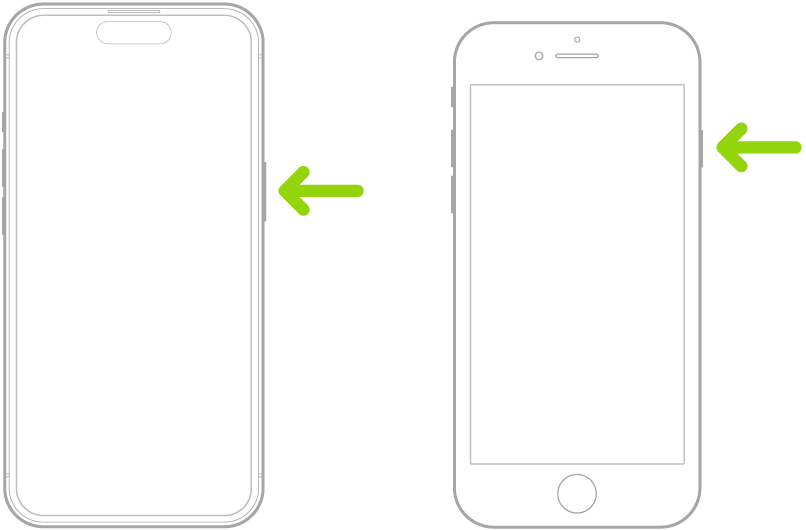
  1. Press and hold the side button until the Apple logo appears.

    A green arrow pointing to the button on the right side of iPhone.

    If iPhone doesn’t turn on, you might need to charge the battery.

    Tip: If you’re blind or have low vision, you can triple-click the side button (on an iPhone with Face ID) or triple-click the Home button (on other iPhone models) to turn on VoiceOver, the screen reader. You can also double-tap the screen with three fingers to turn on Zoom.

  2. Do one of the following:

    • Set up with another device: If you have another iPhone or iPad with iOS 11, iPadOS 13, or later, you can use it to automatically set up your new device. Bring the two devices close together and then follow the onscreen instructions to securely copy many of your settings, preferences, and iCloud Keychain. You can then restore the rest of your data and content to your new device from your iCloud backup.

      Or, if both devices have iOS 12.4, iPadOS 13, or later, you can transfer all your data wirelessly from your previous device to your new one. Keep your devices near each other and plugged into power until the migration process is complete.

    • Set Up Manually: If you don’t have another device, tap Set Up Without Another Device. Follow the onscreen setup instructions.

Move from an Android device to iPhone

Coming from an Android device? When you first set up your new iPhone, the Move to iOS app can transfer your data.

Note: Move to iOS only works during setup, so if you’ve already completed it, you must erase your iPhone and start over, or move your data manually.

  1. On your device with Android version 4.0 or later, download the Move to iOS app.
  2. On your iPhone, do the following:
    • Follow the setup assistant.
    • On the Transfer Your Apps & Data screen, tap From Android.
  3. On the Android device, do the following:
    • Turn on Wi-Fi.
    • Open the Move to iOS app.
    • Follow the onscreen instructions.

WARNING: To avoid injury, read Important safety information before using iPhone.

Tag: iPhone

You can back up iPhone using iCloud or your computer. iCloud backups store information and settings on your iPhone that don’t regularly sync to iCloud, including things like device settings, Home Screen layout, and app organization.

iCloud automatically backs up your iPhone daily when it’s connected to power, locked, and connected to Wi-Fi. You can also save a backup of your iPhone on your Mac or Windows device, and encrypt your backup data to protect it with a password.

Quick tip: If you replace your iPhone, you can use its backup to transfer your information to the new device.

Back up iPhone using iCloud

Things like device settings, Home Screen layout, and app organization don’t regularly sync to iCloud, so iCloud backups store that information.

  1. Start the Settings app on your iPhone.
  2. Tap [your name] and tap iCloud. Tap iCloud Backup.
  3. Turn on Back Up This iPhone.

    iCloud automatically backs up your iPhone daily when iPhone is connected to power, locked, and connected to Wi-Fi.

    Note: On models that support 5G, your carrier may give you the option to back up iPhone using your cellular network. Go to Settings > [your name] > iCloud > iCloud Backup, then turn Back Up Over Cellular on or off.

  4. To perform a manual backup, tap Back Up Now.

View available iCloud storage

  1. Start the Settings app on your iPhone.
  2. Tap [your name], then tap iCloud.

Both the amount of iCloud storage used and the amount available appear at the top of the screen.

Manage iCloud storage

For iCloud backups, you can view details such as the last backup, the apps included in the backup, and the next backup size.

  1. Start the Settings app on your iPhone.
  2. Tap [your name], then tap iCloud.
  3. Tap iCloud Backup, then tap your iPhone (This iPhone).
  4. To reduce the size of a backup, turn off the apps you don’t want to back up anymore; the apps’ existing backup data will also be deleted from iCloud.

Back up iPhone using your Mac

Your Mac can store a backup of your iPhone, too.

  1. Connect iPhone and your computer with a cable.
  2. In the Finder sidebar on your Mac, select your iPhone.

    To use the Finder to back up iPhone, macOS 10.15 or later is required. With earlier versions of macOS, use iTunes to back up iPhone.

  3. At the top of the Finder window, click General.
  4. Select Back up all of the data on your iPhone to this Mac.
  5. To encrypt your backup data and protect it with a password, select Encrypt local backup.
  6. Click Back Up Now.

    Note: You can also connect iPhone to your computer wirelessly.

Back up iPhone using your Windows device

  1. Connect iPhone and your computer with a cable.
  2. In the iTunes app on your Windows device, click the iPhone button near the top left of the iTunes window.
  3. Click Summary.
  4. Click Back Up Now (below Backups).
  5. To encrypt your backups, select “Encrypt local backup,” type a password and click Set Password.

To see the backups stored on your computer, choose Edit > Preferences, then click Devices. Encrypted backups have a lock icon in the list of backups.

Note: You can also connect iPhone to your computer wirelessly.

Tags: iCloud, iPhone

There are special features you and your family can use to share purchases, stay connected, and protect your data. If you have children, you can also set up parental controls to manage how your children use their Apple devices.

With Family Sharing, everyone uses their own device and Apple Account. You can also share locations with Find My, set up emergency contacts, and start a family photo library. Family members and other trusted people can be recovery contacts, too, just in case.

Set up Family Sharing

Family members can share eligible purchases and subscriptions with each other. Each person keeps their own device and Apple Account, while iCloud storage, subscriptions (to services like Apple Arcade and Apple Music), and other content get shared.

To get started, go to the Settings app tap your name, then tap Family.

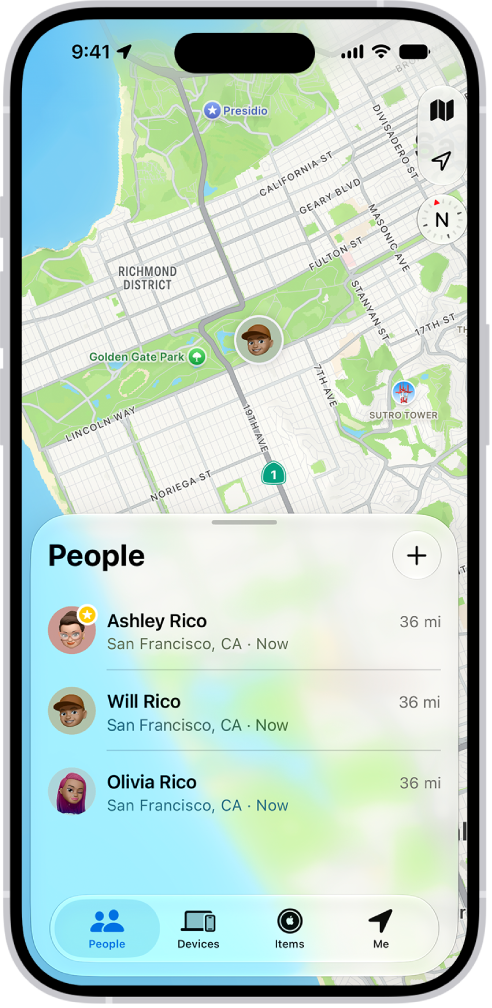
The Find My screen showing the People list and their locations on a map.

Share locations with Find My

When you and your family share locations, you can all help each other find missing devices in the Find My app. You can share the location of AirTags, too, if you use them to track important items like backpacks or house keys.

To set up location sharing, go to the Settings app , tap your name, tap Family, then tap Location Sharing. Turn on sharing for your family members. After you share your location with family members, they can also see the location of your devices in Find My.

The Sharing screen in the Health app.

Set up emergency contacts

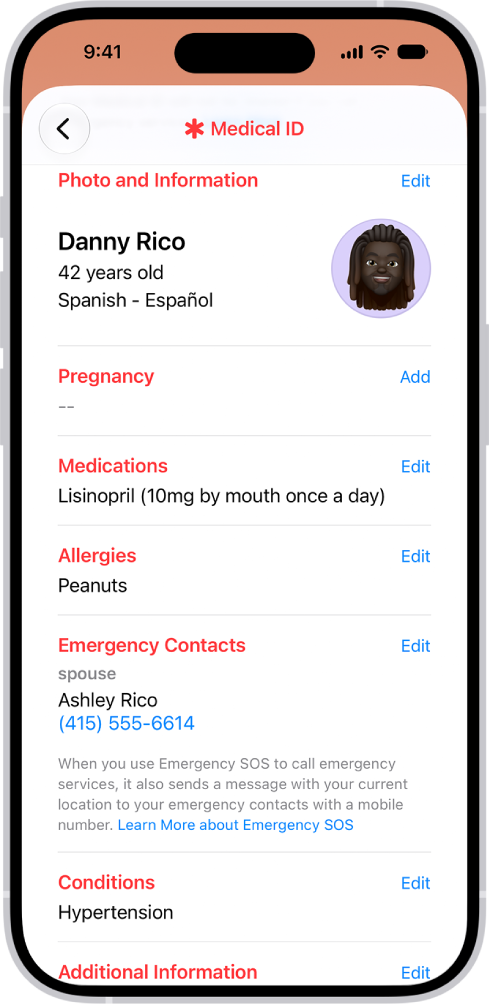
Once an emergency call ends, your iPhone can automatically send your emergency contacts a text message with your current location. And if your location changes, they get updated location information.

Emergency contacts are saved in your Medical ID. To set up a Medical ID, open the Health app , tap your account, tap Medical ID, then tap Get Started.

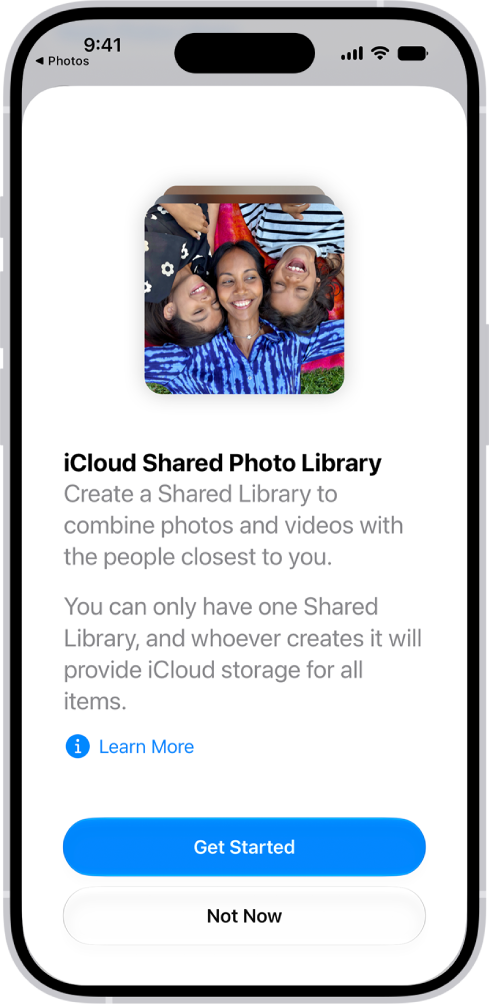
Creating a Shared Library in the Photos app.

Start a family photo library

With iCloud Shared Photo Library, you and up to five other family members can share photos and videos. Everyone can add, edit, and caption photos, and the shared photos show up in each person’s memories, featured photos, and Photos widget.

To get started, go to the Settings app , tap your name, then tap iCloud. Tap Photos, turn on Sync this iPhone, then tap Shared Library.

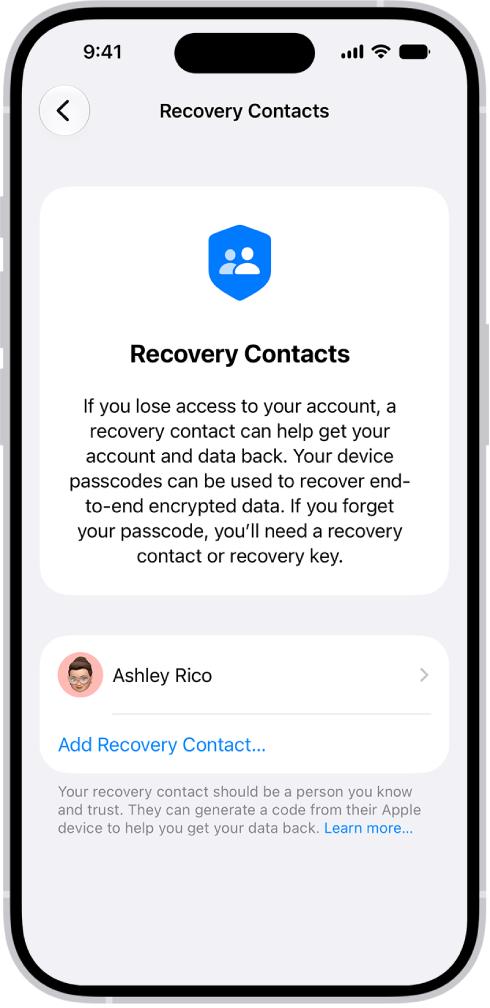
The Add Recovery Contact screen showing suggested contacts to select as a recovery contact, and the option to choose someone else.

Just in case

Family members and other trusted people can be your recovery contacts, helping you get back into your account if you ever get locked out. And you can choose someone as a legacy contact who can access the data stored in your account if you die.

To add these contacts, go to the Settings app , tap your name, tap Sign-In & Security, then tap Recovery Contacts or Legacy Contact.

For more on sharing with your family, start with these guides:

Not all features are available in all countries or regions, according to Apple.

Tags: iCloud, iPhone

Some website and app sign-in screens require you to pass CAPTCHA challenges, such as recognizing letters in unusual shapes. iCloud allows you to bypass many challenges by automatically and privately verifying your iPhone and account. It’s called Automatic Verification, and you can turn this bypass on or off.

  1. Start the Settings app on your iPhone.
  2. Tap your name and tap Sign-In & Security.
  3. Turn Automatic Verification on or off.
Tags: iCloud, iPhone

You can redownload items purchased from the App Store, Book Store, Apple TV app, and iTunes Store without repurchasing them. If you’re part of a Family Sharing group, you can download items purchased by other family members, too. And you can recover recently deleted email, photos, notes, and voice memos.

Tag: iPhone

You can download fonts from the App Store app and use them in documents you create on iPhone. It works through apps, so you get an app containing fonts from the App Store, it installs the fonts for you, and you can manage fonts later in the Settings app on your iPhone.

Install fonts

  1. Start the App Store app on your iPhone.
  2. Get an app containing fonts.
  3. Open the app to install the fonts.

Manage fonts

  1. Start the Settings app on your iPhone.
  2. Tap General, then tap Fonts.
Tag: iPhone