Got a tip for us?

iPhone

Learn the location of the cameras, buttons, and other essential hardware features on iPhone 15 Pro Max.

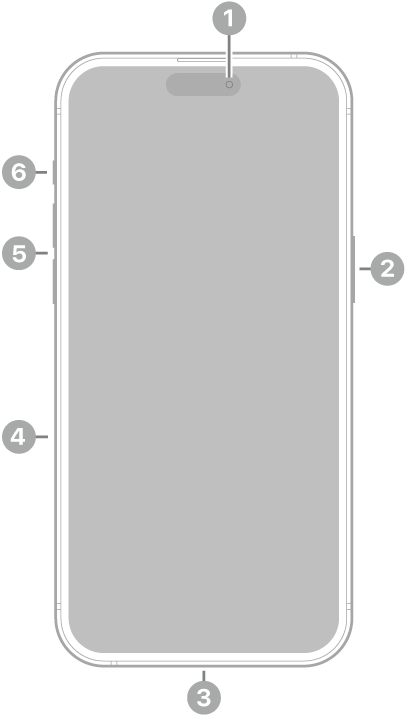
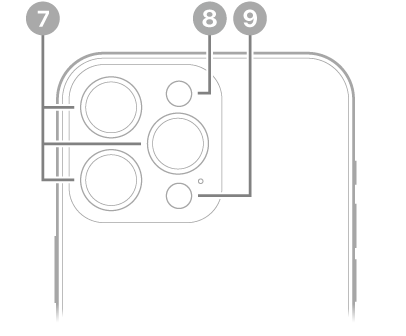
The front and sides show the front camera, side button, USB-C connector, SIM tray, volume buttons, and Action button, while the back shows the rear cameras, flash, and LiDAR Scanner. The SIM tray is available on models purchased outside the U.S.

The front view of iPhone 15 Pro Max. The front camera is at the top center. The side button is on the right side. The USB-C connector is on the bottom. On the left side, from bottom to top, are the SIM tray, the volume buttons, and the Action button.

  • 1 Front camera
  • 2 Side button
  • 3 USB-C connector
  • 4 SIM tray (available on models purchased outside the U.S.)
  • 5 Volume buttons
  • 6 Action button

The back view of iPhone 15 Pro Max. The rear cameras, flash, and LiDAR Scanner are at the top left.

  • 7 Rear cameras
  • 8 Flash
  • 9 LiDAR Scanner

Get started with iPhone 15 Pro Max

Tag: iPhone

In the Settings app, you can search for iPhone settings you want to change, such as your passcode, notification sounds, and more. Each section covers a different area of iPhone, and depending on your iPhone model, you may see different sections. Settings can even be searched from the Home Screen or Lock Screen.

Search for a setting

  1. Start the Settings app on your iPhone.

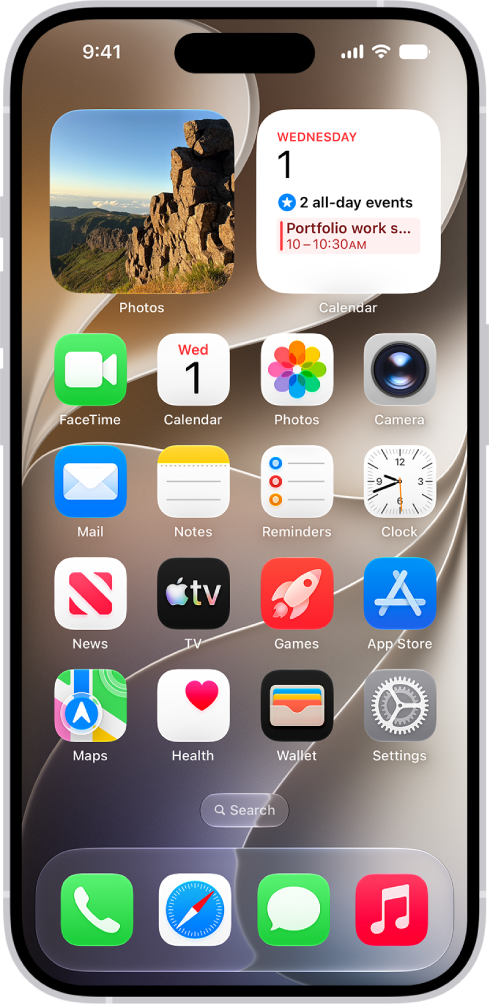
    The Home Screen with several app icons, including the Settings app icon, which you can tap to change your iPhone sound volume, screen brightness, and more.

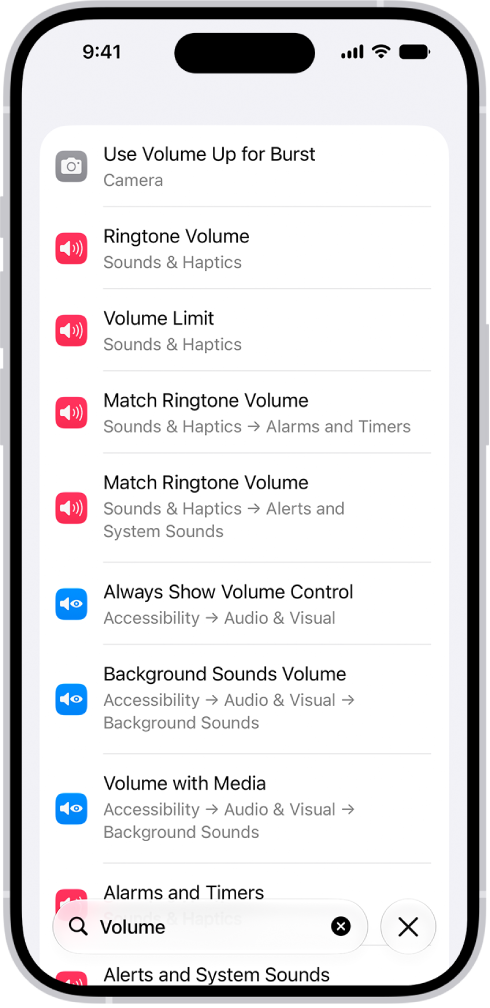
  2. Tap the search field, enter a term—“volume,” for example—then tap a setting.

    A search term has been entered in the search field at the bottom of the Settings screen. Results appear above the search field.

Quick tip: The Home Screen and Lock Screen let you search for settings, too.

What’s in Settings

Sections in the Settings app each cover a different area of iPhone, and you may see different ones depending on your iPhone model.

Section Description
Your name Apple Account, iCloud storage and sync, subscriptions, Find My
Airplane Mode Turn Airplane Mode on or off
Wi-Fi Join and manage Wi-Fi networks, password sharing, Connectivity Assist
Bluetooth Connect and manage Bluetooth devices
Cellular Turn cellular data on or off, roaming, per-app data usage
Personal Hotspot Share your internet connection with other devices
Battery Battery percentage, battery usage by app, Power Mode (Adaptive Power and Low Power Mode), Charge Limit, Optimized Battery Charging, and Clean Energy Charging
General Software update, date and time, language and region, keyboard, VPN, device management, transfer or reset iPhone, and more
Accessibility Vision, physical and motor, hearing, speech, and accessibility features including VoiceOver, Zoom, and AssistiveTouch
Action Button Choose what the Action button does on supported models
Appearance Light or Dark Mode, text size, display appearance, and Liquid Glass settings
Camera Photo and video format, resolution, grid, and other camera options
Control Center Access Control Center within apps and reset Control Center
Display & Brightness Screen brightness, Night Shift, Auto-Lock, Raise to Wake
Home Screen & App Library Choose where newly downloaded apps are added, show Search on the Home Screen, notification badges in App Library
Search Spotlight search suggestions and which apps appear in search results
Siri Configure voice, language, and app suggestions
StandBy Configure the StandBy display that appears when iPhone is charging on supported models.
Wallpaper Change your Lock Screen and Home Screen wallpaper
Notifications Choose which apps can send notifications, notification sounds, scheduled summary
Sounds & Haptics Ringtone, text tone, volume, vibration, system haptics, lock sound, keyboard sound, headphone safety, and personalized audio
Focus Set up Do Not Disturb and Focus modes to reduce distractions
Screen Time App limits, downtime, content restrictions, parental controls
Face ID or Touch ID & Passcode Set up Face ID or Touch ID, change passcode, allow access when locked
Emergency SOS Auto Call, crash detection, and emergency contact settings
Privacy & Security App permissions, location services, and tracking
Game Center Game Center account, friends, and nearby players
iCloud iCloud storage, sync settings, and connected apps
Wallet & Apple Pay Payment cards, passes, and Apple Pay settings
Apps Settings for individual apps—Mail, Safari, Messages, Photos, and more
Tag: iPhone

You can tailor your iPhone to your own interests and preferences. Personalize your Lock Screen, customize the appearance of apps on your Home Screen, keep your favorite features handy, change the sounds and vibrations for calls and messages, and more.

Start with the Home Screen, where app icons and widgets can be small or large, light or dark, clear, or tinted. You can also add widgets to your Home Screen, add personality to your phone calls, and check your privacy settings.

Here’s how to make your iPhone your own.
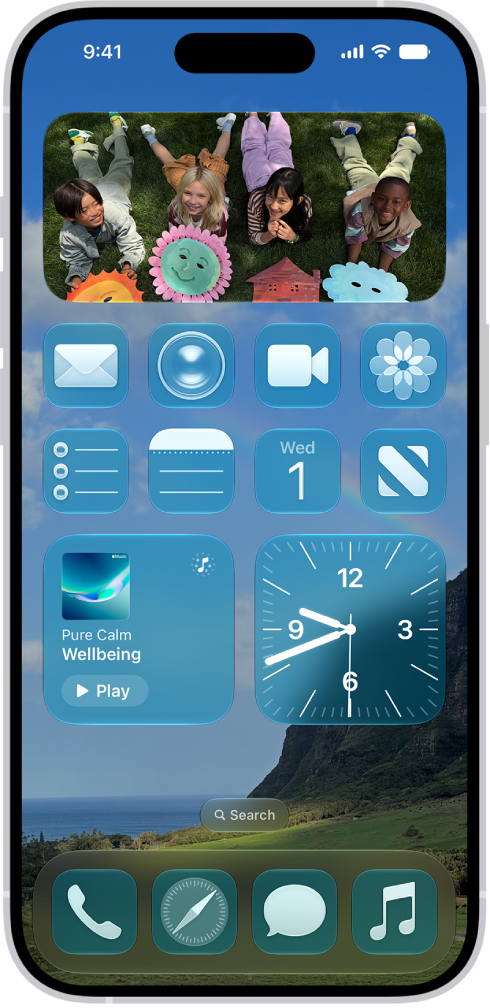
A customized Home Screen with tinted icons.

Customize your Home Screen

The app icons and widgets on your Home Screen can have a new look and feel: small or large, light or dark, clear, or tinted.

Touch and hold the background on any Home Screen page until the icons jiggle. Tap the Customize button, then tap Customize to choose options for your app icons and widgets. Tap the Large Apps button to make icons bigger or smaller. Tap the Customize button, then tap Edit Wallpaper to select a different background image.
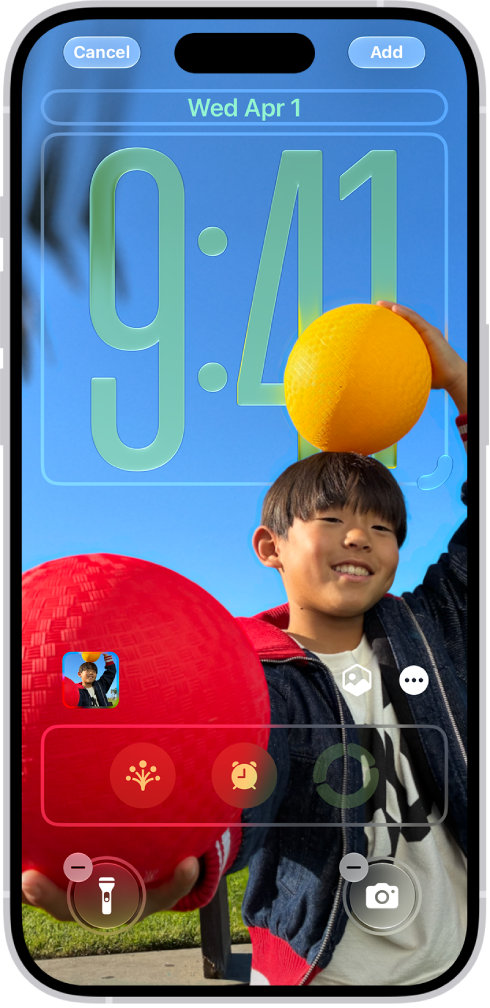
The iPhone Lock Screen showing options to add widgets, adjust the wallpaper and size of the clock, and swap out controls at the bottom of the screen.

Personalize your Lock Screen

Showcase a favorite photo, then turn it into a spatial scene with a depth effect. You can add widgets, too, change the size of the clock, or swap out the controls for options like Voice Memo or Timer.

Touch and hold the Lock Screen, then tap the Add New button. Browse the gallery of wallpaper options, then tap an option to select and customize it.
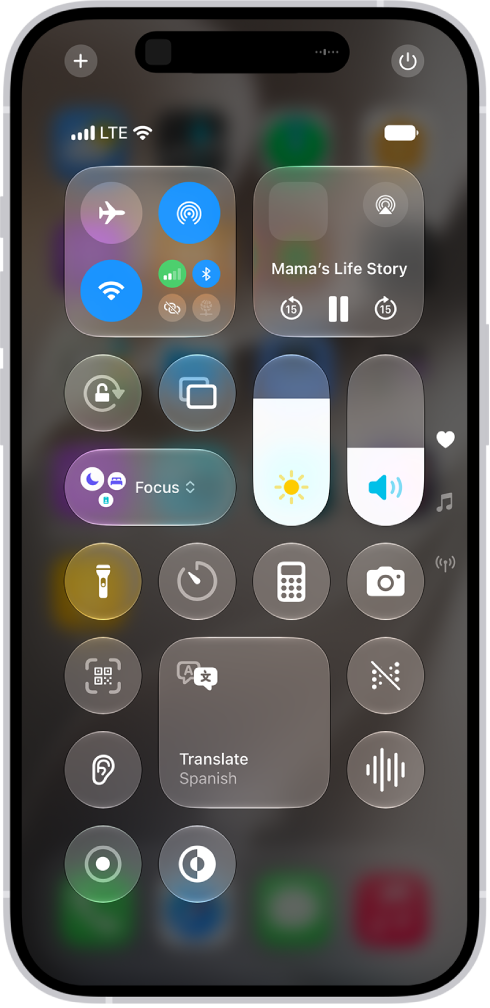
The iPhone Control Center.

Set your favorite controls

Many iPhone features—like the timer and flashlight—are just a swipe away in Control Center. To quickly open Control Center on an iPhone with Face ID, swipe down from the top-right edge; on an iPhone with a Home button, swipe up from the bottom of the screen.

After you open Control Center, tap the Add New button. Tap Add a Control at the bottom of the screen, then swipe up to view the controls gallery. When you see a control you want to add, tap it.
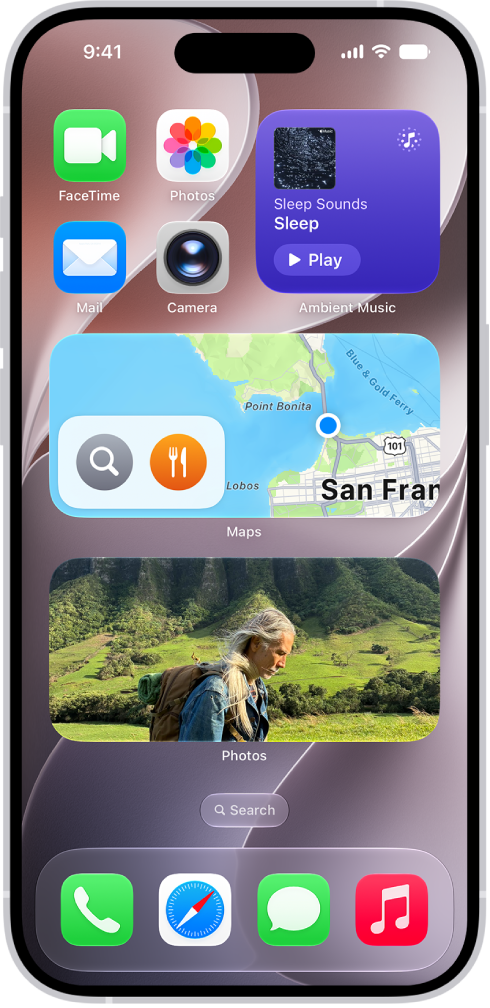
The Photos, Maps, and Music widgets on the iPhone Home Screen. The Music widget displays interactive features.

Add widgets to your Home Screen

With widgets, it’s easy to see the information that’s most important to you, like upcoming calendar events and the current weather. You can complete tasks with them, too, like checking off an item in your Reminders to-do list or playing a song in Music.

Touch and hold the background on any Home Screen page until the apps jiggle, tap Edit, then tap Add Widget.
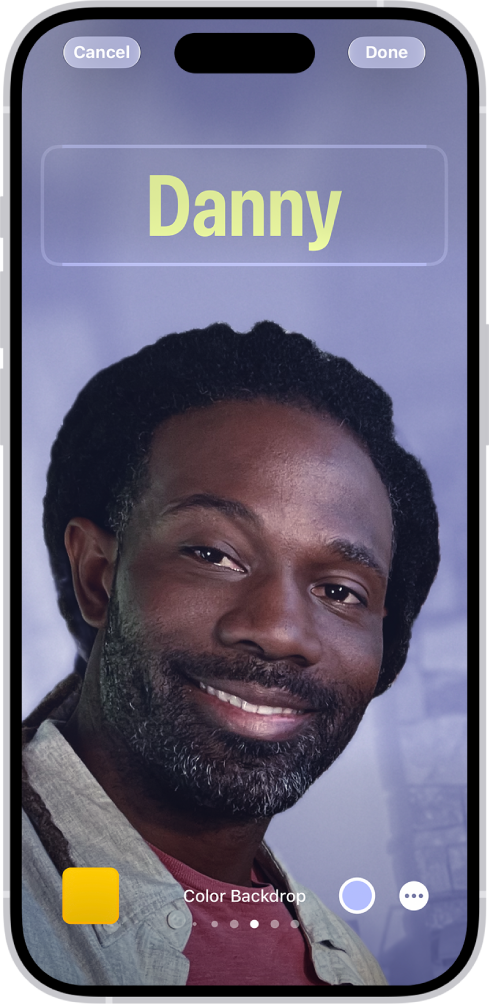
The screen to create a unique Contact Poster.

Add personality to your phone calls

A unique call poster of your own personalizes what people see when you call them. Pair your favorite photo, Memoji, or emoji with your preferred font, then add colors to make it pop. Your call poster then appears on the screen of the person you’re calling when you make a phone call.

To get started, open the Contacts app , tap your name at the top of the list, then tap Shared Name and Photo.
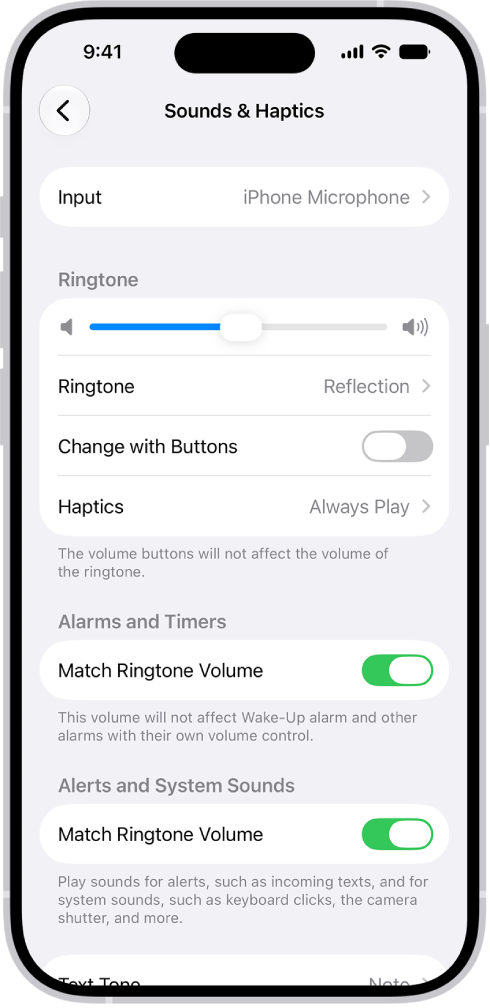
The Sounds and Haptics screen in Settings.

Choose sounds and vibrations

Your iPhone can play different sounds and vibrations for phone calls, text messages, calendar alerts, and other notifications. Go to the Settings app , then tap Sounds & Haptics. To set the volume for alarms or alerts separately from the ringtone, turn off Match Ringtone Volume.

You can also change the sounds your iPhone plays for certain people; in the Contacts app , tap a person’s name, tap Edit, then tap Ringtone or Text Tone.
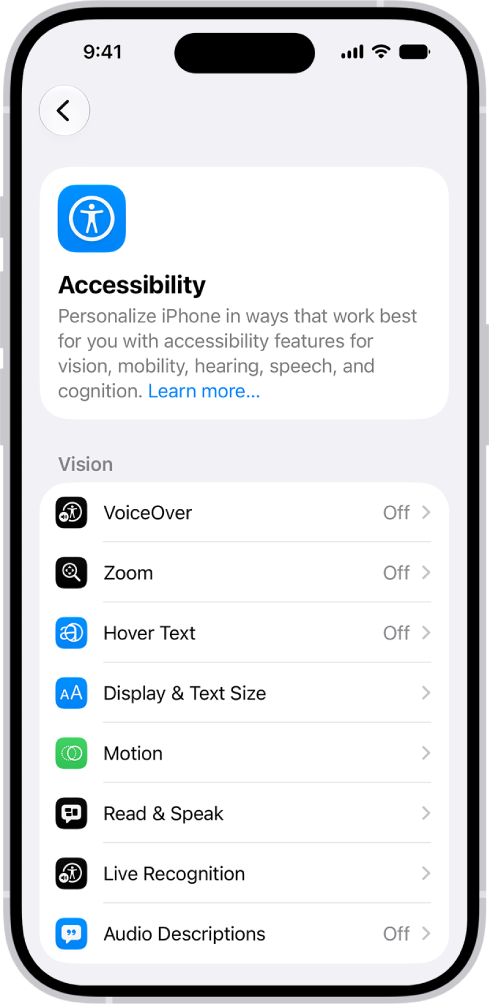
The Accessibility screen in Settings showing the built-in features for Vision support.

Use built-in accessibility features

To support your vision, mobility, hearing, speech, and cognitive needs, your iPhone provides many accessibility features. You can change text size, make it easier to use the touchscreen, control your iPhone using just your voice, and more.

To customize these settings, go to the Settings app , then tap Accessibility.
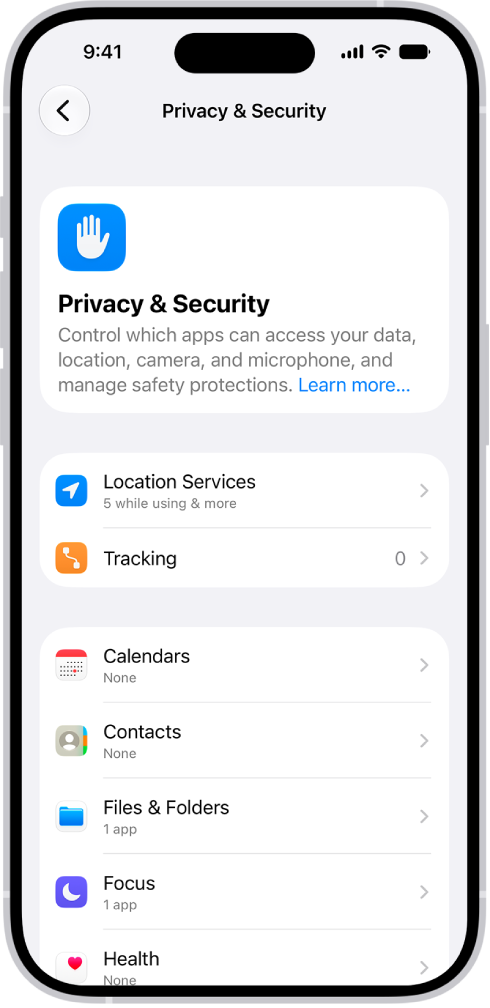
The Privacy & Security screen in Settings.

Check your privacy settings

iPhone is designed to protect your privacy and information. You can grant or deny apps permission to track your activity across other companies’ apps and websites. To deny requests from apps to track your activity, go to the Settings app , tap Privacy & Security, tap Tracking, then turn off Allow Apps to Request to Track.

These guides cover more ways to make iPhone your own:

According to Apple, not all features are available for all iPhone models.

Tag: iPhone

iPhone has an easy setup process to help you get going when you first turn on your device. Whether you’re just getting started or want to make sure you have the basics set up, you’re in the right place.

You can transfer your apps and info from your previous iPhone, set up cellular service and connect to Wi-Fi, and sign in to your Apple Account. Face ID or Touch ID, Find My iPhone, and iCloud are part of it, too.

Transfer your apps and info onto your new iPhone

During setup, the first time you turn on your iPhone, you can wirelessly move many of your apps, settings, and content from your previous iPhone straight to your new iPhone. Bring the two devices close together, then follow the onscreen instructions.

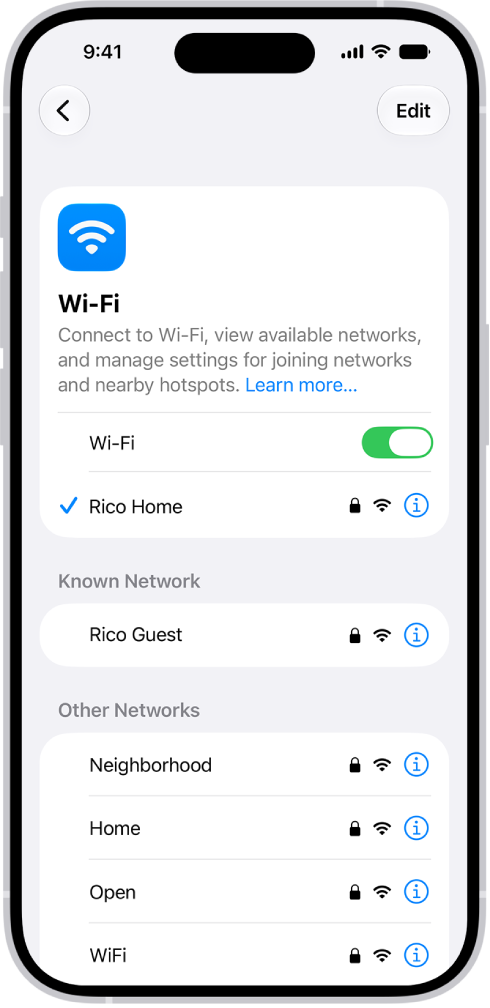
The Wi-Fi options screen in Settings. Wi-Fi is turned on, and a network is selected.

Set up cellular service and connect to Wi-Fi

Depending on your model, use an eSIM from your carrier or install a physical SIM card to connect to your cellular network. To check if your iPhone is connected to your cellular plan, go to the Settings app , then tap Cellular.

To connect your iPhone to your home Wi-Fi network, go to the Settings app , tap Wi-Fi, turn on Wi-Fi, then choose your network. iPhone automatically connects to your Wi-Fi network whenever you’re home.

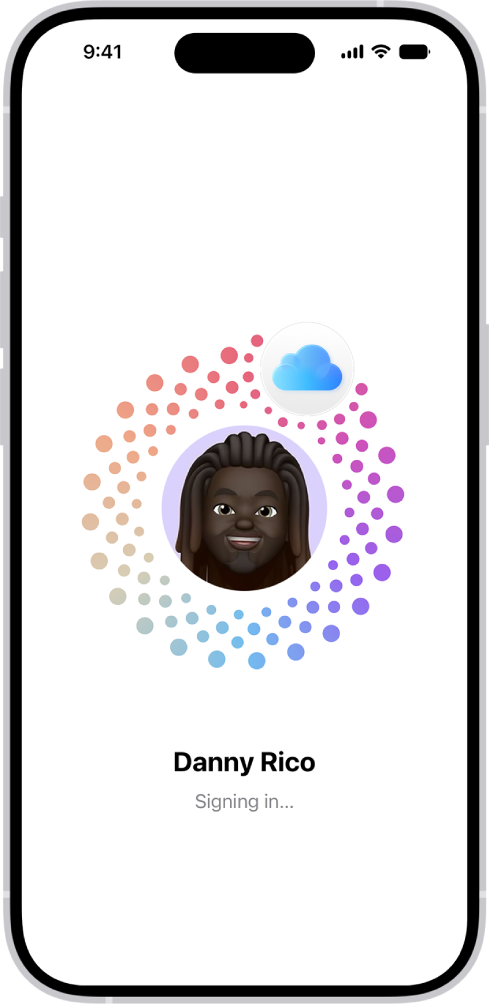
The Apple Account sign-in screen.

Sign in to your Apple Account

Your Apple Account is how you get into Apple services like iCloud, iMessage, FaceTime, Apple Music, Apple Books, the App Store, the iTunes Store, and more.

To sign in to your Apple Account, go to the Settings app , then tap Apple Account. If you have an iPad (with iPadOS 17 or later) or another iPhone (with iOS 17 or later) that’s signed in, you can simply bring your iPhone near your other device. Otherwise, you can manually sign in.

To verify that you’re signed in, go to the Settings app , then tap your name. Your Apple Account appears below your name.

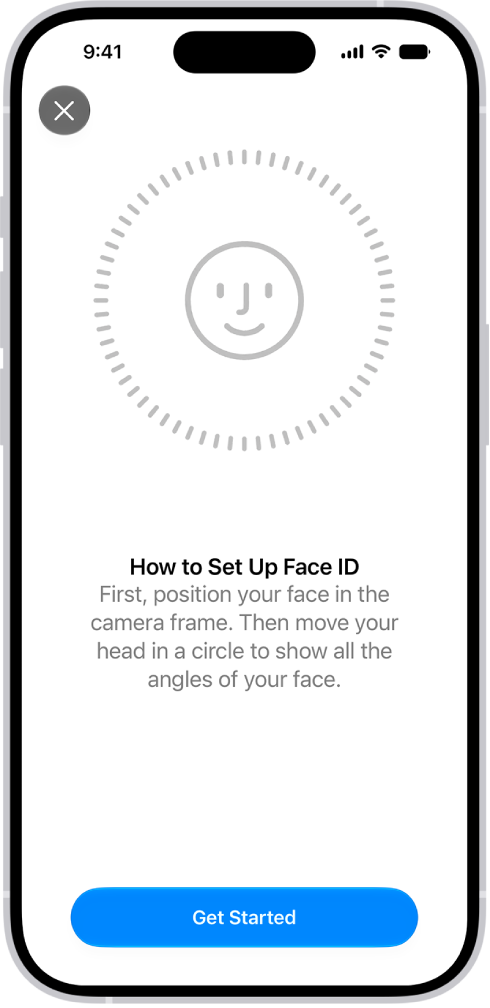
The Face ID recognition setup screen. A face is shown on the screen, enclosed in a circle. Text below the face instructs the user to move their head slowly to complete the circle.

Set up Face ID or Touch ID

Face ID (face recognition) or Touch ID (your fingerprint) can securely unlock your iPhone, sign you in to many apps, and make purchases. Face ID and Touch ID data stays on your device for your security, and it isn’t saved anywhere else.

What you do here depends on your iPhone model:

  • Set up Face ID: Go to the Settings app , tap Face ID & Passcode, tap Set up Face ID, then follow the onscreen instructions.
  • Set up Touch ID: Go to the Settings app , tap Touch ID & Passcode, tap Add a Fingerprint, then follow the onscreen instructions.

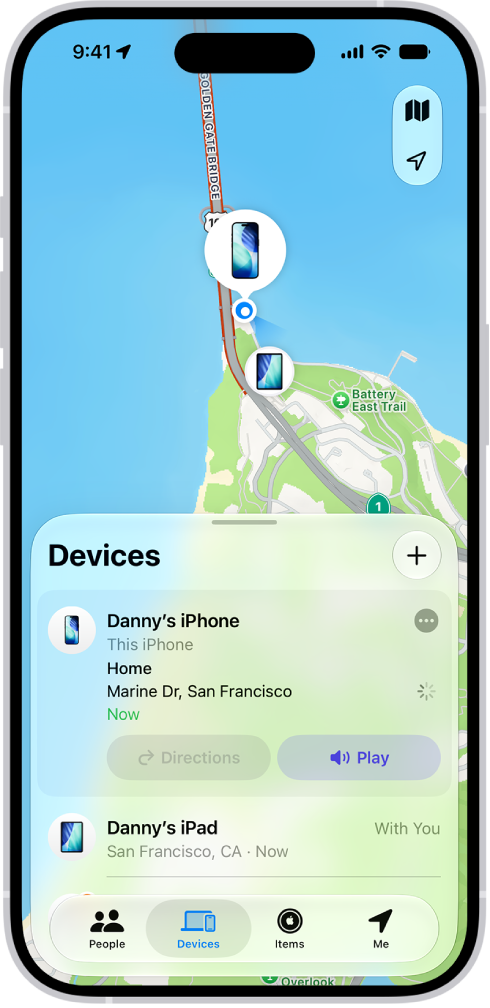
The Find My screen showing two devices at home.

Turn on Find My iPhone

With Find My iPhone turned on, you can find your iPhone if it’s ever lost or stolen.

Go to the Settings app , tap your name, tap Find My, tap Find My iPhone, then turn on Find My iPhone.

You can see the location of your devices in the Find My app or the website Find Devices.

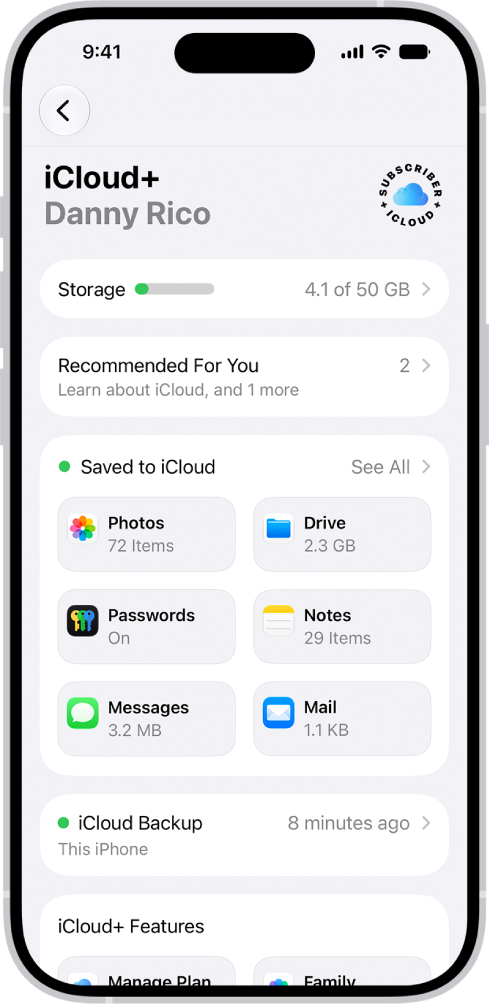
The iCloud settings screen showing the iCloud storage meter and a list of apps and features.

Store your data in iCloud

iCloud keeps your important info safe and in sync across your devices. So if your iPhone is lost, stolen, damaged, or replaced, your photos, videos, and more stay secure in iCloud.

To turn on or change the features you want to use with iCloud, go to the Settings app , tap your name, then tap iCloud.

These guides walk you through the next steps:

Apple notes that not all features are available for all iPhone models.

Tags: iCloud, iPhone

There are multiple ways to turn your iPhone on and off. You can use the buttons on the side of your iPhone, or you can use the controls in Settings and Control Center. And if it doesn’t turn on, you might need to charge the battery.

Turn on iPhone

Press and hold the side button until the Apple logo appears.

If your iPhone doesn’t turn on, you might need to charge the battery.

Turn off iPhone

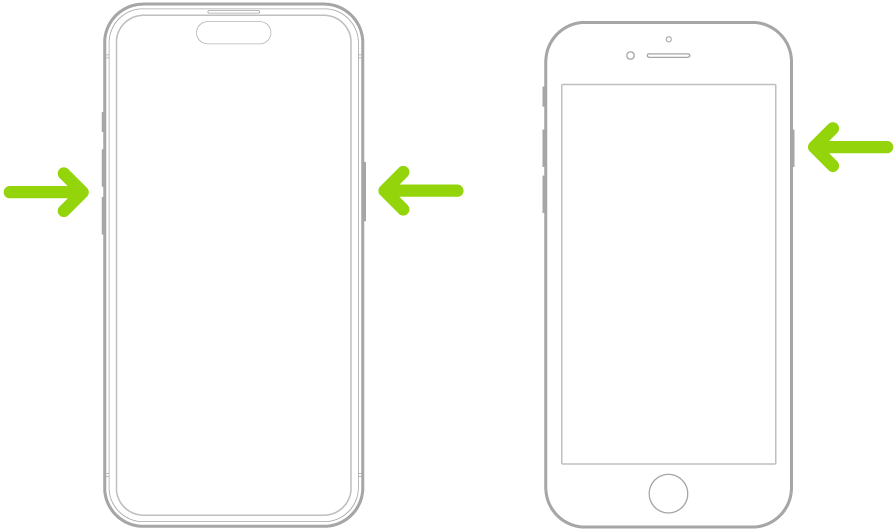
  • iPhone with Face ID: Simultaneously press and hold the side button and either volume button until the sliders appear, then drag the Power Off slider.
  • iPhone with the Home button: Press and hold the side button, then drag the Power Off slider.

Two iPhone models, screens facing up. On the iPhone with Face ID, the volume buttons are on the left and the side button is on the right. On the iPhone with the Home button, the side button is on the right.

Turn off iPhone in Control Center

  1. Open Control Center.
  2. Touch and hold the Power button in the top-right corner of your screen.
  3. Drag the slider to turn off iPhone.

Turn off iPhone in Settings

  1. Open the Settings app on your iPhone.
  2. Tap General and scroll down. Tap Shut Down.
  3. Drag the slider to turn off iPhone.

When your iPhone isn’t working as expected, restarting it by turning it off and back on may help. And if that doesn’t fix the issue, try forcing it to restart.

Tag: iPhone

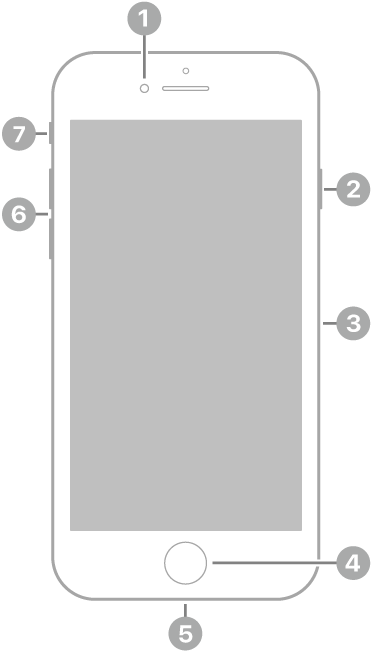
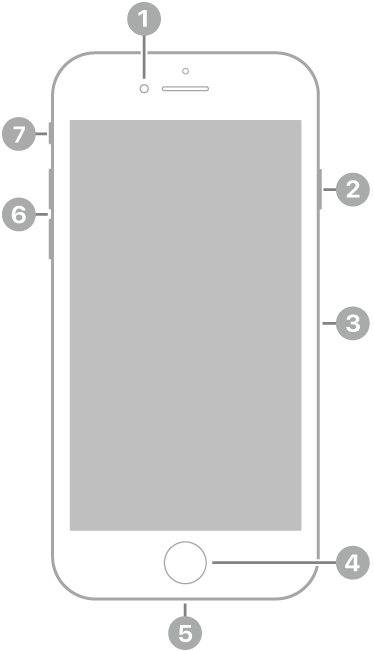
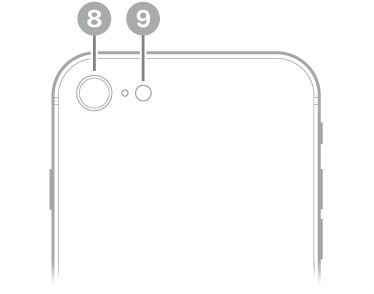
Learn the location of the cameras, buttons, and other essential hardware features on iPhone SE (2nd generation).

On the front and sides, you’ll find the front camera, side button, SIM tray, the Home button/Touch ID, Lightning connector, volume buttons, and Ring/Silent switch. Around back are the rear camera and flash.

The front view of iPhone SE (2nd generation). The front camera is at the top, to the left of the speaker. On the right side, from top to bottom, are the side button and the SIM tray. The Home button is at the bottom center. The Lightning connector is on the bottom edge. On the left side, from bottom to top, are the volume buttons and the Ring/Silent switch.

  • 1 Front camera
  • 2 Side button
  • 3 SIM tray
  • 4 Home button/Touch ID
  • 5 Lightning connector
  • 6 Volume buttons
  • 7 Ring/Silent switch

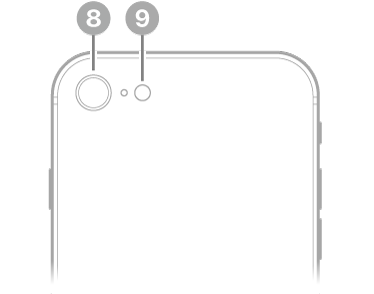
The back view of iPhone SE (2nd generation). The rear camera and flash are at the top left.

  • 8 Rear camera
  • 9 Flash

Get started with iPhone SE

Tag: iPhone

While you’re going about your day, you can use the apps on your iPhone to get directions, make purchases, and control accessories in your home. You can also silence notifications while you’re driving or working, or allow only specific notifications related to what you’re focused on.

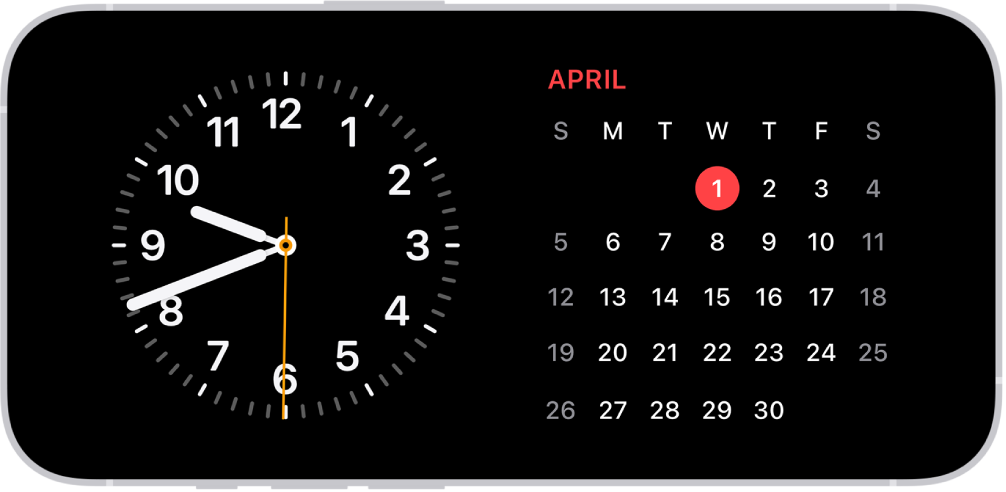
It can start before you’re even out of bed. StandBy can show useful information while iPhone is charging.

And if you forgot to turn off the lights, you can do it from iPhone.

iPhone turned horizontally. The left side of the screen displays a clock and the right side of the screen displays the date.

Start the day with the info you need

While iPhone is charging, you can put it in StandBy to view useful and timely information at a glance. You can use your iPhone as a bedside clock that displays the time, temperature, and other information you might want to see when you wake up in the morning, or before you go to bed.

To use StandBy, connect iPhone to a charger, lay it on its side (in landscape orientation), then tap the screen.

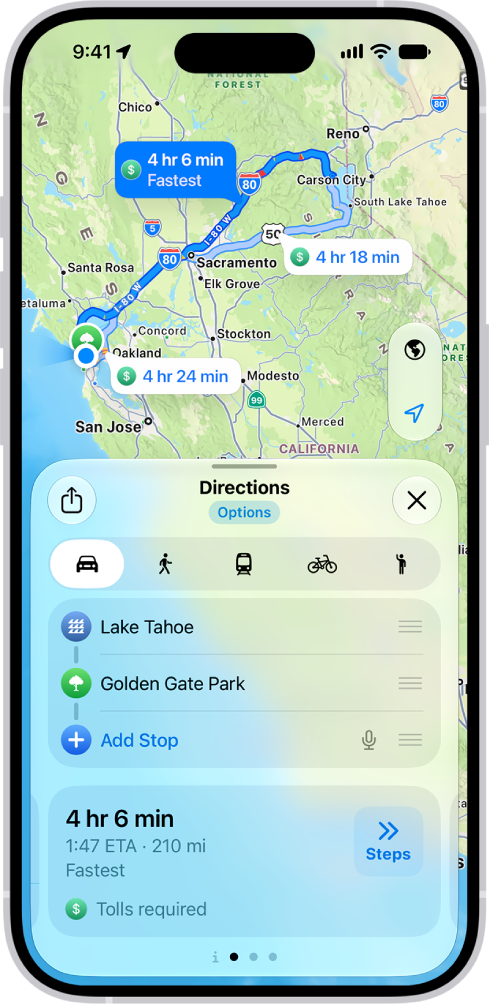
The Maps app showing a driving route.

Know before you go

If you drive to the same place regularly, like work or school, Maps learns your preferred route there and lets you know about traffic delays or road closures before you head out.

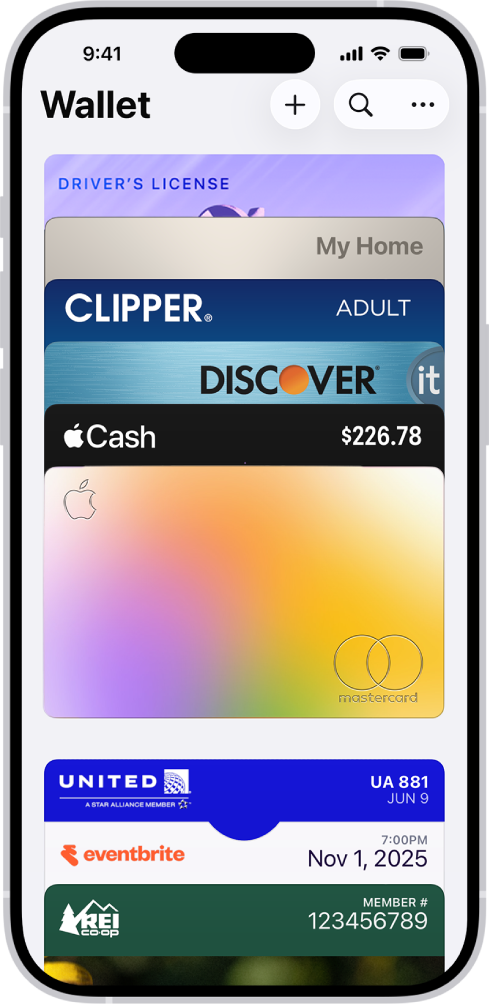
The Wallet screen, showing multiple cards and passes.

Set up a virtual wallet

The Wallet app on your iPhone can hold your credit and debit cards, transit passes, event tickets, and more. Add a credit or debit card to Wallet, and you can make secure payments in stores and online, plus send and receive money from friends and family.

To add your first card, open the Wallet app, tap the Add Card button, then follow the onscreen instructions.

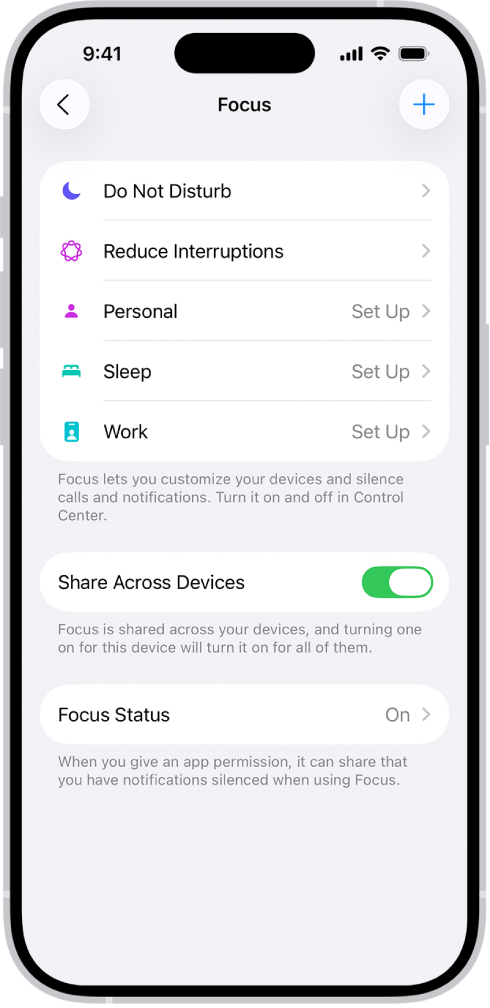
A screen showing four provided Focus options—Do Not Disturb, Personal, Sleep, and Work. The Share Across Devices button allows you to use the same Focus settings on all your Apple devices where you’re signed in to the same Apple Account.

Stay focused

Driving, working, or just need to step away from your iPhone? A Focus can temporarily silence notifications that don’t fit what you’re doing and tell other people you’re busy.

Go to the Settings app , tap Focus, then choose the Focus you want to use, or tap the Add button.

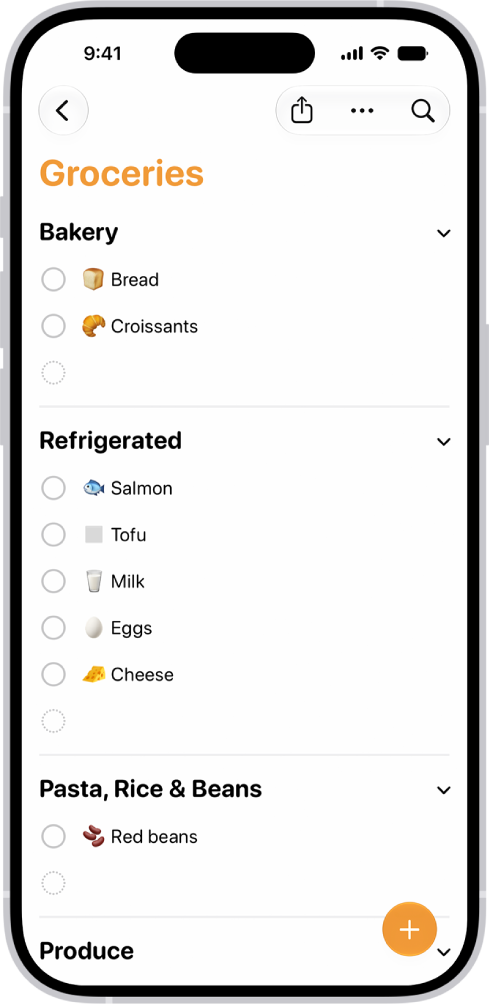
A grocery list in the Reminders app.

Reminders when you need them

The Reminders app is handy for to-do lists for projects around the house, and for grocery lists that sort items into categories. It can also remind you about something when you arrive at a certain location.

To create your first reminder, open the Reminders app, then tap the New Reminder button.

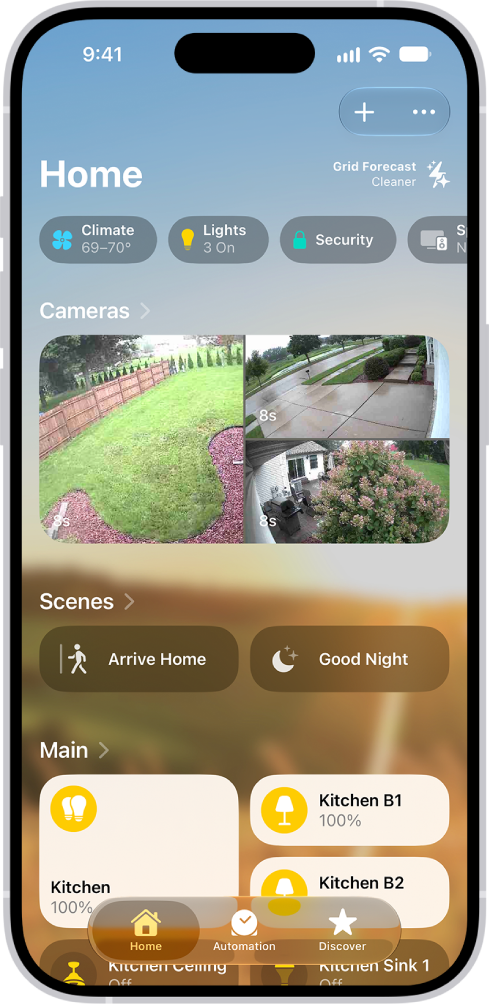
The My Home screen in the Home app.

Forgot to turn off the lights?

From anywhere, you can securely control Apple Home-enabled accessories, like thermostats, lights, and smart TVs, with the Home app on iPhone. Automations can simplify your normal routines, too, like turning on your entryway lights automatically when you arrive home at night.

To add your first Works with Apple Home accessory, open the Home app, tap the Add button, then tap Add Accessory.

These guides show more ways iPhone fits into your day:

Not all features are available for all iPhone models, Apple notes.

Tag: iPhone

This guide helps you get started using iPhone and discover all the amazing things it can do with iOS 27. It’s worth a quick check first, since your features and apps may vary depending on your iPhone model. iOS 27 is compatible with the following models:

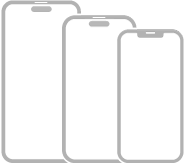
Three iPhone models with Face ID.

  • iPhone 11
  • iPhone 11 Pro
  • iPhone 11 Pro Max
  • iPhone 12 mini
  • iPhone 12
  • iPhone 12 Pro
  • iPhone 12 Pro Max
  • iPhone 13 mini
  • iPhone 13
  • iPhone 13 Pro
  • iPhone 13 Pro Max
  • iPhone 14
  • iPhone 14 Plus
  • iPhone 14 Pro
  • iPhone 14 Pro Max
  • iPhone 15
  • iPhone 15 Plus
  • iPhone 15 Pro
  • iPhone 15 Pro Max
  • iPhone 16
  • iPhone 16 Plus
  • iPhone 16 Pro
  • iPhone 16 Pro Max
  • iPhone 16e
  • iPhone 17
  • iPhone 17 Pro
  • iPhone 17 Pro Max
  • iPhone Air
  • iPhone 17e
  • iPhone 18 Pro
  • iPhone 18 Pro Max

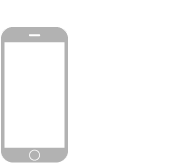
An iPhone model with a Home button.

  • iPhone SE (2nd generation)
  • iPhone SE (3rd generation)

Note: Apps and services that send or receive data over a cellular network, or that answer incoming calls, may incur additional fees. Contact your carrier for information about your service plan and fees.

Identify your iPhone model and iOS version

  1. Start the Settings app on your iPhone.
  2. Tap General and then tap About.

Get iOS updates

To update your iPhone to the latest iOS software compatible with your model, do the following:

  1. Start the Settings app on your iPhone.
  2. Tap General, then tap Software Update.
Tag: iPhone

Learn the location of the cameras, buttons, and other essential hardware features on iPhone SE (3rd generation).

It’s laid out in two views. The front and sides show the front camera, side button, SIM tray, the Home button/Touch ID, Lightning connector, volume buttons, and Ring/Silent switch, while the back shows the rear camera and flash.

The front view of iPhone SE (3rd generation). The front camera is at the top, to the left of the speaker. On the right side, from top to bottom, are the side button and the SIM tray. The Home button is at the bottom center. The Lightning connector is on the bottom edge. On the left side, from bottom to top, are the volume buttons and the Ring/Silent switch.

  • 1 Front camera
  • 2 Side button
  • 3 SIM tray
  • 4 Home button/Touch ID
  • 5 Lightning connector
  • 6 Volume buttons
  • 7 Ring/Silent switch

The back view of iPhone SE (3rd generation). The rear camera and flash are at the top left.

  • 8 Rear camera
  • 9 Flash

Get started with iPhone SE

Tag: iPhone

Before you sell, give away, or trade in your iPhone, there’s some housekeeping to do. If you paired an Apple Watch with your iPhone, you unpair it, and you erase all content and settings that contain personal information. Be sure to perform the following tasks:

  • If you paired an Apple Watch with your iPhone, unpair your Apple Watch.
  • Back up iPhone. If you replace one iPhone with another, you can use the setup assistant to restore the backup to your new iPhone.

    If you’re replacing your iPhone with another one you have on hand, you can use extra free storage in iCloud to move your apps and data from one iPhone to another. Go to Settings > General > Transfer or Reset iPhone > Get Started, then follow the onscreen instructions.

  • Sign out of iCloud, and the App Store. Go to Settings > [your name], scroll down, tap Sign Out, then follow the onscreen instructions.
  • Before you ship your iPhone 18 Pro Max, you may need to turn on Prepare to Ship. Prepare to Ship lowers and limits the battery capacity to a level suitable for shipment like other iPhone models. This setting appears only on iPhone 18 Pro Max. Go to Settings > General > Transfer or Reset iPhone > Prepare to Ship, then follow the onscreen instructions.
  • Erase all content and settings that contain personal information. If you previously turned on Find My for your iPhone, Activation Lock is removed when you erase iPhone, making it ready for a new owner.
Tag: iPhone