Got a tip for us?

Music

You can create playlists to suit specific moods or to organize songs with a certain theme.

In the U.S., you can use Playlist Playground to tell Apple Music what kind of music you want, by describing the mood or vibe. You can then customize a playlist by adding, reordering, or removing tracks, and delete it later. You can also add music to an existing playlist.

Here’s how to create, edit, and delete music playlists on iPhone.

Create a playlist with Playlist Playground (U.S. only)

  1. Start the Music app on your iPhone.
  2. Tap Library, then tap the New Playlist button.
  3. Do one of the following:

    • Use Playlist Playground: Tell Apple Music what kind of music you want to listen to by describing the mood, vibe, or providing details. For example, you can type something like “morning coffee music” and get 25 suggested tracks with a custom title.

      Customize the playlist by adding, reordering or removing tracks.

    • Create manually: Add the tracks you want by tapping Add Songs and selecting the tracks you want to add.
  4. Tap the More button for more customization options and tap the Done button.

Note: Playlist Playground is available in beta only to subscribers 13 and older in the U.S. and in English.

Create a playlist

  1. Start the Music app on your iPhone.
  2. Tap Playlists and tap the New Playlist button. Then tap Create New Playlist.
  3. Enter a playlist title.
  4. To give your playlist cover art, tap the Camera button and then take a photo, choose an image from your photo library, or choose a file on your device.
  5. Tap the Done button, then tap Add Music.

    You can search for music, select music from your library, or choose from the suggested songs listed at the bottom of the screen.

  6. Tap the Add button to add music to the playlist.

Quick tip: Songs you add to a playlist can go into your library automatically. Go to Settings > Apps > Music, then turn on Add Playlist Songs.

Add music to an existing playlist

You can add music to a playlist in several ways once you’ve created it.

  1. Start the Music app on your iPhone.
  2. Do one of the following:
    • Touch and hold an album, playlist, song, or music video, tap Add to a Playlist, then choose a playlist.
    • From the Now Playing screen, tap the More button, tap Add to a Playlist, then choose a playlist.

Edit a playlist

Besides renaming playlists, you can change the artwork, add and remove songs, and more.

Note: Only the owner of a collaborative playlist can make any change to it. Other participants can add, remove, or reorder songs in the playlist, and that’s all.

  1. Start the Music app on your iPhone.
  2. Tap the playlist, tap the More button and tap Edit. Do any of the following:

    • Rename the playlist: Tap the current name, then enter a new name.
    • Edit cover art: Select from a variety of Apple templates or tap the Camera button to add your own.
    • Show (or hide) the playlist in your Apple Music profile: Turn on (or off) the Show on My Profile and in Search option.
    • Add songs from your library: Tap the Add button, go to any place in your library and tap the Add button next to the song.

      You can also touch and hold an item (song, album, playlist, or music video), tap Add to a Playlist, then choose a playlist.

    • Add a Suggested Song: Tap the Add button, scroll below the Library options, and tap the Add button next to the song.

      Suggested Songs also appears at the bottom of your playlist song list. To refresh the list of suggestions, tap the Refresh Suggested Songs button.

    • Delete a song: Tap the song, then tap the Delete button.

      Note: Deleting a song from a playlist doesn’t delete it from your library.

    • Change the song order: Drag the Reorder button next to a song.

Changes you make to your music library are updated across all your devices when Sync Library is turned on (go to Settings > Apps > Music, then turn on Sync Library). If you’re not an Apple Music subscriber, the changes appear in your music library the next time you sync with your computer.

Sort a playlist

  1. Start the Music app on your iPhone.
  2. Tap a playlist, then tap the More button.
  3. Tap Sort By, then choose an option.

Delete a playlist

Deleting a playlist doesn’t remove its songs, which remain in your library and on your iPhone. But deleting a collaborative playlist you own ends the collaboration and removes the playlist from your library, though it remains in the participants’ library.

  1. Start the Music app on your iPhone.
  2. Touch and hold the playlist and tap Delete from Library.

You can also tap the playlist, tap the More button, then tap Delete from Library.
Tag: Music

As soon as you subscribe to Apple Music, you can add and download songs and videos from Apple Music to your music library. You can stream music you add to iPhone when you have an internet connection. To play music when you’re not connected to the internet, you need to download it first.

Before you can download anything, Sync Library needs to be turned on. Once it is, music you add is also added to your other devices signed in to the same Apple Account.

Here’s how to add music to iPhone and listen offline.

Siri: Ask Siri something like, “Add this to my library” while playing something.

Add music from Apple Music to your library

  1. Open the Music app on your iPhone.
  2. Do any of the following:
    • Touch and hold a song, album, playlist, or video, then tap Add.
    • While viewing the contents of an album or playlist, tap the Add to Library button to add the album or playlist, or tap the More button next to a song, then tap Add to add that song.
    • On the Now Playing screen, tap the More button, then tap Add.

Music you add to iPhone is also added to other devices if you’re signed in to the same Apple Account and have Sync Library turned on (go to Settings > Apps > Music, then turn on Sync Library).

Download music from Apple Music to your iPhone

Before you can download music from Apple Music to your library, you need to turn on Sync Library. Go to Settings > Apps > Music, then turn on Sync Library. Then follow these steps to download music.

  1. Open the Music app on your iPhone.
  2. Do any of the following:

    • Download a song, album, or playlist: Touch and hold music you added to your library, then tap Download.

      After you add a playlist or album, you can also tap the Download button at the top of the screen.

    • Always download music: Open Settings, tap Apps, tap Music, and then turn on Automatic Downloads.

      Songs you add are automatically downloaded to iPhone.

    • See download progress: On the Library tab, tap Downloaded and tap Downloading.

Note: Music that’s available in Dolby Atmos shows the Dolby icon next to the item. You can then download it either in Dolby Atmos or in stereo. If you want Dolby Atmos downloads whenever they’re available, go to Settings > Apps > Music and turn on Download in Dolby Atmos.

Delete music from your library

  1. Open the Music app on your iPhone.
  2. Touch and hold the song, album, playlist, or music video. Tap Delete from Library.

Note: A song you delete from your library stays in your playlists. To change this, go to the Settings app , tap Apps, tap Music, and turn on Add & Delete Playlist Songs.

Manage storage space

If you’re running low on storage space, try any of the following:

  • Remove music and videos stored on iPhone: Go to the Music app on your iPhone, touch and hold an item that you downloaded, then tap Remove Download.

    The item is removed from iPhone, but not from your music library on your other devices.

  • Free up music storage: If iPhone is low on storage space, you can automatically remove downloaded music that you haven’t played in a while. Go to Settings > Apps > Music > Optimize Storage.
  • Remove all songs or certain artists from iPhone: Go to Settings > Apps > Music > Downloaded Music, tap Edit, then tap the Delete button next to All Songs or the artists whose music you want to delete.
  • Remove all Apple Music songs from iPhone: Go to Settings > Apps > Music, then turn off Sync Library.

    The songs are removed from iPhone but remain in your music library on your other devices. Music you purchased or synced also remains.

Choose cellular data options for Music

  1. Open the Settings app on your iPhone.
  2. Tap Apps and tap Music.
  3. Turn on Cellular Data. Do any of the following:

    • Turn Download over Cellular on or off.
    • Tap Audio Quality, turn on Lossless Audio, then tap Cellular Streaming to choose a setting (None, High Efficiency, High Quality, Lossless, or High-Resolution Lossless).

    High Quality, Lossless, and High-Resolution Lossless use significantly more cellular data than High Efficiency, which may incur additional charges from your cellular carrier. Songs may also take longer to start playing.

When you purchase access to movies, TV shows, music, music videos, ebooks, audiobooks, or ringtones from Apple, you also have the option to permanently download these items to a compatible iPhone, iPad, Mac, or PC. Apple cannot revoke your downloaded content, and you can always access your downloaded content without an internet connection.

Tag: Music

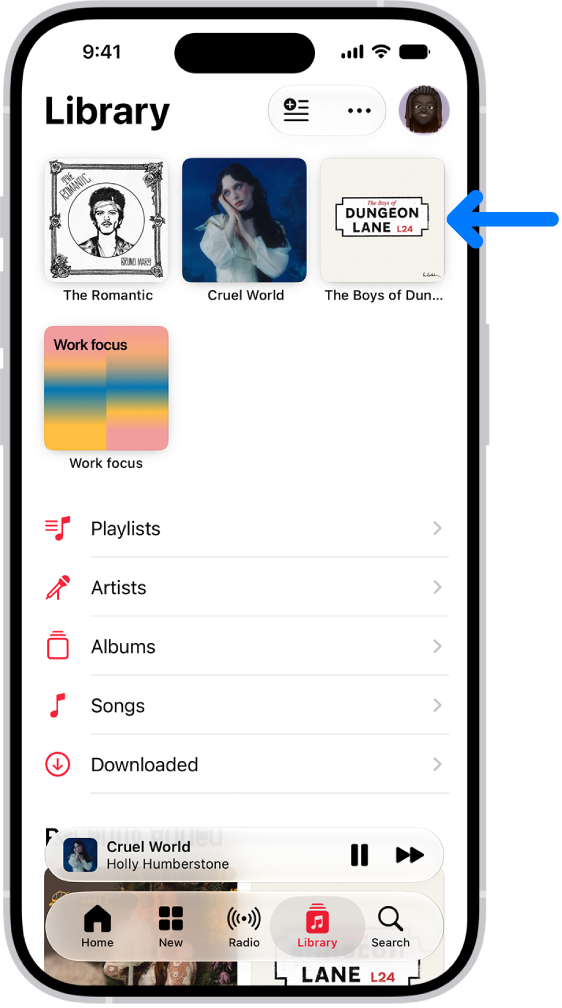
After you subscribe to Apple Music, you can pin your favorite music (including music videos) to the top of your library so it’s easily accessible. You can pin a playlist, an artist, an album, or a song, and unpin an item later. You can only pin content that’s in your library, though.

The Library tab with an arrow pointing out pinned items, such as an album and a playlist, at the top.

Pin music to the top of your library

  1. Open the Music app on your iPhone.
  2. Do any of the following:
    • Pin a playlist: Touch and hold a playlist or tap the More button when viewing a playlist. Tap Pin Playlist.
    • Pin an artist: Go to an artist page, tap the More button then tap Pin Artist.
    • Pin an album: Touch and hold an album, then choose Pin Album. Or tap an album, tap the More button, and tap Pin Album.
    • Pin a song or music video: Touch and hold a song or video or tap the More button next to a song or video and then tap Pin [item]. Or on the Now Playing screen, tap the More button and then tap Pin [item].

Pinning works only for content that’s in your library. To pin an artist, for example, you’ll need at least some of their content in your library. Pinned items show up at the top of your library.

Unpin an item in your library

  1. Open the Music app on your iPhone.
  2. Tap Library, touch and hold a pinned item, and tap Unpin [item].

Optionally, tap the More button, tap Edit Pins, then tap the Remove button.

Choose what happens when you tap a pinned item

When you tap a pinned item, you can customize what happens. For example, you can choose to open a pinned playlist page, play an album in its default order, or even play and shuffle songs for an artist.

  1. Open the Music app on your iPhone.
  2. Tap Library, touch and hold a pinned item, tap Tap Action, and then choose an action.

Choose Play or Shuffle, and the icon for that action appears next to the item name.

Quick tip: Items you pin can download to your library automatically. Go to Settings > Apps > Music, then turn on Download Pins.

Tag: Music

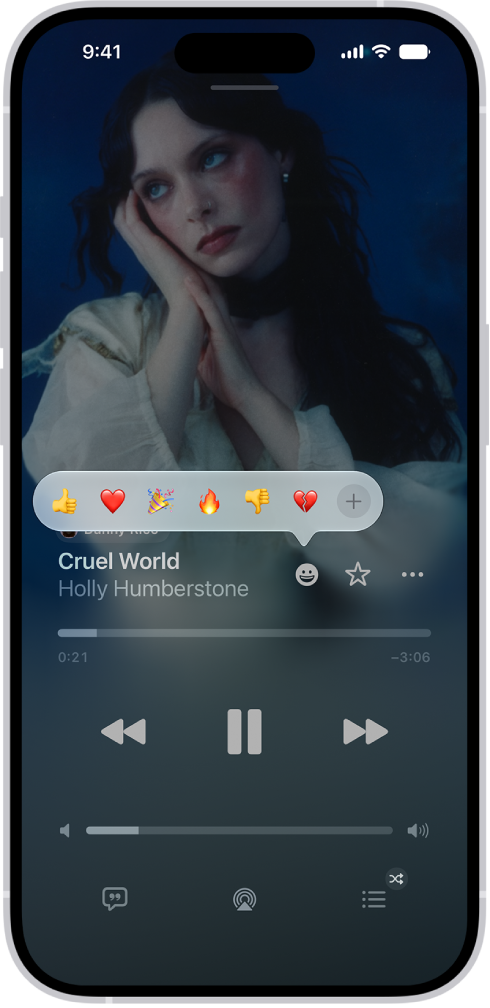
If you subscribe to Apple Music and you join a collaborative playlist, you can react to songs in the playlist with emoji. It’s quick. From the Now Playing screen, you can choose a reaction, for example a thumbs up emoji, or find a specific emoji to add.

Note: Apple Music isn’t available in all countries or regions.

  1. Open the Music app on your iPhone.
  2. Tap a collaborative playlist. Tap the MiniPlayer to open the Now Playing screen.
  3. Tap the Reaction button and choose a reaction (for example, a thumbs up emoji) or tap the Add button to find a specific emoji.

    The Now Playing screen with the Reactions button showing several emoji and an Add button that you can click to find more emoji.

Tag: Music

If you subscribe to Apple Music, you can share a playlist and collaborate on it with others. Everyone can add, remove, and reorder music and react with emoji to songs in the collaborative playlist.

You decide who gets in. With Approve Collaborators turned on, you approve people before they can join; if you don’t turn it on, anyone with the link can join the collaborative playlist.

Here’s how to collaborate on a playlist in Music on iPhone.

Note: Apple Music isn’t available in all countries or regions.

Invite others to collaborate on a playlist

  1. Open the Music app on your iPhone.
  2. Tap a playlist, then tap the Collaboration button.
  3. To approve people before they can join, turn on Approve Collaborators.

    If you don’t turn on this option, anyone with the link can join the collaborative playlist.

  4. Tap Start Collaborating. Choose a sharing method, such as AirDrop, Messages, or Mail, to send a link to the playlist.

    The person who receives the link must tap Join Playlist to start collaborating.

    If you’re the owner and you turn on Approve Collaborators, notifications appear in the top-right corner when a new person requests to join the collaborative playlist.

Add more people to collaborate on a playlist

You can share the link to a collaborative playlist with more people if you’re its owner, or if the owner hasn’t turned on Approve Collaborators.

  1. Open the Music app on your iPhone.
  2. Tap a collaborative playlist, tap the Manage Collaboration button, and then do one of the following:
    • Add someone who is nearby: Tap QR Code. Others can join the playlist by using the camera on their iPhone to scan the code displayed on your iPhone.
    • Add someone else: Tap generate a new link (if necessary) and tap Share Invite Link. Then follow the steps to invite others to collaborate on a playlist.

Manage shared settings for a collaborative playlist

Once you’ve started collaborating on a playlist, its owner can change access and permissions for everyone or for individuals.

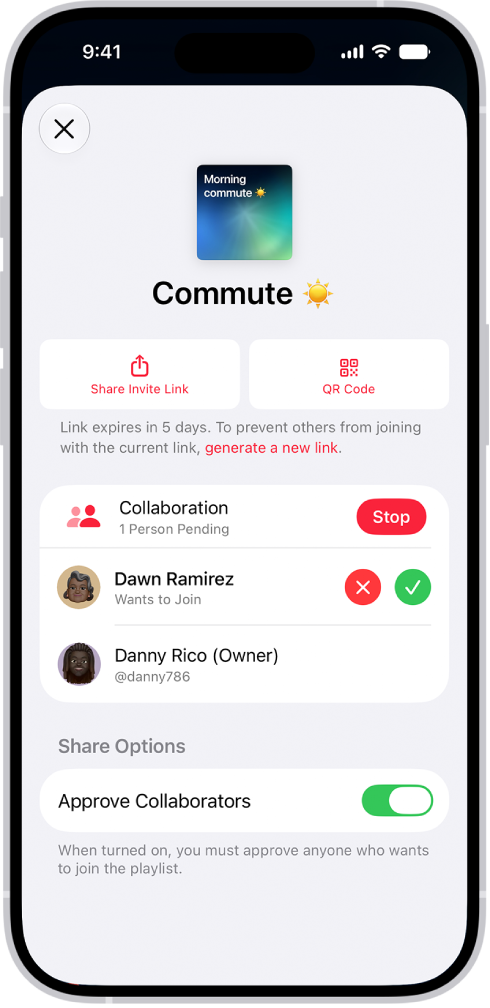
The Manage Collaboration screen in the Music app.

  1. Open the Music app on your iPhone.
  2. Tap a collaborative playlist, tap the Manage Collaboration button, and then do any of the following:

    • Invite others: See Add more people to collaborate on a playlist.

      Note: If you didn’t turn on Approve Collaborators, anyone collaborating on the playlist can share the link to the collaborative playlist.

    • Approve people before they can join: Turn on Approve Collaborators.
    • Accept request: Tap the Accept Request button to allow the person to join the collaborative playlist.
    • Decline request: Tap the Decline Request button if you don’t want the person to join the collaborative playlist.

Stop collaborating on a playlist with one or more people

Owners can also remove people from the playlist, or stop collaborating on it altogether.

  1. Open the Music app on your iPhone.
  2. Tap a collaborative playlist, tap the Manage Collaboration button, and then do any of the following:
    • Remove one person: Swipe left on the person’s name and tap Remove.
    • Stop collaborating on a playlist: Tap Stop.

Remove yourself from a collaborative playlist

  1. Open the Music app on your iPhone.
  2. Tap a collaborative playlist and tap the Manage Collaboration button. Tap Leave.
Tag: Music

Apple Music features six world-class radio stations (Apple Music 1, Apple Music Hits, Apple Music Country, Apple Music Club, Apple Música Uno, and Apple Music Chill), as well as a collection of stations based on different genres. These stations provide a great way to explore and enjoy new music or keep up with your favorites.

And if you’d rather listen to traditional radio, you can play broadcast radio stations, too.

Siri: Ask Siri something like, “Play Apple Music 1.”

You can also base your own custom stations on your pick of artist, song, or genre.

Besides radio, you can play Apple Music TV. It’s a free, curated livestream of popular new music videos that runs 24 hours a day, with chart countdowns, live shows and events, exclusive premieres, music video blocks, and more.

Play Apple Music radio

To play live Apple Music radio stations and Apple Music TV, you need to be signed in to your Apple Account, though you don’t have to subscribe to Apple Music.

  1. Open the Music app on your iPhone.
  2. Tap Radio and tap one of the currently playing Apple Music radio stations.

Note: Apple Music radio stations are live radio, so you can’t rewind or skip songs.

Choose a radio station by genre

Curated radio stations, such as Stations by Genre, require an Apple Music subscription.

  1. Open the Music app on your iPhone.
  2. Tap Radio and scroll down. Then tap a genre listed below Stations by Genre.
  3. Tap a featured station.

Create a station

Like a particular artist or song? Create a radio station based on it, and chances are you’ll like the music the station plays.

  1. Open the Music app on your iPhone.
  2. Touch and hold an artist or song.
  3. Tap Create Station.

To create a station on the Now Playing screen, tap the More button, then tap Create Station.

Play broadcast radio stations

Siri: Ask Siri something like, “Play R&B Now Radio.”

  1. Open the Music app on your iPhone.
  2. Do any of the following:

    • Search for a station: Tap Search, enter the station in the search field, and then tap a result to play the station.

      You can search for stations by name, call sign, frequency, and nickname.

    • Choose a station in the Radio tab: Tap Radio, scroll up, and choose a station below the Local Broadcasters or International Broadcasters heading.

Note: You don’t need a subscription to Apple Music to play broadcast radio. Broadcast radio isn’t available in all countries or regions and not all stations are available in all countries or regions.

Tag: Music

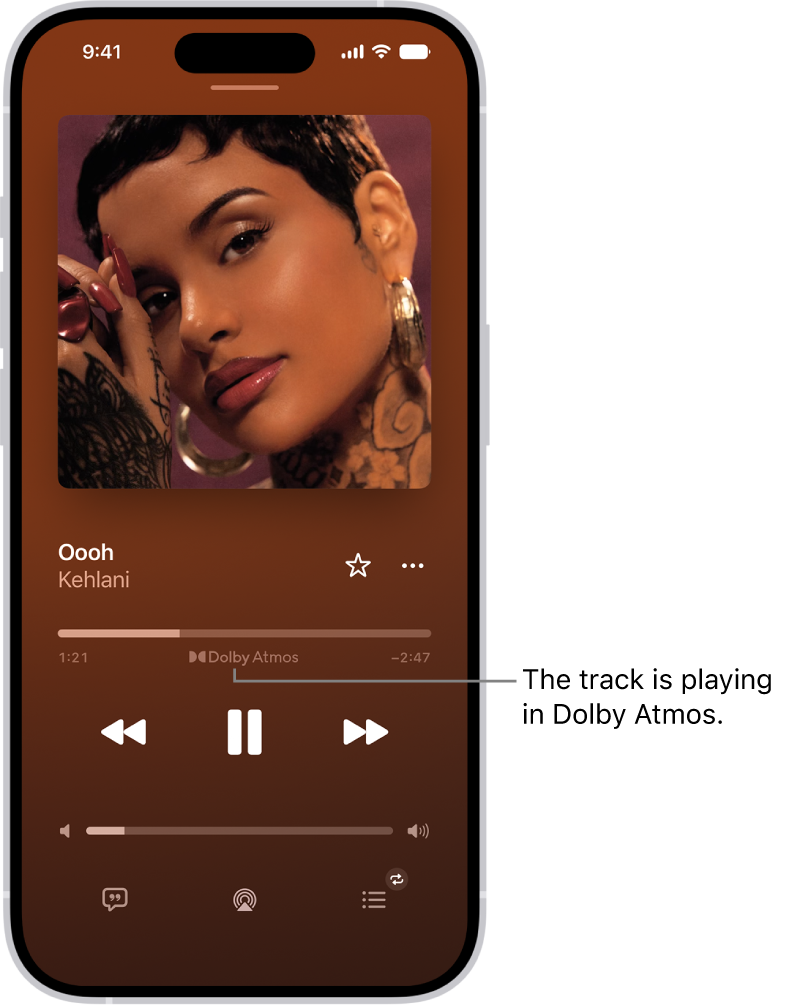
If you subscribe to Apple Music, you can play available tracks in Dolby Atmos, which creates an immersive, three-dimensional (spatial) audio experience on stereo headphones and speakers or receivers compatible with Dolby Atmos. Albums and songs available in Dolby Atmos have the Dolby icon next to them, and if a track is playing in Dolby Atmos, the icon also appears on the Now Playing screen.

You can also control Spatial Audio and head tracking on iPhone, and download songs in Dolby Atmos.

Note: Apple Music and Dolby Atmos aren’t available in all countries or regions.

The Now Playing screen showing the Dolby Atmos icon for the track that’s playing.

Turn on Dolby Atmos

  1. Open Settings, tap Apps, and then tap Music.
  2. Tap Dolby Atmos and then choose Automatic or Always On.
    • Automatic: Plays Dolby Atmos whenever iPhone is connected to compatible headphones such as AirPods 3, AirPods Pro, or AirPods Max, or to speakers or receivers compatible with Dolby Atmos.
    • Always On: Plays Dolby Atmos on any headphones or speakers. The Music app will attempt to play Dolby Atmos tracks on any headphones or speakers connected to iPhone. Dolby Atmos will play on any headphones, but not all speakers will play Dolby Atmos as intended.

Control Spatial Audio and head tracking on iPhone

With AirPods 3, AirPods Pro, or AirPods Max, Spatial Audio and head tracking can create an immersive, theater-like environment with sound that surrounds you when you play supported music on your iPhone. To control Spatial Audio and head tracking in Control Center, follow these steps.

  1. Wear your AirPods and open Control Center.
  2. Touch and hold the volume control. Then tap Spatial Audio at the lower right.
  3. Tap one of the following:
    • Off: Turns off both Spatial Audio and head tracking.
    • Fixed: Turns on Spatial Audio without head tracking.
    • Head Tracked: Turns on both Spatial Audio and head tracking. This setting allows the sound to follow the movement of your head.

The settings you choose are saved and applied automatically the next time you use that app. For example, if you tap Fixed while listening to a song in Apple Music, the Fixed setting is automatically used the next time you play a song in Apple Music.

Note: You can disable head tracking for every app on your iPhone. Go to Settings > Accessibility > AirPods, tap your AirPods, and then turn off Follow iPhone.

Download songs in Dolby Atmos

  1. Open Settings, tap Apps, and then tap Music.
  2. Turn on Download in Dolby Atmos.
Tag: Music

You can use the iTunes Store app to find and buy music on your iPhone. In the app, you can browse by category, choose a different genre, and see what’s popular on iTunes. You can also share an item or add it to your wish list, and buy and download content.

The iTunes Store app lets you do any of the following:

Note: You need an internet connection to use the iTunes Store. The availability of the iTunes Store and its features varies by country or region.

Find music

  1. Open the iTunes Store app on your iPhone.
  2. Tap Music, then do any of the following:
    • Browse by category: Scroll to see various categories.
    • Choose a different genre: Tap Genres at the top left of the screen. Then select one to refine your browsing.
    • See what’s popular on iTunes: Tap Charts at the top of the screen.
    • Search: Tap Search and enter what you’re looking for. Then tap Search on the keyboard.
  3. Tap an item to see more information about it.

Share an item or add it to your wish list

  1. Open the iTunes Store app on your iPhone.
  2. Tap Music, tap the Share button, and do any of the following:
    • Share a link to the item: Choose a sharing option.
    • Give the item as a gift: Tap Gift.
    • Add the item to your wish list: Tap Add to Wish List.

To view your wish list, tap the Item List button, then tap Wish List.

Buy and download content

  1. Open the iTunes Store app on your iPhone.
  2. To buy an item, tap the price. If the item is free, tap Get.

If you see the Download button instead of a price, you already purchased the item, and you can download it again without a charge.

  1. If necessary, authenticate your Apple Account with Face ID, Touch ID, or your passcode to complete the purchase.
  2. To see the progress of a download, tap More and tap Downloads.

Redeem or send an App Store & iTunes Gift Card

  1. Open the iTunes Store app on your iPhone.
  2. Tap Music, tap Featured (if necessary), and scroll to the bottom.
  3. Tap Redeem or Send Gift.

When you purchase access to movies, TV shows, music, music videos, ebooks, audiobooks, or ringtones from Apple, you also have the option to permanently download these items to a compatible iPhone, iPad, Mac, or PC. Apple cannot revoke your downloaded content, and you can always access your downloaded content without an internet connection.

Tag: Music

Song credits and lyrics come with Apple Music. When you subscribe to Apple Music, you can show song credits and view and share lyrics.

Credits cover the performing artists, composition and lyrics, and production and engineering roles, plus available audio quality. You can view song credits while a song is playing, show or hide time-synced lyrics, share lyrics, and report a concern.

Here’s how to show song credits and lyrics on iPhone.

Show song credits

You can view song credits covering available audio quality, production and engineering roles, composition and lyrics, and performing artists.

  1. Open the Music app on your iPhone.
  2. Do one of the following:
    • While a song is playing, tap the MiniPlayer to open the Now Playing screen, tap the More button, then tap View Credits.
    • Tap the More button next to a song in a list, then tap View Credits.

Show and hide time-synced lyrics

Many songs in Apple Music show time-synced lyrics.

  1. Open the Music app on your iPhone.
  2. While a song is playing, tap the MiniPlayer to open the Now Playing screen. Tap the Lyrics button.

    Note: If you’re offline, you can view lyrics as long as the songs are downloaded to your device.

  3. Do any of the following:

    • Jump to a certain verse: Tap a specific lyric—the first line of the chorus, for example—to go to that part of the song.
    • Get help pronouncing or translating the lyrics: Tap the Translation and Pronunciation button and choose Show Pronunciation or Show Translation.

      The Translation and Pronunciation button only appears when a translation or pronunciation is available that matches your iPhone device’s Preferred Languages list. (You can view this list and add languages directly to it in Settings > General > Language & Region.) Not available in all languages.

      Tip: You can have either the lyrics or the pronunciation appear in larger text. Go to Settings > Apps > Music > Larger Text.

    • See all of a song’s lyrics: Tap the More button, tap View Credits, and then tap View Lyrics.
  4. To hide the lyrics, tap the Lyrics button.

Share lyrics

When time-synced lyrics are available, you can share up to 150 characters of a song’s lyrics.

  1. Open the Music app on your iPhone.
  2. While a song is playing, tap the MiniPlayer to open the Now Playing screen.
  3. Tap the More button, then tap Share Lyrics.

    You can also touch and hold a lyrics line to open the sharing screen.

  4. Tap the first and last lyrics you want to share. Then choose a sharing option.

Report a concern

To report a concern about time-synced lyrics, tap the More button, then tap Report a Concern.

Tag: Music

As soon as you subscribe to Apple Music, you can make selections so that you see playlists, albums, and songs based on your preferences. If you don’t want Music to make recommendations, you can also turn off your listening history.

Apple Music asks you what you like at first, and uses those preferences when recommending music. Turning off your listening history also hides the music you play from your followers on Apple Music.

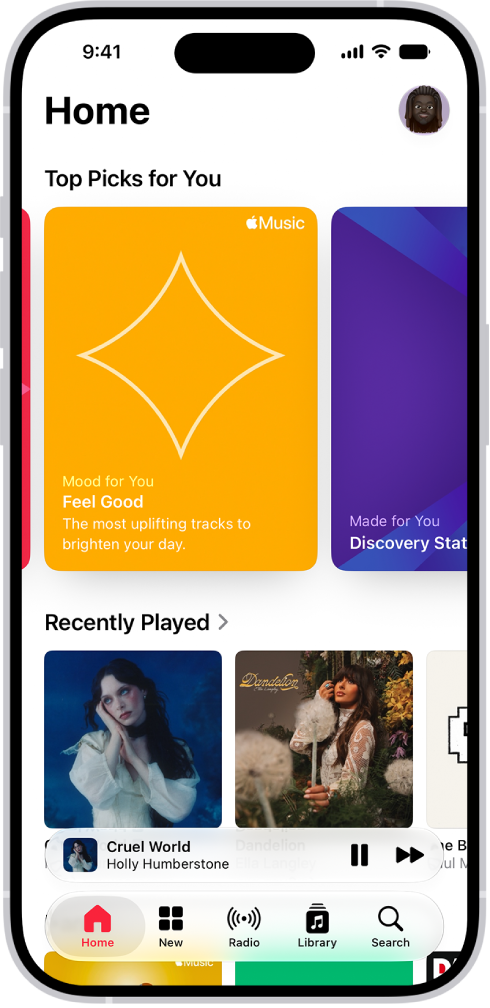
The Home tab in the Music app showing Top Picks at the top. You can swipe left or right to view more music chosen just for you. Recently Played appears below.

Select your favorite genres and artists

When you first tap Home, you’re asked to tell Apple Music what you like. Apple Music uses these preferences when recommending music.

  1. Open the Music app on your iPhone.
  2. Tap the genres you like (double-tap those you love, and touch and hold the genres you don’t care for).
  3. Tap Next. Then do the same with the artists that appear.

Tell Apple Music to ignore your listening habits

If you turn off your listening history, Apple Music ignores your listening habits, adjusting the contents of Replay playlists and new music recommendations.

  1. Open the Settings app on your iPhone.
  2. Tap Apps and tap Music.
  3. Turn off Use Listening History.

All the music you play is also hidden from your followers on Apple Music.

Quick tip: You can create a custom Focus to turn off Use Listening History. For example, if you’re a parent listening to your favorite songs and your child wants to listen to something they like, you can turn on that Focus so their songs don’t influence your recommendations.

Tag: Music