Got a tip for us?

Music

Listen to songs from your iPhone music library with the Music app. Stream music from the Apple Music catalog when you subscribe to Apple Music, and access all your music on all your devices when you sign in to the same Apple Account.

Subscribing to Apple Music lets you choose from millions of songs to stream or download, and select artists as favorites to receive notifications about them. After you become an Apple Music subscriber, you can also view song lyrics.

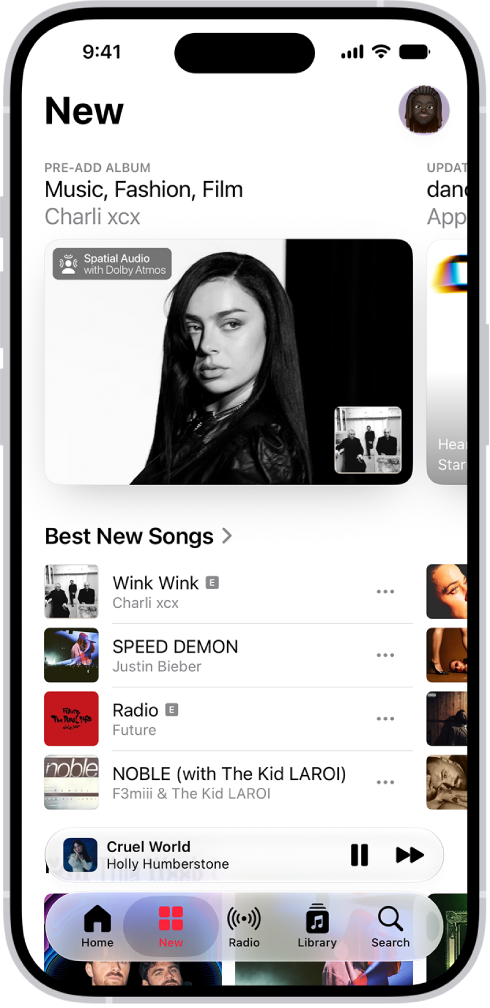
The New tab showing a new album at the top. You can swipe left to see more featured music and videos. The Best New Songs section appears below. You can swipe up on the screen to explore new and recommended music.

Subscribe to Apple Music

Subscribe to Apple Music to get the most from the Music app, with millions of songs to stream or download.

Go to Settings > Apps > Music, then tap Join Apple Music.

As an Apple Music subscriber, you can view song lyrics, select artists as favorites and receive notifications about them, and more.

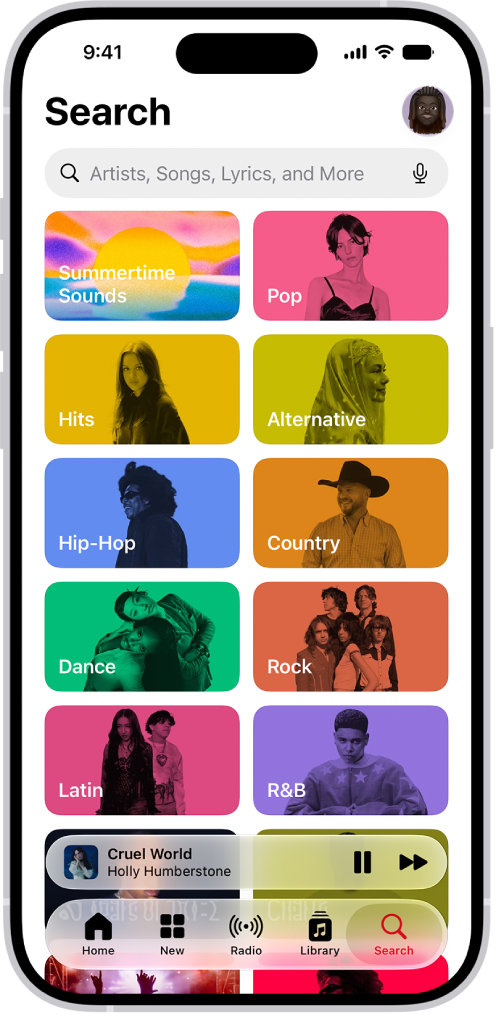
The Search tab showing a search field at the top. Multiple categories of music appear below, such as Hits and Pop.

Find music

Use the Search feature to quickly find music. Tap Search to browse music by category or enter an artist, lyric, or other keyword in the field to find songs, albums, and playlists.

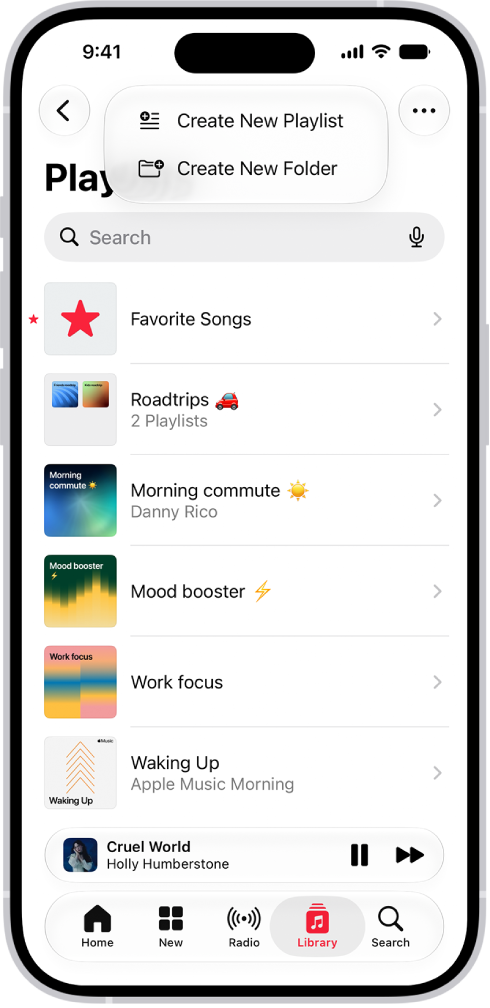
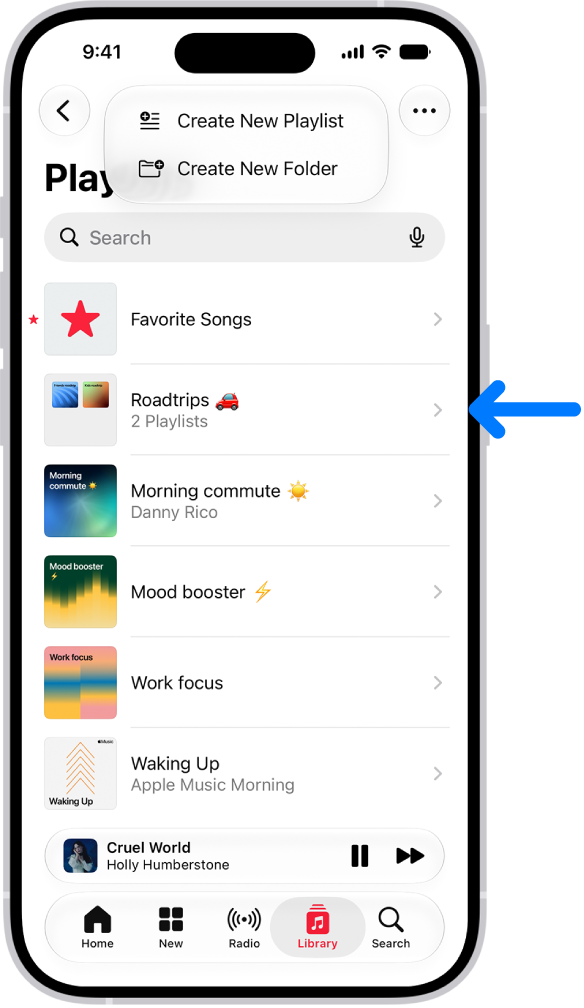
The Library tab showing the list of playlists. At the top are buttons to create a new playlist or create a new folder.

Create a playlist

With a playlist, you can organize songs for a specific theme, mood, or occasion.

Tap Library , tap Playlists, tap the New Playlist button, then tap Create New Playlist.

To add a song to the playlist, tap the More button next to a song, then tap Add to a Playlist.

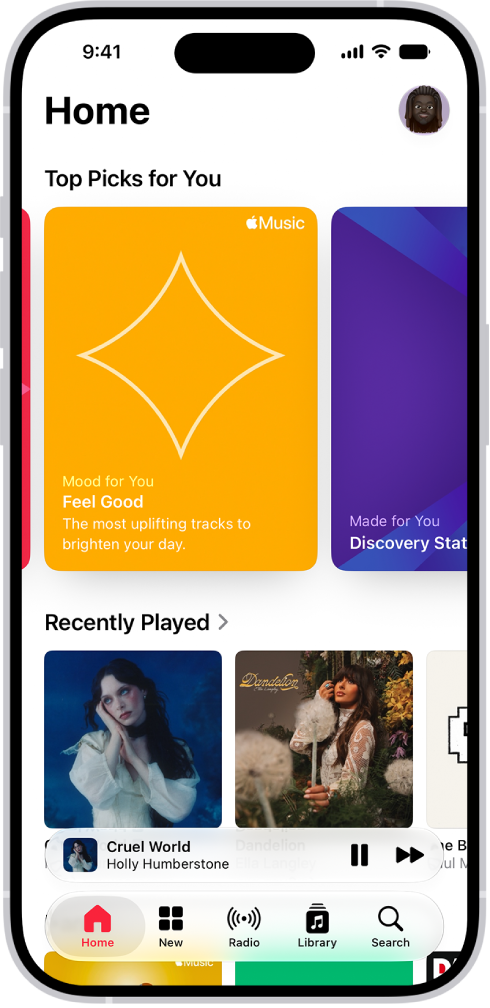
The Home tab in the Music app showing Top Picks at the top. You can swipe left or right to view more music chosen just for you. Recently Played appears below.

Build your library

You can add music to your library in a variety of ways. For example, subscribe to Apple Music or buy your favorite albums from the iTunes Store. If you’re already using a Mac, go to Settings > Apps > Music, then tap Sync Library—your entire music library is then available on your iPhone.

Tag: Music

A playlist is a custom mix of songs and music videos that you put together yourself or, with Apple Music, that others create. It might be for a dinner party, a wedding, or your morning workout, or something to share with others. Here’s why you might want to create a playlist:

  • Suit a specific mood or occasion. For example, you could create a playlist for a dinner party, a wedding, or your morning workout.
  • Select certain songs to share with others on your local network or to sync with your Mac or Windows device.
  • Organize your music library.

When you subscribe to Apple Music, you get a few other types of playlists:

  • Favorite Songs playlist
  • Playlists created by any Apple Music contributor
  • Playlists created by other subscribers that you follow
  • Special playlists (like Replay)
  • Collaborative playlists

Changes you make to your music library (creating playlists or playlist folders, for example) are updated across all your devices when Sync Library is turned on (go to Settings > Apps > Music, then turn on Sync Library). If you’re not an Apple Music subscriber, the changes appear in your library the next time you sync with your computer.

Siri: Ask Siri something like, “Add this song to my Workout playlist” while playing a song or album.

Tag: Music

When a friend shares music with you in the Messages app, you can easily find it in Shared with You in the Music app. From there, you can listen to a song, or reply to the person, people, or group that shared it using Messages.

Note: Make sure Music is turned on in Settings > Apps > Messages > Shared with You, and that your friend is in your contacts list in Contacts.

  1. Open the Music app on your iPhone.
  2. Tap Home and swipe up to Shared with You. Do any of the following:
    • Tap a song to listen to it.
    • Tap the name of the person, people, or group that shared the song to reply to them using Messages.
    • Touch and hold the song to take other actions—for example, add it to your library, create a station, reply to the sender, or remove it.
Tag: Music

You can create folders for your playlists to keep them organized.

You can add or remove items from a playlist folder, rename a folder, and even put a playlist or folder inside another folder. A playlist can go back to the main Playlists list, too, and when Sync Library is turned on, changes to your playlist folders update across all your devices.

Here’s how to organize playlists in folders in Music on iPhone.

The Library tab showing the list of playlists. At the top are buttons to create a new playlist or create a new folder. A blue arrow is pointing to a playlist folder named Roadtrips.

Create a new playlist folder

  1. Open the Music app on your iPhone.
  2. Tap Library, then tap Playlists.
  3. Tap the New Playlist button. Tap Create New Folder.
  4. Type a name for the folder, then tap Create.

To rename a folder, tap the More button, tap Rename, then type the new name.

Add or remove items from a playlist folder

  1. Open the Music app on your iPhone.
  2. Tap Library, then tap Playlists.
  3. Touch and hold a playlist or folder and tap Move to Folder.

    Tip: You can also drag a playlist or folder into another folder.

  4. Tap the folder and then tap the Done button.

If a playlist is already in a folder and you want to move it back to the main Playlists list, don’t select a folder—just tap Move.

Quick tip: To put a playlist in a new folder, touch and hold the playlist in your library, tap “Move to,” then tap New Folder.

Changes you make to your playlist folders are updated across all your devices when Sync Library is turned on (go to Settings > Apps > Music, then turn on Sync Library). If you’re not an Apple Music subscriber, the changes appear in your music library the next time you sync with your computer.

Tag: Music

You can shuffle all the songs and albums in your library, which plays them in random order, or shuffle just a playlist or album. You can also repeat individual songs, playlists, or albums, or the entire queue.

When multiple songs are repeating, you can see how many will be repeated at the bottom of the queue. You can repeat a single song, too, and turn shuffle off again whenever you want.

  1. Open the Music app on your iPhone.
  2. While a song is playing, tap the MiniPlayer to open the Now Playing screen.
  3. Tap the Playing Next button and then do any of the following:

    • Play your songs in random order (shuffle): Tap the Shuffle button. Tap again to turn off shuffle.
    • Repeat an album, playlist, or the entire queue: Tap the Repeat button.

      Note: When multiple songs are repeating, you can view how many songs will be repeated—just scroll to the bottom of the queue.

    • Repeat a single song: Double-tap the Repeat button.
Tag: Music

Play music you added or downloaded from Apple Music, music and videos you synced to iPhone, and your iTunes Store purchases.

You can play songs from your library, stream recommended songs, or play music from the Lock Screen or when you’re using another app. You can even play music shared on a nearby computer, and sort your music the way you like. Siri can play music for you, too.

Here’s how to play music on iPhone.

Siri: You can use Siri to search for and play music, add music to your library, and more. For example, ask Siri something like, “Play something I like.”
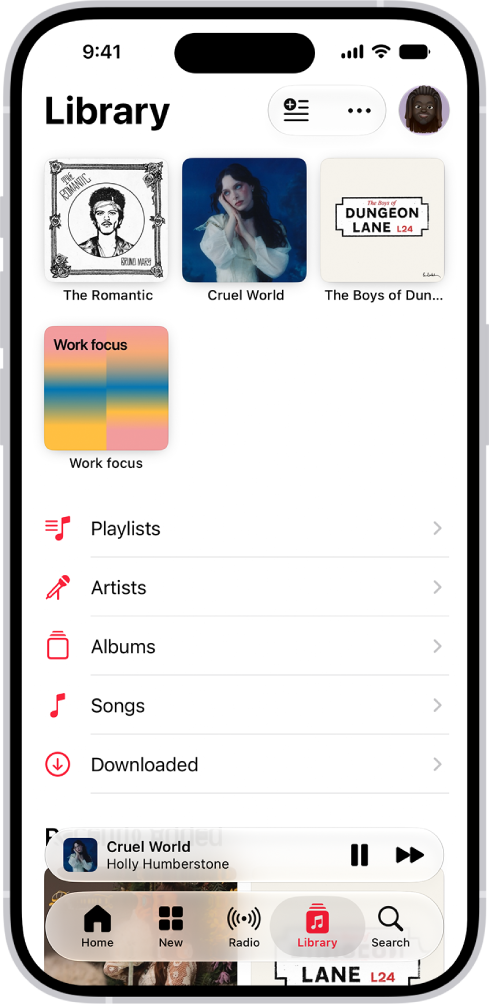
The Library tab showing a list of categories including Playlists, Artists, Albums, Songs, and Downloaded. The Recently Added heading appears below the list. The MiniPlayer showing the title of the current song and the Pause and Next buttons appear near the bottom.

Play songs from your library

  1. Start the Music app on your iPhone.
  2. Tap Library and tap a category, such as Albums or Songs; tap Downloaded to view only music stored on iPhone.

    Tip: To play songs across an artist’s catalog—mixing hits and deep cuts—go to an artist page, then tap the Play button next to the artist’s name.

  3. Scroll to browse—or type in the search field to filter your results—to find what you want to play.
  4. Tap an item, then tap Play, or tap Shuffle to shuffle an album or playlist.

    You can also touch and hold a playlist or album, then tap Play.

To change the list of Library categories, tap the More button, tap Edit Sections, then select categories you’d like to add, such as Genres and Compilations. Tap any existing categories to remove them.

Stream recommended songs

  1. Start the Music app on your iPhone.
  2. Do any of the following to find music you want to play:

  3. Tap an item, then tap Play, or tap Shuffle to shuffle an album or playlist.

    You can also touch and hold a playlist or album, then tap Play.

Play music from the Lock Screen or when using another app

Open Control Center, then tap the audio card.

Quick tip: Add the Music Recognition control to Control Center, and you can identify a song playing on or near your iPhone. To add it, open Control Center and tap the Add button at the top left. Then tap Add a Control at the bottom and tap the Recognize Music control. Whenever a song is playing, open Control Center and tap the Recognize Music button.
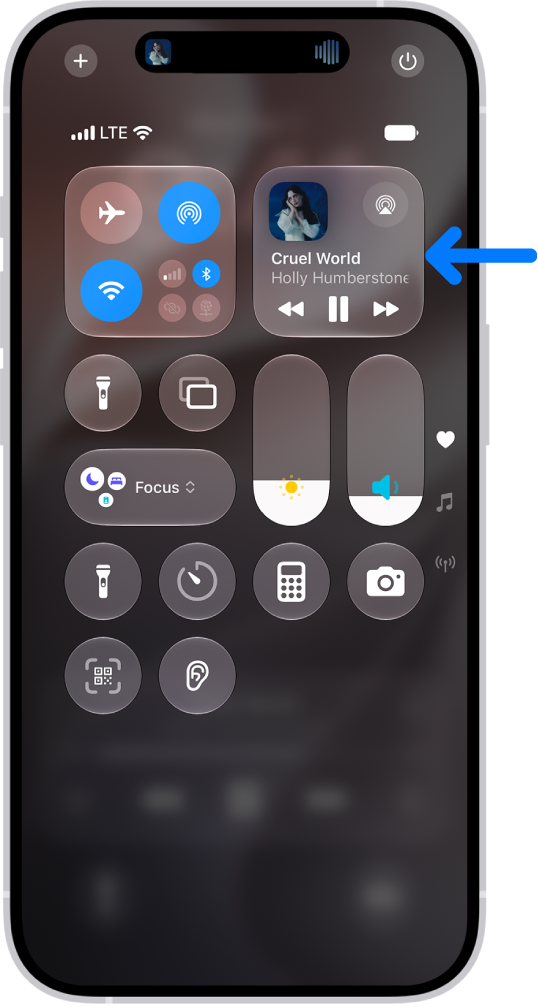
The iPhone Control Center showing an arrow pointing to the audio card where you can control music from the Lock Screen or when using another app.

Play music shared on a nearby computer

Is a computer on your network sharing music through Home Sharing? You can stream it to your iPhone.

  1. Start the Settings app on your iPhone.
  2. Tap Apps and tap Music.
  3. Tap Sign In below Home Sharing. Then sign in to your Apple Account.
  4. Go to the Music app, tap Library, tap Home Sharing, and then choose a shared library.

Set content restrictions

In Music, you can restrict access to music profiles, music videos, and explicit content, and set restrictions for your child, too.

Sort your music

  1. Start the Music app on your iPhone.
  2. Tap Library. Then tap Playlists, Albums, Songs, TV & Movies, or Music Videos.
  3. Tap the More button and then choose a sorting method, such as Title, Artist, Date Added, or Release Date.

Shuffle and repeat songs, queue them up in a specific order, or transition between them with Crossfade or AutoMix.

When you purchase access to movies, TV shows, music, music videos, ebooks, audiobooks, or ringtones from Apple, you also have the option to permanently download these items to a compatible iPhone, iPad, Mac, or PC. Apple cannot revoke your downloaded content, and you can always access your downloaded content without an internet connection.


Tag: Music

You can mark items as “favorites” in Music to make them easier to find. If you subscribe to Apple Music, you can get notifications on new releases from your favorite artists, and easily get back to their music from the Home tab.

Artists you mark as favorites show up below Favorite Artists in Home, with their music recommended more often, and favorite songs go into the Favorite Songs playlist. You can remove favorites later.

Here’s how to mark items as favorites in Apple Music on iPhone.

Add favorite playlists, artists, albums, and songs

  1. Start the Music app on your iPhone.
  2. Do any of the following:

    • Add a favorite playlist: Touch and hold a playlist or tap the More button when viewing a playlist. Then tap Favorite.
    • Add a favorite artist: Go to an artist page and tap the More button. Tap the Favorite button at the top of the screen.

      When you mark an artist as a favorite, they appear below Favorite Artists in Home, and their music is recommended more often.

    • Add a favorite album: Touch and hold an album and then choose Favorite. Or tap an album, tap the More button, and tap Favorite.
    • Add a favorite song: Touch and hold a song or tap the More button next to a song. Tap Favorite. Or on the Now Playing screen, tap the Favorite button.

      When you mark a song as a favorite, it appears in the Favorite Songs playlist. To view that playlist, tap Library , then tap Playlists.

You can easily find favorite items in your music library. Tap Library , choose Playlists, Artists, Albums, or Songs, tap the Filter button, then choose Favorites.

Remove playlists, artists, albums, and songs as favorites

  1. Start the Music app on your iPhone.
  2. Tap Library, choose Playlists, Artists, Albums, or Songs, tap the Filter button, and choose Favorites.
  3. Touch and hold a playlist, artist, album, or song. Tap Undo.

Note: Deleting a song from your library leaves it in your favorites. To change this, go to the Settings app , tap Apps, tap Music, and turn on Add & Delete Favorite Songs.

Tag: Music

You can make a song or album a favorite so that you can easily find and play it again later. If you dislike a song or album, you receive fewer suggestions for similar music.

Letting Apple Music know what you like and dislike improves future recommendations, and you can also rate music in your library with one to five stars. Your ratings sync across devices signed in to the same Apple Account.

Tell Apple Music what you enjoy

  1. Open the Music app on your iPhone.
  2. Do any of the following:
    • Touch and hold an album, playlist, or song, then tap Favorite or Suggest Less.
    • On the Now Playing screen, tap the More button, then tap Favorite or Suggest Less.

Telling Apple Music what you like and dislike improves future recommendations.

Rate music in your library

  1. Open the Settings app on your iPhone.
  2. Tap Apps and tap Music.
  3. Turn on Show Star Ratings.

    Note: This option only appears if you already added a star rating to a song in your music library on your Mac or Windows device, and Sync Library is enabled on your iPhone (go to Settings > Apps > Music, then turn on Sync Library).

  4. Go to the Music app, touch and hold a song in your library, tap Rate Song, and then choose a rating from one to five stars.

Song ratings sync to all devices that are signed in to the same Apple Account.

Tag: Music

Apple Music subscribers can use Apple Music Sing to view real-time, beat-by-beat lyrics for select songs, as well as adjust the volume of a song’s vocals, so you can sing along with the music while viewing the lyrics as they’re highlighted. You can even sing onscreen with Apple TV 4K.

Note: Apple Music Sing needs iPhone 11 or later with iOS 16.2 or later, and it doesn’t work on iPhone SE (2nd generation).

Adjust the volume of a song’s vocals

  1. Open the Music app on your iPhone.
  2. While a song is playing, tap the MiniPlayer to open the Now Playing screen. Tap the Lyrics button.
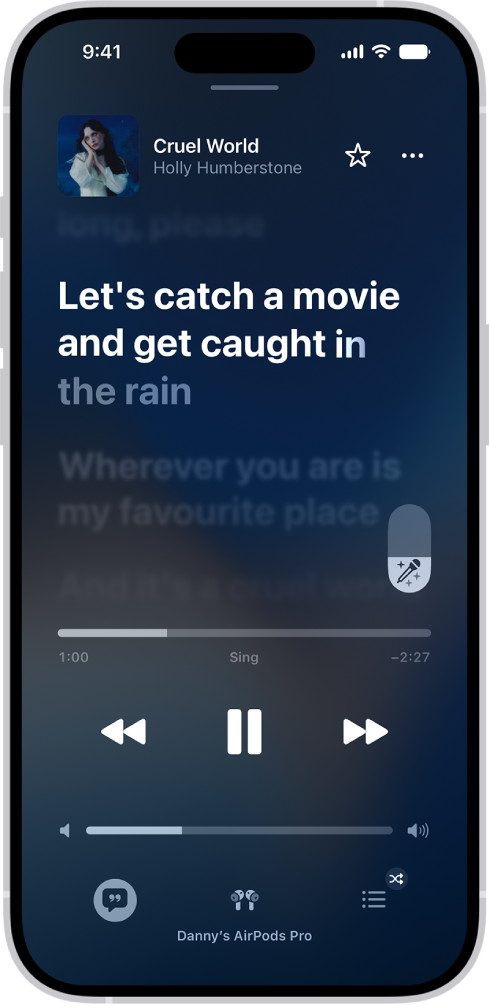
  3. Touch and hold the Apple Music Sing button. Then drag the slider up or down to adjust the vocal volume.

    When you need help pronouncing or translating the lyrics, tap the Translation and Pronunciation button then choose Show Pronunciation or Show Translation. The Translation and Pronunciation button only appears when a translation or pronunciation is available that matches your iPhone device’s Preferred Languages list. (You can view this list and add languages directly to it in Settings > General > Language & Region.) Not available in all languages.

    Tip: You can have either the lyrics or the pronunciation appear in larger text. Go to Settings > General > Apps > Music.

  4. To turn off Apple Music Sing for the song, tap the slider.

    If you’re listening to a song playing with Dolby Atmos and you turn on Apple Music Sing, Dolby Atmos turns off and the song plays without surround sound. If you turn off Apple Music Sing, the song plays with Dolby Atmos.

    The Now Playing screen showing the Apple Music Sing slider to the right of the lyrics. The currently playing lyrics are highlighted.

Sing onscreen with Apple TV 4K

Pair your iPhone with your Apple TV 4K, and you can enhance your singing experience with either of these features:

  • See visual effects: Your iPhone becomes a Continuity Camera to see yourself singing onscreen along with the lyrics. Add visual effects to your image and lyrics to enhance the singalong experience.
  • Sing with iPhone Mic: In iOS 26, your iPhone becomes a microphone to amplify your voice right through your Apple TV 4K (3rd generation).

“Cruel World” written by Holly Humberstone, Rob Milton, and Benjamin Francis Leftwich.

Tag: Music

Enjoy music stored on iPhone as well as music streamed over the internet. You can build a music library—your collection of songs and albums—in many ways, from subscribing to Apple Music to transferring music from other services or buying music.

With an Apple Music subscription, you can start listening to millions of songs right away, and everyone in your Family Sharing group can share a family subscription. After you subscribe, you can bring your music from other music services, or you can buy and download music from the iTunes Store.

Note: Services and features aren’t available in all countries or regions, and features may vary by region. Additional charges may apply when using a cellular connection.

Subscribe to Apple Music

When you subscribe to Apple Music, you can start listening to millions of songs from the Apple Music catalog right away. To access your music library on all your devices, turn on Sync Library (go to Settings > Apps > Music). Then, add and download songs so that you can play your favorites any time, even when you’re offline.

Quick tip: With an Apple Music family subscription, everyone in your Family Sharing group can share one Apple Music subscription.

Transfer existing music from other music services

After you subscribe, you can easily bring your music from other music services to Apple Music. Tap your profile icon, then tap Transfer Music from Other Services. Follow the onscreen instructions to transfer your existing library or playlists.

Buy music from the iTunes Store

Don’t subscribe to Apple Music but want to add your favorite songs or albums? You can buy and download music from the iTunes Store. Items you previously purchased from the iTunes Store can also be downloaded to your authorized computers and devices, up to 10 total.

Transfer music from your Mac or Windows device

To transfer and update music between your iPhone and your device, connect your Mac or Windows device. Syncing supported content works with Music on macOS 10.15 or later, and with iTunes on macOS 10.14 or earlier and Windows devices.

When you purchase access to movies, TV shows, music, music videos, ebooks, audiobooks, or ringtones from Apple, you also have the option to permanently download these items to a compatible iPhone, iPad, Mac, or PC. Apple cannot revoke your downloaded content, and you can always access your downloaded content without an internet connection.

Tag: Music