Got a tip for us?

Music

After you subscribe to Apple Music, you can pin your favorite music (including music videos) to the top of your library so it’s easily accessible.

You can pin a playlist, an artist, an album, or a song, and unpin an item whenever you like. You pin an item from its More button. You can even choose what happens when you tap a pinned item.

Here’s how to pin albums, songs, and more in Music on Apple Watch.

Pin music to the top of your library

  1. Open the Music app on your Apple Watch.
  2. Do any of the following:
    • Pin a playlist: Tap the More button when viewing a playlist and then tap Pin Playlist.
    • Pin an artist: Tap the More button then tap Pin Artist.
    • Pin an album: Tap an album and tap the More button. Tap Pin Album.
    • Pin a song: Tap the More button next to a song. Then tap Pin [item]. Or on the Now Playing screen, tap the More button. Then tap Pin [item].

Only content in your library can be pinned, so pinning an artist means having at least some content by that artist in your library. Items you pin sit at the top of your library.

Unpin an item in your library

  1. Open the Music app on your Apple Watch.
  2. From the Home screen, tap the Back button. Then tap Library.
  3. Touch and hold a pinned item and then tap Unpin [item].

Choose what happens when you tap a pinned item

When you tap a pinned item, you can customize what happens. For example, you can choose to open a pinned playlist page or play and shuffle songs for an artist.

  1. Open the Music app on your Apple Watch.
  2. From the Home screen, tap Tap Action and then choose an action.

When you choose Play or Shuffle, an icon for the action shows up next to the item name.

See also

Tag: Music

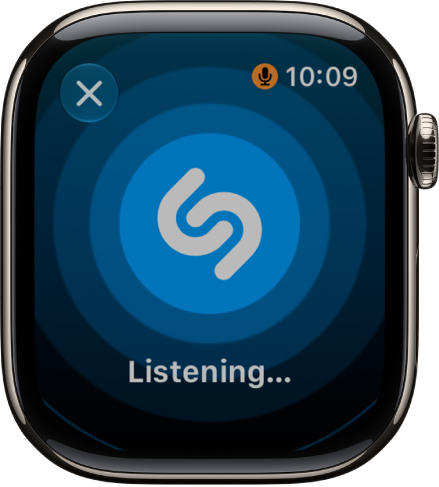
Use Shazam in the Music Recognition app or via the Smart Stack to identify a song playing around you, see it in Apple Music, add it to a playlist, and revisit your Shazam history.

If the song is identified, you’ll see the title and artist, plus details like the album, release date, and genre. You can add it to your library, too.

Here’s how to identify songs with Shazam on Apple Watch.

Recognize music with Shazam

  1. Open the Music Recognition app on your Apple Watch.
  2. Tap the Tap to Recognize button.

    A screen showing the title and artist of a song identified by Music Recognition. The play button is at the bottom right.

    If the song is identified by Shazam, the title and artist are displayed.

  3. Do any of the following:

    • See the song in Apple Music: Tap Apple Music.
    • Add it to your library or a playlist: Tap More and then tap Add to Apple Music Library or Add to Playlist.
    • See details about the song: Scroll down to see the album, release date, and genre.

Quick tip: You can customize the Action button on Apple Watch Ultra models to start Shazam.

Use Shazam in the Smart Stack

Before you begin, make sure you’ve turned on Music Detection in Settings. Go to the Settings app, tap Smart Stack, then turn on Music Detection. You can also tap Enable Music Detection when it appears in the Smart Stack.

  1. From the watch face, turn the Digital Crown upward or swipe up from the bottom of the screen.

    When music is detected, the Music Recognition widget appears in the Smart Stack.

  2. Tap Shazam. If the song is identified, the title and artist are displayed.

    On Apple Watch Series 12 and Apple Watch Ultra 4, the widget recognizes music automatically and shows the title and artist even faster, without having to tap. (Automatic recognition requires the Always On processor.)

  3. Tap the Add button to save the song to your Shazam history.

See songs identified previously

  1. Open the Music Recognition app on your Apple Watch.
  2. Scroll down to see the history.

See also

Tags: Music, Shazam

You can set media to automatically play when you begin a workout type—either media selected for you by Apple Music based on the workout type and the music you love (Apple Music subscription required), or media you choose yourself. You’ll set it up separately for each workout type.

Note: To automatically play audio during a workout, you need Bluetooth® headphones or speakers, since audio won’t play automatically through the Apple Watch speaker (supported models). For more, see our guide, Choose an audio destination.

Choose audio for a workout

  1. Go to the Workout app on your Apple Watch.
  2. Turn the Digital Crown to the workout you want to do.

    To view all workouts, tap the Add button at the bottom of the screen.

  3. Tap the Media Playback button. Then turn on Autoplay Media.
  4. Pick what media is played:

    • To have media play automatically based on what you listen to and the type of workout, tap Picked for You (Apple Music subscription required).
    • To choose a suggested option, tap Choose Media, tap Add Media, then tap an option below Suggestions.

      Note: Suggestion for a workout type are based on what you’ve recently listened to. To view more options, tap Music or Podcasts below Sources.

    • To choose a playlist, tap Choose Media, tap Add Media, tap Music, tap Playlist, then choose a playlist.
  5. When you’re finished, tap the Back button.
  6. When you’re ready start your workout, tap the Start button.

Note: If you’re already listening to music or other audio before you begin your workout, it continues to play.

See also

Tags: Fitness, Music

When you add music to your Apple Watch, you can listen to it wherever you go, even when you don’t have your iPhone with you.

You can add specific playlists and albums using the Apple Watch app on your iPhone. If you’re an Apple Music subscriber, you can also add music with the Music app directly on your Apple Watch.

And subscribers don’t have to choose specific music at all. Music you’ve recently listened to is added automatically, and if you haven’t listened to anything, music recommended by Apple Music is added. Music is added when your watch is near your iPhone, and music you want to listen to on your Apple Watch, like music that motivates you during a workout, can go in its own playlist.

Add music using your iPhone

  1. Start the Apple Watch app on your iPhone.
  2. Tap My Watch, tap Apps, and then tap Music.
  3. Below Playlists & Albums, tap Add Music.
  4. Go to albums and playlists you want to sync to your Apple Watch and then tap the Add List button to add them to the Playlists & Albums queue.

Apple Watch adds music when it’s near your iPhone.

Quick tip: In the Music app on your iPhone, you can create playlists specifically for the music you want on your Apple Watch, like songs that motivate you during a workout.

Add music using your Apple Watch

As an Apple Music subscriber, you can add music right from your Apple Watch.

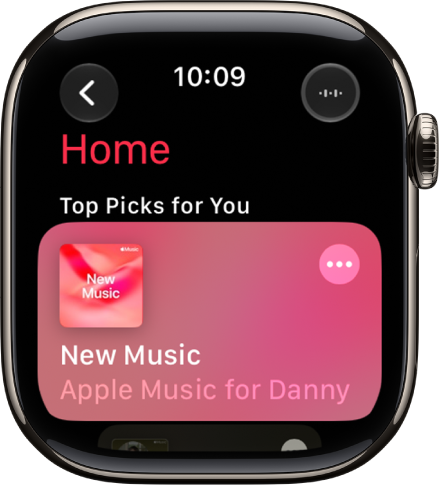
A screen in the Music app showing the Home tab.

  1. Start the Music app on your Apple Watch.
  2. On the Home screen, go to the music you want to add.

    Or, from the Home screen, tap the Back button, tap Search, then enter what you’re looking for.

  3. Tap a playlist or album and tap the More Options button. Tap Add to Library.

    A message confirms that the item was added.

    Note: You can stream music you add to Apple Watch when you have an internet connection. To play music when you’re not connected to the internet, you must first download it.

  4. To download the music to Apple Watch, tap the More Options button again and tap Download.

Note: Downloading music uses more of your Apple Watch’s charge than normal when it isn’t connected to power.

See also

Tag: Music

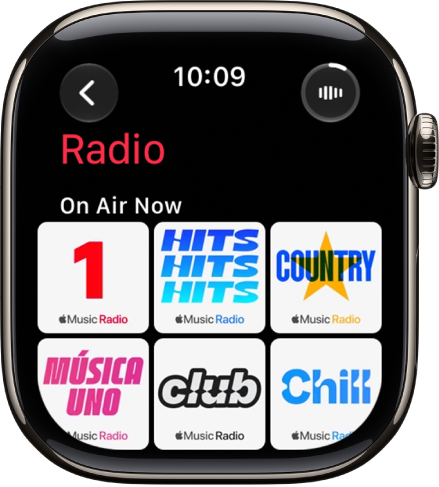
In the Music app on Apple Watch, you can find Radio. It features Apple Music 1, Apple Music Hits, Apple Music Country, Apple Music Club, Apple Música Uno, and Apple Music Chill.

These six stations offer the latest music from various genres and exclusive interviews, and you don’t need a subscription to enjoy them. You just need your Apple Watch near your iPhone or connected to a Wi-Fi or cellular network.

Siri: You can also use Siri to listen to broadcast radio and curated stations by music experts. For example, ask Siri something like, “Play Apple Music 1” See Use Siri to listen to broadcast radio.

Listen to Apple Music radio

The Radio screen showing three Apple Music stations. The Now Playing button is at the top right. The Back button is at the top left.

To listen to Apple Music radio, your Apple Watch needs to be near your iPhone or connected to a Wi-Fi network. A cellular network works too, if your Apple Watch has a cellular plan.

  1. Open the Music app on your Apple Watch.
  2. From the Home screen, tap the Back button, tap Radio, and then tap an Apple Music station.

Listen to a featured or genre station

  1. Open the Music app on your Apple Watch.
  2. From the Home screen, tap the Back button and tap Radio. Turn the Digital Crown to scroll through stations and genres created by music experts.
  3. Tap a genre to see its stations. Tap a station to play it.

Explore radio options

When playing a radio station, you can see what’s playing next, add music to your library or a playlist, share songs and stations, mark what you do and don’t like, and go to an artist or album screen.

  1. Open the Music app on your Apple Watch.
  2. Tap Radio and tap a station to play it.
  3. Tap the More Options button, then choose an option.

See also

Tag: Music

You can use Siri to play music, audiobooks, podcasts, and control playback. On your Apple Watch, you just activate Siri and make a request, like “Skip ahead three minutes” or “Continue playing podcast.” You can even use Siri to listen to broadcast radio.

Use Siri with Audiobooks and Podcasts

Siri: On your Apple Watch, activate Siri, then see the ideas below for requests you can make.

  • “Skip ahead three minutes”
  • “Continue playing podcast”
  • “Play the next chapter of this audiobook”

Use Siri with Music

Siri: On your Apple Watch, activate Siri, then see the ideas below for requests you can make.

  • “Play ‘Cruel World’ by Holly Humberstone”
  • “Play more songs from this album”
  • “Play my workout playlist”
  • “What song is this?”
  • “Play R&B Now Radio”
  • “Play Apple Music 1”
  • “Play cool jazz”
  • “Play the dinner party playlist”
  • “Play a playlist to help me relax”
  • “Play more like this”

Use Siri to listen to broadcast radio

To listen to broadcast radio stations on your Apple Watch, use Siri.

Siri: On your Apple Watch, activate Siri, then see the ideas below for requests you can make.

  • “Play Wild 94.9”

Stations can be requested by name, call sign, frequency, and nickname.

Note: You don’t need a subscription to Apple Music to listen to broadcast radio. Broadcast radio isn’t available in all countries or regions. Not all stations are available in all countries or regions.

See also

Tags: Music, Siri

Use the Music app to choose and play music on your paired iPhone, paired Bluetooth headphones or speakers, or the Apple Watch speaker (supported models). See Choose an audio destination on Apple Watch.

You can play music stored on Apple Watch, control music on your iPhone, and stream music from Apple Music if you’re a subscriber. You can also open the queue, shuffle or repeat music, and play music on a different device.

Siri: Ask Siri something like, “Play ‘Cruel World’ by Holly Humberstone” See Ask Siri to play audio.

Play music

After you connect Apple Watch to Bluetooth headphones or speakers, then follow these steps:

  1. Open the Music app on your Apple Watch.
  2. Do any of the following:

    • Play music on your Apple Watch: Turn the Digital Crown to scroll through the Home screen and then tap an album, playlist, or category.

      Use the Apple Watch app on your iPhone to choose which songs to add to Apple Watch.

    • Play music from your music library: From the Home screen, tap the Back button, tap Library, tap a category such as Playlists, Albums, Downloaded, or a recently added item, and choose the music you want to play.
    • Request music from Apple Music (Apple Music subscription required): Raise your wrist and then request an artist, album, song, genre, or portion of a song lyric.
    • Search the Apple Music library: From the Home screen, tap the Back button, tap Search, enter what you’re looking for, and then tap Search. Tap a result to play it.

Play music for you

As an Apple Music subscriber, you get to play music chosen just for you.

  1. Open the Music app on your Apple Watch.
  2. Scroll down to view music you’ve recently added to your Apple Watch, as well as a curated feed of playlists and albums based on your likes and dislikes.
  3. Tap a category, tap an album or playlist, and tap the Play button.

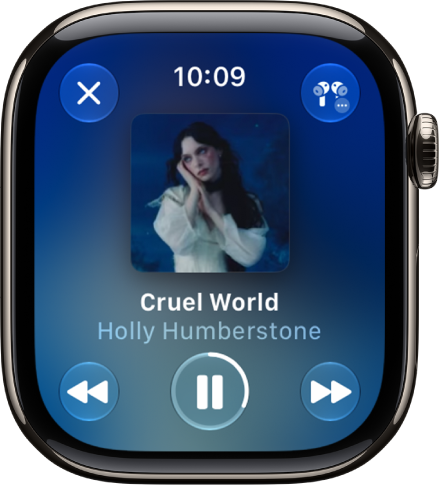
The Now Playing screen in the Music app. Album art is in the middle, the song title and artist are below. At the bottom of the screen are the Previous, Play/Pause, and Next buttons. The More Options button is at the top right. The Back button is at the top left.

Open the queue

While music is playing, you can see a list of upcoming songs in the queue.

  1. Open the Music app on your Apple Watch.
  2. Play an album or playlist, tap the More Options button and tap Playing Next.
  3. To play a track in the queue, tap it.

By default, Auto Play adds music to the end of the queue that’s similar to what you’re playing. To turn off Auto Play, tap the Auto Play button.

Note: If you turn off Auto Play on one device that uses your Apple Account, like your Apple Watch, it’s off only for that device. Your other devices keep using Auto Play until you turn it off on each one.

To add music you choose to the queue, swipe left on a song, playlist, or album; tap the More button; then tap Play Next or Play Last. Music you choose to play last is added to the end of the queue.

Control playback

To adjust volume, turn the Digital Crown. These controls play music on your Apple Watch and iPhone:

  • the Play button Play the current song.
  • the Pause button Pause playback.
  • the Next button Skip to the next song.
  • the Previous button Skip to the beginning of the song; double-tap to skip to the previous song.

Quick tip: To hide the controls, tap the Now Playing screen.

Shuffle or repeat music

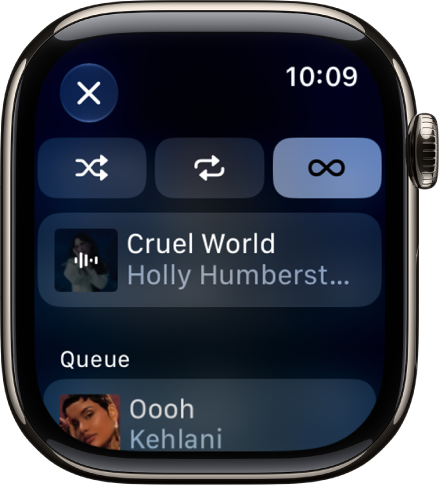
  • Shuffle or repeat music from the playback screen: While viewing the playback screen, tap the More Options button, tap Playing Next, then tap the Shuffle button or the Repeat button.

    Tap the Repeat button twice to repeat a song.

    By default, if you’re an Apple Music subscriber, AutoPlay adds music similar to what you last played to the end of the queue. To turn off AutoPlay, tap the AutoPlay button.

    The tracklist window showing Shuffle, Repeat, and Auto Play buttons at the top, and one track directly below. Near the bottom, another track appears below Playing Next. A Close button is at the top left.

  • Shuffle music in your library: On the Now Playing screen, tap the Back button, tap Library, tap Artists, Albums, or Songs, then tap Shuffle.

Play music on a different device

Your Apple Watch can stream music to paired headphones and to other Bluetooth-compatible devices like headphones and speakers. It can also control music on AirPlay-compatible devices, including HomePod speakers and Apple TV 4K.

On the Now Playing screen, tap the More Options button at the top right, then do any of the following:

  • Connect to a Bluetooth device: Tap AirPlay, tap Connect a Device, then choose a Bluetooth device.
  • Connect to an AirPlay device: Tap AirPlay, tap Control Other Speakers & TVs, choose a device, then choose some music to play.

Quickly return to the Now Playing screen

From any screen in the Music app, tap the Now Playing button in the top-right corner. If the watch face is showing, turn the Digital Crown up, then tap the currently playing song in the Smart Stack or tap the Music button at the top of the screen.

See also

Tag: Music

Use your Apple Watch to control media playback on your other Apple devices such as iPhone, iPad, and HomePod.

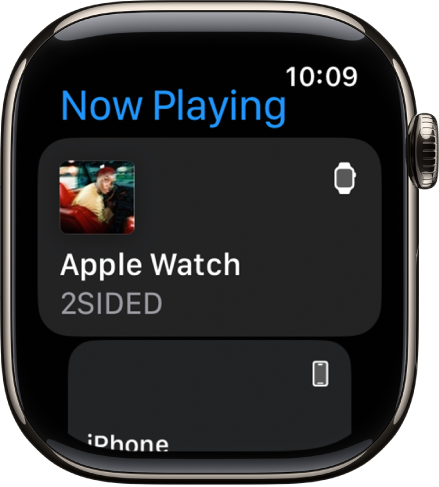
You can control playback and adjust the volume. And when HomePod or another AirPlay device is playing, you can switch to or add more AirPlay devices, like the HomePod speakers in the kitchen and bedroom. When more than one device is playing, you’ll see the device’s icon in the top-right corner.

Here’s how to control media playback on other devices using your Apple Watch.

The Now Playing screen showing media on Apple Watch and on iPhone.

Control media on other devices

  1. Open the Now Playing app on your Apple Watch.

    If more than one device is playing, the device’s icon appears in the top-right corner.

  2. Tap the device you want to control.
  3. Do any of the following:

    • Control playback: Tap the play, pause, backward, and forward buttons.
    • Adjust the volume: Turn the Digital Crown.

Switch to or add AirPlay devices

When you’re controlling audio on an AirPlay device such as HomePod, you can also switch to or add additional AirPlay devices. If you’re listening to HomePod in your living room, for example, you can bring in the HomePod speakers in the kitchen and bedroom.

  1. Open the Now Playing app on your Apple Watch.
  2. Tap a device you want to control.
  3. Tap the selector button in the top-right corner, then tap AirPlay.
  4. On the Now Playing screen, tap the More Options button.
  5. Select the devices you want to add or remove.

See music and podcast suggestions when near your HomePod

If nothing is playing on a nearby HomePod or on your Apple Watch, a widget at the top of the Smart Stack shows suggestions from the Music and Podcast apps.

  1. To review the suggestions, turn the Digital Crown upward or swipe up from the bottom of the screen.
  2. Tap a suggestion to play it on HomePod.

Note: Music and podcast suggestions are available on Apple Watch and HomePod models with Ultra Wideband.

See also

Tag: Music

When playing music, podcasts, or other media on Apple Watch, you can hear the audio output on your paired iPhone, paired Bluetooth headphones or speakers, or the Apple Watch speaker.

The AirPlay setting is in Control Center, and it’s also on the play screens in Audiobooks, Music, Now Playing, and Podcasts.

Note: 10 minutes of media playback through the Apple Watch speaker may reduce battery life by 1 hour. Media playback through the Apple Watch speaker isn’t supported when Apple Watch is charging or on Apple Watch Series 9.

Choose an audio output

  1. Press the side button to open Control Center.
  2. Tap the AirPlay button. Then choose one of the following destinations:

You can also tap the More Actions button on the play screens of the Audiobooks, Music, Now Playing, and Podcasts apps to open the AirPlay setting.

For important information about avoiding hearing loss, see Important safety information.

See also

After you create an Apple Music profile, you can share music with your friends. You can allow anyone to follow you or just those you choose, and block others.

Your followers see the playlists you create unless you choose otherwise, and you can hide music from your followers. You can also share your profile, respond to follow requests, and turn on or off notifications about your friends’ activity in Apple Music.

Choose music to share with your followers

By default, the playlists you create are visible to your followers, but you can choose not to share some playlists.

  1. Open the Music app on your iPhone.
  2. Tap the My Account button or your profile picture.
  3. Tap Music Profile, tap Edit, and then turn Shared Playlists on or off.

To share playlists with people who don’t follow you, touch and hold a playlist, then tap Share Playlist.

Note: Your followers’ devices reflect any changes you make to music you share, like when you edit or stop sharing a playlist.

Hide music from your followers

  1. Open the Music app on your iPhone.
  2. Tap the My Account button or your profile picture.
  3. Tap Music Profile and touch and hold the playlist or album (below Listening To).
  4. Tap Hide from Profile.

The listening history for this item won’t appear in your profile or be visible to the people who follow you. If you don’t want your followers to see any of the music you listen to, tap Edit on the profile screen, then turn off Listening To at the bottom of the screen.

Note: Music you hide might stay visible to your followers for up to 10 minutes.

Share your profile

You can share your profile using email, Messages, or another app you choose.

  1. Open the Music app on your iPhone.
  2. Tap the My Account button or your profile picture.
  3. Tap Music Profile, tap the More button, tap Share, and choose a sharing option.

You can also share the profile of anyone you follow, or who follows you.

Choose who you share music with

  1. Open the Music app on your iPhone.
  2. Tap the My Account button or your profile picture.
  3. Tap Music Profile, tap Edit, and tap People You Approve to be followed only by people you choose. (Everyone includes all Apple Music subscribers who have a profile.)

Respond to follow requests

When someone asks to follow you, you can accept or decline the request. You’ll only get requests if you’ve selected People You Approve in your profile.

  1. Open the Music app on your iPhone.
  2. Tap the My Account button or your profile picture.
  3. Tap Follow Requests, then accept or decline the requests.

You may receive follow requests in other ways—as a link in an email or a text message, for example. To accept, tap the link.

Turn on or off notifications about your friends’ activity

  1. Open the Music app on your iPhone.
  2. Tap the My Account button or your profile picture.
  3. Tap Notifications and turn on (or off) Friend Activity.

With the option turned on, you get a notification when friends follow you and add your playlists.

Prevent users from following you

  1. Open the Music app on your iPhone.
  2. Tap the My Account button or your profile picture.
  3. Tap Music Profile and touch and hold a profile picture. Then choose Block.

People you block won’t see your music, and they can’t find your profile. They’ll still be able to play your shared playlists if they added them to their library.

Report a concern

If you have a concern about a follower, touch and hold their profile picture, then tap Report a Concern.


Tag: Music