Got a tip for us?

Music

Use AutoMix or Crossfade to transition songs in the Music app. On iPadOS 26 or later, with music from the Apple Music catalog, AutoMix works like a DJ.

AutoMix automatically selects the best transition, depending on the music, and it might trim silence at the beginning and end of a track. With Crossfade, each song fades in while the previous one fades out. Albums and some genres skip transitions, though.

Change how music transitions

  1. Start the Settings app on your iPad.
  2. Tap Apps and tap Music.
  3. Tap Song Transitions, then choose an option.

    Note: Automix and Crossfade are not available while Hi-Res Lossless is turned on. To use Automix or Crossfade, select Lossless or another audio quality setting. See Play lossless audio.

About AutoMix

AutoMix works like a DJ, seamlessly transitioning between songs when you’re listening to music from the Apple Music catalog on iPadOS 26 or later.

Depending on the music, AutoMix automatically picks the best transition. When appropriate, it might trim silence from the beginning and end of a track, or use a simple crossfade rather than a more complex transition.

Note: Albums and some genres play without transitions.

AutoMix starts out on, but you can turn it off in the queue or in Settings.

Turn on Crossfade

You can set the Music app to fade in each song (gradually increase its volume) while the previous song is fading out—this is called crossfading.

  1. Start the Settings app on your iPad.
  2. Tap Apps and tap Music.
  3. Tap Song Transitions, then turn it on.
  4. Tap Crossfade. Drag the slider to choose the length of the crossfade.

See also

Tag: Music

Use the queue to see a list of upcoming songs, add songs and videos to the queue, and see what you recently played.

You can add music right after the current item with Play Next, or add it to the end with Play After or Add to Queue. You can reorder the list, and AutoPlay can add songs to the queue for you.

Here’s how to queue up your music on iPad.

Use the queue

  1. Open the Music app on your iPad.
  2. While a song is playing, tap the MiniPlayer to open the Now Playing screen.
  3. Tap the Queue button. Tap a song to play it and the songs that follow.

    To reorder the list, drag the Reorder button. To do more, see Manage the queue.

  4. Tap the Queue button again to hide the queue.

Add music and videos to the queue

  1. Open the Music app on your iPad.
  2. While browsing or playing music, touch and hold a song, album, playlist, or video. Choose an option:
    • Add music right after the currently playing item: Tap Play Next.
    • Add music to the end of the queue: Tap Play After or Add to Queue.

Quick tip: While you stream music with HomePod, your friends on the same Wi-Fi network are able to add items to the queue.

Use AutoPlay to add songs to the queue

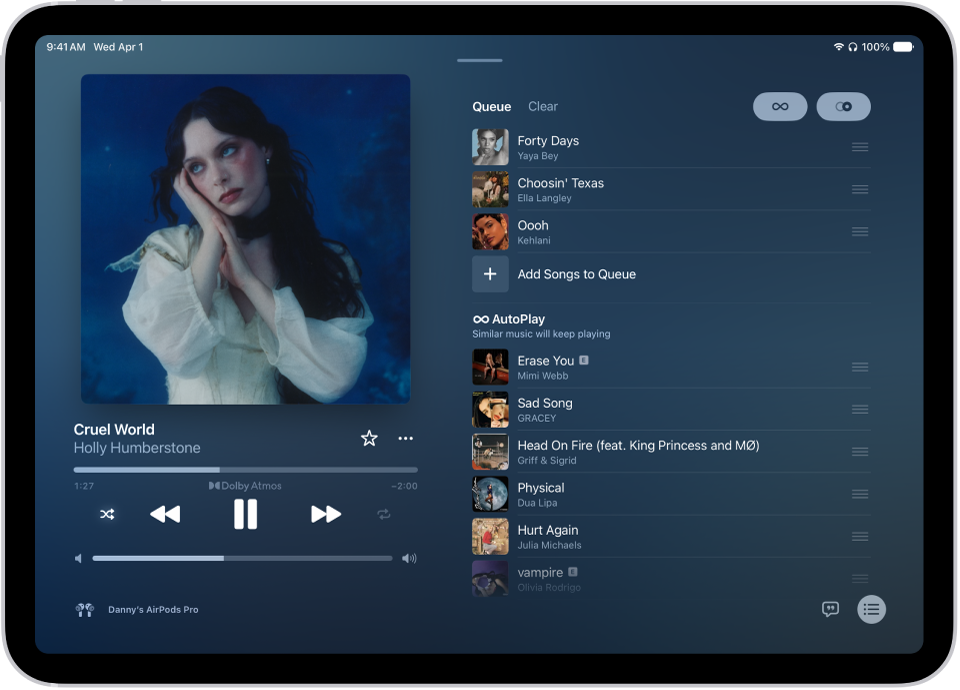
AutoPlay can help when you’re an Apple Music subscriber and you’re not sure what to play next. It adds similar songs to whatever you play and plays them at the end of the queue. With AutoPlay on, the AutoPlay icon appears at the top of the queue while a song is playing.

The Now Playing screen showing the queue with AutoPlay and AutoMix turned on. Similar songs appear below the songs in the album.

  1. Open the Music app on your iPad.
  2. While a song is playing, tap the MiniPlayer to open the Now Playing screen.
  3. Tap the Playing Next button and tap the AutoPlay button at the top of the queue to turn AutoPlay on.

    When AutoPlay is on, the button changes color. Tap it again to turn it off.

    Note: When you turn off AutoPlay on a device that uses your Apple Account—your iPad, for example—AutoPlay is turned off on all other devices that use the same Apple Account.

Manage the queue

  1. Open the Music app on your iPad.
  2. While a song is playing, tap the MiniPlayer to open the Now Playing screen.
  3. Tap the Playing Next button and then do any of the following:

    • Change the order of songs in the queue: Drag the songs into the order you want them to play.
    • Add more songs to the queue: Scroll below the queue and tap Add Songs to Queue.
    • Remove a song from the queue: Swipe left on the song and tap the minus button.
    • See how many songs are in the queue: Scroll to the bottom of the queue.

      When multiple songs are repeating, you can see how many songs will be repeated instead.

    • Remove all songs from the queue: Tap Clear at the top of the queue.

Quick tip: Friends on the same Wi-Fi network can reorder items in the queue, too, while you’re using HomePod to stream music.

See what you recently played

  1. Open the Music app on your iPad.
  2. While a song is playing, tap the MiniPlayer to open the Now Playing screen.
  3. Tap the Queue button. Swipe down to see your playing history.

    To play a song in the history, tap it. To remove your playing history, tap Clear.

Turn on or off song transitions in the queue

  1. Open the Music app on your iPad.
  2. Tap the Playing Next button and tap the AutoMix button or the Crossfade button in the top-right corner to turn on or off AutoMix or Crossfade.

    To change between AutoMix or Crossfade, see Change how music transitions.

See also

Tag: Music

Play music you added or downloaded from Apple Music, music and videos you synced to iPad, and your iTunes Store purchases.

You can play songs from your library, stream recommended songs, and play music from the Lock Screen. You can also play songs across an artist’s catalog, mixing hits and deep cuts, and change the list of Library categories, adding ones like Genres and Compilations.

Here’s how to play music on iPad.

Siri: You can use Siri to search for and play music, add music to your library, and more. For example, ask Siri something like, “Play something I like.” See Play music and podcasts with Siri.
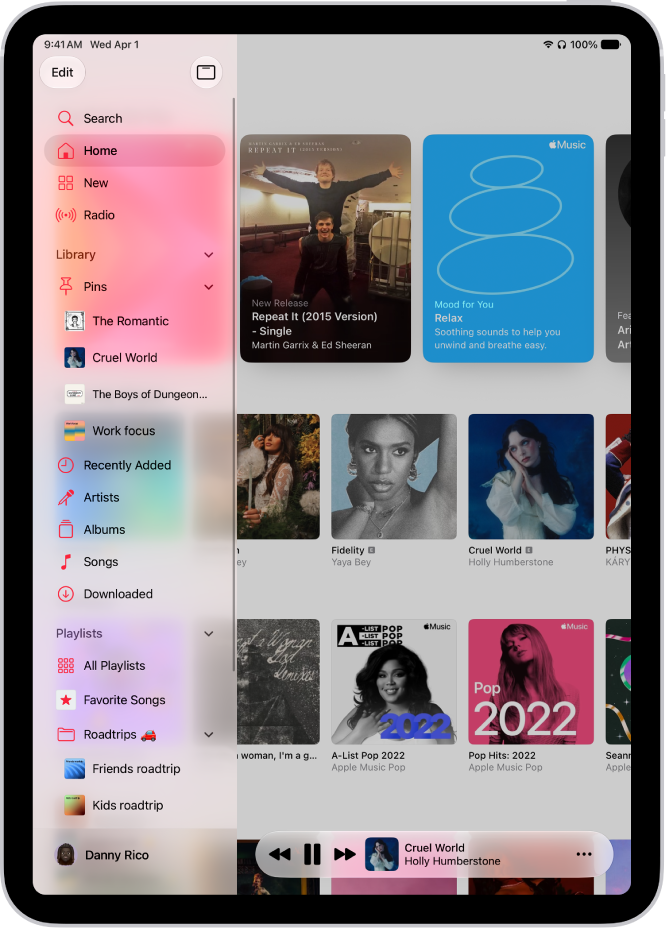
The Music app open on iPad showing the sidebar on the left and albums on the right. The MiniPlayer is at the bottom.

Play songs from your library

  1. Open the Music app on your iPad.
  2. Tap the Show Sidebar button and then tap a category under Library, such as Albums or Songs; tap Downloaded to view only music stored on iPad.

    Tip: To play songs across an artist’s catalog—mixing hits and deep cuts—go to an artist page, then tap the Play button next to the artist’s name.

  3. Scroll to browse—or type in the search field to filter your results—to find what you want to play.
  4. Tap an item, then tap Play, or tap Shuffle to shuffle an album or playlist.

    You can also touch and hold a playlist or album, then tap Play.

To change the list of Library categories, tap Edit, then select categories you’d like to add, such as Genres and Compilations. Tap any existing categories to remove them.

Stream recommended songs

  1. Open the Music app on your iPad.
  2. Do any of the following to find music you want to play:

    • View recommendations tailored for you: Tap Home in the sidebar, then tap a playlist or album.
    • See what’s new in Apple Music: Tap New in the sidebar. Find music by mood, new releases, charts, and more.
    • Search the Apple Music catalog: See Search for music.
  3. Tap an item, then tap Play, or tap Shuffle to shuffle an album or playlist.

    You can also touch and hold a playlist or album, then tap Play.

Play music from the Lock Screen or when using another app

Open Control Center, then tap the audio card.

Quick tip: Another way to identify a song playing on or near your iPad is by adding the Music Recognition control to Control Center. To add it, open Control Center and tap the Add button at the top left. Next, tap Add a Control at the bottom and tap the Recognize Music control. Then, whenever a song is playing, open Control Center and tap the Recognize Music button.
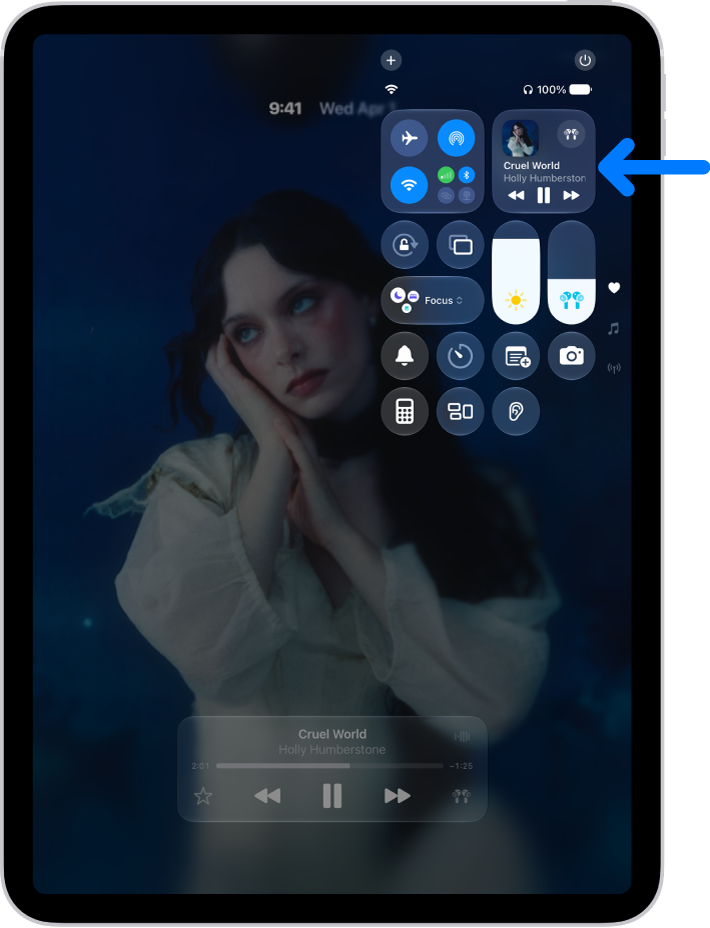
The iPad Control Center showing an arrow pointing to the audio card where you can control music from the Lock Screen or when using another app.

Play music shared on a nearby computer

If a computer on your network is sharing music through Home Sharing, your iPad can stream its music.

  1. Open the Settings app on your iPad.
  2. Tap Apps and tap Music.
  3. Tap Sign In below Home Sharing. Then sign in to your Apple Account.
  4. Go to the Music app, tap Library > Home Sharing, and choose a shared library.

Set content restrictions

In Music, you can restrict access to explicit content, music videos, and music profiles, and you can also set restrictions for your child.

Sort your music

  1. Open the Music app on your iPad.
  2. Tap the Show Sidebar button and tap a category under Library.
  3. Tap the More button and then choose a sorting method, such as Title, Artist, Date Added, or Release Date.

You can also shuffle and repeat songs, queue them up in a specific order, or transition them using Crossfade or AutoMix.

When you purchase access to movies, TV shows, music, music videos, ebooks, audiobooks, or ringtones from Apple, you also have the option to permanently download these items to a compatible iPhone, iPad, Mac, or PC. Apple cannot revoke your downloaded content, and you can always access your downloaded content without an internet connection.


Tag: Music

You can shuffle all the songs and albums in your library, which plays them in random order, or shuffle just a playlist or album. You can also repeat individual songs, playlists, or albums, or the entire queue.

When multiple songs are repeating, you can see how many will be repeated at the bottom of the queue. And you can queue up your music, or adjust the sound quality in Music on iPad.

  1. Open the Music app on your iPad.
  2. While a song is playing, tap the MiniPlayer to open the Now Playing screen.
  3. Tap the Playing Next button and then do any of the following:

    • Play your songs in random order (shuffle): Tap the Shuffle button. Tap again to turn off shuffle.
    • Repeat an album, playlist, or the entire queue: Tap the Repeat button.

      Note: When multiple songs are repeating, you can view how many songs will be repeated—just scroll to the bottom of the queue.

    • Repeat a single song: Double-tap the Repeat button.

See also

Tag: Music

To adjust the sound quality in Music on iPad, change the way music sounds in the Music app with EQ and Sound Check. EQ lets you choose an equalization (EQ) setting. Sound Check can normalize the volume level of your audio, and you can use either one, or both, whenever you play music on iPad.

WARNING: For important information about avoiding hearing loss, see Important safety information.

  1. Open the Settings app on your iPad.
  2. Tap Apps and tap Music.
  3. Tap one of the following:
    • EQ: Choose an equalization (EQ) setting.
    • Sound Check: Normalize the volume level of your audio.

See also

Tag: Music

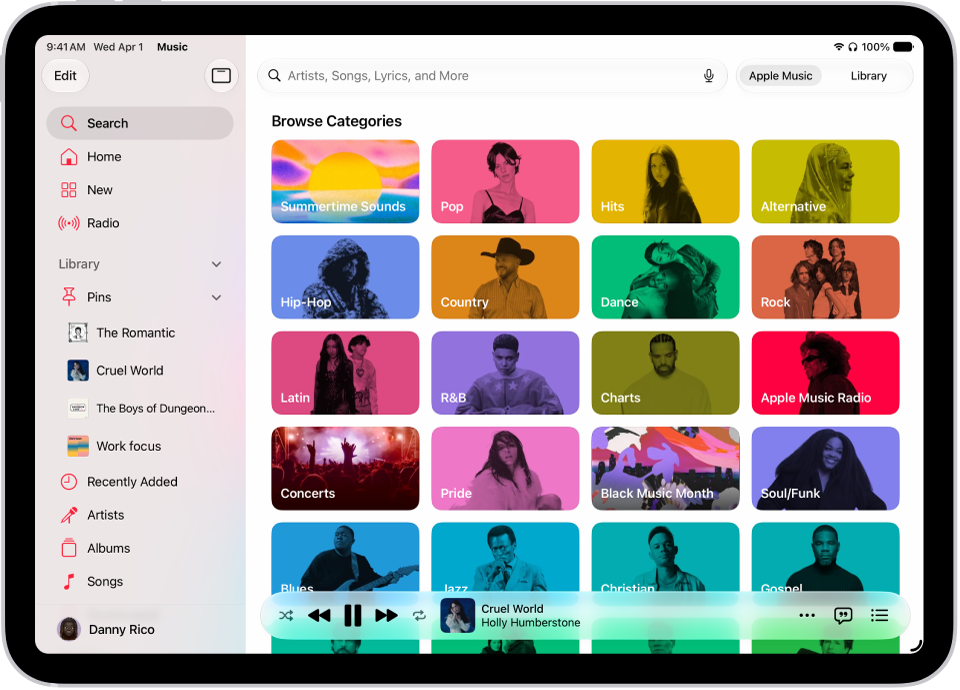
Using Search in the Music app, you can quickly browse through music categories, see recent searches, and search Apple Music or your library. You can browse a category such as Pop or Fitness, or search for a song, artist, or lyric. You can even find a song in Apple Music based on its lyrics.

Quick tip: To search, just describe what you’re looking for in natural language, for example, “hit songs from movies” or “nostalgic songs from the ’90s.”

  1. Open the Music app on your iPad.
  2. Tap Search in the sidebar. Then do any of the following:

    • Tap a category such as Pop or Fitness.
    • Tap the search field to quickly find items you recently searched for—a song or artist, for example.
    • Tap the search field, tap Apple Music, then enter what you’re searching for (such as a song, artist, or lyric).

      Tip: You can search for a song in Apple Music based on its lyrics. In the search field, enter a few of the words you remember to find a song.

    • Tap the search field, tap Library, then enter what you’re searching for (such as a song, album, or playlist).
  3. Tap a result to play it.

Siri: Ask Siri something like, “Play the song with the lyrics” and then say a key phrase from the lyrics. Learn how to use Siri.

The Search tab showing the sidebar at the left and a search field at the top. Below the search field, various categories of music appear. The MiniPlayer is at the bottom.

Services and features, Apple says, aren’t available in all countries or regions, and features may vary by region.

See also

Tag: Music

When a friend shares music with you in the Messages app, you can easily find it in Shared with You in the Music app. You can listen to a song, reply to whoever shared it, or add it to your library.

Note: This requires Music to be turned on in Settings > Apps > Messages > Shared with You, and also, your friend has to be in your contacts list in Contacts.

  1. Open the Music app on your iPad.
  2. Tap Home in the sidebar and swipe up to Shared with You. Do any of the following:
    • Tap a song to listen to it.
    • Tap the name of the person, people, or group that shared the song to reply to them using Messages.
    • Touch and hold the song to take other actions—for example, add it to your library, create a station, reply to the sender, or remove it.

See also

Tag: Music

When you subscribe to Apple Music, you can browse new and noteworthy music, music videos, playlists, and more.

You can explore featured songs and videos, browse playlists created by music experts, and explore new releases. You can also see upcoming concerts and what’s hot, listen to the top songs from around the world, and even discover your most-played music of the year.

Here’s how to find new music with Apple Music on iPad.

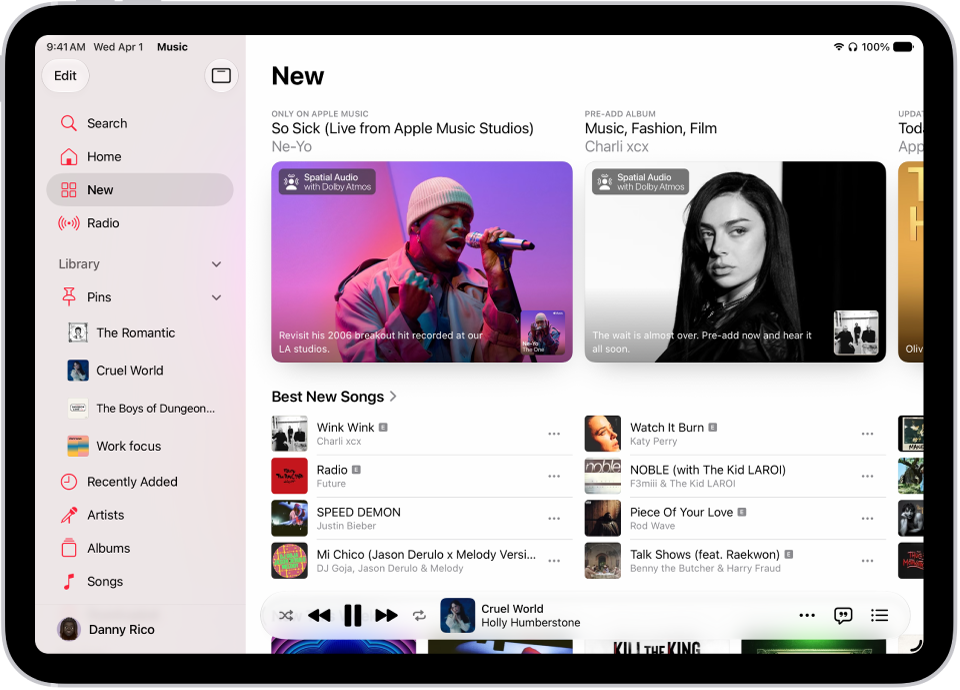
The New tab showing the sidebar on the left and the New section at the right. The New tab shows featured music at the top. Swipe left to see more featured music and videos. The Best New Songs section appears below. The MiniPlayer is at the bottom.

Discover new releases, featured music, and more

  1. Open the Music app on your iPad.
  2. Tap New to find new music and then do any of the following:

    • Explore featured music: Swipe through featured songs and videos at the top of the screen.
    • Browse playlists created by music experts: Tap one of the many playlists created by music experts.
    • Explore new music: Tap a song below the Latest Songs heading or swipe through the albums listed below New Releases.
    • See upcoming concerts: Go to any Artist page to see upcoming concerts. Scroll down to see details under All Upcoming Concerts. To view all upcoming concerts and update your location in the Concerts Hub, tap the Search tab and then tap Concerts.

      Note: Concerts isn’t available in China.

    • See what’s hot: Tap a song below the Trending Songs heading. Swipe left to see more songs.
    • Listen to the top songs from around the world: Tap one of the Daily Top 100 playlists. These playlists reflect the day’s most popular songs in countries across the globe.
    • Listen to songs from upcoming albums: Tap an album below Coming Soon and tap an available song to play it.
    • Watch music videos: Tap Music Videos and then tap a featured music video or playlist of music videos.
    • Play the day’s most popular songs: Tap Charts and tap a song, playlist, album, or music video to play it. Tap All Genres at the top of the screen to see the top songs and music videos in a genre you choose.
    • Browse your favorite genres: Tap Browse by Genre, choose a genre, and then tap a featured playlist, song, album, artist, or radio station to enjoy music handpicked by music experts.
    • Play music that matches your mood: Tap Moods and Activities and tap a playlist such as Feel Good, Romance, or Party.

Note: Swipe left on the album art to see more music, and if you want all the music in a section, such as New Releases, tap the Forward button next to the section’s name.

Discover your most-played music of the year

For every year you’ve been subscribed to Apple Music (and listened to enough music to become eligible), Apple Music builds a Replay personal chart ranking the songs you’ve played the most.

  1. Open the Music app on your iPad.
  2. Tap Home, swipe down to Replay: Your Top Music, and tap an option (for example, a year).

You can also see all your insights throughout the year on your iPad or at the Apple Music Replay website.

Discover music you’ve never played before

Using your listening history and taste profile, Apple Music recommends music you may like that you’ve never played before.

Siri: Ask Siri something like, “Play my Discovery Station.” Learn how to use Siri.

  1. Open the Music app on your iPad.
  2. Tap Home in the sidebar. Then swipe down to Stations for You.
  3. Tap Discovery Station.

Turn on or off new music notifications

  1. Open the Music app on your iPad.
  2. Tap the Show Sidebar button. Then tap your name at the bottom of the sidebar.
  3. Tap Notifications, then turn on (or off) New Music.
Tag: Music

Apple Music is an ad-free streaming music service that lets you play millions of songs and your music library. As a subscriber, you can listen any time, online or off, and create your own playlists, stream and download lossless and Dolby Atmos music, get personalized recommendations, follow artists, see music your friends are listening to, and watch exclusive video content.

You can subscribe to Apple Music or to Apple One, which includes Apple Music and other services. New subscribers can start a trial, qualified students can get a discounted student subscription, and you can share Apple Music with up to five other family members.

Note: Apple Music, Apple One, lossless, and Dolby Atmos aren’t available in all countries or regions.

Subscribe to Apple Music

  1. Start the Music app on your iPad.
  2. Follow the onscreen instructions to subscribe to Apple Music.

    If you don’t subscribe to Apple Music when you first open the Music app, you can subscribe later—go to Settings > Apps > Music, then tap Join Apple Music.

A new subscriber can start a trial and cancel at any time. Ending your Apple Music subscription means you can no longer stream Apple Music songs, and Apple Music songs you downloaded won’t play either.

Qualified students can purchase a student subscription at a discounted price.

Share Apple Music with family members

When you subscribe to Apple Music, or to Apple One Family or Apple One Premier, you can use Family Sharing and give up to five other family members access to Apple Music. After your family is set up, they don’t have to lift a finger. Apple Music shows up when they first open the Music app after your subscription begins.

Say you already subscribe and join a family group that’s subscribed to Apple One Premier, Apple One Family, or Apple Music. Your subscription won’t renew on your next billing date, since you’ll be on the group’s subscription. If the family group you join doesn’t subscribe, it uses your subscription.

Note: There are a few ways to stop sharing Apple Music with a family group: cancel the subscription or leave a Family Sharing group, or remove a member from a Family Sharing group.

Change or cancel your Apple Music subscription

You can change or cancel your subscription plan.

  1. Start the Music app on your iPad.
  2. Tap the Show Sidebar button. Then tap your name at the bottom of the sidebar.
  3. Tap Your Name and tap Subscriptions. Then follow the onscreen instructions.

With an Apple Music subscription, the Ambient Music widget can play music from a playlist, too. To add it, see our guide, Add a widget to your Home Screen.

See also

Tag: Music

The Music app on Apple Watch does more than play songs. You can tell Music what you like, add music to your library or a playlist, and share songs. It’s also where you’ll view Made for You playlists, downloaded music, and recently added music, and choose cellular connection settings.

Tell Music what you like, add music to the library, and more

With the Music app on Apple Watch, you can share songs, browse an artist’s music, view the contents of albums and playlists, add music to your library or a playlist, and mark what you do and don’t like. To get started, do any of the following:

  • View options from the Now Playing screen: While playing music, tap the More Options button, then choose an option.
  • View options in Home: Tap the More Options button, then choose an option.
  • View options in Library: Tap Library; choose Playlists, Albums, or Songs; swipe left on an item; tap the More button; then choose an option.

View Made for You playlists, downloaded music, and recently added music

  1. Start the Music app on your Apple Watch.
  2. From the Home screen, tap the Back button and tap Library. Tap Made for You, Downloaded, or an album or playlist below Recently Added.

Choose cellular connection settings

To listen to music over cellular, you must be using Set up and use cellular service on Apple Watch.

  1. Start the Settings app on your iPhone.
  2. Tap Apps, tap Music, and turn on Cellular Data.
  3. Tap Audio Quality, tap Cellular Streaming, and then choose a quality.

    Note: Higher quality settings consume significantly more data.

Tag: Music