Got a tip for us?

Music

You can mark items as “favorites” in Music to make them easier to find. If you subscribe to Apple Music, you can get notifications on new releases from your favorite artists, and easily get back to their music from the Home tab.

Artists you mark as favorites show up below Favorite Artists in Home, with their music recommended more often, and favorite songs go into the Favorite Songs playlist. You can remove favorites later.

Here’s how to mark items as favorites in Apple Music on iPad.

Add favorite playlists, artists, albums, and songs

  1. Start the Music app on your iPad.
  2. Do any of the following:

    • Add a favorite playlist: Touch and hold a playlist or tap the More button when viewing a playlist. Then tap Favorite.
    • Add a favorite artist: Go to an artist page and tap the More button. Tap the Favorite button at the top of the screen.

      When you mark an artist as a favorite, they appear below Favorite Artists in Home, and their music is recommended more often.

    • Add a favorite album: Touch and hold an album and then choose Favorite. Or tap an album, tap the More button, and tap Favorite.
    • Add a favorite song: Touch and hold a song or tap the More button next to a song. Tap Favorite. Or on the Now Playing screen, tap the Favorite button.

      When you mark a song as a favorite, it appears in the Favorite Songs playlist in the sidebar.

You can easily find favorite items in your music library. Below Library in the sidebar, choose Playlists, Artists, Albums, or Songs, tap the Filter button, then choose Favorites.

Remove playlists, artists, albums, and songs as favorites

  1. Start the Music app on your iPad.
  2. Tap the Show Sidebar button, tap a category under Library and tap the Filter button. Choose Favorites.
  3. Touch and hold a playlist, artist, album, or song. Tap Undo.

    Note: Deleting a song from your library doesn’t delete it from your favorites. To change this behavior, go to the Settings app, tap Apps, tap Music, then turn on Add & Delete Favorite Songs.

Quick tip: If you’d like songs you make a favorite added to your library, go to Settings > Apps > Music and turn on Add Favorite Songs.

See also
Tag: Music

After you subscribe to Apple Music, you can create an Apple Music profile that features your favorite playlists and what you’re currently listening to. You can share it with friends you invite or with other Apple Music subscribers.

You can choose which playlists to share, view profiles your friends created, and request to follow them to see what they’re listening to. You can edit or delete your profile, too, and a Family Sharing organizer can allow children ages 13 to 18 to create profiles.

Create a profile

  1. Start the Music app on your iPad.
  2. Tap the Show Sidebar button. Then tap your name at the bottom of the sidebar.
  3. Tap Set up Profile and then follow the onscreen instructions to create a profile.

After you finish setting up your profile, you can find friends whose music profile you’d like to follow or choose who you share music with (so you can show friends what you’re listening to).

Note: If you’re the organizer of a Family Sharing group, you can allow children ages 13 to 18 to create Apple Music profiles (or prevent them from doing so). Children under 13 can’t create Apple Music profiles. (Age restrictions vary by region.) See Block features or content with Screen Time on iPad.

Edit your profile

  1. Start the Music app on your iPad.
  2. Tap the Show Sidebar button. Then tap your name at the bottom of the sidebar.
  3. Tap Music Profile at the top of the screen, then tap Edit to make updates.

    You can edit your profile to choose who you share music with or to choose music to share with your followers.

Delete your profile

If you delete your profile, your playlists and music stop appearing in searches, and followers can no longer see your music or profile.

Note: Deleting your profile leaves your Apple Music subscription, library, and playlists as they are, but you can no longer see what your friends are listening to.

  1. Start the Music app on your iPad.
  2. Tap the Show Sidebar button. Then tap your name at the bottom of the sidebar.
  3. Tap Music Profile at the top of the screen and tap Edit.
  4. Scroll to the bottom, then tap Delete Profile.

    If you create your profile again within 90 days, your previous information and followers will be restored.

Note: It might take several minutes after you delete your profile before it’s no longer visible to your followers or in searches.

See also

Tag: Music

After you create an Apple Music profile, you can share music with your friends. You can allow anyone to follow you or just those you choose, and block others.

Your followers see the playlists you create by default, though you can choose not to share some of them, hide music from your followers, and share a playlist with people who don’t follow you. You can share your profile with others, too.

Choose music to share with your followers

Your followers see the playlists you create by default. But you can choose to keep some playlists unshared.

  1. Start the Music app on your iPad.
  2. Tap the Show Sidebar button. Then tap your name at the bottom of the sidebar.
  3. Tap Music Profile, tap Edit, and then turn Shared Playlists on or off.

To share playlists with people who don’t follow you, touch and hold a playlist, then tap Share Playlist.

Note: When you change music you share (say, you edit or stop sharing a playlist), those changes are reflected on your followers’ devices.

Hide music from your followers

  1. Start the Music app on your iPad.
  2. Tap the Show Sidebar button. Then tap your name at the bottom of the sidebar.
  3. Tap Music Profile.
  4. Touch and hold the playlist or album (below Listening To).
  5. Tap Hide from Profile.

The listening history for this item won’t appear in your profile or be visible to the people who follow you. If you don’t want your followers to see any of the music you listen to, tap Edit on the profile screen, then turn off Listening To at the bottom of the screen.

Note: It can take up to 10 minutes before your followers stop seeing music you hide.

If you’d rather keep all the music you play hidden from your followers on Apple Music, read our guide, Tell Apple Music to ignore your listening habits.

Share your profile

You can share your profile using email, Messages, or another app you choose.

  1. Start the Music app on your iPad.
  2. Tap the Show Sidebar button. Then tap your name at the bottom of the sidebar.
  3. Tap Music Profile.
  4. Tap the More button and tap Share. Then choose a sharing option.

You can also share the profile of anyone you follow, or who follows you.

Choose who you share music with

  1. Start the Music app on your iPad.
  2. Tap the Show Sidebar button. Then tap your name at the bottom of the sidebar.
  3. Tap Music Profile, tap Edit, and tap People You Approve to be followed only by people you choose. (Everyone includes all Apple Music subscribers who have a profile.)

For additional privacy settings, see Hide music from your followers.

Respond to follow requests

If someone asks to follow you, you can accept or decline the request. You only receive requests if you select People You Approve in your profile. For details, see Choose who you share music with.

  1. Start the Music app on your iPad.
  2. Tap the Show Sidebar button. Then tap your name at the bottom of the sidebar.
  3. Tap Follow Requests, then accept or decline the requests.

You may receive follow requests in other ways—as a link in an email or a text message, for example. To accept, tap the link.

Turn on or off notifications about your friends’ activity

  1. Start the Music app on your iPad.
  2. Tap the Show Sidebar button. Then tap your name at the bottom of the sidebar.
  3. Tap Notifications and turn on (or off) Friend Activity.

    When the option is on, you get notified when friends follow you and add your playlists.

Prevent users from following you

  1. Start the Music app on your iPad.
  2. Tap the Show Sidebar button. Then tap your name at the bottom of the sidebar.
  3. Tap Music Profile and touch and hold a profile picture. Then choose Block.

    People you block won’t see your music or be able to find your profile. They can still play your shared playlists if they added them to their library.

Report a concern

If you have a concern about a follower, touch and hold their profile picture, then tap Report a Concern.

See also

Tag: Music

If you subscribe to Apple Music and someone invites you to collaborate on a playlist, you can join it from the link you received. Then you can add, remove, or reorder music in the collaborative playlist, react to songs with emoji, and invite others with a link.

Note: Apple Music isn’t available in all countries or regions.

  1. On your iPad, tap the link you received and then tap Join or Request to Join (if the owner of the collaborative playlist must approve you first).
  2. Do any of the following:

See also

Tag: Music

If you subscribe to Apple Music, you can share a playlist and collaborate on it with others. Everyone can add, remove, and reorder music and react with emoji to songs in the collaborative playlist.

As the owner, you can turn on Approve Collaborators to decide who joins, and you’ll see a notification when a new person requests to join. If you don’t, anyone with the link can join the collaborative playlist.

Here’s how to collaborate on a playlist in Music on iPad.

Note: Apple Music isn’t available in all countries or regions.

Invite others to collaborate on a playlist

  1. Open the Music app on your iPad.
  2. Tap a playlist, then tap the Collaboration button.
  3. To approve people before they can join, turn on Approve Collaborators.

    If you don’t turn on this option, anyone with the link can join the collaborative playlist.

  4. Tap Start Collaborating and choose a sharing method, such as AirDrop, Messages, or Mail, to send a link to the playlist.

    The person who receives the link must tap Join Playlist to start collaborating.

When Approve Collaborators is on and you’re the owner, notifications appear in the top-right corner as new people request to join the collaborative playlist.

Add more people to collaborate on a playlist

You can share the link to the playlist with more people if you own the collaborative playlist, or if the owner hasn’t turned on Approve Collaborators.

  1. Open the Music app on your iPad.
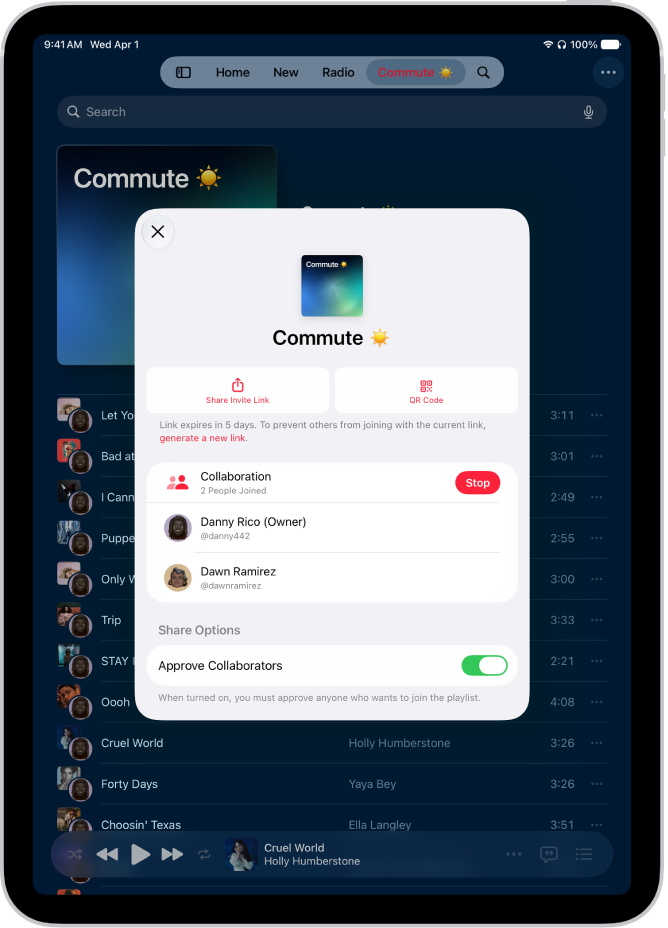
  2. Tap a collaborative playlist, tap the Manage Collaboration button, and then do one of the following:
    • Add someone who is nearby: Tap QR Code. Others can join the playlist by using the camera on their iPad to scan the code displayed on your iPad.
    • Add someone else: Tap generate a new link (if necessary) and tap Share Invite Link. Then follow the steps to invite others to collaborate on a playlist.

Manage shared settings for a collaborative playlist

After collaboration on a playlist begins, the owner can change access and permissions, either for everyone or for individuals.

The Manage Collaboration screen in the Music app.

  1. Open the Music app on your iPad.
  2. Tap a collaborative playlist, tap the Manage Collaboration button, and then do any of the following:

    • Invite others: See Add more people to collaborate on a playlist.

      Note: If you didn’t turn on Approve Collaborators, anyone collaborating on the playlist can share the link to the collaborative playlist.

    • Approve people before they can join: Turn on Approve Collaborators.
    • Accept request: Tap the Accept Request button to allow the person to join the collaborative playlist.
    • Decline request: Tap the Decline Request button if you don’t want the person to join the collaborative playlist.

Stop collaborating on a playlist with one or more people

If you’re the owner, you can remove people from the playlist or stop collaborating on it altogether.

  1. Open the Music app on your iPad.
  2. Tap a collaborative playlist, tap the Manage Collaboration button, and then do any of the following:
    • Remove one person: Swipe left on the person’s name and tap Remove.
    • Stop collaborating on a playlist: Tap Stop.

Remove yourself from a collaborative playlist

  1. Open the Music app on your iPad.
  2. Tap a collaborative playlist and tap the Manage Collaboration button. Tap Leave.

See also

Tag: Music

You can make a song or album a favorite so that you can easily find and play it again later. If you dislike a song or album, you receive fewer suggestions for similar music.

Letting Apple Music know what you like and dislike improves future recommendations, and you can also rate music in your library with one to five stars. Your ratings sync across devices signed in to the same Apple Account.

Tell Apple Music what you enjoy

  1. Start the Music app on your iPad.
  2. Do any of the following:
    • Touch and hold an album, playlist, or song, then tap Favorite or Suggest Less.
    • On the Now Playing screen, tap the More button, then tap Favorite or Suggest Less.

Telling Apple Music what you like and dislike improves future recommendations.

Rate music in your library

  1. Start the Settings app on your iPad.
  2. Tap Apps and tap Music.
  3. Turn on Show Star Ratings.

    Note: This option only appears if you already added a star rating to a song in your music library on your Mac or Windows device, and Sync Library is enabled on your iPad (go to Settings > Apps > Music, then turn on Sync Library).

  4. Go to the Music app, touch and hold a song in your library, tap Rate Song, and then choose a rating from one to five stars.

Song ratings sync to all devices that are signed in to the same Apple Account.

See also

Tag: Music

You can create playlists to suit specific moods or to organize songs with a certain theme.

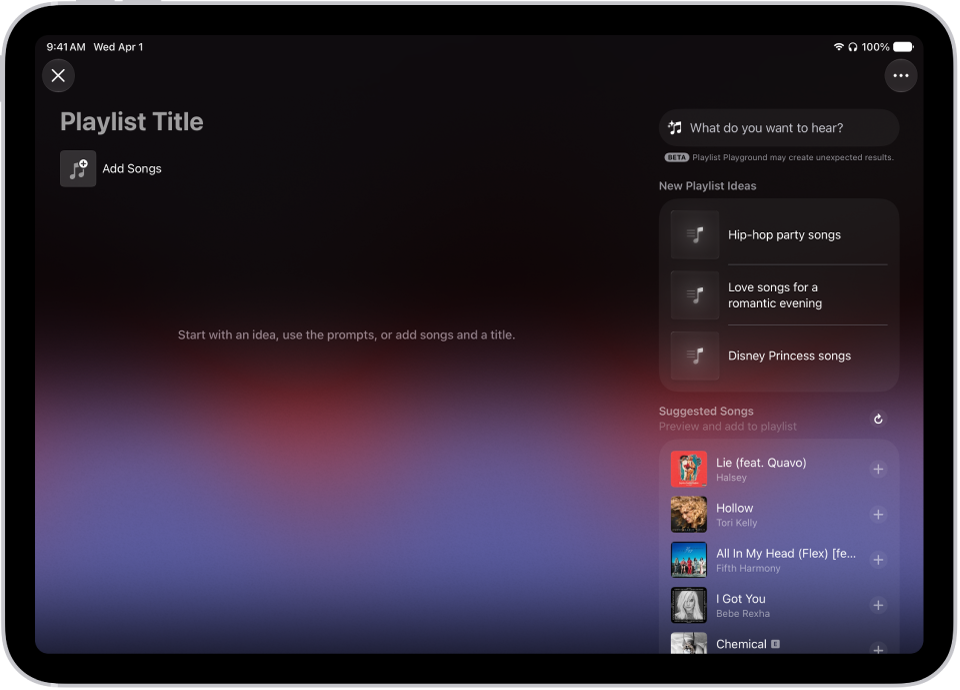
In the U.S., you can use Playlist Playground to tell Apple Music what kind of music you want, by describing the mood or vibe. You can then customize a playlist by adding, reordering, or removing tracks, and delete it later. You can also add music to an existing playlist.

Here’s how to create, edit, and delete music playlists on iPad.

Playlist Playground open in Apple Music, showing the title field, the Add Songs button, and a search field with playlist suggestions below it.

Create a playlist with Playlist Playground (U.S. only)

  1. Start the Music app on your iPad.
  2. Tap New Playlist below Playlists in the sidebar.
  3. Do one of the following:

    • Use Playlist Playground: Tell Apple Music what kind of music you want to listen to by describing the mood, vibe, or providing details. For example, you can type something like, “morning coffee music” and get 25 suggested tracks with a custom title.

      Customize the playlist by adding, reordering or removing tracks.

    • Create manually: Add the tracks you want by tapping Add Songs and selecting the tracks you want to add.
  4. Tap the More button for more customization options and tap the Done button.

Note: Playlist Playground is available in beta only to subscribers 13 and older in the U.S. and in English.

Create a playlist

  1. Start the Music app on your iPad.
  2. Tap New Playlist below Playlists in the sidebar.
  3. Enter a playlist title.
  4. To give your playlist cover art, tap the Camera button and then take a photo, choose an image from your photo library, or choose a file on your device.
  5. Tap the Done button, then tap Add Music.

    You can search for music, select music from your library, or choose from the suggested songs listed at the bottom of the screen.

  6. Tap the Add button to add music to the playlist.

Quick tip: If you’d like songs to land in your library whenever you add them to a playlist, go to Settings > Apps > Music and turn on Add Playlist Songs.

Add music to an existing playlist

After you create a playlist, you can add music to it in several ways.

  1. Start the Music app on your iPad.
  2. Do one of the following:
    • Touch and hold an album, playlist, song, or music video, tap Add to a Playlist, then choose a playlist.
    • From the Now Playing screen, tap the More button, tap Add to a Playlist, then choose a playlist.

Edit a playlist

You can rename playlists, change the artwork, add and remove songs, and more.

Note: In a collaborative playlist, the owner can change anything. Everyone else can only add, remove, or reorder songs.

  1. Start the Music app on your iPad.
  2. Tap the playlist, tap the More button and tap Edit. Do any of the following:

    • Rename the playlist: Tap the current name, then enter a new name.
    • Edit cover art: Select from a variety of Apple templates or tap the Camera button to add your own.
    • Show (or hide) the playlist in your Apple Music profile: Turn on (or off) the Show on My Profile and in Search option.
    • Add songs from your library: Tap the Add button, go to any place in your library and tap the Add button next to the song.

      You can also touch and hold an item (song, album, playlist, or music video), tap Add to a Playlist, then choose a playlist.

    • Add a Suggested Song: Tap the Add button, swipe below the Library options, and then tap the Add button next to the song.

      Suggested Songs also appears at the bottom of your playlist song list. To refresh the list of suggestions, tap the Refresh Suggested Songs button.

    • Delete a song: Tap the song, then tap the Delete button.

      Note: Deleting a song from a playlist doesn’t delete it from your library.

    • Change the song order: Drag the Reorder button next to a song.

Changes you make to your music library are updated across all your devices when Sync Library is turned on (go to Settings > Apps > Music, then turn on Sync Library). If you’re not an Apple Music subscriber, the changes appear in your music library the next time you sync with your computer.

Sort a playlist

  1. Start the Music app on your iPad.
  2. Tap a playlist and tap the More button at the top right of the screen.
  3. Tap Sort By, then choose an option.

Delete a playlist

If you delete a playlist, its songs stay in your library and on your iPad. Delete a collaborative playlist you own, though, and the collaboration ends. The playlist leaves your library but remains in the participants’ library.

  1. Start the Music app on your iPad.
  2. Touch and hold the playlist and tap Delete from Library.

    You can also tap the playlist, tap the More button, then tap Delete from Library.

See also

Tag: Music

You can create folders for your playlists to keep them organized.

You can add or remove items from a playlist folder, rename a folder, and even put a playlist or folder inside another folder. A playlist can go back to the main Playlists list, too, and when Sync Library is turned on, changes to your playlist folders update across all your devices.

Here’s how to organize playlists in folders in Music on iPad.

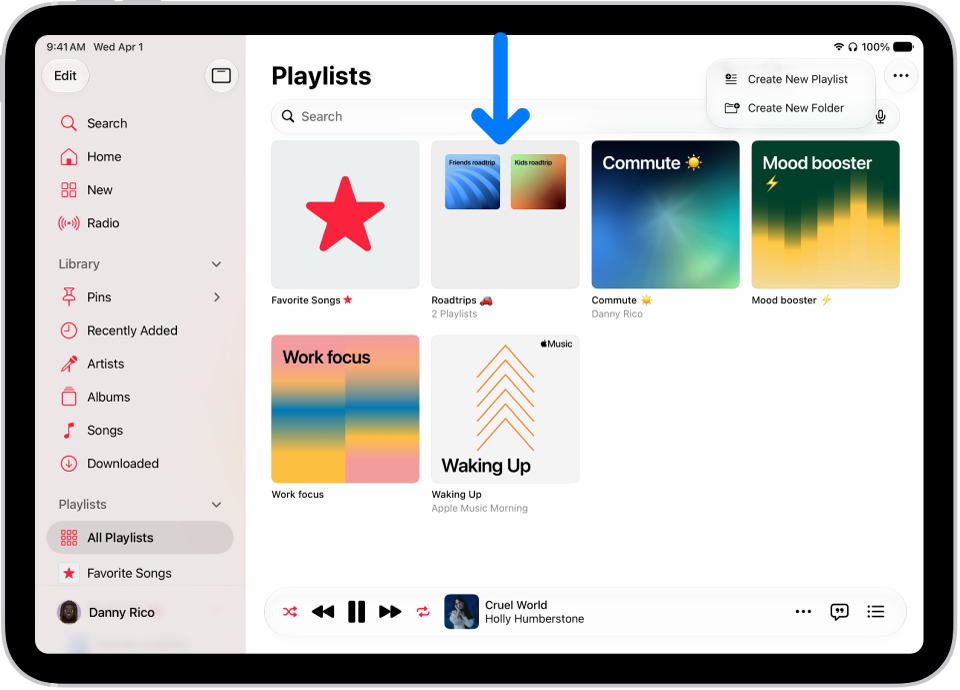
The Music app open on iPad with the sidebar on the left and the list of playlists on the right. At the top are buttons to create a new playlist or create a new folder. A blue arrow is pointing to a playlist folder named Roadtrips.

Create a new playlist folder

  1. Start the Music app on your iPad.
  2. Tap the Show Sidebar button, tap All Playlists.
  3. Tap the More button at the top right and then tap New Folder.
  4. Type a name for the folder, then tap Create.

    To rename a folder, tap the More button at the top right, tap Rename, then type the new name.

Add or remove items from a playlist folder

  1. Start the Music app on your iPad.
  2. Tap the Show Sidebar button, touch and hold a playlist or folder, and then tap Move to Folder.

    Tip: You can also drag a playlist or folder into another folder.

  3. Tap the folder and then tap the Done button.

    If a playlist is already in a folder and you want to move it back to the main Playlists list, don’t select a folder—just tap Move.

Quick tip: To create a new folder and move a playlist into it, touch and hold the playlist in your library, tap “Move to,” and then tap New Folder.

Changes you make to your playlist folders are updated across all your devices when Sync Library is turned on (go to Settings > Apps > Music, then turn on Sync Library). If you’re not an Apple Music subscriber, the changes appear in your music library the next time you sync with your computer.

See also

Tag: Music

If you subscribe to Apple Music, you can play available tracks in Dolby Atmos, which creates an immersive, three-dimensional (spatial) audio experience on stereo headphones and speakers or receivers compatible with Dolby Atmos.

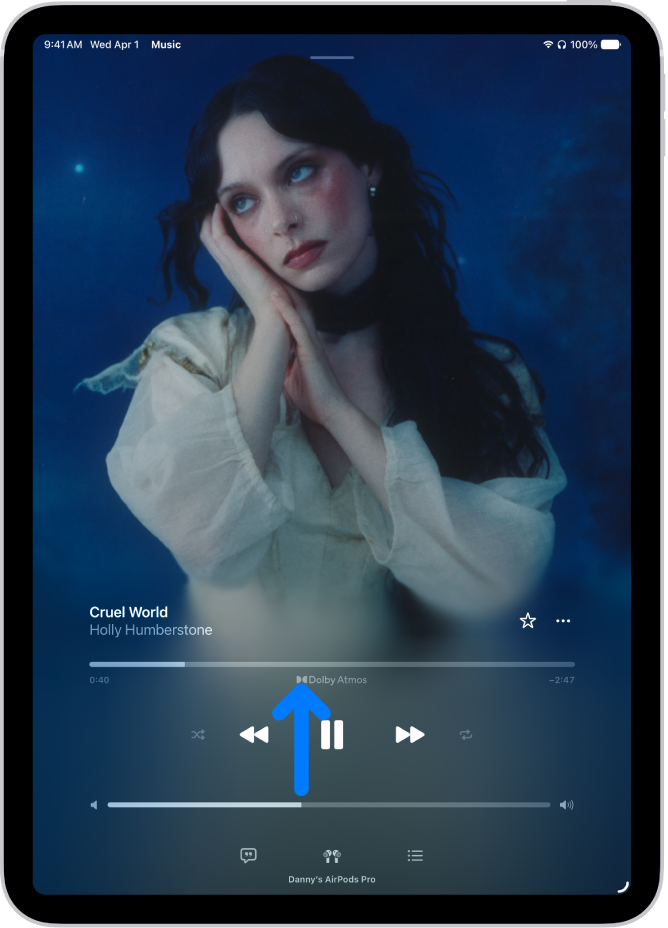
Albums available in Dolby Atmos have the Dolby icon next to them, and the icon also appears on the Now Playing screen while a track plays that way. You can control Spatial Audio and head tracking, too. Dolby Atmos plays on any headphones, but not all speakers will play it as intended.

Note: Apple Music and Dolby Atmos aren’t available in all countries or regions.

The Now Playing screen showing the Dolby Atmos icon for the track that’s playing.

Turn on Dolby Atmos

  1. Open Settings, tap Apps, and then tap Music.
  2. Tap Dolby Atmos and then choose Automatic or Always On.
    • Automatic: Plays Dolby Atmos whenever iPad is connected to compatible headphones such as AirPods 3, AirPods Pro, or AirPods Max, or to speakers or receivers compatible with Dolby Atmos.
    • Always On: Plays Dolby Atmos on any headphones or speakers. The Music app will attempt to play Dolby Atmos tracks on any headphones or speakers connected to iPad.

Any headphones will play Dolby Atmos, but not all speakers will play Dolby Atmos as intended.

Control Spatial Audio and head tracking on iPad

When you play supported music on your iPad with AirPods 3, AirPods Pro, or AirPods Max, you can use Spatial Audio and head tracking to create an immersive, theater-like environment with sound that surrounds you. Follow these steps to control Spatial Audio and head tracking in Control Center.

  1. Wear your AirPods and open Control Center.
  2. Touch and hold the volume control. Then tap Spatial Audio at the lower right.
  3. Tap one of the following:
    • Off: Turns off both Spatial Audio and head tracking.
    • Fixed: Turns on Spatial Audio without head tracking.
    • Head Tracked: Turns on both Spatial Audio and head tracking. This setting allows the sound to follow the movement of your head.

The settings you choose are saved and applied automatically the next time you use that app. For example, if you tap Fixed while listening to a song in Apple Music, the Fixed setting is automatically used the next time you play a song in Apple Music.

Note: If you’d like head tracking disabled for all apps on your iPad, go to Settings > Accessibility > AirPods and tap your AirPods, then turn off Follow iPad.

Download songs in Dolby Atmos

  1. Open Settings, tap Apps, and then tap Music.
  2. Turn on Download in Dolby Atmos.

See also

Tag: Music

Apple Music subscribers can access millions of tracks encoded using lossless audio compression, a form of compression that preserves all of the original data.

Apple developed its own lossless technology, Apple Lossless Audio Codec (ALAC), and the entire Apple Music catalog is encoded with it in resolutions from 16-bit/44.1 kHz (CD Quality) up to 24-bit/192 kHz. Streaming lossless audio uses significantly more data, though, and downloads take up more space. Bluetooth® connections, like AirPods, aren’t lossless, and to play songs at sample rates higher than 48 kHz, you need an external digital-to-analog converter.

What you need to know about lossless in Apple Music

  • Streaming lossless audio over a cellular or Wi-Fi network consumes significantly more data. And downloading lossless audio uses significantly more space on your device. Higher resolutions use more data than lower ones.
  • AirPods, AirPods Pro, AirPods Max, and Beats wireless headphones use Apple AAC Bluetooth Codec to ensure excellent audio quality. However, Bluetooth® connections aren’t lossless.
  • To get a lossless version of music that you already downloaded from Apple Music, just delete the music and redownload it from the Apple Music catalog.
  • To play songs at sample rates higher than 48 kHz on iPad, you need an external digital-to-analog converter.

Note: Apple Music and lossless aren’t available in all countries or regions.

Turn on Lossless Audio and choose audio quality settings

Cellular streaming, Wi-Fi streaming, and downloads each have audio quality settings you can choose.

  1. Open Settings, tap Apps, and then tap Music.
  2. Tap Audio Quality and tap Lossless Audio to turn it on or off.
  3. Choose the audio quality for streaming and downloading audio.

    • Choose Lossless for a maximum resolution of 24-bit/48 kHz.
    • Choose Hi-Res Lossless for a maximum resolution of 24-bit/192 kHz.

      Note: Automix and Crossfade are not available while Hi-Res Lossless is turned on. To use Automix or Crossfade, select Lossless or another audio quality setting.

Several things affect the audio quality of streamed music: song availability, the capability of connected headphones or speakers, and network conditions.

Identify lossless music

When music is available in lossless audio, you’ll see the Lossless icon on album pages.

To see the Lossless icon for music on the Now Playing screen, go to Settings > Apps > Music > Audio Quality, then turn on Lossless Audio.

See also

Tag: Music